How to Keep iPhone from Going to Sleep
Discover practical steps to stop auto-lock from triggering on your iPhone, including Auto-Lock adjustments, Guided Access, and accessibility tweaks for presentations, reading sessions, and long demos.


To keep your iPhone from sleeping, adjust Auto-Lock settings, use Guided Access for focused sessions, and enable accessibility tweaks like Display & Brightness. Start by checking Auto-Lock duration and consider Never for uninterrupted work, then tailor settings for your needs. These steps help when you’re giving a presentation or following a long guide.
how to keep iphone from going to sleep
In this Phone Tips Pro guide, you’ll learn practical steps for keeping your iPhone awake longer while balancing battery life and privacy. The phrase how to keep iphone from going to sleep appears here to anchor the topic, and this approach reflects how Phone Tips Pro helps iPhone users master tips, fixes, and reliable how-to guides. By understanding Auto-Lock, Guided Access, and accessibility tweaks, you gain control over screen-on time for presentations, reading sessions, or hands-on demos without constant tapping. The goal is to empower you to choose the right balance between convenience and energy use, so your device stays ready when you need it most.
Understanding Auto-Lock and screen behavior
Every iPhone has a built-in timer that determines when the screen automatically sleeps after inactivity. This Auto-Lock setting affects how quickly the display dims, locks, and requires authentication to re-enter apps. In essence, Auto-Lock is a power-management feature designed to save battery and protect data when you’re away. By grasping how this timer interacts with your apps and notifications, you can tailor a setup that reduces interruptions while preserving security.
Basic methods to extend screen-on time
If you want longer on-screen time without external tools, your starting point is Auto-Lock. Setting Auto-Lock to a longer interval (or to Never) will keep the screen awake for longer periods in everyday use. Additionally, lowering brightness and turning off True Tone during a session can reduce energy drain while still keeping the display legible. These adjustments work across most iPhone models and iOS versions and provide a straightforward baseline before you reach for more advanced options.
Using Guided Access for focused sessions
Guided Access locks the iPhone to a single app, which prevents unintentional transitions and keeps the screen active during a presentation or tutorial. To enable it, go to Settings > Accessibility > Guided Access and turn it on. In an active app, triple-click the side button (or Home button on older devices) to start Guided Access, then circle or disable areas you don’t want to be touched. Use a passcode to exit when you're done.
Accessibility tweaks that delay sleep without draining battery
Beyond Guided Access, several accessibility options can help you keep the screen awake during a task without relying on Never Auto-Lock. Adjust Display & Brightness settings such as a higher brightness level within comfortable viewing range, and enable Text Size or Bold Text if needed for readability. Consider the Brightness Automatic slider, which you can toggle off to prevent sudden dimming during long reads.
Best practices for streaming, reading, and presentations
When you’re streaming video, reading long documents, or giving a live demonstration, plan for a temporary workaround rather than a permanent change. Connect your iPhone to a power source to prevent battery drain, enable Guided Access for the session, and keep notifications muted to avoid wake-ups from alerts. If you must switch apps, exit Guided Access gracefully and re-enable Auto-Lock afterward to resume normal energy-saving behavior.
Caution: battery impact and security considerations
Keeping the screen awake consumes more battery, and leaving Auto-Lock off for extended periods can increase the risk if the device is misplaced. If you routinely need long awake times, use a sturdy case and enable Find My iPhone so you can locate your device quickly. Avoid leaving the device unlocked or exposing sensitive information during extended screens on public or shared spaces.
Common pitfalls and how to avoid them
Common mistakes include setting Auto-Lock to Never but forgetting to secure the device later, or relying too heavily on Guided Access without understanding how to exit. Always test the setup in safe environments, and practice the exit flow so you don’t get stuck inside a single-app session. Re-check your brightness and Do Not Disturb settings after any iOS update, as these can reset or alter behavior.
Model and iOS version differences you should know
Different iPhone models and iOS versions handle Auto-Lock and accessibility features differently. In newer iOS builds, some options may appear under slightly different menus or names, so if you don’t see Auto-Lock, try searching Settings for 'Lock' or 'Display & Brightness'. If you’re using older hardware, guided access steps may involve a slightly different gesture. Always refer to the current iOS help documents for the exact path.
Putting it all together: a quick setup checklist
Use this checklist to implement what you learned:
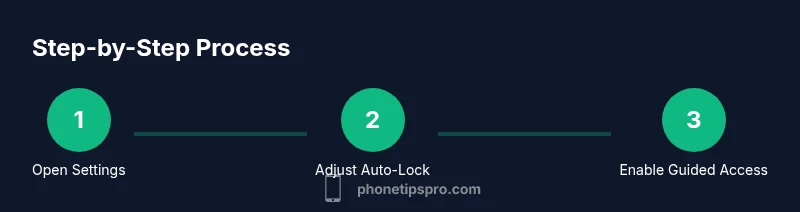
- Check Auto-Lock duration and set it to your desired length or Never for long sessions.
- If needed, enable Guided Access and learn how to start/exit quickly.
- Tune brightness and accessibility settings to balance readability and battery life.
- For presentations, keep the device plugged in and silence notifications.
- Practice the exit steps so you can return to normal behavior after your session.
Tools & Materials
- iPhone with current iOS version(Ensure you know your passcode and have access to Settings)
- Charging cable and power source(Plug in during long sessions to prevent battery drain)
- Settings app access(Navigate to Settings > Display & Brightness > Auto-Lock)
- Quiet testing environment or presentation setup(Helpful but optional)
Steps
Estimated time: 15-25 minutes
- 1
Open Settings and access Auto-Lock
Open the Settings app, then go to Display & Brightness and select Auto-Lock. Choose a longer interval or Never for extended sessions. This is the foundation for keeping the screen awake during tasks.
Tip: If you plan ongoing viewing, start with 5 minutes and adjust as needed. - 2
Test a longer Auto-Lock interval
Set Auto-Lock to 5 minutes, then monitor how long you can use apps before the screen dims. This helps you gauge the balance between usability and battery life.
Tip: Keep a timer handy to avoid surprise lock during work. - 3
Enable Guided Access for a focused session
Go to Settings > Accessibility > Guided Access and turn it on. This restricts the device to a single app, preventing accidental app switches during a presentation.
Tip: Configure a passcode to exit quickly if you need to multitask. - 4
Start Guided Access in an app
Open the app you’ll use, then triple-click the side button (or Home button) to start Guided Access. Adjust any areas you want to disable and confirm start.
Tip: Practice the triple-click sequence so you can begin smoothly. - 5
Use Accessibility Shortcut to toggle features
In Settings > Accessibility > Accessibility Shortcut, select Guided Access so you can quickly enable/disable it with a triple-click.
Tip: Choose only features you’ll use during the session to avoid confusion. - 6
Maintain readability with display tweaks
If Auto-Lock is extended, ensure brightness is comfortable and True Tone is appropriate for the environment. This keeps your screen usable without unnecessary power drain.
Tip: Avoid over-bright settings in dim rooms to save battery. - 7
Plug in for long sessions
Connect your iPhone to a power source when planning lengthy activities to prevent unexpected shutdowns due to battery loss.
Tip: A live connection reduces risk of abrupt sleep due to low power. - 8
Test exit flow from Guided Access
Exit Guided Access by triple-clicking and entering your passcode. Ensure you can return to normal behavior without friction.
Tip: Know the exit path before you start. - 9
Revert Auto-Lock after the session
After your session, re-set Auto-Lock to your standard preference to return to energy-saving behavior.
Tip: Don’t forget to revert to avoid battery drain long-term. - 10
Review and refine settings
Review your settings after updates or changes in apps, ensuring you maintain a balance between convenience and security.
Tip: Periodically check for iOS updates that affect these features.
FAQ
Can I keep the iPhone screen always on without using Never Auto-Lock?
Yes, by selecting Never for Auto-Lock or using Guided Access for a single-app session. Be mindful of battery life and privacy when you disable automatic sleep.
You can keep the screen on by choosing Never or using Guided Access, but watch the battery and privacy when you do.
Will Guided Access affect other apps or data on my device?
Guided Access locks the device to a single app and prevents leaving that app until you exit. It does not modify global data, but you can't switch apps while active.
Guided Access locks you to one app and prevents leaving it until you exit; it doesn't change your data.
How do I quickly toggle Guided Access during a presentation?
Set Guided Access in the Accessibility Shortcut so a triple-click can enable/disable it. Practice the gesture before your session.
Configure Guided Access as an accessibility shortcut and practice the triple-click to toggle it.
Is it safe to keep the screen awake overnight for convenience?
Keeping the screen awake overnight can drain the battery and increase risk if the device is unattended. Use with caution and revert afterwards.
Not recommended to keep awake overnight due to battery drain and risk; use only when necessary.
Do iPhone model or iOS version affect these settings?
Yes. Menu names and paths can shift across models and iOS versions. If you don’t see Auto-Lock, use Settings search and check for Display & Brightness.
Different iOS versions may rename or relocate options; use Settings search if you don’t see Auto-Lock.
What should I do after a session that required extended awake time?
Revert Auto-Lock to a normal interval and exit Guided Access if you used it. Confirm notifications are back to normal and power is charging if needed.
Restore normal Auto-Lock settings and exit Guided Access after the session.
Watch Video
Quick Summary
- Set Auto-Lock to a practical interval or Never for specific sessions.
- Guided Access is useful for focused tasks but requires exit practice.
- Balance brightness and accessibility tweaks to preserve readability.
- Always test battery and exit flows before important sessions.
- Revert settings after use to restore normal energy savings.