How to Keep iPhone from Turning Off
Learn practical steps to stop your iPhone from turning off unexpectedly. Adjust auto-lock, optimize battery, manage Focus, and troubleshoot apps with expert guidance from Phone Tips Pro.


To keep your iPhone from turning off, start by extending Auto-Lock to the longest available setting (or Never if you need persistent display during tasks). Then disable Low Power Mode when work requires longer screen time, verify Focus modes won’t auto-hide important alerts, and use Guided Access for app-specific sessions. These steps reduce unexpected wakeups and preserve your workflow.
Why iPhones turn off and what that means
According to Phone Tips Pro, most iPhone power-offs happen when the system’s automatic sleep timer kicks in, or when battery health and background activity trigger power-saving features. Understanding the underlying causes helps you tailor settings without sacrificing usability. In practice, you might notice the device locking during video playback, while reading long emails, or when demoing new features to colleagues. The goal is to balance visibility (screen stay-on) with energy efficiency, so you can work or study without interruptions. This section outlines typical culprits and how to address them with practical tweaks that align with real-world usage, from classrooms to conferences.
- Common culprits include Auto-Lock timers, Low Power Mode, attention awareness settings, and background app refresh.
- Your iPhone will also sleep sooner if the battery is low or if it suspects idle time during heavy background tasks.
- Keeping the screen on all the time drains the battery faster and can cause OLED burn-in on certain models, so plan when to use longer display times.
Phone Tips Pro analysis shows that many users underestimate how quickly tasks like streaming, reading PDFs, or coding sessions benefit from a longer Auto-Lock duration while retaining battery health. The remainder of this guide provides actionable steps to fine-tune these settings.
How to approach this guide
This guide uses a task-oriented approach: identify the scenario, apply the right setting, test the result, and revert if needed. You’ll see step-by-step actions that you can perform in under 30 minutes, plus pro tips to avoid common mistakes. The aim is to give you reliable control over when your iPhone locks, without compromising important notifications or data safety.
Quick-check baseline settings you should review
Before making changes, confirm these baseline conditions:
- You’re on a supported iOS version with current security updates.
- You know your typical usage pattern (long reads vs. quick glances).
- You’ve backed up your data in case you decide to reset settings.
If any baseline item is out of date or unclear, update or back up first. This keeps your data safe as you experiment with display timing and power settings.
Auto-Lock and display timing: practical adjustments
Auto-Lock controls how long the screen stays on before the device locks. Extending Auto-Lock to longer intervals reduces interruptions when you’re actively engaging with content, but increases battery usage. On many iPhones, you’ll find Auto-Lock under Settings > Display & Brightness > Auto-Lock. If you’re presenting or following along with a lengthy article, setting Auto-Lock to 5 minutes or Never can keep the screen awake during the session. Remember to recalibrate when you’re done to conserve energy later on.
- Never select Never if you’re on battery-saving routines unless you specifically need continuous display for a short session.
- For displays with OLED, consider energy-saving practices to minimize burn-in.
Battery health and charging habits that affect uptime
Battery health influences how long your iPhone can stay on before it needs a recharge. To maximize uptime, enable Optimized Battery Charging (Settings > Battery > Battery Health > Optimized Battery Charging) to slow charging after 80% until you need it. Also avoid exposing the device to extreme temperatures, keep background activity reasonable, and use Low Power Mode only when necessary. If you notice rapid drain after software updates, it may be a background process compiling new data; give it a few cycles to settle, or adjust Background App Refresh selectively.
Phasing battery usage with smart charging can help extend the effective life of your battery while maintaining desired screen-on time during crucial tasks.
Focus modes and interruption-free time without losing critical alerts
Focus and Do Not Disturb modes can silence alerts, which might feel like the phone is turning off, especially during meetings or when you’re presenting. Configure Focus to allow essential apps to break through (Settings > Focus > [Your Focus] > Apps, People). For activities requiring the screen to stay on, you might disable certain Focus triggers or create a temporary Focus profile for the task at hand. Also ensure that important people and apps are whitelisted so you don’t miss notifications when the screen should stay awake.
Troubleshooting: apps, background activity, and wake events
Some apps can wake the screen frequently due to background activity, push notifications, or live content. Check all recently installed apps and review their background refresh settings (Settings > General > Background App Refresh). If certain apps wake the screen too aggressively, consider disabling background refresh for those apps or updating them to the latest version. Clearing app caches and updating iOS can also reduce unnecessary wake events. If problems persist, test by temporarily disabling specific apps to identify culprits.
iOS updates, hardware considerations, and when to reset
Software updates can alter how long the screen stays on or how aggressively the device saves power. Keep iOS up to date, but read release notes for changes affecting Auto-Lock and display behavior. If all else fails and the device still turns off unexpectedly, a factory reset (after backing up) or resetting settings can resolve stubborn misconfigurations. In most cases, targeted setting adjustments will suffice without a full reset.
Safety, data protection, and planning for long sessions
Always back up before making large changes. Use iCloud or a local backup so you don’t risk data loss if a setting tweak leads to instability. For long sessions, pair iPhone usage with power backups such as a stable charger connection, especially when using the device at a desk or during travel. After testing, review battery health and adjust Auto-Lock to a balance that suits your typical activity, not just one-off tasks.
Conclusion: putting it all together for reliable uptime
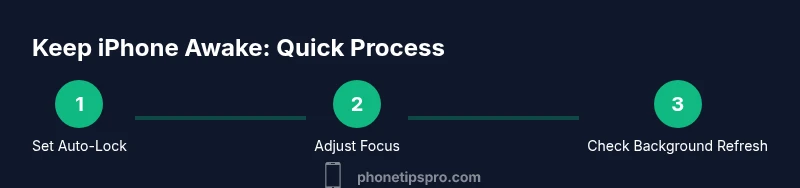
If you follow these steps—adjust Auto-Lock, manage battery and charging, tune Focus modes, and troubleshoot background activity—you’ll gain reliable control over when your iPhone turns off. The combination of longer display times during active work and careful energy management ensures you can stay productive without constant interruptions. The Phone Tips Pro team recommends starting with Auto-Lock, then refining Focus and background refresh as needed for your routine.
Tools & Materials
- iPhone with latest iOS(Access Settings > Display & Brightness > Auto-Lock; confirm Focus and Background App Refresh options)
- Backup method (iCloud or computer backup)(Create a recent backup before making major changes)
- Charger and cable(Helpful to test battery behavior during long sessions)
Steps
Estimated time: 25-40 minutes
- 1
Open Settings and locate Auto-Lock
Open the Settings app, then tap Display & Brightness and select Auto-Lock. Choose the longest available option (5 minutes or Never on older devices) to keep the screen awake during tasks. If you’re presenting or reading long content, opting for a longer duration helps reduce interruptions.
Tip: Test by leaving the screen idle for the selected duration to confirm it stays on. - 2
Disable Low Power Mode when extended display time is needed
Go to Settings > Battery and toggle off Low Power Mode. This prevents automatic dimming and keeps performance steady during long sessions. Re-enable after the task to conserve battery.
Tip: Only keep Low Power Mode off when you need consistent screen activity; re-enable for travel days to maximize battery life. - 3
Review Focus modes and allow critical alerts
Open Settings > Focus and review any active Focus profiles. Ensure essential apps and contacts are allowed to send notifications during important tasks, so you don’t miss alerts while the screen stays awake.
Tip: Create a one-click Focus profile for conferences or study sessions to minimize setup time. - 4
Enable Optimized Battery Charging and manage Background App Refresh
In Settings > Battery, enable Optimized Battery Charging. Then go to Settings > General > Background App Refresh and disable it for apps that don’t need to wake the screen. This reduces wake events while preserving necessary activity.
Tip: Test incremental changes; disable a few apps at a time to identify culprits. - 5
Test Guided Access for app-specific screen-on sessions
If you need an app to stay on during a fixed activity, enable Guided Access (Settings > Accessibility > Guided Access) and configure a session. This locks the device to a single app and prevents accidental wake or switch-related interruptions.
Tip: Set a time limit for Guided Access to avoid leaving your device locked longer than intended. - 6
Update iOS and test stability
Check for iOS updates in Settings > General > Software Update. Install any available updates, then test auto-lock behavior to confirm changes didn’t introduce new wake events.
Tip: Before updating, back up your data to avoid loss if something goes wrong.
FAQ
What is Auto-Lock and why does it affect my iPhone turning off?
Auto-Lock determines how long the screen stays on before the device locks. If set to a short duration, activities like reading or video playback may be interrupted by the screen locking.
Auto-Lock controls screen sleep timing; setting it longer helps prevent interruptions during tasks.
Should I always disable Low Power Mode?
Low Power Mode reduces background activity and screen performance to save battery. Disable it only when you need longer screen time or during critical tasks.
Disable Low Power Mode when you need the screen to stay on and performance to be steady during tasks.
Can Focus modes cause the screen to turn off unexpectedly?
Yes, Focus modes can silence notifications and adjust display behavior. Ensure essential alerts are allowed if you need the screen to stay active for a task.
Check Focus settings to ensure important apps aren’t blocked during a session.
What should I do if apps wake the screen too often?
Review Background App Refresh and notification settings for apps that wake the display. Disable or limit refresh for those that don’t need to wake the screen.
Limit background activity for culprit apps to reduce wake events.
Is updating iOS risky for display timing?
Updates can change how Auto-Lock and display behave. Always back up and review release notes to understand any impact on uptime.
Back up first, then update and test auto-lock again.
When should I consider resetting settings?
If misconfigurations persist after testing, resetting all settings can restore sane defaults without erasing data. Use this when standard tweaks fail.
Reset settings only after other steps fail to resolve the issue.
Watch Video
Quick Summary
- Extend Auto-Lock to reduce wakeups.
- Balance battery health with longer display times.
- Use Focus to control interruptions without missing essential alerts.
- Check background activity to prevent unwanted wake events.
- Back up before major changes and test after each adjustment.