How to Know If Your iPhone Is Original
Learn proven steps to verify iPhone authenticity, check serials, packaging, and hardware. Phone Tips Pro guides you through trusted verification methods to spot fakes quickly and confidently.


Here's the concise goal: determine whether your iPhone is genuine by validating the serial number on Apple’s site, inspecting hardware and build quality, confirming model details in Settings, and checking packaging and accessories against Apple’s official specs. Use trusted sources and Apple-supported verification steps to avoid counterfeit devices.
What originality means for iPhone owners
Knowing how to know if your iPhone is original begins with understanding what Apple considers authentic hardware, software, and packaging. An original iPhone is manufactured by Apple with genuine internal components, an authentic Apple logo, and software that validates with Apple's servers. According to Phone Tips Pro, authenticity rests on verifiable identifiers rather than appearance alone. In this guide, you’ll learn practical checks you can perform in minutes, plus longer steps if you’ve recently purchased a used or discounted device. By mastering these checks, you’ll reduce the risk of buying counterfeit devices and protect your data and warranty obligations.
Throughout this article we reference official verification steps and best practices to help you feel confident in your purchase or transfer of ownership.
Hardware identifiers you can inspect
Hardware telltales are strong indicators of originality. Start by examining the build quality: the weight should feel solid, the edges should be smooth, and the screen should align perfectly with the chassis. The Apple logo should be cleanly printed and centered on the back. Check the camera module — genuine iPhones have precise cutouts and consistent lens housings. Inspect the connectors on the charging port and speaker grilles for uniformity and finish. If the device uses a SIM tray, ensure the tray mechanism feels sturdy and the tray itself fits snugly. Finally, verify the presence of the standard hardware switches (Mute, Volume, Power) and ensure they respond with appropriate tactile feedback. These checks help you differentiate authentic hardware from convincing fakes.
Software indicators you can trust
Software authenticity is often the easiest to verify. Go to Settings > General > About and confirm the model name, model number, and iOS version match the device’s hardware and packaging. The device should run Apple’s iOS with familiar built-in apps (Notes, Messages, FaceTime) and services (iCloud, Find My). If the App Store behaves differently, or if you encounter a non-Apple app store, it’s a red flag. Ensure the device can update to the latest iOS version and receives Apple service updates. A genuine iPhone will also pass Apple security checks and comply with data protection standards implemented across iOS.
Packaging and accessories: the telltale signs
Authentic iPhones arrive in high-quality packaging with precise typography and color accuracy. The box should display Apple’s official logo, product name, and model details in a consistent font. Paper inserts should be crisp, with no misspellings or misaligned margins. The included accessories (charger, cable, headphones if applicable) should feel premium and fit perfectly with official Apple color tones and finishes. Inspect the serial number on the box and compare it to the device’s own serial if visible. Counterfeit packaging often shows subtle print flaws, unusual foil seals, or missing regulatory marks. If something looks off, it’s wise to cross-check with Apple’s official product pages.
Verification steps using official channels
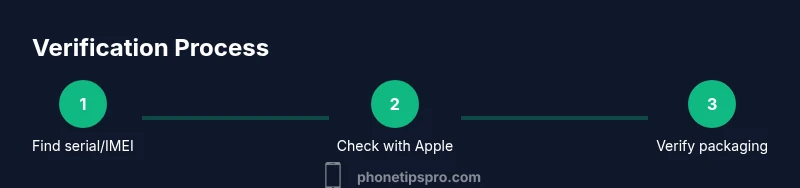
Use the device’s serial number or IMEI to verify authenticity through Apple’s official channels. On the device, navigate to Settings > General > About to locate the serial number, IMEI/MEID (if applicable), and model number. Enter the serial number on Apple’s Check Coverage page or the official support app to confirm warranty status and eligibility. If the serial number does not validate, contact Apple Support or visit an authorized service provider. You can also confirm the model and configuration against Apple’s official product pages for your region.
Common counterfeit signs and how to avoid them
Counterfeit devices often slip into markets with aggressive pricing, vague seller information, or unusual payment methods. Look for missing or inconsistent model numbers, non-functional Apple services, or hardware that does not respond to standard iOS features. Beware of keyboards or on-screen text that looks slightly off in the setup process, unusual brightness levels, or poor camera quality. Always verify via official sources and buy from trusted retailers or directly from Apple. If the deal seems too good to be true, it probably is.
Real-world scenarios and pitfalls
Region-specific counterfeit variants exist, especially in secondary markets or gray import channels. Some counterfeit devices may ship with counterfeit boxes and accessories that closely resemble official packaging but fail after a short period or when you attempt system updates. Always insist on a proof of purchase, verify the device through Apple’s services, and check the device against Apple’s official hardware identifiers. If you have any doubt about the seller’s legitimacy, walk away and contact Apple Support for guidance.
When to contact Apple and what to expect next
If you suspect your iPhone is not original, contact Apple Support or visit an Apple Authorized Service Provider for a physical inspection. They can run diagnostic checks, verify the device’s authenticity, and advise on warranty coverage or replacement options. Prepare your proof of purchase and any serial numbers you’ve gathered. The process may involve a formal assessment and a potential return through the authorized seller or Apple’s support channels.
Tools & Materials
- iPhone device to inspect(Ensure it powers on and has access to Settings)
- Original box and official accessories(Packaging should match the model and region)
- Internet access and Apple ID(Needed to access Apple verification tools)
- Camera or smartphone with camera(Take photos of serial numbers and packaging for comparison)
- Receipt or proof of purchase(Helpful when buying from third parties or resellers)
Steps
Estimated time: 15-30 minutes
- 1
Locate serial number and IMEI
From the device, go to Settings > General > About and record the serial number, IMEI/MEID, and model name. If you have the box, note the serial and model printed there as well. This establishes the baseline identifiers you’ll compare against Apple’s records.
Tip: If the device won’t power on, use the SIM tray or original packaging to locate serial information. - 2
Check the serial/IMEI against Apple
Visit Apple’s official verification pages and enter the serial number and IMEI to confirm warranty status and authenticity. If Apple’s site returns an invalid serial or shows inconsistent data, the device may be counterfeit.
Tip: Only use Apple's official site URLs; avoid third-party verification services. - 3
Verify model details in Settings
In Settings > General > About, ensure the model name, color, and storage size match the box and official specs for that model. Mismatches are strong indicators of non-original hardware.
Tip: Cross-check the model number (like MN) against Apple’s regional documentation for your country. - 4
Inspect hardware build and packaging
Examine the logo, font, and alignment on the back of the device; check the camera lens and lens housing for precision. Inspect the box print quality, seal integrity, and included accessories to see if they align with official Apple packaging standards.
Tip: Take high-resolution photos of the back, ports, and packaging for later comparison. - 5
Confirm software integrity
Ensure the device runs the official iOS with standard Apple apps and services. If you notice unfamiliar app stores, modified interfaces, or restricted updates, these can indicate tampering or counterfeit software.
Tip: Run a software update to verify the device can reach Apple servers without errors. - 6
Cross-check with an official channel
If any identifier fails, contact Apple Support or visit an Authorized Service Provider for a formal check. They can perform diagnostics and confirm authenticity beyond visual checks.
Tip: Bring proof of purchase and all serial numbers you collected to the appointment. - 7
Document results and decide next steps
Record the outcome of each verification step and determine whether to return the device, seek a replacement, or report the seller.
Tip: If in doubt, rely on official verification rather than buyer protection plans alone.
FAQ
How can I verify the serial number of my iPhone?
Locate the serial number in Settings > General > About or on the original packaging, then enter it on Apple’s official verification page to confirm authenticity and warranty status.
You can verify authenticity by copying the device serial from Settings or the box and checking it on Apple’s official site.
Can a counterfeit iPhone run iOS and access the App Store?
Most counterfeits fail to provide a fully authentic iOS experience or access to Apple’s secure services. If the App Store looks different or system apps are missing, stop and verify with Apple.
Counterfeits often cannot provide a genuine iOS experience—check for missing Apple services.
What should I do if the serial number isn’t recognized by Apple?
If Apple can’t verify the serial, contact Apple Support for guidance and consider returning or exchanging the device through the seller where possible.
If Apple can’t verify the serial, reach out to Apple Support for next steps.
Is buying refurbished iPhones safer than buying new from third parties?
Refurbished devices from reputable sources are generally safer than unknown third-party sellers, but you should still verify authenticity with Apple and request official documentation.
Refurbished units from trusted sources are safer, but always verify with Apple.
Do factory resets or software updates guarantee authenticity?
No. Factory resets and updates do not ensure authenticity; they can conceal issues. Verify using serial checks and packaging details first.
No—updates don’t prove authenticity. Use serial checks and packaging as your primary checks.
Should I always buy directly from Apple or authorized resellers?
Buying from Apple or authorized resellers minimizes counterfeit risk and ensures official support and warranty coverage.
Buying from Apple or authorized sellers reduces counterfeit risk and secures warranty.
Watch Video
Quick Summary
- Verify the serial number on Apple’s site.
- Inspect both hardware and packaging for consistency.
- Match Settings details with official specs.
- Purchase from trusted sources or authorized resellers.
- Consult Apple Support if authenticity is in doubt.