What to Check in iPhone Serial Number: A Practical Guide
Learn how to verify an iPhone's serial number to confirm authenticity, warranty, and ownership. Find the serial on the device, box, and receipt, verify with Apple, and know when to contact support if something looks off.


By the end of this guide, you will know exactly what to check in the iPhone serial number to verify authenticity, warranty, and ownership. You’ll locate the serial on the device, the box, and receipts, then cross-check with Apple’s warranty checker and activation status. If anything looks off, you’ll have clear steps to contact support.
What the serial number can reveal about your iPhone
Your iPhone’s serial number is a unique identifier that Apple uses to look up repair history, service eligibility, warranty coverage, and device specifications in its systems. While the exact encoding of a serial number varies over time and by model, the number is still your strongest link to a device's identity. A correct, unused serial number aligns with Apple’s records for that specific model, color variant, storage tier, and region. When you submit a serial number to Apple’s systems, support agents can pull up whether the device is covered by warranty or any AppleCare plans, whether it has undergone prior repairs, and if it’s on a blacklist for theft. In practical terms, treating the serial as a unique fingerprint for the device helps you spot mismatches, counterfeit packaging, or incorrect ownership data. |
Phone Tips Pro analyses show that buyers and sellers who verify serial numbers experience fewer disputes during trades and quicker resolution with support teams when issues arise. This is a core step in due diligence, particularly for high-value devices. Always remember: a serial number is a critical data point, but it should be checked in conjunction with other identifiers like the IMEI, model number, and box information to form a complete authenticity picture.
note”:null},
Where to find the serial number on your iPhone
Locating the serial number is usually straightforward, whether you have the device in hand or only its box. On most iPhone models, you can find the serial in Settings: go to Settings > General > About, then scroll to Serial Number. You can also find it on the physical device itself by inspecting the back of the iPhone or the SIM tray area, depending on the model. If you still have the original packaging, the serial is printed on the box label alongside the IMEI and model information. For older models with limited display space, you may need to check the SIM tray or the regulatory label on the back to locate the code. Always compare the serial shown in Settings with the one on the box to ensure consistency before making a purchase or trade-in decision.
tip:
Tools & Materials
- iPhone device to inspect(With an active internet connection for quick lookups if needed.)
- Original packaging and purchase receipts(Useful for cross-checking the serial against official labels.)
- Stable internet connection(Wi‑Fi or cellular data to access Apple support resources.)
- Apple ID access (optional)(Helpful for checking activation status or purchase history.)
- Notebook or digital notes app(Record serials, receipts, and checks for audit trail.)
Steps
Estimated time: 15-25 minutes
- 1
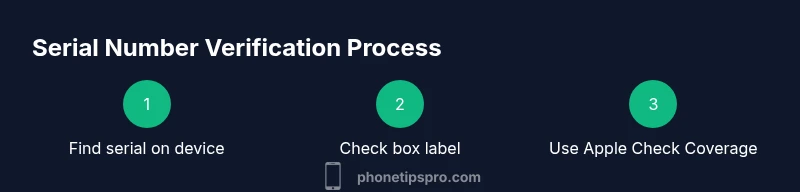
Locate the serial on the device
Open Settings, select General, then About to view the serial number. Note the exact characters and write them down. If your device isn’t responsive, check the SIM tray area or the underside of the box for the serial label.
Tip: If the screen won’t boot, rely on the physical label on the box or inside the SIM tray label. - 2
Find the serial on the packaging
Look for the serial number on the white label on the original box. It’s usually listed alongside the IMEI and model information. This provides a cross-check source to compare against the on-device serial.
Tip: Ensure you’re looking at the correct box if you own multiple devices. - 3
Cross-check serial numbers across sources
Compare the serial from Settings, the box label, and the receipt or purchase email. All three sources should match exactly. Any discrepancy warrants further investigation before using or selling the device.
Tip: Keep the serials visible only to trusted sources to prevent data leaks. - 4
Check warranty and coverage with Apple
Visit Apple’s Check Coverage page and enter the serial number. You’ll see current warranty status, eligibility for AppleCare, and coverage end dates if applicable.
Tip: Have the serial ready to copy-paste to avoid transcription errors. - 5
Verify device model and features against the serial
Cross-check model information (model name, color, storage) shown in Settings with what’s printed on the box. Mismatches can indicate a counterfeit or swapped components.
Tip: If the serial ties to a different model, pause the transaction and seek expert help. - 6
Assess activation and ownership signals
Check Activation Lock status by ensuring Find My iPhone is enabled for the device ownership account or by using trusted support channels. Activation status helps confirm rightful ownership and guards against unauthorized use.
Tip: Activation Lock checks should be done through official Apple tools rather than third‑party sites. - 7
Handle mismatches responsibly
If any serial doesn’t align across sources, document the differences and contact Apple Support or the seller’s customer service. Do not complete a sale or trade-in until resolved.
Tip: Collect proof of purchase and serial records to speed up the process. - 8
Document findings and plan next steps
Store your notes, screenshots from Apple’s pages, and any correspondence. This creates a traceable audit file in case you need to revisit the issue later.
Tip: Maintain a calm, methodical approach to avoid missing clues. - 9
Safe practices for buyers and sellers
Always verify serials before finalizing a device purchase or trade-in. Avoid accepting an item with a mismatched serial on any label or in Settings.
Tip: If you’re unsure, pause and request independent verification from Apple Support.
FAQ
Where is the iPhone serial number located?
On iPhone devices, go to Settings > General > About to view the serial number. You can also find it on the original box or the receipt.
You’ll find the serial number in Settings under General, About, or on the box or receipt.
Can I check my warranty status with just the serial number?
Yes. Enter the serial number on Apple’s Check Coverage page to see the warranty and eligibility information. This does not replace proof of purchase but confirms coverage.
Enter the serial on Apple’s warranty checker to see current coverage.
What should I do if the serial numbers don’t match across sources?
Stop using or selling the device and contact Apple Support or the seller for verification. Gather the serials from Settings, box, and receipts as evidence.
If serials don’t match, pause and contact official support for verification.
Is Activation Lock status something I can verify with the serial number?
Activation Lock status is tied to the Apple ID and Find My iPhone settings. Use official Apple tools to check ownership status rather than third‑party sites.
Check ownership signals through Apple’s official tools or Settings.
Can a refurbished device have a different serial than the box?
Yes, refurbished devices may have serials that reflect their refurbished status in Apple records. Always verify with Check Coverage and the seller’s documentation.
Refurbished devices may show different records; verify with Apple and receipts.
Is it safe to share my iPhone serial number publicly?
No. Serial numbers should be shared only with trusted and official sources to prevent fraud or impersonation.
Avoid posting your serial number where others can copy it.
Watch Video
Quick Summary
- Verify serials on device, box, and receipt.
- Use Apple Check Coverage to confirm warranty status.
- Match all sources before trading or selling.
- Protect your serial information from public exposure.