Is My iPhone Original Check: A Practical Guide to Verify Authenticity
Learn how to verify if your iPhone is original with official Apple checks, visual cues, and safe steps. This guide from Phone Tips Pro helps you confirm authenticity, avoid fakes, and protect your warranty.


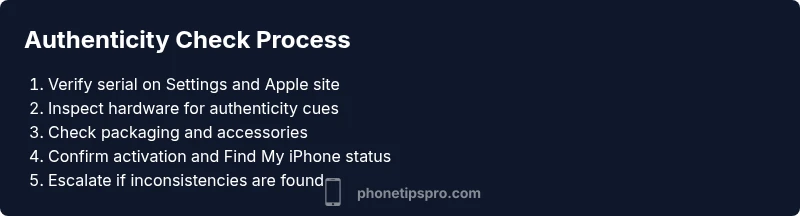
Is my iphone original check? Start with Apple’s official checks and a quick hardware/visual test. Verify the serial number in Settings > General > About and on Apple’s coverage page, then compare model identifiers and packaging. Inspect the device for signs of tampering, verify accessories, and run a basic security check. This fast, official-first approach helps catch obvious fakes or refurbishments.
Why authenticity matters
Authenticity matters for warranty coverage, future OS updates, and security. A genuine iPhone ensures you receive genuine parts, reliable service, and ongoing support from Apple. The is my iphone original check is not merely a box-ticking exercise; it protects your data, preserves device performance, and sustains the value of your investment. According to Phone Tips Pro, a thoughtful authenticity check reduces the risk of counterfeit or refurbished devices slipping into your daily use, and it builds a foundation for safer usage across the Apple ecosystem.
In this guide, we’ll cover practical, non-destructive checks you can perform on any iPhone model. You’ll learn to use official sources, perform visual inspections, verify hardware and software integrity, and know when to escalate to Apple Support. The goal is to empower you to make informed decisions with confidence—whether you’re buying used, trading in, or verifying a gift.
What makes an iPhone original
An original iPhone is manufactured by Apple and sold as a new or Apple-authorized device. Genuine devices have specific hardware identifiers, a correctly stamped model number, and packaging that matches Apple’s standards. Refurbished or counterfeit units may imitate the look, but they often differ in subtle ways such as serial formatting, build quality, and legitimate accessory compatibility. Understanding these nuances helps you perform a reliable is my iphone original check without needing specialized tools.
Key indicators of originality include a match between the device’s model name, hardware identifiers, and what Apple lists on the official website. Signs of poor workmanship, inconsistent logos, or missing regulatory marks are red flags. This section lays the groundwork for the hands-on checks you’ll perform later in the guide, and it reinforces the idea that authenticity is a combination of software signals and physical accuracy.
Quick checks you can do at home
Begin your is my iphone original check with simple, at-a-glance steps you can do in minutes. Check Settings > General > About for the serial number, model name, and IMEI/MEID if visible, and compare these values with Apple’s official coverage checker. Look for the presence of iOS, the correct battery indicators, and the system that boots normally. If anything looks off, note it for deeper verification and consider consulting Apple Support.
Next, inspect the physical components: the frame, logo alignment, camera housing, and port finishes. Genuine devices have precise stamping, evenly spaced screws, and consistent seam gaps. Finally, verify that the packaging, USB charging cable, and earphones (where included) align with Apple’s known specifications for the model. This step-by-step home check minimizes hassle while flagging potential issues early.
How to verify with official Apple sources
The most authoritative source for authenticity is Apple itself. Start by entering the device’s serial number on Apple’s official coverage page to confirm warranty status, eligibility for service, and activation details. If the serial number does not exist or shows an unexpected status, this is a strong signal to proceed with caution. You can also use the Find My iPhone feature to confirm activation status tied to your Apple ID.
Additionally, compare the device’s model identifier (e.g., MLPF2LL/A) with Apple’s published information for your region and model year. If there’s a mismatch, it could indicate a counterfeit or mismatched region variant. Keep your receipts and original purchase documentation handy; these are often requested when tracing authenticity with Apple Support.
Visual inspection guide
A careful visual check is a practical component of the is my iphone original check. Compare the screen-to-body ratio, camera bump alignment, and the microphone holes with official images of the same model. Look for any misalignment, misshapen buttons, or unusual curvature that deviates from the expected design. The logo should be crisp, and the color calibration should match the model’s known specs. If you spot inconsistencies, take clear photos for reference when you contact support.
For older devices, inspect the back glass for consistent finish and the Apple logo’s engraving. A counterfeit might use a slightly off shade, sloppy engraving, or a different shade of metal and glass. Document any irregularities and review them against official guides to determine whether a deeper check is warranted.
Inspect hardware and accessories
Original hardware includes a genuine charging cable, power adapter, and, when applicable, headphones. Verify that accessories carry Apple branding, model numbers, and certification marks that align with the device’s country of purchase. Check the charging port for wear patterns consistent with real use rather than counterfeit wear.
Make sure the SIM tray, SIM card, and metal components have the correct finish and fit. An ill-fitting tray or loose components can suggest a non-original unit. If you bought the phone used, compare the device’s hardware with the seller’s listed model and accessories and request original packaging or documentation to support authenticity.
Software and security checks
Software clues are as important as hardware cues. Open Settings to verify the iOS version, build number, and device integrity. Use the official Apple Support app or Settings to check Activation Lock status, Find My iPhone settings, and iCloud account associations. Anomalies like missing updates, unusual app behavior, or unexpected alarm tones can indicate a non-original device or compromised software.
Run a quick diagnostics test if available through legitimate apps, and look for a clean jailbreak history, as jailbroken devices can mask non-original software. Always ensure you’re on the latest iOS version supported by your device and avoid sideloading apps from untrusted sources. If you notice anything questionable, capture screenshots and contact Apple Support for a formal assessment.
What to do if you suspect a fake
If your checks raise red flags, pause any further use and reach out to Apple Support or an authorized service provider. Provide all gathered evidence: serial numbers, model identifiers, photos of hardware, and packaging. A professional assessment can confirm authenticity and guide next steps, including potential refunds or device replacement.
Document the seller’s information and your purchase details. If you bought from an unofficial source, consider reporting the seller and seeking recourse under consumer protection laws. The aim is a clear resolution with Apple’s guidance, rather than risking data security on a counterfeit device.
Common myths vs reality
Myth: A counterfeit iPhone can pass all Apple checks with a modern iOS. Reality: Subtle hardware and software discrepancies often reveal fakes only after thorough verification. Myth: The package guarantees authenticity. Reality: Packaging can be counterfeit too; always verify serials and activation details.
Myth: Refurbished means fake. Reality: Refurbished units can be legitimate originals, but only when sold through Apple or authorized refurbishers with proper documentation. Myth: A good price means a real deal. Reality: Price alone is not a reliable authenticity indicator; combine price with serial checks, packaging, and supported features for a complete assessment.
Tools & Materials
- iPhone device to test(Ensure it boots and shows iOS; have charger available for check of hardware compatibility)
- Settings access (General > About)(Record Serial Number, Model Name, and IMEI/MEID if visible)
- Apple official sources access(Use Apple’s Coverage checker to verify warranty and activation status)
- Original packaging/accessories (if available)(Compare with known specs and branding for your model)
- Apple ID access(Sign in to verify device association and activation status)
Steps
Estimated time: 25-40 minutes
- 1
Prepare the device for verification
Charge the device or ensure it has enough power to boot fully. Have a stable internet connection and access to Settings. This step sets the stage for accurate checks and helps avoid mid-test interruptions.
Tip: Charge to at least 20% and connect to a trusted Wi‑Fi network before starting. - 2
Locate serial number and model identifiers
Go to Settings > General > About and note the serial number, model name, and IMEI/MEID if shown. Cross-reference these numbers with Apple’s official pages to confirm they match the device.
Tip: Take a screenshot of the About page for reference. - 3
Check activation status and iCloud security
Sign in with the Apple ID associated with the device. Verify Activation Lock status and that Find My iPhone is enabled or properly configured. This helps ensure the device isn’t stolen or improperly linked.
Tip: If Activation Lock is on and you don’t own the account, do not proceed. - 4
Verify iOS version and build details
Open Settings and confirm the installed iOS version matches the model’s officially supported range. Check for any unusual build numbers or beta profiles that don’t align with the device’s release timeline.
Tip: Avoid devices running jailbroken or non-official software. - 5
Perform a visual exterior inspection
Examine the screen, frame, camera housing, buttons, and logos for alignment, finish, and branding consistency. Look for misspellings, misaligned cutouts, or odd gaps that suggest tampering.
Tip: Document any inconsistencies with photos. - 6
Inspect hardware and accessories
Check charging cable, adapter, and headphones for official Apple branding and appropriate model markings. Ensure the ports and connectors fit securely and resemble genuine hardware.
Tip: Use the original cable for charging checks if possible. - 7
Run a basic software check
Use legitimate diagnostic apps or built-in tools to run quick checks on battery health, storage, and system stability. Look for abnormal battery drain or unexpected apps.
Tip: Avoid third-party tools from untrusted sources. - 8
Cross-reference with official sources
Enter the serial number on Apple’s Check Coverage page and compare results with in-device data. If anything mismatches, escalate to Apple Support or an authorized service provider.
Tip: Keep a log of every step and result.
FAQ
How can I tell if my iPhone is original beyond serial checks?
Beyond serials, examine build quality, packaging, logo alignment, and accessory branding. Check activation status in Settings and sign in with the Apple ID associated with the device. If anything looks off, rely on official Apple sources and consider a professional assessment.
Beyond serials, look at build quality, packaging, and activation status. If in doubt, contact Apple Support for a professional check.
Can refurbished iPhones be legitimate originals?
Yes—Apple-authorized refurbishments are legitimate originals. Verify the refurbisher’s credentials and ensure you have proper documentation and serial consistency with Apple’s records.
Refurbished devices can be legitimate if sold through Apple or authorized refurbishers with proper documentation.
What if my serial number isn’t visible in Settings?
Some devices or regional settings may limit visible serials. Use the device’s original packaging, SIM tray markings, or Apple Support to retrieve the serial and verify it against Apple records.
If the serial isn’t visible, check the packaging or contact Apple Support for retrieval.
Will Apple Check Coverage always confirm authenticity?
Check Coverage can confirm warranty status linked to a genuine serial, but it’s not the sole proof. Use multiple checks—hardware, software, and packaging—for a robust assessment.
Coverage helps confirm, but combine it with other checks for certainty.
What should I do if I find a fake?
Stop using the device, preserve evidence, and contact Apple Support or the seller for a resolution. If purchased recently, you may be eligible for return or refund through the seller or consumer protection channels.
If you suspect a fake, stop using it and contact Apple Support for next steps.
Do all iPhones show Activation Lock even if not stolen?
Activation Lock should reflect the device’s ownership status. If you see an unexpected lock or an unfamiliar Apple ID, this could indicate previous owner claims or misuse; investigate further with Apple Support.
Activation Lock should match ownership; if it doesn’t, investigate.
Watch Video
Quick Summary
- Verify serial and model identifiers against Apple sources
- Check Activation Lock and Find My iPhone status
- Inspect hardware details and packaging for consistency
- Escalate if any mismatch to Apple Support
- Document every step for a clear resolution