How to Check If iPhone Is Real: A Practical Verification Guide
Learn practical steps to verify iPhone authenticity, including serial/IMEI checks, activation status, and warranty validation with Apple. Protect yourself from counterfeit devices with Phone Tips Pro.


This guide shows you how to check if iPhone is real by combining hardware inspection, software data, and official records. You’ll verify the serial and IMEI, inspect the box and accessories, and confirm activation and warranty with Apple support. By following these steps, you can avoid counterfeit devices and ensure warranty eligibility.
Why verify an iPhone's authenticity matters
In a world where counterfeit electronics can look convincing, learning how to check if iPhone is real is essential for protecting your data, warranty, and investment. Whether you are buying used, refurbished, or from a reseller, authenticating the device before you commit can save you time, money, and frustration. This process is not about chasing perfect rumors; it is about a practical, repeatable method that uses real signals you can verify in minutes. The phrase how to check if iphone is real may sound daunting, but the core idea is simple: combine hardware cues, software data, and official records to build a complete picture. The Phone Tips Pro team has found that a multi-step approach reduces the chance of accepting counterfeit hardware and helps you spot subtle inconsistencies that a surface-level look may miss. Throughout this guide you’ll see concrete steps you can take right away, with safeguards to avoid scams and hasty mistakes. By investing a little time, you can confidently verify authenticity whether you bought from a local store, an online marketplace, or a friend.
According to Phone Tips Pro, verification is strongest when you use a layered approach: hardware checks, software data, and official documentation all line up. This strategy aligns with guidance from major publications and official resources to help you shop with confidence in 2026.
Key indicators of a real iPhone
A genuine iPhone typically shows consistent, high-quality construction across every angle. Inspect the chassis for uniform color, tight seams, precise button placement, and no flex when pressing hardware buttons. The Apple logo should be crisp and centered, and the display should sit flush with the bezels. Pay attention to the font in menus and the system UI; counterfeit devices may reuse similar fonts but have noticeable spacing or kerning anomalies. Another critical signal is the serial/model information: on many devices it's printed on the SIM tray and on the original box; mismatches between the device label and the packaging are a clear red flag. If something seems off—unusually glossy finishes, inconsistent logo sharpness, or hardware gaps—pause and verify with official tools rather than proceeding with a purchase. Real iPhones also pass software integrity checks that counterfeit devices often fail during setup or activation.
Note: Real devices typically exhibit precise tolerances, consistent textures, and responsive hardware; any deviation can indicate a counterfeit. The more signals you verify, the stronger your conclusion will be.
How to verify using serial number and IMEI
Begin by locating the device’s serial number and IMEI. On current iPhones, you can view both in Settings > General > About, or read the serial on the device itself for older models. The IMEI is a 15-digit code that should match what’s printed on the SIM tray and the box label. With these identifiers in hand, you can cross-check with Apple’s official resources: enter the serial on Apple’s Check Coverage page to confirm warranty status and the device model, or use a trusted retailer’s verification tool if available. If the numbers don’t align with the packaging or the claim, that’s a strong sign of something amiss. When possible, request the original box and accessories so you can verify packaging details in parallel with the device IDs. Always compare multiple signals rather than relying on a single data point.
Tip: If you cannot access Settings, you can still check the box label and the SIM tray for serial numbers to match the device.
Packaging, accessories, and build quality
Authentic iPhones come with carefully printed labels and consistent typography on the box. The serial number on the label should match the device’s serial, and model numbers printed on the box should align with the device model (A####). Inspect the included accessories for authenticity: the USB-C/Lightning cable should fit snugly, and the charger should feel robust rather than flimsy. Examine the device’s exterior for uniform color, matching screw types at the bottom ports, and precise cutouts around the camera and ports. If you find mismatched fonts, misspelled words, or unusually soft or loose accessories, treat the purchase with caution. A real iPhone’s unboxing experience is a small but telling signal about authenticity; subpar packaging or nonstandard accessories are common counterfeit indicators.
Action tip: Compare the font weight and spacing on the label against official Apple packaging; counterfeit packaging often has imperfect alignment.
Software checks: Activation, iOS, and warranty status
Power on the device and navigate to Settings > General > About to confirm iOS version, model name, and serial. Activate the device using an Apple ID and confirm that Activation Lock is either disabled or tied to the rightful owner. Check the warranty status using Check Coverage with the serial number to see if the claim matches the purchase date. If the device cannot connect to Apple servers, or if activation fails at the first step, pause and re-check IDs and packaging before proceeding. You should also confirm that the iPhone supports the claimed carrier bands and features by cross-checking official Apple specifications for that model. A genuine device should seamlessly log into iCloud and show a valid warranty history; inconsistent or missing data is a warning sign.
Bonus: If the device reports an iOS version that isn’t available for that model, it’s a red flag that warrants further verification.
Use official tools and trusted verification steps
The most reliable way to verify authenticity is to use official Apple tools and reputable retailers. Start with the Apple Support app or Apple’s Check Coverage website to validate the serial and warranty. If you’re buying from a store or online marketplace, request the device’s serial and IMEI and then verify them on Apple’s site. Where relevant, compare the device’s status with the activation record and the Apple ID account on the device. To stay safe, avoid third-party software that claims to “unlock” or validate authenticity, as these can compromise security or misrepresent the device. If something seems off, contact Apple Support and request a formal verification or return if applicable.
Pro tip: Always use official services first; third-party tools can mislead or expose personal data.
Final verification steps and next actions
If you’ve reached this point and all signals align, you’re likely looking at a genuine iPhone. If any major data point fails (serial/IMEI mismatch, activation issues, invalid warranty), pause the purchase and request a formal verification from Apple or the seller. Document the signals you checked with timestamps or screenshots to support any future dispute. If you’re still unsure, consider purchasing from an authorized retailer or returning the item. Remember, a cautious approach protects you from costly counterfeit devices and ensures your investment remains secure. The best practice is to verify using Apple’s official tools and cross-check with packaging and accessories for a conclusive verdict.
AUTHORITY SOURCES: For further guidance, consult official resources listed in the sources section below.
AUTHORITY SOURCES
- Apple Support: https://support.apple.com
- Apple Check Coverage: https://checkcoverage.apple.com
- How to spot counterfeit products (FTC): https://www.consumer.ftc.gov/articles/how-to-spot-counterfeit-products
- US-CERT Cybersecurity Tips: https://www.us-cert.gov/ncas/tips
Tools & Materials
- iPhone device(Power on to access Settings for checks)
- Original box and packaging(Look for serial/model on the label)
- All original accessories(Charger and cable; verify model compatibility)
- SIM tray ejector tool(For checking serial/IMEI on the tray)
- Access to the internet(Apple Check Coverage and retailer verification)
- Apple ID login credentials(Needed to verify iCloud/Activation Lock)
- Camera or smartphone to take photos(Document packaging and device signs)
- Proof of purchase or receipt(Helpful for warranty validation)
Steps
Estimated time: 30-60 minutes
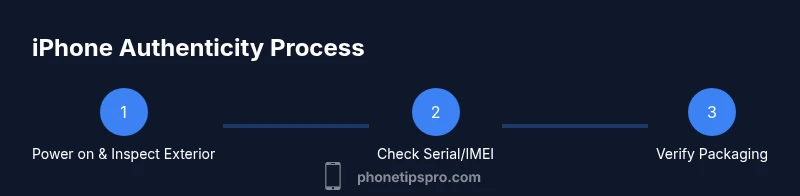
- 1
Power on and inspect exterior
Turn on the device and perform a visual and tactile inspection of the chassis. Look for uniform color, tight seams, and responsive buttons. Check the screen for brightness, color accuracy, and uniform bezels. Any misalignment or unusual gaps should trigger further verification.
Tip: If anything feels cheap or misaligned, pause and verify before proceeding. - 2
Locate device identifiers
Open Settings > General > About to record the serial number and IMEI. For older models, you may find these on the SIM tray or the box. Ensure the numbers are legible and match labels on the packaging.
Tip: Take clear photos of the serial and IMEI for later comparison. - 3
Cross-check packaging details
Match the serial, model number, and color on the device with the information printed on the box. Ensure the model code corresponds to the correct generation. Inconsistencies here are strong red flags.
Tip: Compare fonts and spacing with official Apple packaging as a quick sanity check. - 4
Verify accessories and build quality
Inspect the included accessories for authenticity. The cable and charger should feel sturdy and be properly branded. Look for consistent Apple logos and correct sizing of connectors.
Tip: Counterfeits often reuse generic accessories that feel cheap or mismatched. - 5
Check activation and Apple ID
Power up the device and attempt activation with an Apple ID. Activation Lock should reflect ownership, or be disabled if you’re the seller. Ensure the device can sign into iCloud if appropriate.
Tip: If activation fails, request the seller to provide official verification data. - 6
Validate warranty status
Visit Check Coverage and input the serial to confirm warranty status and model. Compare the results with the purchase date and seller claims.
Tip: A device with no warranty or mismatching dates warrants closer scrutiny. - 7
Test essential hardware features
Test camera, speakers, microphone, charging port, and touch responsiveness. Genuine devices perform consistently across tests; counterfeit hardware often shows latency or poor performance.
Tip: Use a quick app-based diagnostic if available from Apple Support. - 8
Cross-check with official specs
Confirm that the model supports the claimed carrier bands, features, and iOS version. Mismatches here suggest a counterfeit or misrepresented model.
Tip: Always rely on official Apple specifications for the exact model. - 9
Make a purchase decision or request verification
If all signals align, you can proceed with confidence. If not, request formal verification or walk away from the deal.
Tip: Document everything and consider returning if purchased from an unreliable source.
FAQ
How can I tell if an iPhone is fake?
Look for serial/IMEI mismatches, activation problems, and inconsistent packaging. Verify with Apple’s Check Coverage and compare with the box labeling. If any major signal fails, treat it as suspicious and seek official verification.
Check serial and activation status on Apple’s site; mismatches or activation failures usually indicate a fake.
Can a counterfeit iPhone run iOS?
Counterfeits may mimic the iOS interface but often fail official checks like activation and warranty validation. They also tend to have hardware or firmware inconsistencies that standard iPhones do not.
Yes, but it won’t pass official Apple verification reliably.
What’s the best way to check the serial and IMEI?
Find serial and IMEI in Settings > General > About, then compare with the packaging and box labels. Use Apple’s Check Coverage page to validate the serial and warranty.
Use Settings for IDs and Apple’s official pages for verification.
Why is Activation Lock important in authenticity checks?
Activation Lock links the device to the original Apple ID. A genuine device returns a valid lock status; if it cannot be activated or asks for unrelated credentials, be cautious.
Activation Lock helps confirm ownership and reduces the risk of stolen devices.
What should I do if I find mismatches?
Request formal verification from Apple or the seller, and consider returning the device or seeking a refund. Keep documentation of all checks and interactions.
If numbers or packaging don’t align, ask for official verification or refunds.
Are there reliable third-party apps to verify authenticity?
Avoid relying on third-party apps for authenticity checks. They can be inaccurate or pose privacy risks. Stick to Apple’s official tools and trusted retailers.
Stick with official tools; third-party apps aren’t trustworthy for authenticity.
Watch Video
Quick Summary
- Verify serial/IMEI against packaging and Apple's tools
- Check activation, warranty, and iCloud status
- Inspect packaging quality and accessories for consistency
- Rely on official sources; avoid untrusted third-party apps
- If in doubt, pause and request formal verification