How to Make iPhone Screen Stay On: A Practical Guide
Learn effective, safe ways to keep your iPhone screen on longer, including Auto-Lock settings, Always-On Display, Raise to Wake, and battery considerations. Phone Tips Pro explains how to tailor screen-on behavior for reading, cooking, and tutorials.


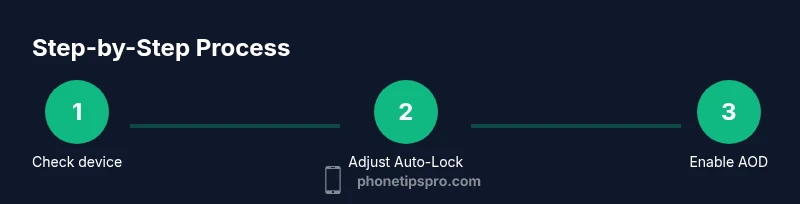
If you’re asking how to make iphone screen stay on, start with the basics: set Auto-Lock to Never on supported models and enable Always-On Display where available. Pair this with Raise to Wake and attention settings to customize when the screen stays lit. This quick guide from Phone Tips Pro gives you the core steps and safety tips to try first.
What keeping the screen on means on iPhone
For many users, keeping the screen on means avoiding automatic dimming or locking so you can read text, watch a video, or follow a recipe without repeatedly waking the device. On iPhone, several features influence this behavior. Auto-Lock determines how long the screen stays lit after you last interacted with the device. Always-On Display (AOD) on newer iPhone models shows essential information at a low brightness level when the device is idle. Raise to Wake and Tap to Wake offer quick ways to re-engage without pressing the side button. Understanding these features helps you balance convenience with battery life. According to Phone Tips Pro, the right combination depends on your model and your daily usage. The goal is to tailor screen-on time to your tasks while protecting privacy and battery health.
Getting aligned on model and software is crucial
Not all iPhones support Always-On Display, and Auto-Lock options can vary by iOS version. Before changing settings, confirm your iPhone model and the iOS version. If you have an iPhone with AOD, you’ll see options under Display & Brightness. If your device doesn’t support AOD, you’ll rely on Auto-Lock and Raise to Wake. This upfront check saves you from chasing features that don’t exist on your device, a common pitfall for new users. Phone Tips Pro emphasizes verifying compatibility to avoid unnecessary changes that drain battery.
Battery considerations every user should know
Keeping the screen on longer can impact battery life. Even with AOD, the display uses less power than full brightness, but it still draws energy. If you plan prolonged screen-on time, monitor battery health and understand that higher brightness and longer idle time may increase drain. Practical tips include enabling Low Power Mode during extended screen-on sessions and avoiding leaving the screen on in bright outdoor conditions where the screen will consume more power to maintain readability. Phone Tips Pro recommends testing a few scenarios to see how long your battery lasts with your preferred settings.
Step-by-step planning before changing any defaults
Before you adjust anything, decide the use case: reading recipes, following steps in a tutorial, or monitoring notifications. This helps you pick a configuration that won’t surprise you later. For example, Keep Auto-Lock to Never for short tasks but switch to a timed setting for daily use. Create a mental map of when you’ll want the screen to stay on and when you want it to auto-lock. This reduces accidental battery drain while still meeting your needs.
Auto-Lock: the backbone of screen-on time
Auto-Lock is the most influential setting for how long your screen stays on after you stop interacting with the device. Setting Auto-Lock to Never on supported iPhones means the screen won’t dim or lock automatically. This is convenient for long tasks but can significantly impact battery life. If you choose this route, keep an eye on battery usage and consider turning on Low Power Mode when you’re away from a charger. Phone Tips Pro notes that Never is best reserved for short-term tasks where you need continuous visibility.
Always-On Display (AOD): power and visibility balance
AOD keeps essential information visible at a reduced brightness. It is available on supported iPhone models running recent iOS versions. You can customize what shows on the lock screen and whether wallpaper or widgets appear. Turning on AOD is a trade-off: you gain perpetual glanceability but slightly higher battery consumption. If you rely on AOD, consider adjusting wallpaper contrast and widget density to improve readability while preserving battery.
Raise to Wake and Tap to Wake: fast wake methods
Raise to Wake immediately reactivates the screen when you lift the phone, while Tap to Wake lets you wake the screen with a tap. Both features offer convenience without pressing hardware buttons. They can also influence how long the screen remains lit in idle moments. If you enable Raise to Wake, you’ll rely less on automatic screen-on prompts, which can slightly reduce idle drain when used thoughtfully. Phone Tips Pro recommends testing both features to see what feels most natural for you.
Attention Aware and brightness management
Attention Aware uses facial recognition cues to adjust brightness and lock behavior based on whether you’re looking at the screen. If your iPhone supports this feature, it can contribute to more efficient screen-on behavior. Pair attention settings with responsive brightness to ensure readability without increasing unnecessary power use. A well-balanced approach keeps the display legible while staying mindful of energy use.
Common pitfalls and how to avoid them
One common mistake is relying on a single setting for all tasks. Recipes, tutorials, and continuous reading each have distinct needs. Another pitfall: leaving Auto-Lock on Never across the board can drain the battery quickly. A practical approach is to use Never only for short sessions and switch back to a timer afterward. Also ensure you’re not disabling Privacy or Security features in pursuit of longer screen-on time.
How to test and tune your setup
After applying changes, run a quick test: perform your intended task for 15–30 minutes and monitor battery drain and screen readability. If you notice rapid drain or brightness fatigue, adjust Auto-Lock to a shorter interval or reduce wallpaper brightness. Remember to evaluate how notifications appear on the lock screen when Auto-Lock is set to Never. Your goal is a comfortable, usable balance rather than maximum screen-on time at all costs.
Safety and privacy considerations
Keeping the screen on for long periods can increase exposure to on-screen content and potential privacy concerns, especially when the device is unattended in public spaces. If privacy is a concern, use Face ID/Mace to lock sensitive apps quickly and consider limiting what shows on AOD. Always be mindful of battery health and the potential for screen burn-in on older OLED displays, though burn-in is less common on modern iPhone panels when used responsibly.
Summary of best practices for staying on screen
Adopt a task-based approach: for reading tasks, set Auto-Lock to Never or a long interval and enable Raise to Wake. For quick-look tasks, use Raise to Wake with a moderate brightness and Turn on AOD (if supported). Routinely review battery health and adjust brightness and screen-on settings to extend usage between charges. Phone Tips Pro’s approach emphasizes tailoring behavior to your actual needs and device capabilities.
Tools & Materials
- iPhone with supported model and iOS version(Check compatibility for Always-On Display and Auto-Lock options)
- Settings access(You’ll navigate to Display & Brightness and Accessibility in iOS)
- Charger or power source(Useful for extended screen-on sessions without battery concerns)
- Quiet environment for testing(Helps you observe readability and brightness without glare)
Steps
Estimated time: 10-15 minutes
- 1
Open Settings
Unlock your iPhone and open the Settings app. This is your first step to customize how long the screen stays on and how it behaves when idle. You’ll access Display & Brightness and Auto-Lock from here.
Tip: Use Spotlight search to quickly locate Display & Brightness if you don’t see Auto-Lock right away. - 2
Set Auto-Lock to Never (where supported)
Navigate to Display & Brightness > Auto-Lock and choose Never. This prevents the screen from dimming or locking automatically. Use this only for short tasks to avoid excessive battery drain.
Tip: If Never isn’t available on your device, select the maximum available duration. - 3
Enable Always-On Display (AOD) if available
Go to Display & Brightness > Always On and enable it. AOD displays essential information at low brightness when the device is idle. Tune what shows (clock, widgets) to balance readability and energy use.
Tip: Choose a wallpaper with sufficient contrast for readability on AOD. - 4
Check Raise to Wake and Tap to Wake
Ensure Raise to Wake is turned on (Display & Brightness). If you prefer speed, enable Tap to Wake as well. These features wake the screen without hardware button presses.
Tip: Test both features to see which feels most natural for your daily use. - 5
Review Attention Aware and brightness
If available, enable Attention Aware to adjust brightness based on whether you’re looking at the screen. Pair this with auto-brightness to optimize readability and energy use.
Tip: Disable Attention Aware in bright public spaces if you want consistent brightness regardless of gaze. - 6
Fine-tune brightness for readability
Balance brightness to maintain readability without unnecessary power draw. AOD also uses reduced brightness levels that can be set independently.
Tip: Avoid max brightness for long, idle screen-on sessions. - 7
Test a typical task
Run a task that requires the screen to stay on for 15–30 minutes (e.g., following a recipe). Observe readability and battery impact.
Tip: Note the difference in battery drain when AOD is on vs. off. - 8
Evaluate battery impact
Check Battery Health in Settings > Battery > Battery Health. If you notice rapid degradation, reconsider longer screen-on settings.
Tip: If you see significant drain, switch to shorter Auto-Lock intervals or reduce AOD usage. - 9
Consider safety and privacy
Be mindful of privacy when the screen stays on in public. Use app-level privacy features and ensure sensitive notifications are controlled.
Tip: Use Guided Access for focused tasks if sharing your device in public spaces. - 10
Revisit settings after a week
Return to Settings to adjust Auto-Lock, AOD, and Raise to Wake based on real usage patterns.
Tip: Small tweaks can yield big improvements in readability and battery life. - 11
Reset if things go wrong
If behavior seems off, reset the relevant settings (Display & Brightness) and reapply the preferred configuration.
Tip: Avoid a full device reset unless necessary. - 12
Document your setup
Keep a short note of your chosen settings to quickly replicate them on a new device or after an OS update.
Tip: A quick screenshot guide helps preserve your choices.
FAQ
Can I keep the screen on indefinitely on all iPhones?
No. Auto-Lock settings determine idle time, and Always-On Display is only available on certain models. For most devices, you can extend screen-on time, but not indefinitely without affecting battery life.
Auto-Lock controls idle time, and Always-On Display is model-dependent; unlimited screen-on is not available on all iPhones.
Will keeping the screen on drain battery quickly?
Yes, extended screen-on time uses more power. However, OLED-based displays and Always-On Display are designed to be efficient. Monitor battery health and adjust settings if you notice faster drain.
Longer screen-on time consumes more battery, so watch your usage and battery health.
How do I turn off Always-On Display?
Go to Settings > Display & Brightness > Always On and disable it. If your model doesn’t show this option, your device doesn’t support AOD.
Disable Always-On Display in Display & Brightness if you don’t want it.
Does Raise to Wake keep the screen on after a short look away?
Raise to Wake wakes the screen when you lift the phone. It doesn’t permanently keep the screen on, but it speeds reactivation without pressing a button.
Raise to Wake makes waking faster, not a permanent keep-on.
Is there a safety risk to keeping the display on long?
Prolonged idle screen time isn’t inherently dangerous, but it can impact privacy and battery health. Use mindful settings and take breaks if you’re reading or watching for extended periods.
There’s no direct safety risk, but consider privacy and battery impact.
Can I customize what shows on the lock screen with AOD?
Yes. On supported devices, you can choose which widgets or information appear on the Always-On Display for quick glances.
You can customize lock screen widgets for a quick look.
Watch Video
Quick Summary
- Set Auto-Lock thoughtfully to balance convenience and battery life.
- Use Always-On Display only on supported devices to keep essential info visible at low brightness.
- Raise to Wake and Tap to Wake streamline access without hardware buttons.
- Regularly review battery health and adjust settings to suit your daily tasks.