How to Make iPhone Vibrate on Silent: A Practical Guide
Learn how to ensure your iPhone vibrates when silent. This comprehensive guide covers enabling Vibrate on Silent, customizing vibration patterns, and troubleshooting common issues for reliable alerts.


By enabling Vibrate on Silent and customizing vibration patterns, you ensure iPhone alerts still catch your attention in quiet environments. This guide shows you how to turn on Vibrate on Silent, adjust pattern options, and troubleshoot if vibrations stop. No hardware changes required—only settings tweaks on iOS. We also cover how Focus and Do Not Disturb interact with vibration so you stay in control.
Why Vibrate on Silent Matters
For many users, the difference between missing an important alert and catching it promptly comes down to vibration. When your iPhone is on silent, a strong vibration cue can be the difference between hearing a notification or letting it slip by. Phone Tips Pro emphasizes that the ability to vibrate on silent is particularly valuable for meetings, libraries, or late-night environments where audible alerts are disruptive. This feature makes sure that important calls, messages, and app alerts still reach you even when sounds are muted. Enabling this setting creates a reliable, non-intrusive notification channel that respects your surroundings while keeping you informed. In this section, you’ll learn where the option lives and how it interacts with other sound settings and Focus modes.
How iPhone Vibrate Settings Work
On iPhone, vibration is a tactile cue that works in tandem with sound settings. The key toggle to make vibrate on silent work is Vibrate on Silent, located alongside Vibrate on Ring in Settings > Sounds & Haptics. When Vibrate on Silent is enabled, the device vibrates for calls, messages, and most app alerts even if the ringer is off. Custom vibration patterns, available under the Vibration menu, let you differentiate alert types—harder to miss, easier to triage. Phone Tips Pro notes that hardware differences across devices may affect vibration strength, but the basic logic remains consistent: silent mode with vibration enabled equals alerts you can feel.
Step-by-Step: Enable Vibrate on Silent
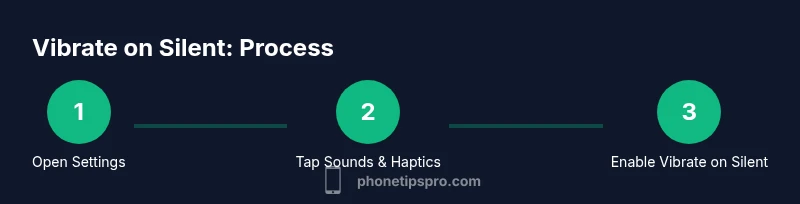
- Open the Settings app and tap Sounds & Haptics to access tone and vibration options. This is the hub for how your iPhone communicates through sound and touch. 2. Turn on Vibrate on Silent to ensure vibrations occur when the device is muted. 3. Tap Vibration to choose a preset or create a custom vibration pattern. The pattern you pick will apply to alerts that come in while silent. 4. Return to the main Settings screen and verify that Silent mode is enabled (the side switch shows orange). 5. Do a quick test by muting the phone and asking a friend to message you; confirm you feel the vibration even when the phone is silent.
Customize Vibrations for Calls, Messages, and Alerts
Not all vibrations are created equal. In Settings > Sounds & Haptics > Ringtone and each alert type has its own Vibration option. Create distinct patterns for Calls, Text Tone, Mail, and Other Alerts to quickly identify the source without hearing a sound. This can be especially helpful in noisy environments or when you rely on vibration as a primary cue. Phone Tips Pro recommends using longer, slower vibrations for high-priority alerts and shorter, subtle patterns for less critical notifications, so you don’t miss what matters most.
Troubleshooting Common Issues
If your iPhone still doesn’t vibrate on silent after enabling Vibrate on Silent, verify that Silent/Ring switch is set correctly and that Do Not Disturb or Focus modes aren’t suppressing vibrations entirely. Some third-party apps also override vibration settings for notifications; check app-specific notification settings and ensure they follow system vibration rules. If you recently updated iOS, a settings reset or re-creating a custom vibration pattern can resolve inconsistencies. In rare cases, hardware issues can affect vibration strength; consult Apple Support if the device vibrates weakly or not at all.
Pro Tips from Phone Tips Pro
Use a clearly distinct vibration pattern for high-priority alerts (such as messages from important contacts) so you can distinguish them without looking at the screen. Regularly review and refresh your vibration patterns after major iOS updates, since UI changes can alter where settings live. If you frequently need silent alerts in specific contexts (meetings, gym, etc.), pair Vibrate on Silent with Focus modes and allowed notifications to maintain control while staying courteous to others.
Tools & Materials
- iPhone with current iOS version(Essential; features may vary slightly by model.)
- Settings app access(No internet needed for basic vibration settings.)
- Optional: Pre-recorded vibration patterns (for reference)(Helpful to design custom patterns)
Steps
Estimated time: 5-10 minutes
- 1
Open Settings
Launch the Settings app from your home screen to access iPhone configurations. This is the first step in ensuring you can adjust vibrational feedback alongside other sound options.
Tip: If you use Spotlight search, type 'Settings' to reach the app quickly. - 2
Navigate to Sounds & Haptics
In Settings, tap Sounds & Haptics to reach the vibration and alert controls. This is where you’ll find Vibrate on Silent and Vibration customization.
Tip: Take a moment to compare Vibrate on Ring and Vibrate on Silent to understand when each is active. - 3
Enable Vibrate on Silent
Toggle Vibrate on Silent to the ON position. This ensures the device vibrates for alerts even when the ringer is off.
Tip: If you don’t see the option, ensure you are on a compatible iOS build. - 4
Customize Vibration Pattern
Tap Vibration, then choose a preset or create a new pattern. Custom patterns help you quickly recognize alert types by touch alone.
Tip: Test each pattern by tapping the play button to feel it before saving. - 5
Test Vibration in Silent Mode
Mute your iPhone (using the Silent/Ring switch) and trigger a test alert (a message or call) to confirm vibration works as expected.
Tip: If it doesn’t vibrate, revisit steps 2-4 and check Focus/Do Not Disturb interactions.
FAQ
What does Vibrate on Silent do on an iPhone?
Vibrate on Silent ensures the iPhone still vibrates for alerts when the ringer is silenced, helping you notice calls, messages, and apps without sound.
Vibrate on Silent makes your iPhone buzz even when it’s muted, so you don’t miss key alerts.
How can I customize vibration patterns for different alerts?
Go to Settings > Sounds & Haptics > Vibration to create or choose distinct patterns for Calls, Texts, Mail, and other alerts.
You can tailor vibration patterns for each alert type in the Vibration settings.
Will Focus or Do Not Disturb affect vibrations?
Focus and Do Not Disturb can suppress vibrations if configured to silent notifications; review the Focus settings to allow certain alerts to vibrate.
Focus can silence vibrate for some apps unless you allow exceptions.
Why isn’t my iPhone vibrating in silent mode?
Check Vibrate on Silent is ON, verify the device isn’t in Do Not Disturb or Focus mode, and test with a simple alert to isolate the issue.
If it still won’t vibrate, review the vibration pattern and test again after an update.
Can I have different vibrations for calls and messages?
Yes. Create separate vibration patterns for Calls and Texts (and other alerts) so you can distinguish them by feel.
Absolutely—different patterns let you tell alerts apart without looking.
Is Vibrate on Silent available on all iPhone models?
Vibrate on Silent is a standard feature on recent iPhone models with iOS that supports vibration; very old devices may differ in exact options.
Most modern iPhones support Vibrate on Silent, but check your model if you’re unsure.
Watch Video
Quick Summary
- Enable Vibrate on Silent in Settings > Sounds & Haptics.
- Customize vibration patterns to differentiate alert types.
- Test vibrations regularly, especially after iOS updates.
- Check Focus and Do Not Disturb interactions if vibrations fail.