How to Put iPhone on Vibrate
Learn exactly how to place your iPhone on vibrate with simple steps to enable Vibrate on Ring and Vibrate on Silent, plus testing and troubleshooting tips for reliable alerts.


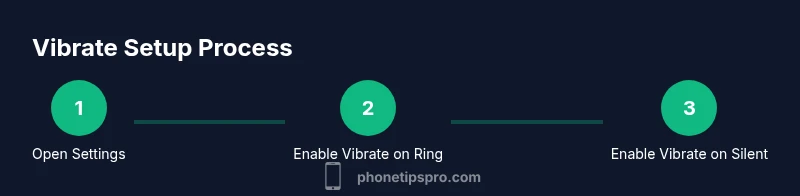
To place your iPhone on vibrate, enable vibration in Settings and use the side Ring/Silent switch. In Settings > Sounds & Haptics, toggle Vibrate on Ring and Vibrate on Silent. Then flip the side switch to Silent when you want quiet notifications that still vibrate. This covers both ringing and silent contexts.
Understanding Vibrations on iPhone
Vibration on iPhone is part of the device's alert system that uses the Taptic Engine to provide tactile feedback for calls, messages, and app alerts. If you want to improve your ability to notice incoming events in loud environments or when you have your sound off, understanding how vibration works is essential. The phrase how to put iphone on vibrate isn’t just about flipping a switch; it’s about configuring a reliable, multi-layered notification setup that suits your daily routine. On modern iPhones, vibrations are controlled by two primary toggles: Vibrate on Ring and Vibrate on Silent. These two options let you decide whether vibrations should occur when the phone is ringing in normal mode or when the phone is silent. Even with the side Ring/Silent switch in the Silent position, you can still feel a vibration if Vibrate on Silent is enabled. Additionally, you can customize vibration patterns for different alerts, such as calls, texts, voicemails, and app notices, which helps you distinguish alerts by feel as well as sound. The key idea is to separate the sound and haptic experiences so you never miss a notification because you overlooked a silent device. If you are looking for a quick way to place your iPhone on vibrate, this guide will show you the exact steps and checks to run.
Where to Find the Vibrate Settings
The Vibrate toggles live in Settings, under Sounds & Haptics. This location stays consistent across iPhone models, making it easy to locate even if you’re newer to iOS. Accessing these options gives you control over two specific settings: Vibrate on Ring and Vibrate on Silent. Enabling both ensures you feel vibrations whether you’re in a loud room or a quiet meeting. If you’ve never adjusted these before, you’ll notice that the interface groups tone, vibration, and haptic settings together for a smoother customization experience. By understanding where these controls live, you’ll be able to tailor vibrational alerts to your everyday routines and environments. Remember, the exact wording may vary slightly with iOS updates, but the underlying concepts remain stable: vibrational feedback is managed independently from sound, and you can customize it per alert type.
Why Vibrate Might Seem Off in Some Scenarios
Sometimes vibrations don’t occur as expected. Common culprits include Focus or Do Not Disturb modes, software glitches, or a disabled vibration pattern. If you’re asking yourself how to put iphone on vibrate and still feel alerts, check whether Focus modes silence alerts or override notification behavior on a schedule. Another frequent reason is that Vibrate on Ring or Vibrate on Silent has been turned off. In addition, certain apps may have their own vibration settings that override system defaults. By understanding these nuances, you can avoid missing critical alerts when you need quiet moments or when you’re in a loud environment. The goal is consistent haptic feedback across contexts, not just when the phone is ringing loudly. Keeping these settings aligned ensures you can rely on vibrations in almost any scenario.
Step-by-Step: Turn on Vibrate on Ring and Silent
This section walks you through enabling vibration for both ring and silent modes. If you’re searching for a way to properly configure alerts, these steps will guide you through the exact taps and toggles. The approach is straightforward and designed to be robust across iPhone generations. Once completed, your device will vibrate for calls, texts, and app alerts in either mode, provided the corresponding toggle is enabled. If you’re unsure how to proceed, follow the steps slowly and test after each change to confirm the effect. The result should be a reliable tactile cue that doesn’t depend on audible sound.
Testing Your Vibrations: How to Verify
Verification is essential after making changes. You can test vibrations by having someone call, sending a text, or triggering a notification from an app. For a focused test, enable Vibrate on Ring and Vibrate on Silent, then switch the side Ring/Silent to Silent and ask a friend to text you. If you feel the vibration, you know the setting is active. If not, repeat the steps and verify that each toggle remains on. Regular testing ensures you’ll receive tactile feedback even in noisy environments. Remember, a quick test can save you from missed calls during important moments, which is the whole purpose of learning how to put iPhone on vibrate effectively.
Customizing Vibration Patterns for Alerts
iPhone offers flexible vibration customization to help you distinguish between types of alerts by feel. In Settings > Sounds & Haptics > Vibration, you can choose a preset pattern or create a new one. Custom patterns can be assigned to specific alerts like Ringtone, Text Tone, or Mail. This level of customization makes your device immediately recognizable by touch, reducing the chance of missing important notifications in busy environments. If you depend on vibration to stay informed, customizing patterns is a worthwhile step in the process of learning how to put iPhone on vibrate effectively.
Troubleshooting Common Vibration Issues
If vibrations stop working after updating iOS or installing a new app, start with a quick reset of the vibration settings by toggling Vibrate on Ring and Vibrate on Silent off and then back on. If there’s still no vibration, check the Ring/Silent switch for mechanical obstruction or wear. Another common fix is to test with a simple vibration pattern in Settings > Sounds & Haptics; if you hear no feedback, there may be a hardware issue that requires service. Finally, ensure Focus/Do Not Disturb isn’t suppressing vibrations in your current profile. By methodically checking each potential cause, you can usually restore vibrational feedback without professional help.
Best Practices and Accessibility Considerations
For users who rely on haptic feedback, maintaining consistent vibrational cues is critical. Consider enabling Vibrate on Silent and Vibrate on Ring to cover multiple scenarios, and regularly review vibration patterns to ensure they remain distinct and usable. Accessibility features also allow you to adjust haptic intensity and patterns for comfort or emphasis. If vision or hearing impairments impact alert perception, combining vibration with visual cues in apps can improve reliability. Keeping these practices in mind will help you stay responsive to alerts without relying solely on sound.
Quick Habits to Stay Informed: Maintenance and Accessibility
Regularly revisiting your vibration settings ensures that updates don’t inadvertently reset important preferences. Schedule a quick monthly check: confirm Vibrate on Ring and Vibrate on Silent are ON, review your selected vibration pattern, and run a test. This habit is especially helpful after iOS updates, when settings sometimes shift. By incorporating a short routine, you’ll maintain dependable tactile feedback and never miss key notifications.
The Bottom Line: How to Put iPhone on Vibrate Effectively
In short, placing an iPhone on vibrate combines two toggles (Vibrate on Ring and Vibrate on Silent) with the physical Ring/Silent switch. By configuring these options and testing regularly, you’ll achieve reliable tactile alerts across scenarios. This approach balances quiet environments with continuous awareness, ensuring you stay connected without sounding off the device every time. For best results, practice the steps, customize patterns where needed, and keep accessibility considerations in mind.
Tools & Materials
- iPhone with current iOS(Ensure you can access Settings and toggle Vibrate options)
- Settings app(Needed to adjust Vibrate on Ring/Silent and vibration patterns)
Steps
Estimated time: 5-7 minutes
- 1
Open the Settings app
Unlock your iPhone and locate the Settings icon on the home screen, then tap it to open. This is the first step in accessing vibration controls and other notification preferences.
Tip: If you use Spotlight search, type 'Settings' to reach it quickly. - 2
Tap Sounds & Haptics
In the Settings menu, find and select Sounds & Haptics to access tone, vibration, and haptic options. This is where you control the vibrational behavior for alerts.
Tip: On some older devices, this may be labeled just 'Sounds'. - 3
Enable Vibrate on Ring
Find the Vibrate on Ring toggle and switch it to the ON position. This ensures your iPhone vibrates when a call comes in in normal mode.
Tip: If you don’t hear a vibration for calls, revisit this toggle later in the process. - 4
Enable Vibrate on Silent
Find the Vibrate on Silent toggle and switch it to ON. This makes vibrations occur when your Ring/Silent switch is set to Silent.
Tip: This is critical for evenings or meetings where sound should be off but you still want alerts. - 5
Use the Ring/Silent switch
Slide the physical Ring/Silent switch on the side of your iPhone to Silent to verify that vibrations respond as expected when muted.
Tip: Some cases or mounts may affect the switch’s accessibility; adjust grip if needed. - 6
Test with a notification
Ask someone to call or text you, or trigger a notification from an app to observe the vibration response in both modes.
Tip: If there’s no vibration, re-check the two toggles and try a quick restart of your device. - 7
Optional: customize vibration patterns
Go to Settings > Sounds & Haptics > Vibration to choose a pattern or create a new one for different alerts.
Tip: Distinct patterns help you differentiate calls, texts, and app alerts by touch. - 8
Finalize and document your setup
Confirm both toggles are ON and note your choices for future reference, especially after iOS updates.
Tip: Keep a quick reference somewhere accessible in case settings get reset.
FAQ
How do I enable Vibrate on Ring on my iPhone?
Open Settings > Sounds & Haptics and toggle Vibrate on Ring to ON. This ensures calls will vibrate when you’re in normal mode.
Go to Settings, tap Sounds & Haptics, and turn on Vibrate on Ring to hear and feel alerts when a call comes in.
How can I make my iPhone vibrate when in Silent mode?
Turn on Vibrate on Silent in Settings > Sounds & Haptics. This makes the phone vibrate for notifications even when the side switch is set to Silent.
Enable Vibrate on Silent in Settings > Sounds & Haptics so you don’t miss alerts when Silent mode is active.
Why isn’t my iPhone vibrating even after enabling settings?
Check the Ring/Silent switch position, verify both Vibrate on Ring and Vibrate on Silent are ON, and test with a notification. If still failing, attempt a restart or reset of vibration settings.
If vibrations still don’t work, review the two vibrate toggles and try a quick restart.
Can I customize vibration patterns for different alerts?
Yes. Go to Settings > Sounds & Haptics > Vibration to select a preset or create a new pattern for specific alerts like calls or texts.
You can customize how each alert vibrates by creating or choosing a vibration pattern in Settings.
Does Do Not Disturb affect iPhone vibrations?
Do Not Disturb can silence alerts in certain contexts, but vibrations can still be enabled based on your Vibrate on Ring/Silent settings. Check Focus configurations if vibrations seem muted.
DND can mute sounds, but vibrations depend on your vibrate toggles and Focus settings.
How can I test vibrations quickly?
Trigger a notification or have someone call you. Use Settings > Sounds & Haptics tests to verify the pattern and intensity.
Just trigger a notification to feel the vibration, or use a quick test in Settings.
Watch Video
Quick Summary
- Enable Vibrate on Ring and Vibrate on Silent for both modes.
- Use the physical Ring/Silent switch for quick context changes.
- Test vibrations with real notifications to confirm behavior.
- Customize patterns to differentiate alert types.
- Review settings after iOS updates to prevent surprises.