How to Make iPhone Vibrate: A Clear Step-by-Step Guide
Learn to make your iPhone vibrate reliably with an easy, comprehensive workflow. From enabling vibrate settings to creating custom patterns and troubleshooting, Phone Tips Pro guides you through hands-on steps for consistent haptic alerts.


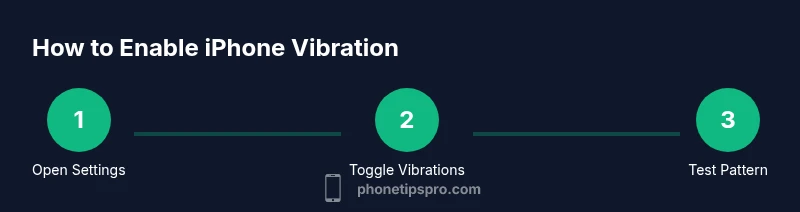
To make your iPhone vibrate, you’ll enable and customize vibration in Settings > Sounds & Haptics, toggle Vibrate on Ring and Vibrate on Silent, and optionally create a custom vibration pattern. Then test with a notification or the Ringtone vibration tester. This guide from Phone Tips Pro walks you through every step.
What Vibrations Do on iPhone and Why They Matter
Vibration on iPhone is powered by haptic feedback that helps you notice alerts even when sound is off. This feature is essential for conversations in quiet rooms, for users who rely on tactile cues due to hearing differences, and for those who want immediate notification without loud noises. The iPhone’s vibration system is not just a single buzz; it can differ in intensity and pattern. By understanding how haptics are wired to the system, you can tailor alerts that fit your daily routine. According to Phone Tips Pro, a well-tuned vibration setup reduces missed notifications and makes everyday interactions smoother, especially in environments where audio alerts aren’t practical.
In practice, vibration is controlled by two main toggles: Vibrate on Ring and Vibrate on Silent. When enabled, these settings determine whether alerts will vibrate when your phone rings or when it’s silenced. You can also customize vibration patterns to differentiate between messages, calls, and calendar alerts. This granularity makes it easier to identify incoming notifications without glancing at the screen. Understanding and using these controls is the first step toward a reliable, personalized haptic experience.
Core Settings: Vibrate On Ring vs Vibrate On Silent
The Settings app houses the core switches that govern vibration behavior. Start by opening Settings and navigating to Sounds & Haptics. Here you’ll see two primary options: Vibrate on Ring and Vibrate on Silent. Turn both on to ensure you feel vibrations for most alerts, whether the phone is ringing or in silent mode. If you work in environments where no sound is acceptable, Vibrate on Silent becomes crucial for staying aware of missed calls or messages.
Next, explore Accessibility options for broader haptic support. Under Accessibility > Touch, you’ll find the Vibration switch. This global toggle ensures vibrations are produced for any supported alert, even if an app’s internal notification settings might override other options. Keeping these toggles enabled helps ensure you don’t miss critical alerts, especially when your attention is elsewhere. After configuring these, perform a quick test by triggering a notification (send yourself a test message) and confirming the haptic feedback occurs as expected.
Create a Custom Vibration Pattern: Create New Vibration
One of the most powerful tools in iPhone vibration management is the ability to create a custom vibration pattern. Go to Settings > Sounds & Haptics > Ringtone > Vibration > Create New Vibration. Tap the screen to build a pattern; a longer touch sequence produces a longer burst, and a pause creates distinct rhythm. When you release, the pattern is saved and can be assigned to a specific alert. This feature lets you tailor vibrations to different apps or contacts, helping you distinguish alerts by feel rather than sounds alone. The process is beginner-friendly and can be revisited anytime as your preferences evolve.
Common Scenarios: Quiet Environments and Focus Modes
Quiet environments, meetings, or long commutes are ideal times to rely on haptic feedback. If you use Focus modes (formerly Do Not Disturb), vibrations can be customized or suppressed depending on the focus profile. In Settings > Focus, you can allow or silence notifications based on the current focus, while still enabling vibration for key alerts if needed. If a notification feels too weak, check the vibration pattern assigned to that alert. Some apps allow per-app notification settings; make sure the vibration option is activated there as well. By aligning Focus modes and per-app vibrations, you’ll maintain awareness without disruption.
Troubleshooting: When Vibration Stops Working
If vibration suddenly stops working, start with a quick reset of your vibration settings. Toggle Vibrate on Ring and Vibrate on Silent off and back on, then test with a sample alert. Check the Accessibility Vibration switch to ensure global haptics aren’t disabled. If the problem persists, examine whether a software update is pending (Settings > General > Software Update) or whether a Focus mode is silencing alerts. A temporary workaround is to re-create the vibration pattern or reset all settings (Settings > General > Transfer or Reset iPhone > Reset > Reset All Settings). This can resolve conflicts without erasing data.
Per-App Vibration Customization: Notifications and Messages
Many apps allow you to tailor notification settings, including vibration, within the app’s own preferences or the iOS Notifications settings screen. For example, Messages and Email alerts may offer separate vibration patterns or even the option to disable vibration entirely for specific contacts. To customize, navigate to Settings > Notifications, select the app, and adjust the Vibration option. Creating distinct patterns for different apps helps you identify the source of alerts at a glance, which improves response times and reduces screen-check fatigue.
Accessibility and Advanced Tips: Haptics in Daily Use
Vibration isn’t just for alerts; it can be integrated with accessibility features to enhance daily interactions. If you rely on haptics for navigation or feedback, consider enabling system haptics in Settings > Sounds & Haptics. You can also explore AssistiveTouch and other accessibility tools that leverage haptic feedback for a more tactile user experience. For advanced users, pairing iPhone vibrations with automation via Shortcuts can trigger specific vibration patterns in response to events (e.g., reminding you of a task when you leave a location). Regularly review your vibration patterns to keep them aligned with your changing routines.
Testing: Quick Verification of Your Vibration Setup
Testing is essential to verify your vibration changes took effect. Use the test notification in Settings or send yourself a test message. You should feel a noticeable buzz when Vibrate on Ring is enabled and a distinct pattern when you use a custom vibration. If you don’t feel anything, review the steps above, recheck per-app settings, and confirm that the hardware is functioning. If needed, a full device restart can clear glitches that interfere with haptic feedback. Regular testing ensures your vibrations remain reliable across apps and scenarios.
Authority Sources and Further Reading
For deeper, official guidance on iPhone vibration and haptic settings, consult these sources:
- Apple Support: https://support.apple.com/iphone
- Apple Accessibility: https://www.apple.com/accessibility/iphone/
- National Institutes of Health (for general haptic research and accessibility considerations): https://www.nih.gov
Tools & Materials
- iPhone with current iOS version(Update to the latest iOS before you start.)
- Settings app access(You will navigate Settings > Sounds & Haptics and Accessibility.)
- Optional: external cues for testing(Use a test notification or message to verify vibration.)
Steps
Estimated time: 20-25 minutes
- 1
Open Settings
Unlock your iPhone and open the Settings app. This is the entry point for all vibration controls, including the core toggles and advanced patterns.
Tip: Take a moment to familiarize yourself with the layout to speed up future changes. - 2
Enable Vibrate on Ring
Navigate to Sounds & Haptics and turn on Vibrate on Ring. This ensures you feel alerts when calls come in, even if you’re not listening for audio.
Tip: If you rely on quiet environments, enable both Vibrate on Ring and Vibrate on Silent. - 3
Enable Vibrate on Silent
Turn on Vibrate on Silent to receive vibrations when the phone is muted. This helps you notice alerts during silent periods like meetings.
Tip: Double-check that Silent mode is active when you want silent notifications with haptics. - 4
Create a New Vibration Pattern
Go to Sounds & Haptics > Ringtone > Vibration > Create New Vibration. Tap to build a pattern; longer taps create longer pulses, pauses create rhythm.
Tip: Save your pattern with a clear name for easy assignment later. - 5
Assign the Pattern to Alerts
Apply the new vibration pattern to specific alerts (e.g., Messages, Mail) in Settings > Notifications or within the app’s notification settings.
Tip: Use distinct patterns for different apps to quickly identify the source of notifications. - 6
Test and Verify
Send a test notification or message to confirm the new vibration works as expected. If not, revisit the steps and adjust intensity or pattern length.
Tip: If testing across apps, test at least one messaging app and one email app.
FAQ
Why doesn't my iPhone vibrate for calls anymore?
Common causes include Vibrate on Ring being off, the Silent switch being engaged, or a Focus mode silencing alerts. Check Settings > Sounds & Haptics and Accessibility > Touch, then test with a call or a test notification.
If calls aren’t vibrating, verify Vibrate on Ring is on and that Focus modes aren’t silencing notifications.
Can I customize vibration patterns for different apps?
Yes. In Settings > Notifications for a given app, you may be able to set a specific vibration pattern or disable vibration for that app. Use Create New Vibration in Sounds & Haptics for a personalized pattern and apply it where supported.
You can tailor patterns per app in Notifications or by creating a new vibration in Settings.
What should I do if vibration feels faint or weak?
Faint vibrations can result from patterns with short pulses, low intensity, or hardware wear. Try a simpler pattern with longer pulses, ensure system haptics are enabled, and test with multiple alert types.
Increase pulse length or intensity and retest with different alerts to confirm.
Does Do Not Disturb affect vibration?
Focus or Do Not Disturb can suppress voices but often allow haptic feedback. Check Focus settings to ensure vibration is allowed during the chosen focus and that vibration isn’t disabled globally.
Focus modes might quiet sounds but can still allow vibrations if configured.
Will updating iOS reset my vibration settings?
A typical iOS update should preserve user settings, but it’s wise to review Vibrate on Ring, Vibrate on Silent, and any custom patterns after updating to ensure they’re still active.
Most updates keep your settings, but confirm them afterward to be safe.
Watch Video
Quick Summary
- Enable Vibrate on Ring and Vibrate on Silent for consistent alerts
- Use Create New Vibration to personalize alerts
- Test regularly to ensure patterns work across apps
- Leverage Focus/Do Not Disturb to control when vibrations occur
- Keep iOS updated to avoid vibration-related glitches