How to Make PDF on iPhone: A Practical Guide
Learn reliable, step-by-step methods to create PDFs on your iPhone using built-in tools like Files, Notes, and Safari, plus when to use third-party apps for advanced features. Quick, safe, and easy.


You can create PDFs on iPhone by exporting or sharing from apps like Notes, Safari, or Files, using the built-in Print-to-PDF feature or Save as PDF. No extra software is required. Whether you’re saving a webpage, document, or photo album, this guide shows quick methods and reliable steps for any app.
Why making PDFs on iPhone matters
PDFs are a universal, portable format that preserves layout across devices. On iPhone, you can create, save, and share PDFs without needing a computer. This capability is ideal for receipts, articles, tickets, or scanned documents. Mastering in-app export to PDF can save time and improve organization. For Phone Tips Pro readers, knowing how to generate PDFs directly on your device reduces reliance on desktop tools and supports seamless collaboration across iOS and macOS. Treat PDFs as a reliable way to archive information for offline access and consistent presentation on small screens.
Built-in options at a glance
iPhone includes several built-in paths to create PDFs without third-party software. The Files app lets you Save as PDF from documents, images, and webpages. Notes can export a note as a PDF, preserving text and embedded images. Safari and Mail support printing to PDF directly from the share sheet. Throughout this guide you’ll learn practical steps for saving long webpages, receipts, envelopes, or multi-page documents. This overview helps you pick the right workflow for the content you’re converting.
Method A: Save as PDF with the Files app
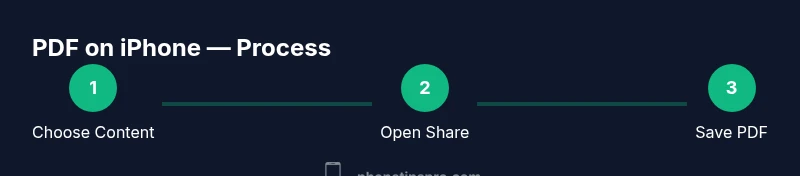
To save any document as a PDF in Files, open the item you want to convert, tap the Share button, then choose Print. In the Printer options, perform a pinch-out gesture on the preview to reveal the Save PDF option. Tap Save PDF, then choose a location in Files or iCloud Drive and rename the file if needed. This path works for documents, webpages saved from Safari, and supported apps. The benefit is a single, portable file you can organize in folders for quick retrieval.
Method B: Convert webpages from Safari to PDF
When you want to capture a webpage, Safari provides a quick and stable route to PDF. Tap the Share button on the page, select Print, then use the pinch-out gesture on the preview. Tap the Save to Files option, choose a folder, and save. If you prefer, you can use the Notes app and choose Save as PDF within the Share menu. Keep layouts aligned by testing a few representative pages to confirm the result.
Method C: Export from Notes and other apps
Not all apps show a direct export to PDF in the share sheet, but most support printing to PDF or saving to Files. In Notes, open the note you want to export, tap Share, and select Print, then Save PDF. In other apps like Photos, open the image, choose Share, and follow the same Print then Save flow. This method preserves content while keeping formatting readable when possible.
How to combine multiple pages or images into a single PDF
If you need a multi-page document, save each item as a PDF and then merge them in Files or a third-party tool. In Files, select multiple PDFs and use the Combine or Create PDF option if available, or merge them in a dedicated app. Maintain a consistent ordering and folder structure to simplify future retrieval.
When to use third-party PDF apps
For advanced features such as password protection, OCR, form filling, or robust annotations, dedicated PDF apps like Adobe Acrobat or PDF Expert can be valuable. If your needs are basic, the built-in iOS flow usually suffices. Decide based on how often you edit PDFs and whether you require encryption or batch processing.
Tips for maintaining quality and organization
Export from high-resolution sources to minimize poor text rendering. Name files with clear identifiers and dates to aid searchability. Store PDFs in a well-organized folder system in Files or iCloud Drive for easy access on all your devices. Enabling iCloud Drive ensures your PDFs stay synced across your iPhone and other Apple devices.
Security and privacy considerations
Be mindful when exporting PDFs that contain sensitive data, especially if you plan to share via email or cloud services. If you rely on third-party apps, review privacy policies before enabling cloud sync or uploading to online services. For highly confidential materials, consider password protection through a trusted PDF app after exporting.
Troubleshooting common issues
If the Save PDF option does not appear, try selecting Print first and then use the pinch-out gesture on the preview to reveal Save PDF. If that fails, attempt the same flow from a different app or content type. Ensure you have sufficient storage space in Files or iCloud Drive. A quick device restart can resolve minor rendering glitches.
Saving, organizing, and sharing your PDFs in iCloud Drive
After you create a PDF, save it to a dedicated Files folder. Use descriptive names and consistent folders to simplify later retrieval. Share via Messages, Mail, or a link from iCloud. This workflow makes PDFs accessible across your Apple devices and supports smooth collaboration.
Tools & Materials
- iPhone with built-in PDF export features(Any model supports export to PDF via Files, Notes, or Safari.)
- Document to convert(Web pages, notes, images, or files you want saved as PDF.)
- Files/Notes/Safari apps(Primary apps used to create PDF files.)
- Optional third-party PDF apps(Adobe Acrobat, PDF Expert, or similar for advanced features.)
- Cloud storage access (iCloud Drive, Dropbox, etc.)(For saving and sharing PDFs.)
Steps
Estimated time: 15-25 minutes
- 1
Identify the document to convert
Choose the exact page, image, note, or webpage you want saved as PDF. Prioritize content and layout that transfers well to a fixed format.
Tip: If converting a webpage, note the sections you need saved. - 2
Open the source in the correct app
Launch the app that holds the content (Notes, Safari, or Files) and locate the item you will convert.
Tip: For a web page, use Safari to preserve links and structure. - 3
Open the share or export option
Tap the share button in the app to reveal export options including Print and Save to Files.
Tip: If you cannot find export, use the Print option as a workaround. - 4
Choose Print to access PDF option
From the share sheet, select Print to enter the printer preview screen where PDF is accessible.
Tip: No actual printing occurs at this stage; this triggers the PDF flow. - 5
Use the pinch-out gesture to reveal Save PDF
On the printer preview, perform a two-finger pinch-out to reveal the Save PDF option.
Tip: If Save PDF does not appear, try tapping the Share icon again. - 6
Save the PDF to Files or iCloud Drive
Tap Save PDF and choose a destination in Files or iCloud Drive; rename if needed.
Tip: Create a dedicated PDFs folder to keep things organized. - 7
Name the file clearly
Use a descriptive file name with date and content identifier to ease future searches.
Tip: Example: Invoice_March_2026_ClientA.pdf. - 8
Verify the PDF content
Open the saved PDF to ensure text, images, and layout appear as expected.
Tip: Check a few pages for formatting consistency. - 9
If needed, export from Notes or other apps
In Notes or other apps, use Print followed by Save PDF to export content that may not appear in Files.
Tip: Always test the exported file before sharing. - 10
Merge multiple PDFs if necessary
If you have several pages, combine them into one file using Files or a third-party tool.
Tip: Keep a consistent folder and naming scheme. - 11
Choose your sharing method
Share the PDF via email, messaging, or link; set permissions if using cloud storage.
Tip: Limit access by choosing the appropriate sharing settings. - 12
Back up and organize
Store the final PDF in a well-organized location and back it up if it contains important data.
Tip: Consider a regular review cycle for critical documents.
FAQ
Can I create PDFs directly from any iPhone app?
Most apps support export to PDF via Print or Save to Files. If an app lacks a direct export, try using the Print flow or printing to PDF from the Share sheet.
Most apps offer a Print to PDF path via the Share sheet to create a PDF.
How can I password-protect a PDF on iPhone?
Native iPhone tools do not password protect PDFs directly. Use a third-party PDF app that supports encryption or add password protection after exporting.
Use a third-party app to password protect your PDF after exporting.
Where are PDFs saved on iPhone?
By default, PDFs saved via Save to Files are stored in iCloud Drive or local Files, depending on your selection. You can move them between locations anytime.
PDFs go to the Files app location you choose, like iCloud Drive.
Can I convert a webpage to PDF on iPhone?
Yes. In Safari, use the Share button, choose Print, then Save PDF from the preview to store the page as a PDF.
You can save Safari pages as PDFs using the print-to-PDF flow.
Is there a limit to PDF size on iPhone?
There is no strict iPhone limit, but very large PDFs can be unwieldy. Compress or split large documents if needed using third-party apps.
Large PDFs can be unwieldy; consider compression or splitting.
Can I merge multiple PDFs on iPhone?
Yes, using Files or third-party apps you can combine several PDFs into a single file for easier sharing.
You can merge PDFs in Files or with a PDF app.
Watch Video
Quick Summary
- PDF export is built into iPhone apps without extra software.
- Use Save PDF from Files or Print to PDF to preserve layout.
- Save and organize PDFs in Files or iCloud Drive.
- Third-party apps unlock password protection and OCR.
- Plan file naming and folder structure for future retrieval.