How to Print with an iPhone: A Practical Guide
Learn how to print with an iPhone using AirPrint, printer apps, and wireless options. This guide covers setup, troubleshooting, and best practices for reliable mobile printing in 2026.


Learn how to print with an iphone by using AirPrint, the built-in share sheet, or a printer's app. This quick guide shows you the simplest methods, how to connect to a compatible printer, and common fixes for typical printing issues from your iPhone. Whether you print photos, documents, or web pages, you'll learn the steps and options that work best in 2026.
Overview of iPhone Printing
According to Phone Tips Pro, learning how to print with an iphone is easier today than ever thanks to AirPrint, improved app support, and better network reliability. This guide explains why wireless printing on mobile devices is not just convenient but essential for busy families and remote workers. You can print from emails, photos, documents, and even web pages directly from your iPhone, without needing to transfer files to a computer. The core idea is to enable you to send a print job from your pocket to a printer across the room or across the office, quickly and securely. In 2026, most modern printers advertise AirPrint compatibility, and many offer companion apps that extend printing features to devices that don’t support AirPrint natively. If your printer is AirPrint-ready, the process is mostly automatic; if not, you’ll rely on the manufacturer's app or a universal printing app. The result? Fewer cables, less software, and faster turnarounds for everyday print tasks, from school reports to travel itineraries and recipes saved in your Photos library. This section sets the stage for practical, real-world steps you can apply today.
Prerequisites: What you need before you start
Before you begin, gather the basics to avoid interruptions. You’ll need an iPhone with current iOS, ideally iOS 12 or later, and a printer that supports AirPrint or a supported manufacturer app. Make sure both devices are on the same Wi‑Fi network and that the printer is powered on and connected. A reliable network matters more than the fastest printer, because AirPrint relies on discovery and transmission over your local network. If you’ll be printing from a third-party app, verify that the app supports iOS’s print system and can access your Files or Photos library. It’s also helpful to have a few test pages ready so you can confirm output quality, color settings, and margins after you pair devices. Finally, consider enabling printer firmware updates, as these can improve compatibility and fix known issues. With these prerequisites in place, you’ll experience smoother, more reliable printing from your iPhone.
Choosing the right printing method: AirPrint vs third-party apps
AirPrint is the default method that most iPhone users should try first. It requires no extra software beyond what’s already on your device and it generally delivers the simplest printing experience with reliable results. When both your iPhone and printer support AirPrint, you can tap Print from within any app and select your printer directly. Third-party apps come into play when AirPrint is unavailable or when you need advanced features such as double-sided printing, image optimization, or batch printing from a business app. In 2026, many manufacturers offer free companion apps that mirror printer features like page size presets, color correction, and cloud print options. However, using these apps can require extra setup and may introduce privacy considerations since your documents may route through the vendor’s cloud. The best approach is to start with AirPrint, and only switch to a manufacturer app if AirPrint can’t meet your needs.
Step-by-step: Printing from the Photos app
Printing from the Photos app on iPhone is one of the most common use cases. Start by opening the photo or album you want to print, then tap the Share button and choose Print. The system will display a list of available printers; select the one you added earlier. Set the print options, including number of copies, color vs. black-and-white, and paper size. If your printer supports it, you’ll see additional features such as borderless printing or photo optimization. Once you confirm, the iPhone sends the data to the printer. If you don’t see your printer, ensure it’s on the same network and that both devices can reach each other. In some environments, you may need to toggle the printer on/off or reboot the router to refresh device discovery. After printing, review the output for alignment and color accuracy, and keep a copy of the receipt if your printer tracks job history. This path is typically quick and ideal for personal photos and simple documents.
Step-by-step: Printing from other apps
Not every app shows the Print option in the share sheet, so you may need to rely on a built-in export or a dedicated printer app. In productivity apps, look for the Print item in the Share or Export menu; if unavailable, use the app’s export function to save a PDF and print from the Files app. For email or web content, the same Print flow applies; you can often print entire emails with attachments or save web pages as PDFs for later printing. When using a manufacturer app, open the app, connect to the printer, and locate the print function within that environment. This method can offer more precise color controls or page layout settings. If you frequently print from a given app, consider saving a preset in the printer app to speed up future tasks. The key is to be flexible and aware of the app’s capabilities and limitations.
Troubleshooting common issues
Printing with an iPhone is usually straightforward, but problems can happen. If your print job stalls or fails to start, check that the printer is online and on the same network as your iPhone. Restarting the printer and the iPhone can clear transient connectivity glitches. If the printer doesn’t appear in the list, ensure it supports AirPrint, update its firmware, and verify you’re logged into the same Wi‑Fi network. Network segmentation, VPNs, or guest networks can block printer discovery, so temporarily disable them or switch the devices to the primary network. For color or image quality problems, review the print settings for color management, paper size, and density. If printing PDFs, confirm the file isn’t corrupted and try printing a test page first. Lastly, keep your iPhone and printer within line-of-sight; interference or distance can degrade performance.
Security, privacy, and best practices
When printing sensitive documents from an iPhone, security matters. Prefer AirPrint or manufacturer apps that support secure printing over local networks rather than routing through cloud services. Ensure your home or office Wi‑Fi is secured with a strong password and up-to-date encryption. Periodically review printer permissions in your iPhone’s Settings to minimize data leakage. If you use a shared printer in an office, enable user authentication or a job‑release workflow so prints aren’t left unattended. For iOS privacy, disable printing of sensitive content from apps you don’t trust or from unknown networks. Finally, keep your printer firmware and iPhone OS updated to reduce vulnerability exposure and improve reliability.
Enhancing reliability: tips for home and office setups
Reliability comes from consistent setup and proactive maintenance. Use a dedicated Wi‑Fi network or VLAN for printers to minimize interference from other devices. Schedule regular firmware updates for both the printer and the iPhone to maintain compatibility with the latest iOS features. If you share a printer between devices, consider enabling user profiles in the printer app to customize color, density, and paper settings per user. In office environments, enable print queues and monitor job status to avoid duplicate prints or stalled jobs. Keep spare paper and basic consumables on hand to avoid mid-print interruptions. Finally, test any new printers or firmware updates with a few print jobs before relying on them for critical tasks.
Tools & Materials
- iPhone (iOS 12+)(Ensure Wi‑Fi and Bluetooth are on; keep device updated)
- AirPrint-enabled printer(Check compatibility on the printer’s spec page)
- Stable Wi‑Fi network(Prefer 2.4 GHz; 5 GHz works too if supported by printer)
- Printer app or driver (optional)(Useful for non-AirPrint devices)
- Files or Photos to print(Have content ready in the apps you’ll use)
- Computer or iPad (optional)(For initial setup or firmware updates)
Steps
Estimated time: 15-25 minutes
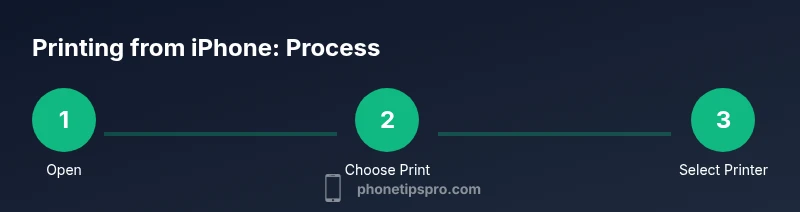
- 1
Open the document to print
Open the file or photo you want to print on your iPhone and prepare it for printing. Make sure the content is in the correct orientation and the target page size matches your printer's capability.
Tip: If printing from a third-party app, check if it supports the built-in share sheet. - 2
Open the share/print option
Tap the Share icon or the app’s menu and select Print. This opens the iOS print dialog where printers are listed.
Tip: If you don’t see Print, swipe left on the bottom row of options or scroll to reveal the Print action. - 3
Choose your printer
From the list, select an AirPrint-enabled printer that’s on the same network as your iPhone. If it doesn’t appear, verify power and network connectivity.
Tip: If multiple printers appear, pick the one that matches the content type (color, grayscale) and page size. - 4
Adjust print settings
Set copies, pages, color vs. monochrome, paper size, and any duplex options. These settings affect cost, speed, and output quality.
Tip: For duplex printing, confirm the printer supports it before enabling it. - 5
Tap Print
Tap the Print button to send the job to your printer. The device will show a small progress indicator if printing begins, and you can cancel if needed.
Tip: Keep the iPhone within Wi‑Fi range until printing finishes to avoid interruptions. - 6
If printing fails, try alternatives
If the job doesn’t print, retry with the printer app or a different document. You can also try saving as PDF and printing the PDF from the app.
Tip: Restart the printer and iPhone if printers don’t appear after repeated attempts.
FAQ
Can I print from my iPhone without Wi‑Fi?
Most iPhone printing uses a Wi-Fi network with AirPrint or a printer app. Without a network, printing is generally not possible.
Most iPhone printing needs Wi‑Fi or a direct connection via the printer app. Without a network, printing is usually not possible.
How do I know if my printer supports AirPrint?
Check the printer model page or user manual for AirPrint compatibility. If in doubt, visit the printer manufacturer's website or contact support.
Check the model page or manual for AirPrint; if unsure, the manufacturer site can confirm.
Can I print from iPhone to a non-AirPrint printer?
Yes. Use the printer’s official app or software on the iPhone to print over the same network.
Yes. Use the printer’s app on your iPhone to print over the network.
Is it safe to print sensitive documents on public networks?
Avoid sending sensitive documents over public Wi‑Fi. If you must, use a VPN and secure printer setup.
Avoid public Wi-Fi for sensitive prints; use a VPN if you must print remotely.
Can I save a print job as PDF on iPhone?
Yes. Use the Print dialog’s PDF button to save the output as a PDF to Files or iCloud.
You can save the print as a PDF from the Print dialog.
What should I do if the printer isn’t appearing?
Ensure the printer is on the same network, connected, and supports AirPrint. Restart the printer and iPhone if needed.
Make sure the printer is on the same network and try restarting devices.
Watch Video
Quick Summary
- Print from iPhone using AirPrint whenever possible.
- Use the built-in Print option in apps for quick results.
- If AirPrint isn't available, install your printer's official app.
- Keep devices on the same network for reliable discovery.