How to Put iPhone on Silent: Quick Guide
Learn practical ways to silence your iPhone quickly—hardware switch, Focus/Do Not Disturb, and volume controls. Ideal for meetings, classes, and quiet environments. Expert tips from Phone Tips Pro.


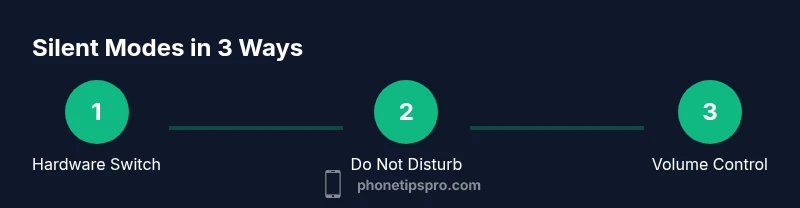
You can silence an iPhone using three reliable methods: hardware silent switch, software-based Do Not Disturb/Focus, and a quick volume-down. Start with the physical switch on the side to mute ringers, then use Focus to silence notifications, and finally lower the volume for media sounds. Alarms still ring. This covers 'how to put iphone on silent' in all common scenarios.
Why Silence Might Be Necessary in Today's World
Silence on your iPhone is a simple, essential skill for crowded environments, classrooms, meetings, or focused work sessions. Knowing how to put iphone on silent isn’t just about muting the ringtone; it involves a layered approach: hardware mute switch, software silence (Do Not Disturb and Focus), and volume management. According to Phone Tips Pro, mastering these three routes lets you adapt to any situation without risking missed alarms or important notifications. This guide walks you through each path, explains when to use them, and highlights practical pitfalls to avoid. Whether you’re preparing for a quiet conference or trying to minimize interruptions during deep work, you’ll finish with a clear, reliable plan for silent mode on iPhone.
In addition to the hardware switch, software silencing options are designed to offer control without sacrificing critical alerts. This is especially important for people who rely on alarms, location-based reminders, or time-sensitive notifications. By combining hardware, software, and volume controls, you can tailor silence to your exact needs. The goal is not to disable essential functions but to create predictable quiet when you need it most. Keep in mind that different apps and features may interact with silent mode in unique ways, so testing is a wise habit after every change.
Hardware Silent Switch: The Quickest Route
The fastest and most reliable way to silence your iPhone is the physical Silent switch on the left side of the device. When you flip the switch toward the back of the phone (showing an orange or red indicator, depending on model), the ringer and alerts are muted. This is the quickest way to respond to an unexpected meeting, crowded restaurant, or a sudden need for silence. Alarms will still sound, so you won’t miss critical wake-up calls or scheduled reminders. If you’re in a situation where you can’t visually confirm the switch, gently press the volume down button twice to ensure the ringer is minimized or silenced. Remember, this hardware method doesn’t affect media playback or in-app sounds unless you lower the volume or mute the device entirely via software.
For safety and accuracy, verify the switch position by looking for the orange indicator. If you observe no color change (older devices or certain cases may obscure visibility), rely on the software methods described later in this guide. The hardware switch is often the preferred first step because it provides immediate, deterministic behavior without altering other settings. In some iPhone models, the silent state also cues a small vibration or a visual indicator on the status bar, signaling that the device will not ring for incoming calls. This method pairs well with subsequent software silencing for broader quiet when needed.
Software Silence: Do Not Disturb and Focus
Beyond the hardware switch, Apple offers software-based silence through Do Not Disturb (DND) and Focus modes. These tools suppress most notifications and calls, depending on your customization. To enable, open Settings and navigate to Focus (or Do Not Disturb on older iOS versions). You can choose Silence: Always (notifications are silenced even when the phone is in use) or While iPhone is Locked (silence only when the screen is off). You can tailor allowed notifications by prioritizing specific people or apps so you don’t miss critical alerts from trusted sources.
A key advantage of Focus is automation. You can schedule or location-trigger Focus modes so your iPhone mutes automatically during meetings, at work, or while you’re at the library. You can further adjust Focus status so others know you’re in a quiet period, and you can choose whether calls from Favorites or repeated calls come through. These settings empower you to maintain privacy and concentration without constantly adjusting the hardware switch. Remember: alarms in the Clock app will still sound, regardless of Focus settings, which is crucial for waking up or timely reminders.
Phone Tips Pro emphasizes that combining Focus with the hardware switch offers the most robust silent experience. If you need complete quiet during a specific window, use Focus to silence both notifications and calls, while keeping alarms active. If you need to receive calls from specific people, configure Allowed Notifications accordingly. Testing these configurations in advance ensures you get the silence you expect in real-life scenarios.
Volume Management: Controlling Media vs Ringer
Volume control provides a third axis for silent behavior. When you lower the system volume to zero, you silence most alerts and sound effects that aren’t covered by the hardware switch or Focus. However, media playback (music, podcasts, videos) can still play even if the ringer is muted. To optimize, set the ringer/alerts volume with the volume buttons, then adjust media playback volume independently using the on-screen control in Control Center or the app’s own volume slider.
Understanding the distinction between ringer volume and media volume helps you tailor silence for different contexts. For instance, in a class, you may want the ringer muted via the Silent switch while keeping media playback silent or controlled through the app. In a video conference, lowering media and system sounds while enabling Focus helps ensure a distraction-free environment. If you repeatedly find yourself in a situation where silent mode isn’t enough, consider combining hardware silence with a focused software approach for consistent quiet across apps and notifications.
Focus Automations and Quick Toggles
Automation extends silent control beyond manual toggles. Create a custom Focus mode (e.g., “Meetings Quiet”) and set it to activate based on time, location, or app usage. When this Focus is active, your device can silence notifications, calls, and alerts from all but the exceptions you specify. Use this for calendar events, work hours, or study sessions. You can also enable a quick-toggle in Control Center for fast access to Focus or Do Not Disturb, allowing you to switch silent modes on the fly without digging through Settings.
To set automation, go to Settings > Focus > + (Add Focus). Name it, chooseSilence: Always, and define automation triggers such as Location or Time. Then, under Allowed Notifications, select the apps and people you want to permit. This approach helps you maintain productivity while avoiding interruptions from non-essential sources. While automation adds convenience, always test new configurations to confirm they behave as expected in real life.
Alarms and Exceptions: What Still Rings
One caveat of silent mode is that alarms ring regardless of your Settings. If you rely on a silent environment to focus, double-check that clock alarms are set with the correct time and volume. In Focus modes, alarms from the Clock app are unaffected by Do Not Disturb or Focus by design, ensuring you won’t miss crucial wake-up calls or reminders. If you have important alarms tied to specific days or events, consider placing them in a dedicated alarm profile that remains active even when other notifications are silenced.
Another exception: Emergency alerts, location-based reminders, and critical system notifications may still come through, depending on your Focus and notification settings. If you need to silence these as well during a long silent period, adjust the “Allowed Notifications” within Focus to exclude such alerts. Always test a silent setup by triggering a sample notification or call to verify that only the intended streams are muted.
Troubleshooting Common Scenarios
If you still hear sounds after enabling silent mode, start by confirming the hardware switch is fully engaged and that you haven’t left the device in a high-volume app or game. Check whether Do Not Disturb or Focus is active and whether you have any exceptions set up that could override silence. Verify that the Volume is not accidentally set to a high level in the app you’re using, since some apps manage their own audio settings independent of system volume. Finally, examine any automation rules for Focus that might re-enable notifications at specific times or locations. In rare cases, a quick restart can resolve transient issues where silent mode seems to fail.
Phone Tips Pro recommends a short confirmation checklist: hardware switch position, Do Not Disturb/Focus status, volume level, and app-specific audio settings. By running through these checks, you’ll quickly identify the root cause of a persistent noise and restore a truly quiet iPhone experience.
Best Practices for Meetings and Quiet Environments
When you need reliable silence for long blocks of time, combine methods for redundancy. Use the hardware silent switch for instant muting, enable a Focus profile tailored to your setting (with silent alarms), and keep media volume at a minimal level if you’re not using it. For meetings, consider letting colleagues know you’re in a Focus period, or enable a quick “Meetings” Focus profile with only essential alerts allowed. If you must answer urgent calls, configure Allowed Notifications explicitly to avoid missed opportunities while still preserving silence for the majority of apps. Regularly review and update your Focus settings to reflect changes in your schedule or responsibilities. With practice, you’ll seamlessly transition between silent and active modes without fumbling through settings.
Tools & Materials
- iPhone with iOS 13 or later(Ensures Silent switch, Do Not Disturb, and Focus are available.)
- Settings app(Needed to configure Do Not Disturb/Focus and app permissions.)
- Control Center access(Useful for quick toggles on some devices; availability varies by model.)
- Clock app alarms(Alarms sound even when silent; verify timing and volume.)
Steps
Estimated time: 5-15 minutes
- 1
Identify silent options
Review hardware and software routes: the side Silent switch, Do Not Disturb/Focus, and volume control. Decide which combination fits your current setting—quick mute versus long silence.
Tip: Know that alarms are separate and will still sound. - 2
Enable hardware Silent switch
Flip the side switch toward the back to silence ringtones. Check the orange indicator to confirm silent mode is active.
Tip: If you can’t see the switch clearly, try a quick volume check. - 3
Lower volume for media
Use the side volume down button to reduce system media volume to zero if you want no audible playback from apps.
Tip: Mute media separately from ringer for precise control. - 4
Turn on Do Not Disturb/Focus
Open Settings > Focus (or Do Not Disturb) and enable a silent profile. Choose Silence: Always to mute calls and alerts, or customize to Only while iPhone is locked.
Tip: Add exceptions if you must receive critical messages. - 5
Create Focus automation
Add a scheduled or location-based Focus rule to silence automatically during meetings or classes.
Tip: Limit allowed notifications to essential apps or people. - 6
Check alarms remain audible
Verify that your Clock alarms are set correctly; alarms override silent settings and will sound when needed.
Tip: Test an alarm after enabling silent mode to confirm behavior. - 7
Test multiple scenarios
Simulate incoming calls, messages, and media playback to ensure silence applies as intended across apps.
Tip: If something is still audible, re-check Focus and app permissions. - 8
Revisit and adjust
Periodically review your Silent strategy as routines change and new apps are installed.
Tip: Keep a simple checklist handy for quick silence toggling.
FAQ
Will alarms still ring when iPhone is in silent mode?
Yes. Alarms in the Clock app will sound even if silent mode is active. This is intentional to prevent missed wake-ups or reminders.
Alarms will still ring even when your iPhone is silenced.
How does Focus differ from Do Not Disturb for silence?
Focus is a customizable silence tool that can automate quiet periods based on time, location, or app activity. Do Not Disturb is a simpler mute option. Use Focus when you need context-specific quiet and DND for a quick, universal mute.
Focus lets you tailor quiet periods by time or place, while Do Not Disturb is a quick mute option.
Can I silence media but keep calls?
Yes. Lowering media volume and using Focus to silence notifications lets you listen for important calls if you adjust allowed notifications.
You can mute media while still receiving important calls by adjusting Focus settings.
What if I’m in a meeting and still hear notifications?
Revisit Focus settings to ensure you’ve disabled notifications from non-essential apps and enabled any necessary exceptions. Consider a dedicated meeting Focus profile.
If notices slip through, tweak Focus exceptions and confirm the mode is active.
Do silent settings affect iPhone alarms?
Alarms are designed to override silent settings, so they will sound at the scheduled time regardless of silent mode.
Alarms will sound even if your iPhone is silenced.
How do I revert silent settings quickly?
Disable Focus, switch the hardware Silent switch back to ring, or raise the volume to revert to normal sound. Quick toggles in Control Center can help.
Turn off Focus, switch the hardware switch, or adjust volume to return to normal sound.
Watch Video
Quick Summary
- Use hardware switch for instant mute.
- Combine Focus with Do Not Disturb for reliable silence.
- Alarms override silent mode—verify alarm settings.
- Test silent configurations across apps and scenarios.