How to Remove Apps from iPhone: Step-by-Step Guide
Learn how to remove apps from iPhone, when to delete vs offload, and how to reclaim storage without losing data. This educational guide provides practical, step-by-step instructions for iPhone users.


Master how to remove apps from iphone by deleting or offloading apps, managing storage, and reclaiming space without losing essential data. You'll learn when to delete vs offload, how to access iPhone Storage, and quick steps to reinstall apps if needed. This guide covers iOS 17+ features, privacy considerations, and how to manage apps across devices. No technical jargon—step-by-step instructions you can follow today.
Why Removing Apps Matters on iPhone
Removing unused apps from your iPhone can free up storage, speed up the device, improve battery life, and reduce data in cache that may be siphoning resources. When apps sit idle, they still take up space in your app library, can auto-update in the background, and sometimes store unnecessary data. The Phone Tips Pro team finds that users who periodically prune apps often see noticeable gains in available space and smoother performance. Offloading an app is a middle-ground option: it clears the app binary from your device but keeps documents and data, so reinstalling is quick and lossless. If you truly don’t need an app, deleting it is the most straightforward path. This section explains when to delete, when to offload, and how to decide based on your storage needs and usage patterns. For example, streaming apps with cached offline content may free up gigabytes after deletion; note that some apps' data gets stored in iCloud if enabled; check settings. In practice, a quarterly check-in helps you keep your device lean without sacrificing important functionality.
As you plan your cleanup, remember that storage decisions impact performance, privacy, and how you interact with your iPhone across devices. According to Phone Tips Pro, a thoughtful pruning routine can help you reclaim valuable space while preserving access to apps you actually use. Whether you offload or delete, you’ll stay in control of what resides on your device.
Methods to Remove Apps: Delete, Offload, and Manage
There isn’t a one-size-fits-all approach to removing apps on iPhone. Deleting an app removes the app and all its local data from the device, unless you’ve backed up data elsewhere. Offloading removes the app binary but keeps documents and data, so you can reinstall quickly later. You can also hide apps from Home Screen and App Library, and you should identify large or rarely used apps first to maximize space gains. The best approach often combines methods: offload apps you might use again, delete ones you never touch, and keep your most essential tools active. During this process, keep an eye on the apps that store large caches or offline content, as deleting these can free substantial space.
Step-By-Step Overview of Common Scenarios
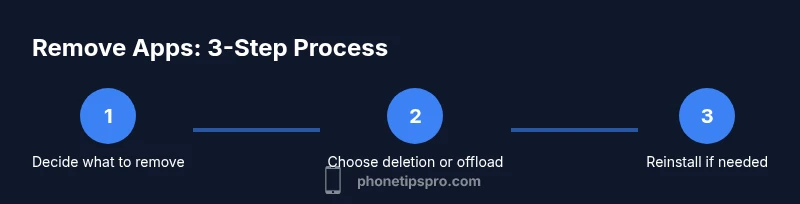
There are three typical scenarios for removing apps: rapid clearance for urgent storage, gradual pruning to balance usage, and broad cleanup to refresh your device’s setup. For urgent clearance, prioritize apps with big caches (games, video apps) and offload or delete those first. For long-term maintenance, establish a quarterly review to assess app relevance, data size, and usefulness. For a full device refresh, combine offloading with selective deletions, then reorganize your App Library to reflect current habits. Across all scenarios, the goal is to reclaim space while preserving data you can regenerate or restore from cloud backups if needed. In this guide, you’ll see concrete actions mapped to each scenario, so you can pick the path that fits your routine.
Phone Tips Pro suggests coupling storage cleanup with automatic offload settings when appropriate, to keep you moving and ensure you don’t lose access to critical apps unexpectedly.
How to Delete Apps from the Home Screen
Deleting from the Home Screen is the most straightforward method for removing an app. Tap and hold the app icon to trigger the jiggling state, then choose Remove App or a similar option. Confirm the deletion when prompted. The app will be removed from the device, and unless its data is stored in iCloud or backed up, it will be gone for good. If you frequently delete and reinstall the same app for testing or privacy reasons, this quick method keeps things tidy without extra steps. After deletion, you can free space immediately or continue pruning other apps.
Tip: If a popular app offers large offline downloads, consider offloading first to see if you still need the core features before permanently deleting.
How to Offload Apps to Save Space
Offloading is a powerful option when you want to reclaim space but may want to reuse an app later. Go to Settings > General > iPhone Storage, select an app, and choose Offload App. This removes the app binary while preserving documents and data, so you can reinstall quickly and pick up where you left off. Offloading is particularly useful for apps that accumulate caches or offline content you don’t need immediately. If you’re low on storage, iOS may offload apps automatically when you enable the feature.
Tip: Offloaded apps show a small cloud icon on the home screen; you can tap the icon to reinstall instantly. Keep in mind that some apps store critical data in cloud services—if that’s the case, your data will reappear after reinstallation.
Removing Apps via Settings > General > iPhone Storage
This route provides a centralized overview of all apps and their storage impact. Open Settings, tap General, select iPhone Storage, and review the list of apps sorted by size. Tap any app to see its size and data usage, then choose Delete App or Offload App based on your goal. Deleting removes both the app and its data, while Offloading keeps documents for a smoother reinstall. This method helps you identify the biggest space hogs and decide on a targeted cleanup rather than sweeping deletions.
Tip: Use the 'Review Large Attachments' or similar option to identify apps with heavy media caches that could be cleared by deletion or offloading.
Reinstalling Apps After Deletion or Offload
If you deleted or offloaded apps and decide you still need them, you can reinstall easily. Open the App Store, search for the app, and tap the download/reinstall button. If you previously downloaded the app, you can also find it under Your Purchases or in the App Library and tap to reinstall. Ensure you’re signed in with the same Apple ID used for the original download to access your data or cloud-synced progress.
Tip: After reinstall, check app settings to ensure privacy and notification preferences align with your current needs.
Managing App Data and Privacy After Removal
Deleting an app removes local data, but app data stored in iCloud or cloud services may remain accessible if you re-enable or reinstall the app later. Review iCloud backups and app-specific cloud settings to understand what data persists beyond deletion. Consider turning off automatic cloud backups for apps you don’t plan to use frequently to protect your privacy and reduce unintended data retention. When in doubt, consult the app’s support resources for data retention policies and how to back up progress before removal.
Common Pitfalls to Avoid When Removing Apps
Avoid deleting essential apps without an alternative planned, especially productivity tools or banking apps. Don’t delete apps that you cannot easily reinstall or that hold critical data unless you’ve backed up or can recover later. If you rely on automatic backups, verify that your data is securely stored before removal. Also avoid deleting apps with large in-app caches without checking if the data can be preserved via iCloud or cloud services. Finally, don’t forget that built-in Apple apps cannot always be deleted, but you can sometimes hide or offload them to free space.
Pro Tips for Ongoing Storage Health
Schedule a quarterly storage audit to remove unused apps and clear caches. Enable Offload Unused Apps to keep a lean device while preserving data. Use the App Library to declutter home screens without losing access to anything you might reinstall. Consider setting iCloud to back up critical app data so you can recover quickly if needed. Regularly review app permissions and privacy settings to keep your iPhone secure while keeping storage optimal.
Tools & Materials
- iPhone with sufficient battery(Charge to at least 50% before starting the removal process)
- Internet connection (Wi‑Fi or cellular)(Needed to download apps if you reinstall or update settings)
- Settings app access(Access to General > iPhone Storage and Offload options)
- Apple ID sign-in (optional for re-downloads)(Needed to re-download apps from the App Store if you’re not already signed in)
Steps
Estimated time: 5-12 minutes
- 1
Open the Home Screen and enter jiggle mode
Press and hold any app icon until all icons start to wiggle and a minus sign appears on the corner. This is the classic entry point to remove apps from the Home Screen. You’ll see options such as Delete App or Remove from Home Screen depending on your iOS version.
Tip: Tip: If you’re planning to keep the app in your library, consider offloading instead of deleting to preserve data. - 2
Choose Delete App or Offload
Tap Delete App to remove the app and its local data. If you want to reclaim space without losing data, choose Offload App to remove the binary while keeping documents and data.
Tip: Tip: If the app stores critical data in the cloud, offloading may be preferable to avoid data loss on reinstall. - 3
Confirm the action
A confirmation dialog will appear. Confirm the deletion or offload choice. The app will be removed accordingly, and space will be freed immediately or after the offload process completes.
Tip: Tip: Double-check you won’t need the app soon, especially if it isn’t set to re-download automatically. - 4
Offload via Settings (optional)
If you didn’t use the jiggle mode, you can offload via Settings > General > iPhone Storage. Tap the app and choose Offload App. This removes the binary but retains data, enabling a quick reinstall later.
Tip: Tip: Use this method for apps you’re not currently using but may need again in the future. - 5
Remove from App Library when needed
From the App Library, you can delete an app by long-pressing its icon and selecting Delete App. This helps keep your Home Screen clean while ensuring full removal from the device.
Tip: Tip: You can re-download deleted apps from the App Store at any time with your Apple ID. - 6
Reinstall if needed
If you decide you want the app later, open the App Store and search for it, then tap the download button. Reinstalling will restore the app and, if available, re-sync data from cloud backups.
Tip: Tip: Check Your Purchases in the App Store to speed up re-download of apps you’ve removed previously.
FAQ
What happens to app data when I delete an app on iPhone?
Deleting an app removes its local data from the iPhone. If the data is stored in iCloud or another cloud service, it may remain accessible there or be recoverable if you re-download the app. Always back up important progress before removal.
Deleting an app removes local data, but cloud data may persist. Back up if you’re unsure.
Is offloading better than deleting for storage management?
Offloading removes the app binary but keeps documents and data, allowing a quick reinstall later. It’s a good compromise when you’re unsure about future use. Deleting frees more space but loses local data and settings.
Offload keeps data, delete removes it. Use based on whether you might need the app again.
Can I delete apps without affecting data stored elsewhere?
Yes, data stored in cloud services or synchronized with the app’s account may remain accessible after deletion. You may need to re-login and sync after reinstalling.
Cloud data may stay available even after deletion.
How do I reinstall a deleted app quickly?
Open the App Store, search for the app, and tap Download. You can also restore it from Your Purchases if you’ve downloaded it before. Ensure you’re signed in with the same Apple ID.
Find the app in the App Store or Purchases and reinstall.
Does offloading affect built-in or Apple apps?
You cannot delete most built-in Apple apps, but you can offload them where available to reclaim space. They can be restored once needed. The App Library can help you hide unused apps from view.
Built-in apps are typically not deletable, but you can offload or hide them.
What’s the difference between deleting and hiding an app?
Deleting removes the app and its data from the device. Hiding is achieved by removing from the Home Screen or App Library, which keeps the app installed but not visible. In both cases, the app can be reinstalled later.
Delete removes; hiding keeps it installed but not visible.
Watch Video
Quick Summary
- Delete unused apps to reclaim space.
- Offload apps to preserve data and reinstall quickly.
- Use Settings > General > iPhone Storage to guide decisions.
- Reinstall apps via App Store when needed.