How to Check iPhone Storage: Free Up Space Fast
Learn how to check iPhone storage, identify space hogs, and reclaim memory with practical steps, tips, and best practices from Phone Tips Pro.


Learn how to check iPhone storage, identify space hogs, and reclaim memory with built-in tools. You’ll see what’s using space, compare categories, and get practical steps to offload, delete, or optimize content. This quick guide helps you prevent slowdowns and surprise outages, keeping your iPhone responsive as you add photos, apps, and messages.
Why Monitoring iPhone Storage Matters
According to Phone Tips Pro, storage health on your iPhone directly affects performance, app launch times, and backups. If storage is nearly full, you may notice slower app responses, longer photo saves, and abrupt app quits. Knowing how to check iphone storage helps you prevent those problems before they disrupt your day. In this section, we explore why space management isn’t just a brag-worthy feature—it's essential for smooth daily use. You’ll learn to read the storage breakdown, recognize space hogs, and make deliberate choices about what to keep or offload. By understanding where space goes, you gain practical leverage to keep your iPhone responsive, secure, and ready for new memories. The goal of this guide is to give you steps you can act on immediately, with clear choices and non-destructive options.
Understanding storage metrics
Storage metrics on iPhone break down how space is used into several categories: Used, Available, System, Apps, Photos, Messages, and Other. The Settings view typically shows a color-coded bar, a numeric breakdown, and tailored recommendations. Here, you learn what each slice means and how much space different types of data ordinarily consume. Phone Tips Pro analysis shows that many users overestimate free space because they overlook cache data, app data, and hidden system files. By knowing exactly where space goes, you can plan targeted cleanups without guessing.
How iPhone storage is calculated across iOS versions
Apple periodically updates how storage is categorized in Settings, shifting how the breakdown appears to the user. Across major iOS releases, you may see categories like System, Other, and App Data presented differently, but the core idea remains the same: space is allocated to apps, media, caches, and system files. The exact percentages will vary by device, installed apps, and usage patterns. This section helps you understand those nuances so you aren’t caught off guard after a software update or a fresh restore.
Check Storage via Settings (Step-by-step basics)
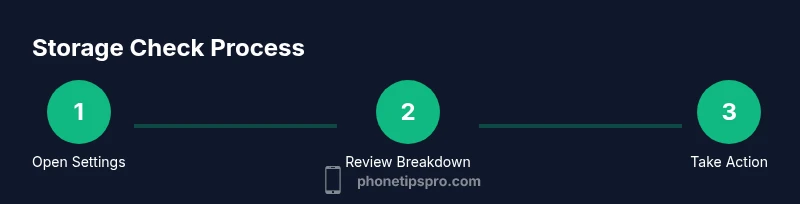
To see current usage, open Settings, then General, and choose iPhone Storage. The top of the screen shows a color bar and a numeric breakdown of used versus available space. You’ll also see a list of apps by the amount of storage they occupy. This quick glance reveals the biggest space hogs and flags potential cleanup opportunities. If you’re planning a space-saving routine, this is your first and most reliable starting point. After identifying offenders, you can decide whether to offload, delete, or optimize.
Interpreting the storage breakdown and identifying space hogs
The storage breakdown is more than a single number; it’s a map of how data travels through your iPhone. Photos and video often account for the bulk of space, followed by apps with large caches, message attachments, and system files. Recognize that “Other” and caches accumulate over time and can be trimmed with careful action. Use the details to rank actions by impact, aiming first at items that free the most space with the least risk.
Freeing up space: general strategies that work
Effective space-saving practices combine a few reliable tactics: offload unused apps, delete duplicates, optimize media storage, and manage message attachments. Start by turning on Offload Unused Apps and enabling Optimize iPhone Storage for Photos. Next, purge large attachments in Messages and review downloaded media in apps like Spotify or Netflix. If you keep a lot of video, consider streaming instead of downloading, or move older videos to cloud storage. The idea is to create a sustainable routine rather than a one-off cleanup.
Managing Photos and Messages to save space
Photos and Messages are frequent space culprits. Enable Optimize iPhone Storage so full-resolution media stays in iCloud while smaller versions live on-device. Delete or archive very large videos and chat attachments, especially if they’re duplicates or no longer needed. Regularly review Your Albums, especially ‘Recently Deleted’ and ‘Screenshots,’ which can accumulate quickly if not managed. This section provides practical steps to reduce ornament and clutter from media-heavy conversations.
App management: Offloading vs deleting, and when to use each
Offloading removes the app itself but preserves its data, allowing you to reinstall later without losing information. Deleting removes both the app and its data, freeing the most space but potentially requiring you to reconfigure settings later. Use offloading for apps you don’t use every day but want to keep data for, and delete only when you’re sure you won’t need the app soon. Pair this with regular backups to keep data safe.
Using iCloud, backups, and local storage: when to back up and how it helps
A robust backup strategy is a powerful ally for storage management. Storing photos in iCloud, enabling iCloud Photos, and backing up to a computer or iCloud Drive helps reduce on-device storage pressure. Backups allow you to restore data efficiently after a cleanup or device change. This section outlines practical backup habits, including what to back up, how often, and how to test restores so you aren’t surprised by missing data.
Troubleshooting common indicators and misreadings
If your storage indicator stays full after cleanup, re-check the breakdown for hidden caches, app data, and non-obvious space drains. Restarting the iPhone can clear transient caches; ensure iCloud storage is enough for your needs; re-indexing or restoring from a backup may occasionally reduce “Other” data. This final section helps you distinguish between real space problems and UI misreadings, so you don’t misallocate time.
Tools & Materials
- iPhone with active iOS version(Ensure the device is charged and connected to Wi-Fi for backup actions.)
- Settings app access(Needed to view storage breakdown.)
- Charging cable or wireless charger(Recommended during longer cleanups.)
- iCloud account or local computer(Used for backups and cloud storage options.)
- Backup medium (iCloud/Mac/PC)(Important before major deletions or resets.)
Steps
Estimated time: 45-90 minutes
- 1
Open Settings and go to General
Unlock your iPhone and open the Settings app, then tap General to access device options. This step establishes the pathway to storage data. It’s quick but foundational for the rest of the guide.
Tip: If you can’t find Settings, try swiping down on your home screen and using Spotlight search. - 2
Tap iPhone Storage to view the breakdown
In General, select iPhone Storage to view a color-coded bar and a detailed list of apps by space usage. Note top space hogs and the overall free space.
Tip: Wait a moment after opening if your device is indexing data—the numbers may refresh. - 3
Identify the biggest space hogs
Review apps and media categories that consume the most space. Focus on the largest apps first, then media files such as photos and videos.
Tip: Don’t rush this step—small caches add up over time. - 4
Offload or delete apps you rarely use
Choose offload to preserve app data or delete to reclaim maximum space. Decide based on whether you expect to use the app soon.
Tip: Offloading is best for large apps you don’t need daily. - 5
Manage photos and attachments
Enable Optimize iPhone Storage for Photos if available and delete large or duplicate attachments in Messages.
Tip: Consider moving older photos to cloud storage to maintain access while freeing space. - 6
Clear caches and temporary data
Some apps store caches that can be cleared without data loss. This reduces space without affecting user content.
Tip: Restart the device after clearing cache to ensure changes take effect. - 7
Back up before major changes
Create a backup to iCloud or a computer before significant deletions or resets. This protects your data if you need to restore later.
Tip: Verify backup completion before proceeding. - 8
Review again and monitor
After changes, revisit iPhone Storage to confirm space has freed up. Set a monthly reminder to repeat the process.
Tip: Automation tools can help remind you to clean up regularly.
FAQ
Where in iOS can I see how much storage is used?
Go to Settings > General > iPhone Storage to view a breakdown, see which apps take the most space, and access optimization recommendations.
Open Settings, then General, and select iPhone Storage to see space usage and big space hogs.
What should I do first if storage is almost full?
Start by reviewing large apps and media, offloading unused apps, and enabling Optimize iPhone Storage for Photos. Delete or offload what you don’t need.
First offload or delete big space hogs and enable photo optimization.
What does 'Other' storage mean?
'Other' includes caches, logs, and app data. You can reduce it by clearing caches, deleting unneeded content, or restoring from a backup.
Other is app caches and system data; clearing caches helps reduce it.
Can I free space without losing data?
Yes. Offload apps, store media in iCloud, and use 'Optimize iPhone Storage' to keep essential data on-device with backups.
You can free space without losing data by offloading and backing up.
Should I delete messages or attachments to save space?
Large message attachments can be removed or auto-deleted after a time to free space without affecting essential messages.
Delete large message attachments or enable auto-delete for old ones.
Watch Video
Quick Summary
- Check storage regularly to prevent space shortages.
- Identify top space hogs before cleaning up.
- Offload data first, delete only what you won’t miss.
- Phone Tips Pro recommends enabling iCloud backups for safer storage management.