How to fix iphone storage full: a practical cleanup guide
A comprehensive, step-by-step guide to fix iPhone storage full by identifying space hogs, offloading apps, optimizing photos, purging messages, and using cloud solutions for lasting relief.


You can fix iphone storage full by systematically identifying space hogs, offloading unused apps, optimizing photos and videos, purging large message attachments, and using iCloud or external storage to free space. Start with a storage breakdown in Settings, then follow a cleanup plan that prioritizes high-impact items like photos, apps, and cached data.
Understanding iPhone storage and how to fix iphone storage full
Storage on an iPhone is divided into several categories: system files, apps, photos, messages, and cached data. When the total used space approaches the device's limit, performance can suffer and new updates or apps may fail to install. According to Phone Tips Pro, the process of freeing space starts with understanding which data types occupy the most room and then applying targeted cleanup steps. The goal is not just to delete random files, but to reclaim space efficiently while preserving important data. In practice, most users reclaim substantial space by focusing on the biggest culprits: large photo libraries, video caches, unused apps, and heavy message attachments. By prioritizing these areas, you can fix iphone storage full without sacrificing essential information. Regular maintenance, such as enabling iCloud Photos with optimization and periodically reviewing stored files, keeps storage under control.
To plan effectively, recognize that storage needs vary by user: a photographer’s library will look different from a student’s app-heavy device. The key is to map usage over time, which makes it easier to spot recurring culprits and avoid repeating the same cleanup. This section lays the groundwork for a practical approach that balances data preservation with space recovery. Phone Tips Pro emphasizes starting with a clear assessment and then applying a targeted cleanup strategy that yields tangible results.
Step-by-step diagnosis: how to read the storage breakdown
The quickest way to understand what’s eating space is to inspect the storage breakdown, which is accessible through Settings. Navigate to Settings > General > iPhone Storage to view a color-coded chart that shows each category’s share of total usage. Focus first on the top offenders: large photo libraries, video caches, and apps you rarely use. Turn on a temporary bookmark to remind yourself to revisit sections with heavy data—sometimes a single large attachment in Messages or an old video in Photos adds up. Use the list to identify apps that disproportionately consume space, then drill into each app’s storage page to see exact data, including documents and data stored within the app. This diagnostic step sets the stage for precise, effective cleanup and can be completed in under 15 minutes on most devices.
To make the most of this diagnosis, note how much space each category consumes month over month. If you notice a sudden jump, check for recent app updates, new message attachments, or a large iCloud backup that’s pulling data locally. The goal is to create a prioritized plan that targets high-impact areas first while preserving the content you care about. For reference, Photo Library content and large message attachments are common culprits, so plan your cleanup around reducing those two categories without compromising valuable data.
Step 1: Offload unused apps
Offloading is a low-effort, high-impact step that removes the app itself while preserving its documents and data. This is ideal for apps you rarely use but don’t want to lose settings or login information. To offload, go to Settings > General > iPhone Storage, tap an app with a large footprint, and select Offload App. You can also enable the “Offload Unused Apps” toggle so the system does this automatically when space is tight. This step is especially effective for games and utilities that accumulate cache but aren’t essential day-to-day. After offloading, revisit the storage screen to quantify the freed space. If you still need the app, you can reinstall it without losing data, making it a safe, reversible move.
Tip: For apps with large caches or embedded media, offloading may not free all space. In these cases, you may need to delete the app entirely (and reinstall later if needed). Pro tip: Use a short-term backup plan before offloading critical apps, so you can restore data quickly if you change your mind.
Step 2: Delete apps you no longer need
If you have apps you haven’t opened in months, consider deleting them to reclaim space. Go to Settings > General > iPhone Storage, then tap the app and choose Delete App. This permanently removes the app and its associated data, so be sure you won’t need it again or that you can re-download it later from the App Store. Some apps store documents that can be re-downloaded or recalculated later; if you’re unsure, offload instead of delete. Before deleting, take a screenshot of any important in-app data or export essential content to iCloud Drive or your computer. This careful culling significantly reduces space usage without risking loss of critical data.
Tip: Keep a watchful eye on apps with large data footprints, like social media or map apps, which can accumulate caches quickly. If you delete an app, plan a quick re-download only for items you know you’ll reuse soon to save time.
Step 3: Manage photos and videos
Photos and videos are often the largest space hog. If you enable iCloud Photos with Optimize iPhone Storage, full-resolution media is kept in iCloud while lightweight versions remain on the device. This dramatically reduces local storage needs while preserving access to your library. You can also review and delete duplicate or out-of-date media, and weekly exporting of memories to a computer or external drive helps maintain a lean local library. Don’t forget to empty the Recently Deleted album after removing items, as those files still occupy space for 30 days. If you have RAW or 4K video captures, consider downscaling or converting to high-efficiency formats to save space.
For extended relief, consider using a secondary cloud service or an external drive that’s compatible with iPhone adapters. Regularly back up and prune media you no longer need. This approach not only frees space but also keeps your photo library organized and easier to navigate. See Diagram 1 for a visual reference of how optimized storage impacts your device.
Step 4: Review and purge message attachments
Messages can accumulate large attachments quickly, especially if you participate in group chats or send media-heavy conversations. Go to Settings > Messages > Keep Messages and set a shorter retention period (for example, 1 year or 30 days). Review large attachments in conversations and delete those you don’t need. You can also search for large attachments specifically by tapping the search bar in Messages and choosing “Attachments” to filter by size. Clearing old conversations or exporting important ones to your computer can free substantial space. Remember, keeping conversation history shorter helps manage ongoing storage growth.
Tip: If you frequently send videos, set messages to delete after a defined period. This keeps your messaging footprint manageable without sacrificing critical records.
Step 5: Clear caches and Safari data
App caches can creep up, consuming space without you realizing it. Clearing caches isn’t always possible from within apps, but you can take several effective actions. Start with Safari: Settings > Safari > Clear History and Website Data. For other apps, the most reliable approach is to delete the app and reinstall it, which clears cached data. Some apps allow clearing cache from within the app itself—check each app’s settings. If you must, you can sign out and back in to refresh cached data. After clearing, monitor storage to confirm gains and avoid repeating unnecessary cache buildup.
Tip: Regularly clear data for apps that store offline media or large caches, and re-check storage every few weeks to maintain a lean footprint.
Step 6: Leverage iCloud storage and cloud services
iCloud and other cloud services can significantly reduce on-device storage needs. Consider upgrading your iCloud storage tier if you regularly run out of space; this makes optimization strategies more feasible. Use iCloud Photos with Optimize iPhone Storage, enable iCloud Drive for documents, and back up valuable media to cloud storage as a default habit. Beyond Apple, services like Google Photos, Dropbox, or Microsoft OneDrive offer additional ways to offload photos, videos, and documents. When you rely on cloud storage, ensure you have reliable internet access and a plan that meets your data usage and privacy preferences. The combination of on-device cleanup and robust cloud backup provides a sustainable solution to long-term storage challenges.
Tip: Schedule monthly cleanups and enable automatic backups so you don’t have to re-clean storage as often.
Step 7: When to reset and last-resort options
If you’ve attempted all the above steps and still can’t reclaim space, a last-resort option is to reset the device. Before doing this, back up your data through iCloud or a computer backup. You can choose Reset All Settings to preserve your data while refreshing system settings, or Erase All Content and Settings if you’re planning to sell or transfer the device. In some cases, a reset resolves stubborn storage issues caused by system caches or corrupted files. After resetting, restore from your backup or selectively reinstall apps and data to avoid repeating the problem. This is a heavier step, so consider it only after exploring all other cleanup avenues.
Note: If you plan to upgrade to a new device, compare transfer options to ensure you retain critical data without migrating unnecessary files.
Authoritative guides and proactive maintenance
For reliable, official guidance on storage management, refer to Apple Support's storage-related help articles and trusted technology outlets. Keeping your iPhone organized with a structured cleanup routine not only solves the immediate storage shortage but also reduces the risk of storage-related issues in the future. Regular upkeep—such as scheduled photo optimizations, periodic deletion of large attachments, and mindful app management—helps maintain a healthy, responsive device over time.
Practical recap and on-device reminders
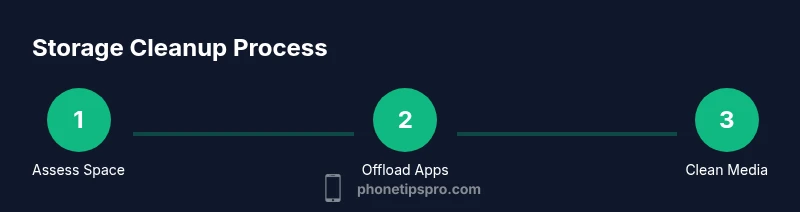
A concise understanding of storage usage, combined with a targeted cleanup plan, yields lasting results. Use this framework: diagnose, offload or delete, manage media, purge caches, utilize cloud storage, and consider a reset only as a last resort. With a disciplined approach, you can consistently keep iPhone storage full-free and your device running smoothly.
Tools & Materials
- iPhone with latest iOS(Keep device charged during cleanup if possible.)
- Stable Wi‑Fi connection(Needed for cloud backups and large downloads.)
- Backup plan (iCloud or computer)(Back up before major changes.)
- Mac/PC with Finder or iTunes(Useful for offline backups and data transfers.)
- External storage or cloud storage account(Optional for offloading media.)
- Apple ID credentials(Needed to access iCloud and apps.)
Steps
Estimated time: 60-120 minutes
- 1
Offload unused apps
Open Settings > General > iPhone Storage. Tap an app with a large footprint and select Offload App. This frees space while preserving documents and data. Repeat for other infrequently used apps. After offloading, review the space saved and decide if you want to delete the app entirely or reinstall later.
Tip: Turn on Offload Unused Apps to automate this when storage runs low. - 2
Delete apps you no longer need
From Settings > General > iPhone Storage, choose apps you don’t use and select Delete App. This permanently removes the app and its data unless you reinstall and recover from a backup. Consider exporting or backing up any important app data first.
Tip: If unsure, offload first to test impact without data loss. - 3
Manage photos and videos
Enable iCloud Photos with Optimize iPhone Storage to keep space-efficient versions locally. Review large media files and delete duplicates or unneeded clips. Empty Recently Deleted after removing items to free space immediately.
Tip: Consider exporting full-resolution media to a computer or external drive for long-term preservation. - 4
Review and purge message attachments
In Messages, delete large attachments or set Keep Messages to 1 year or 30 days. Delete old conversations that no longer matter. This reduces space from conversations that accumulate media over time.
Tip: Archive important conversations before deletion if needed. - 5
Clear caches and Safari data
Clear Safari history and website data under Settings > Safari. For other apps, you may need to delete and re-install to clear caches. Some apps offer in-app cache clearing—check settings.
Tip: If a cache is stubborn, deleting and reinstalling the app can be the simplest fix. - 6
Leverage iCloud and cloud services
Upgrade iCloud storage if you frequently hit the limit. Use iCloud Drive for documents and photo optimization to save space. Consider alternative cloud services for offloading media.
Tip: Ensure your cloud service is secure and aligns with your privacy needs. - 7
When to reset and last-resort options
If nothing else works, back up fully and consider Reset All Settings or Erase All Content and Settings. A reset can clear stubborn storage issues but is data-destructive, so ensure you have a clean restore path.
Tip: Backup first, and only reset after exhausting all other steps.
FAQ
What causes iPhone storage to fill up quickly?
Photos, videos, apps, messages, and cached data are common culprits. Regular usage, especially with media-heavy activity, can rapidly consume space.
Photos, videos, apps, messages, and caches are the main space hogs.
How do I know which apps take up the most space?
Check Settings > General > iPhone Storage to see a breakdown by app, then tap specific apps to view their data usage and options.
Go to Settings to see which apps use the most space.
Will offloading apps delete my data?
Offloading removes the app but keeps its documents and data. Reinstalling the app restores access with data intact.
Offloading removes the app but keeps data, reinstall to restore.
Is resetting necessary to free up space?
Not usually. Try all cleanup steps first. A reset is a last resort and requires a full backup.
A reset is a last resort after trying other steps.
Can I fix storage issues by upgrading iCloud storage?
Upgrading iCloud storage helps with cloud-backed data, but it does not free local space by itself. Use it with optimization features.
iCloud helps with cloud storage, not immediate local space unless used with optimization.
Should I delete messages to save space?
Yes, especially large attachments. Set Keep Messages to 1 year or 30 days and clean up large conversations regularly.
Deleting attachments helps a lot; manage message retention too.
Watch Video
Quick Summary
- Diagnose storage to identify top space hogs
- Offload or delete unused apps to reclaim space
- Optimize Photos and Messages to reduce ongoing growth
- Back up before major changes or resets
- Use cloud storage to maintain long-term relief