How to Screen Record on iPhone 15
Learn how to screen record on iPhone 15 with iOS 17+. Enable Screen Recording, choose microphone options, edit, and share your recordings—no apps needed. A complete, expert walkthrough.


Learn how to screen record on iPhone 15 with iOS 17+. This guide shows how to add Screen Recording to Control Center, how to start/stop recording, and how to save or share your video. Choose microphone options for narration or leave mic off to capture only on-screen actions. No jailbreaking required—just a few taps.
What screen recording is and why it's useful
Screen recording captures everything that happens on your iPhone screen, along with optional narration. For iPhone 15 users, this feature is incredibly handy for creating quick tutorials, reporting bugs, or sharing a workflow with colleagues. According to Phone Tips Pro, mastering screen recording can save time during tech support and reduce back-and-forth by showing exactly the steps you took. You can record taps, gestures, menu changes, and on-screen text, making it perfect for step-by-step guides, app demonstrations, and troubleshooting videos. Remember that the captured video can be trimmed later, so you don't need to redo long runs.
In addition to tutorials, screen recordings are excellent for documenting bugs, recording customer support sessions, or validating user flows in product demos. The iPhone 15's larger display and smoother UI make these recordings look professional, provided you plan your actions and audio carefully. A clear narration paired with well-timed gestures can transform a simple screen capture into a polished how-to video that others can follow without guesswork.
Requirements and limitations on iPhone 15
Before you start, ensure your device runs iOS 17 or later. Screen Recording is a built-in feature; you don't need third-party apps. Some apps block internal audio, so your ability to capture in-app sound may vary. You can choose to record with your voice by turning on the microphone, or record without narration to capture only what's happening on screen. Make sure you have enough free storage space for the recording, especially if you plan long sessions or high-resolution captures. If you're planning a tutorial, it helps to plan your on-screen actions in advance to keep the recording concise and focused. For best results, test a short clip first to confirm audio and visuals align.
What you can capture and what you can't
Screen Recording can capture the visual UI, gestures, and any on-screen elements present during the session. However, some apps restrict playback of internal audio, and microphone audio is separate. This means you can narrate your actions, but you may not always hear the app’s internal sounds. For sensitive content like passwords or payment details, avoid showing them in a shareable clip. If you need audio commentary, prepare a calm, clear script to narrate your actions while recording. If you do capture audio, be mindful of background noise and consider using a quiet space or a simple external mic setup for better clarity.
Enabling Screen Recording in Control Center
To access Screen Recording quickly, add it to Control Center: go to Settings > Control Center, find Screen Recording in the list, and tap the green plus button to add it. With the button enabled, you can start a recording from any screen by opening Control Center and tapping the red circle. If you want to customize the feature, you can press and hold the Screen Recording control to turn on Microphone Audio before you begin. This allows you to capture narration from your environment in real time while you demonstrate on screen.
Audio options: Microphone vs system audio
During a recording, you have two audio sources: system sounds and microphone input. Turn on Microphone Audio if you want to narrate what you’re doing; this is especially helpful for tutorials or bug reports. If you don’t enable the mic, the recording will capture only on-screen visuals and system sounds. External microphones can improve voice quality, but make sure they’re compatible with the iPhone 15 and that you’ve connected them properly. In quiet environments, even the built-in microphone can deliver clear narration, but test your setup before committing to a long clip.
Video quality, storage, and performance tips
iPhone screen recordings can take up a lot of storage, especially for long or high-resolution captures. To avoid surprises, check free space before you start. Close unnecessary apps to improve stability and reduce the chance of interruptions during recording. If you notice the process affecting performance, consider shorter recording sessions and merging them later in a video editor. Remember to save your file to Photos so you can easily trim, annotate, or share. Regularly backing up your device helps you manage video files without overloading local storage.
Step-by-step quick-start checklist
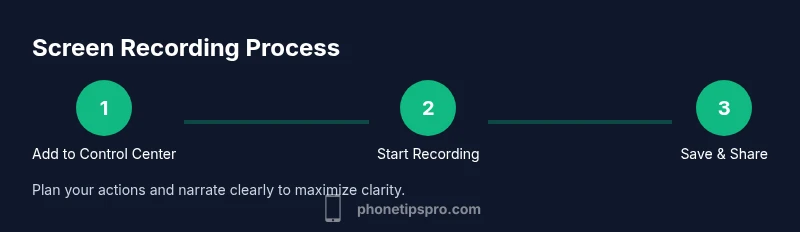
This quick Checklist helps you get going fast and avoids common missteps. First, add Screen Recording to Control Center if it’s not there already. Second, open Control Center and locate the Screen Recording control. Third, tap to start; you’ll hear a short countdown. Fourth, if you want narration, enable Microphone Audio before recording begins. Fifth, perform the actions you want to capture. Sixth, when you’re done, stop the recording and review the clip in Photos for trimming or editing before sharing.
The full start-to-stop flow for a clean capture
A well-structured flow starts with preparation, then capture, then review. Prepare by clearing distractions and deciding whether you’ll narrate. Start the recording through Control Center, perform your actions in a calm, steady pace, and stop when you’re finished. After stopping, open Photos to trim the beginning or end, crop if needed, and export in the desired format. This approach minimizes re-records and ensures your final video is concise and professional.
Editing and sharing: from recording to final video
After you stop recording, the file saves automatically to Photos. Open the Photos app to trim, crop, or adjust the start and end points. From there, you can share via Messages, Mail, AirDrop, or cloud services. If you need to keep the video private, adjust sharing permissions or use iOS's built-in sharing options. For tutorials or customer support, consider adding captions or annotations using a basic editor to improve clarity.
Troubleshooting common issues
If the recording doesn't start, verify that Screen Recording is in Control Center and that you’ve granted necessary permissions in Settings > Privacy. A stubborn Control Center configuration can be resolved by restarting the device. If no audio is captured, re-enable Microphone Audio in the Screen Recording controls and test with a short clip. If the video saves but the quality is poor, check that you recorded at a stable frame rate and avoid recording while the device is under heavy load.
Pro tips to improve quality
- Record in a quiet environment and use a stable surface to minimize motion blur.
- Enable Do Not Disturb to avoid notifications during recording.
- Keep your clips short and plan a quick script or checklist to guide your actions.
- Practice a few test runs before capturing the final sequence to smooth out timing.
- If you plan to publish, add captions to improve accessibility and searchability.
Tools & Materials
- iPhone 15 (iOS 17+)(Ensure Screen Recording is available in Control Center)
- Settings > Control Center access(Enable or verify Screen Recording control is added)
- Microphone (optional external mic)(Use for higher-quality narration; check compatibility)
- Stable surface or tripod(Keeps phone steady during longer captures)
- Sufficient storage space(Ensure enough space for the recording length)
Steps
Estimated time: 8-12 minutes
- 1
Add Screen Recording to Control Center
Open Settings > Control Center, locate Screen Recording, and tap the green plus to add it. This makes it accessible from any screen with a single gesture.
Tip: You’ll save time on every recording by having quick access. - 2
Open Control Center
Swipe down from the top-right corner to reveal Control Center on iPhone 15. The Screen Recording tile should be visible among the controls.
Tip: If you don’t see it, revisit Settings to add it. - 3
Start Screen Recording
Tap the Screen Recording button to begin. A short countdown appears, giving you a moment to prepare your screen.
Tip: Have your actions ready to go for a smooth start. - 4
Toggle Microphone Audio
Before you start or during the countdown, tap the Microphone icon to enable or disable narration.
Tip: Use micro ideally in quiet rooms to minimize background noise. - 5
Record Your Screen
Carry out the tasks you want to capture. Keep your movements deliberate and avoid rapid swipes to reduce blur.
Tip: Practice a short run-through if you’re new to recording. - 6
Stop and Save
Tap the red status bar or return to Control Center to stop. The video saves automatically to Photos for quick editing.
Tip: Review immediately for any sensitive content before sharing.
FAQ
How do I add Screen Recording to Control Center on iPhone 15?
Go to Settings > Control Center, then tap the + next to Screen Recording to add it. This gives you one-tap access from any screen.
Open Settings, add Screen Recording to Control Center, and use it with one tap.
Will screen recording capture internal audio from apps?
Internal app audio is not always capturable. You can enable Microphone Audio for narration, but some apps restrict their own sound.
Microphone audio works for narration, but app sounds may be blocked.
Where do screen recordings get saved on iPhone 15?
Recordings save automatically to the Photos app, usually in the Recents album.
Video clips show up in Photos for easy access.
Can I edit screen recordings after saving?
Yes. Use the Photos app or a video editor to trim, crop, and annotate before sharing.
You can trim and edit in Photos or another editor.
Is there a limit to recording length?
Recording length depends on available storage and device performance; there is no fixed time limit in iOS.
Record as long as you have space and device performance allows.
Do I need any third-party apps to screen record on iPhone 15?
No. Screen Recording is built into iOS; you don’t need external apps for basic recording.
No apps required; iOS has it built-in.
Watch Video
Quick Summary
- Enable Screen Recording from Control Center
- Decide whether to record narration with microphone
- Edit and share recordings from Photos