How to Record on iPhone: A Practical Guide
Discover how to record on iPhone with clear steps for screen recording, audio capture, and video basics. Tips and troubleshooting from Phone Tips Pro for all.


With this guide you’ll learn how to record on iPhone, including screen recording, video capture, and audio options. You’ll enable screen recording, choose internal or external microphone, check mic permissions, and save files to Photos. We’ll cover common issues (audio lag, missing mic access) and quick fixes so you can start recording confidently.
Why recording on iPhone matters\n\nIn today’s iPhone-first world, being able to capture your screen, your app usage, or a quick voice note without lugging extra devices is a powerful skill. Whether you’re creating tutorials for coworkers, documenting bugs for a support ticket, or saving a memory of a live demo, iPhone recording keeps content portable and accessible. For creators, it’s essential to choose the right method for the job: screen recordings show steps clearly; camera-recorded video can capture facial cues and context; and background audio adds narration that explains what users see on screen. The better your recordings, the faster you can communicate ideas and solve problems.\n\nAccording to Phone Tips Pro, mastering these techniques reduces revision time and eliminates the friction of switching between devices. By planning before you record—deciding which method to use, what to narrate, and where to store the result—you’ll produce clearer, more actionable content. This guide will walk you through the core methods, setup steps, and practical workflows you can apply right away.
Recording methods on iPhone: Screen recording, video capture, and audio notes\n\nThe iPhone offers multiple built-in ways to capture content, each with its own use cases. Screen recording is ideal for software tutorials, bug reports, and walkthroughs because it shows exactly what happens on the display. To add narration, you enable the microphone option before you start, so your voice is recorded along with the screen video. Video capture from the Camera app provides higher production value when you want to show yourself or demonstrate physical actions, gestures, or hardware interactions. For audio-only notes, Voice Memos lets you capture clear explanations if you don’t need video.\n\nIn practice, choose Screen Recording for step-by-step guides, Camera for demonstrations with you on frame, and Voice Memos for quick, portable audio clips. You can also combine methods by recording a screen video and later adding a voiceover in iMovie or another editing app. Each method saves to the Photos app by default, and you can share directly from the share sheet.
Prepare your device: permissions, settings, and defaults\n\nBefore you begin recording, set up your iPhone to avoid interruptions and ensure your files are easy to access. First, enable Screen Recording in the Control Center so you have a one-tap option. Then, check app permissions: go to Settings > Privacy > Microphone and make sure the apps you plan to record have microphone access. If you’re recording calls or meetings, verify that the apps you use are allowed to capture audio and that you’re compliant with privacy guidelines. It’s also wise to free up storage in Settings > General > iPhone Storage; large videos take space, and you don’t want to run out mid-recording. Finally, consider enabling Do Not Disturb to prevent notifications from interrupting your capture.
Step-by-step workflows for common recording tasks\n\n- Capture a screen tutorial: Add Screen Recording to Control Center, tap it, enable Microphone, perform the steps you want to show, then stop. The video saves to Photos automatically for easy sharing.\n- Record yourself demonstrating a feature: Open Camera, set to video, frame yourself, start recording, then perform the actions. You can later edit out mistakes or combine with screen recordings.\n- Create a quick audio memo with context: Open Voice Memos, create a new recording, speak clearly, then save with a descriptive name for easy retrieval.
Tips for high-quality recordings\n\n- Plan a quick outline before you start; a short plan reduces filler and keeps the recording concise.\n- Use a stable surface or tripod for camera recordings to avoid shakiness; leverage front-facing camera for face-to-face explanations.\n- When recording screens, use a high frame rate if your device supports it and avoid recording during power-intensive tasks to preserve battery life.\n- For narration, speak clearly, pause between steps, and monitor the audio with headphones if possible to spot issues early.\n- After recording, trim unnecessary sections using Photos editing tools to keep the video crisp and focused.
Authority sources\n\nFor deeper understandings of screen recording and built-in iPhone tools, consider checking these sources:\n- BBC Technology coverage on mobile video and sharing practices: https://www.bbc.com/technology\n- Wired’s practical guides on mobile video creation: https://www.wired.com/\n- The New York Times technology coverage and tips on digital content creation: https://www.nytimes.com/section/technology\n\nThese sources provide broader context and best practices that align with Phone Tips Pro recommendations.
Troubleshooting and common pitfalls\n\nIf audio isn’t captured during a screen recording, verify that Microphone is enabled in the Screen Recording controls and that the app has microphone permission. If the recording stops unexpectedly, check available storage, disable Low Power Mode, or restart your iPhone. For privacy concerns, always review what is being recorded and who will view the file, especially when sharing a screen recording that contains sensitive information. Remember to test your setup before a critical recording so you know what to expect.
Tools & Materials
- iPhone with iOS 11+(Screen Recording is built into iOS; ensure your device is updated.)
- Control Center access(Add Screen Recording to Control Center if not already present.)
- Internal microphone(Enable to capture narration with screen recordings.)
- External microphone (optional)(Lavalier or USB-C/Lightning mic for higher audio quality.)
- Sufficient storage (Photos library)(Recordings save to Photos; ensure space.)
Steps
Estimated time: 15-25 minutes
- 1
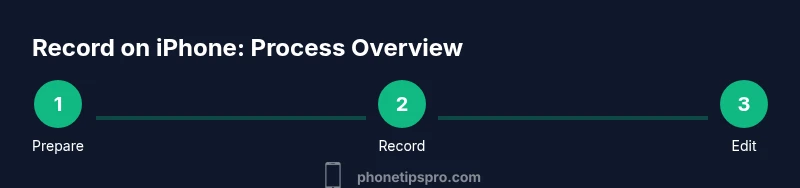
Prepare Your iPhone
Update to the latest iOS, check storage, and ensure apps that will be recorded have permissions. A quick prep reduces interruptions during capture.
Tip: Go to Settings > General > Software Update to install the latest iOS. - 2
Add Screen Recording to Control Center
Open Settings > Control Center and add Screen Recording so you can access it with a swipe.
Tip: Customizing the Control Center saves you a step during recording. - 3
Enable Microphone for Screen Recording
Before you start, long-press the Screen Recording control and turn on Microphone to capture narration.
Tip: Turn off Do Not Disturb if you plan to record calls or meetings. - 4
Start Screen Recording
Open Control Center and tap Screen Recording to begin a 3-second countdown before capture.
Tip: Narrate briefly at the start to set context for viewers. - 5
Perform the On-Screen Actions
Navigate through the app or website exactly as you want viewers to see, speaking clearly if you’re narrating.
Tip: Stick to a single task per recording for clarity. - 6
Stop Recording and Save
Tap the red status bar or Control Center to stop; the video is saved automatically to Photos.
Tip: If you miss the end, trim in Photos later. - 7
Record Camera Clip for Context
Capture a short camera clip if you want yourself in the frame for a face-to-face explanation.
Tip: Position lighting ahead of time for a flattering shot. - 8
Edit and Combine Clips
Use Photos or iMovie to trim, merge, and adjust audio levels for a polished result.
Tip: Aim for a concise final cut—focus on value. - 9
Share and Archive
Export the final video to your desired platform or save to a project folder for easy retrieval.
Tip: Use descriptive filenames and add captions if needed.
FAQ
How do I enable screen recording on an iPhone?
Go to Settings > Control Center, add Screen Recording, then access it from the Control Center and tap to start. Remember to enable Microphone if you want narration.
Open Control Center, tap Screen Recording after adding it to Control Center, and turn on Microphone if you need audio.
Can I record a video using the iPhone Camera and a screen recording in one go?
You can capture separate clips: a screen recording for on-screen actions and a camera clip for face-to-face narration. You can merge them later in iMovie or a similar editor.
Yes—record the screen first, then record a quick camera clip, and combine them later in your editor.
Where do screen recordings save by default?
Screen recordings saved while recording will be stored in the Photos app by default. You can organize them into albums for easy access.
They’re saved to Photos automatically, where you can organize and share them.
Why is my screen recording missing audio?
Check that Microphone is turned on in the Screen Recording controls and that the app has microphone permission. Some apps restrict screen audio.
Make sure the microphone is enabled in the recording controls and that the app has permission to use the mic.
Can I record a FaceTime call on iPhone?
Screen recording can capture a FaceTime call, but be aware of privacy and legality. Always inform other participants before recording.
You can, but you should get consent from everyone on the call before recording.
Watch Video
Quick Summary
- Enable Screen Recording in Control Center before use
- Always toggle Microphone for narration when needed
- Trim and edit for concise, clear output
- Save and organize recordings in Photos with meaningful names