How to Stop iPhone Screen From Turning Off
Learn practical steps to keep your iPhone screen awake longer, from adjusting Auto-Lock to managing Focus and Always On Display. A Phone Tips Pro guide for smoother, uninterrupted use.


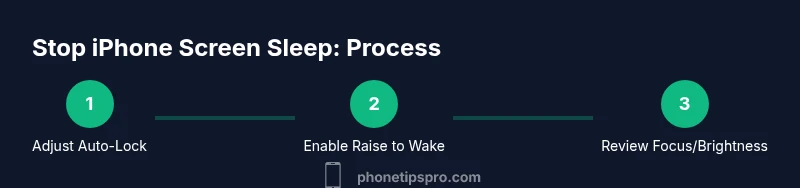
To stop your iPhone screen from turning off, adjust Auto-Lock to a longer interval or Never, enable Raise to Wake, and review Focus/Accessibility settings that might dim the display. Also ensure Brightness is comfortable and disable Low Power Mode when you’re actively using the phone. These steps cover most iPhone models and won’t affect normal phone use.
Why the iPhone screen turns off
The screen sleep behavior on iPhone is driven by a combination of settings, hardware features, and app activity. The most common culprits are Auto-Lock intervals that are too short, Wake-related features like Raise to Wake, and Focus or Do Not Disturb profiles that pause display activity. Battery-saving modes and brightness automation can also dim or switch off the display sooner than you expect. According to Phone Tips Pro, the majority of sleep-related screen-off issues start with a short Auto-Lock timer or a misconfigured Wake setting. When you fix these, you’ll notice reliable, predictable wake behavior across most apps and tasks. Remember that model differences exist: newer iPhones with higher-refresh-rate screens behave a bit differently, but the core controls remain consistent across iOS versions. Explore Settings > Display & Brightness and Settings > Accessibility to see all the relevant knobs. By understanding how these pieces fit together, you’ll regain control over when your screen sleeps without sacrificing device security or efficiency.
Quick wins: adjust Auto-Lock and Raise to Wake
A quick, high-impact way to extend screen-on time is to adjust Auto-Lock and enable Raise to Wake. Start by opening Settings > Display & Brightness > Auto-Lock and choose 2 minutes or Never for the most persistent wake behavior. Then, ensure Raise to Wake is enabled in the same menu so simply lifting the phone brings the screen back on. These two settings are the most reliable levers for keeping the screen visible during tasks like reading, note-taking, or following a recipe. If you routinely use the phone while walking or driving, consider temporarily reducing Auto-Lock duration when you need hands-free access and returning to a shorter interval afterward.
Dive into Focus, Do Not Disturb, and accessibility
If your screen still sleeps unexpectedly, check Focus and Do Not Disturb profiles. A silenced notification pattern can hint that the system is preempting wake cycles to conserve energy. In Settings > Focus, review active modes and ensure they aren’t set to turn off the display during important tasks. Also examine Settings > Accessibility > Display & Text Size and Vision settings for features like Reduce White Point, Motion, and Tap to Wake. Some users find that certain accessibility tweaks help the screen stay responsive during tasks, while others prefer a simpler approach with minimal changes. The key is to test each change in real-world use and revert if it creates new issues.
Always On Display and Pro model nuances
On supported iPhones (not all models have Always On Display), Always On can keep essential information visible with reduced brightness when the device is idle. If you want your screen to stay more consistently awake, go to Settings > Display & Brightness > Always On and decide whether to show Lock Screen widgets, notifications, or a simple clock. Pro models with higher refresh rates may feel smoother when Always On is enabled, but this can also affect battery life. Use Always On judiciously if you frequently need quick-glance information without waking the entire screen bright. This is a model-dependent feature, so verify availability under Settings > Display & Brightness.
Brightness, True Tone, and app-induced sleep
Sometimes, brightness automation or True Tone can create the impression that the screen is turning off when it’s actually dimming. Turn off Auto-Brightness or tweak the slider to a comfortable level while testing wake behavior. True Tone adjusts color temperature based on ambient light and can influence perceived sleep timing, especially in low-light environments. Some apps may request to dim or pause the screen for content while you’re using them (video players, reading apps, or navigation). In those cases, check in-app settings, and if needed, grant exceptions or adjust the app’s own sleep behavior. Regularly review app permissions related to screen behavior in Settings > Privacy > Screen Recording or related sections.
When to seek deeper help and best practices
If you’ve tried the standard fixes and the screen still turns off unpredictably, it may be time to perform a more comprehensive check or backup-and-restore. Create a fresh backup via iCloud or iTunes, then test with a minimal configuration to see if the issue persists. If the problem remains, you may want to contact Apple Support or visit an Apple Store for hardware checks (sometimes display circuitry can influence wake performance). As a best practice, keep your iPhone updated, review battery health, and maintain a sensible Auto-Lock policy that balances usability with security. Following a structured approach reduces guesswork and helps you identify the actual cause more quickly.
Tools & Materials
- iPhone with latest iOS version(Update via Settings > General > Software Update)
- Settings app access(Needed to adjust Auto-Lock, Raise to Wake, Focus, and Brightness)
- Optional: Guided Access (for focused tasks)(Useful if you want to lock the screen on a single app during activities)
- Reserved Auto-Lock target(e.g., 2 minutes or Never for testing)
Steps
Estimated time: 15-25 minutes
- 1
Open Settings and adjust Auto-Lock
Navigate to Settings > Display & Brightness > Auto-Lock and select a longer interval (e.g., 2 minutes) or Never. This directly impacts how quickly the screen sleeps after you stop interacting with the device.
Tip: Choosing Never is convenient for long tasks, but remember it may affect battery life. - 2
Enable Raise to Wake
In Settings > Display & Brightness, turn on Raise to Wake so simply lifting the phone brings the screen back on. This helps you resume activity without multiple taps.
Tip: Test by lifting the phone from a table and confirming the screen lights up within a second or two. - 3
Check Focus and Do Not Disturb
Go to Settings > Focus and inspect active profiles. Ensure that a Focus mode isn’t configured to auto-sleep or silence prompts that would interrupt the display.
Tip: If a Focus profile is causing sleep, temporarily disable it or add exceptions for apps you use while awake. - 4
Review Accessibility features
Visit Settings > Accessibility > Display & Text Size. Adjust options like Reduce Motion or Tap to Wake to see if they influence wake behavior without compromising readability.
Tip: Small tweaks can improve responsiveness; revert if you notice unexpected dimming. - 5
Manage Brightness and True Tone
Set brightness to a comfortable level and decide whether to enable or disable True Tone. Dynamic brightness can affect perceived wake timing, especially in varying lighting.
Tip: Disable Auto-Brightness temporarily to assess wake behavior in different environments. - 6
Configure Always On Display (if supported)
If your model supports Always On, go to Settings > Display & Brightness > Always On and customize what stays visible when the screen is asleep.
Tip: Always On can conserve energy if used sparingly; it also keeps critical info accessible without a full wake.
FAQ
Why does my iPhone screen turn off so quickly?
Most often this is caused by a short Auto-Lock interval or a misconfigured wake setting. Review Settings > Display & Brightness > Auto-Lock and ensure Raise to Wake is enabled. Also check any focused modes that might dim or silence prompts.
Most often the screen sleeps due to Auto-Lock and wake settings. Check Auto-Lock and Raise to Wake, plus any focused modes that might dim the display.
Can I keep the screen on all the time on iPhone?
You can set Auto-Lock to Never, but this can drain battery and reduce privacy. On supported models, you can use Always On Display to keep essential information visible with lower brightness when idle.
Set Auto-Lock to Never if you need constant wake, but be aware of battery and privacy implications. Always On Display is model-dependent.
How do I disable Auto-Lock for a specific app?
There isn’t a per-app Auto-Lock toggle in iOS. Instead, use a longer global Auto-Lock setting or Guided Access to keep a single app active during a task.
There isn’t an app-specific Auto-Lock toggle; adjust the global Auto-Lock or use Guided Access for focused apps.
Does Always On Display affect battery life?
Always On Display can increase battery usage because the screen stays dimly lit. Use it selectively and review brightness and lock-screen content to balance visibility with longevity.
Yes, Always On Display uses more battery. Enable it only when you need quick glance info.
Is Guided Access safe for keeping the screen on during tasks?
Guided Access locks the device to a single app and can prevent accidental taps, making it safer for focused tasks. It’s not a replacement for normal wake settings but is useful in specific scenarios.
Guided Access locks you to one app, which can help during focused tasks but isn’t a universal solution for keeping the screen awake.
Watch Video
Quick Summary
- Increase Auto-Lock duration to match task length.
- Enable Raise to Wake for seamless resume.
- Check Focus and Accessibility settings for wake behavior.
- Always On Display is model-dependent—use wisely.
- Test changes and monitor battery impact.