How to Use iPhone 16: A Practical Step-by-Step Guide
Learn how to use iphone 16 with a clear, practical guide covering setup, navigation, personalization, privacy, backups, battery, and troubleshooting for confident everyday use.


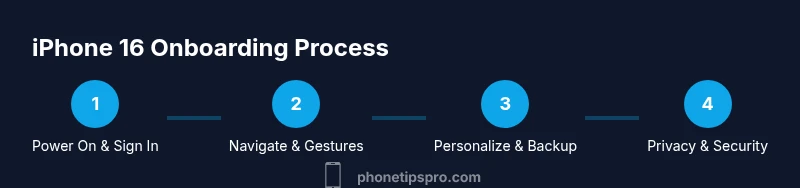
Master how to use iphone 16 by following a clear setup, navigation, and personalization process. This guide walks you through powering on, signing in with Apple ID, configuring essential settings, and using core gestures, widgets, and privacy basics. By the end, you'll be able to navigate confidently, tailor the home screen, and protect your data.
Getting started with iPhone 16
According to Phone Tips Pro, learning how to use iphone 16 begins with a calm setup and a clear plan. In this section you’ll learn how to boot the device, sign in with your Apple ID, and establish a reliable baseline configuration. If you are switching from an older model, we’ll help you migrate data and choose the best initial settings. This guide is designed to teach you how to use iphone 16 quickly and confidently.
- Power on the device and follow the on-screen prompts to choose language and region.
- Connect to a trusted Wi‑Fi network to enable iCloud and app downloads.
- Sign in with your Apple ID and enable two‑factor authentication for account protection.
- Check for a software update and create a basic backup strategy to safeguard your data.
Starting with these steps ensures a smooth introduction to all features that follow.
Core gestures and navigation on iPhone 16
The iPhone 16 relies on intuitive gestures for fast navigation. You’ll frequently use a few core motions to move between apps, access features, and customize settings. Practice these essentials until they become second nature:
- Swipe up from the bottom to return to the Home screen or open the App Switcher.
- Swipe down from the top-right corner to reveal Control Center for quick settings.
- Tap to open apps, and press and hold to access Quick Actions or to rearrange icons.
- Pinch to zoom in apps that support it, and use three-finger swipe to undo typing in some apps.
These gestures form the backbone of everyday use and will speed up every task.
Personalization: Home Screen, Widgets, and App Library
Personalization helps you work faster on the iPhone 16. Start by organizing your Home Screen so the most-used apps are at arm’s reach, and add widgets for at-a-glance information. Here’s how to tailor your setup:
- Long-press an app icon to enter jiggle mode; drag icons to group related apps into folders.
- Tap the “+” button on the home screen to add widgets. Try a Smart Stack to rotate widgets automatically based on context.
- Use the App Library to hide less-used apps while keeping them accessible via search.
- Customize the Today View and widgets to show calendar, weather, reminders, and battery status.
A thoughtful layout makes daily tasks faster and reduces friction when you’re on the go.
Privacy, security, and data protection on iPhone 16
Security and privacy should be a priority from day one. The iPhone 16 offers strong protections that, when enabled, help keep your data safer. Configure these essentials early:
- Set a strong passcode and enable Face ID for quick, secure access.
- Turn on Find My iPhone so you can locate the device if lost and remotely erase data if needed.
- Review app permissions and disable location access for apps that don’t need it.
- Enable two‑factor authentication for your Apple ID and keep your recovery options updated.
Regularly review these settings to maintain a high level of privacy and security.
Connectivity, data management, and backups
Keeping your device connected and backed up protects your information and makes transfers smoother. Focus on reliable internet access and automatic backups:
- Connect to trusted Wi‑Fi networks and enable iCloud backups to protect photos, documents, and app data.
- Sign into iCloud and configure iCloud Drive, Photos, and other essential services.
- Use Quick Start or iCloud to transfer data from an old device when upgrading.
- Manage storage by reviewing large apps and optimizing photo storage options.
With proper data management, you reduce the risk of data loss and improve reliability.
Battery life and performance optimization
To get the most from your iPhone 16, optimize battery life and performance through smart settings:
- Enable Auto-Lock to a shorter interval and limit Background App Refresh for apps not in active use.
- Use Low Power Mode during extended outings to stretch battery life.
- Adjust brightness and enable True Tone to balance screen readability with energy use.
- Keep iOS updated; software updates often include performance and security improvements.
Smart scheduling and settings can dramatically extend the time between charges while keeping your device responsive.
Troubleshooting common issues and accessibility options
Even a well‑built device can encounter hiccups. When facing problems, use these practical approaches and accessibility features to stay productive:
- If an app misbehaves, force‑close it and restart the iPhone before escalating.
- Reset network settings if you have connectivity problems; this won’t erase data but will reset saved networks.
- Explore accessibility features like VoiceOver, Zoom, and Display & Text Size to tailor readability and navigation to your needs.
- Use the built-in Tips app for guided help and to discover new capabilities.
Approach issues calmly, try simple resets, and leverage accessibility options to keep your experience smooth.
Tools & Materials
- iPhone 16(Fully charged before starting setup to avoid interruptions.)
- USB-C charger(8-20W or higher recommended for faster charging.)
- USB-C to USB-C cable(For charging and data transfer.)
- Screen protector(Optional, helps prevent scratches.)
- Apple ID and internet connection(Needed for setup, iCloud, and services.)
Steps
Estimated time: 25-40 minutes
- 1
Power on and sign in
Press and hold the side button until the Apple logo appears. Follow the setup prompts to choose language, region, and connect to Wi‑Fi. Sign in with your Apple ID and enable two‑factor authentication for account security. If restoring from another device, select the appropriate option during setup.
Tip: Have your Apple ID credentials handy; you will use them immediately for iCloud and app purchases. - 2
Learn core gestures and navigation
Familiarize yourself with the main gestures: swipe up to go Home, swipe down from the top-right for Control Center, and tap to open apps. Use the App Switcher to move between apps and discover Quick Actions by long-pressing app icons.
Tip: Practice until these gestures feel natural; they speed up daily tasks. - 3
Customize Home Screen and widgets
Enter jiggle mode by long-pressing an icon, then drag to rearrange or place into folders. Add widgets from the Today view to get essential info at a glance. Use Smart Stacks to rotate widgets automatically.
Tip: Position high‑frequency widgets at the top for quick access. - 4
Set up privacy and security basics
Configure a strong passcode or enable Face ID, and turn on Find My iPhone. Review app permissions and disable location access where it isn’t needed. Enable two‑factor authentication for your Apple ID.
Tip: Regularly review Privacy settings under Settings > Privacy & Security. - 5
Configure connectivity and backups
Connect to trusted Wi‑Fi, enable iCloud backups, and sign into iCloud for seamless data protection. Learn transfer methods from an old device using Quick Start or iCloud backup.
Tip: Keep backups enabled and ensure enough iCloud storage. - 6
Optimize battery and performance
Adjust brightness, enable True Tone, and set Auto-Lock and Background App Refresh with care. Use Low Power Mode when you anticipate longer periods between charges and keep iOS updated for performance improvements.
Tip: Use a quality charger and avoid charging to 100% continuously when not needed.
FAQ
What is the quickest way to start using iPhone 16?
Power on the device, sign in with your Apple ID, connect to Wi‑Fi, and complete the setup prompts. From there you can dive into personalization and privacy settings.
Power on, sign in with Apple ID, connect to Wi‑Fi, and finish the setup prompts to start using iPhone 16.
How do I personalize the home screen on iPhone 16?
Long-press an app icon to enter jiggle mode, then drag icons to rearrange or place them in folders. Add widgets by tapping the plus button and select Smart Stacks for dynamic information.
Long-press an app, rearrange icons, and add widgets to customize your Home Screen.
Which privacy settings should I enable on iPhone 16?
Enable Face ID or a strong passcode, turn on Find My iPhone, review app permissions, and enable two-factor authentication for your Apple ID.
Turn on Face ID or a strong passcode, Find My iPhone, and two-factor authentication, and review app permissions.
Can I transfer data from an old iPhone to iPhone 16?
Yes. Use Quick Start during setup or restore from an iCloud backup to move apps, data, and settings to your new device.
Yes, use Quick Start or restore from iCloud backup to transfer data.
How can I extend battery life on iPhone 16?
Use Low Power Mode when needed, manage Screen Brightness, limit Background App Refresh, and keep software up to date for efficiency improvements.
Enable Low Power Mode and adjust settings to save battery life.
What should I do if something isn’t working correctly?
Try restarting the device, force closing apps, or resetting network settings. If issues persist, consult Apple Support or the Tips app for guided help.
Restart or force close apps first, then reset network settings if needed; seek official support if problems continue.
Watch Video
Quick Summary
- Set up promptly with essential accounts and backups
- Master core gestures for quick navigation
- Personalize with widgets to boost productivity
- Prioritize privacy with strong authentication and permissions
- Maintain battery health with smart settings and updated software
- Regularly back up data to prevent loss