How to Record a Call on iPhone: A Practical Guide
Learn safe, legal ways to record iPhone calls using VoIP apps, screen recording, or external devices. Clear steps, tools, and privacy tips.


iPhone does not natively record standard cellular calls. Use VoIP apps with built-in recording, third-party call services, or an external device while all parties consent. This ensures legality and privacy compliance.
iphone record a call on iPhone: What you should know
Recording a phone call on an iPhone isn’t as straightforward as tapping a button. Apple prioritizes user privacy and does not include a universal built-in recorder for standard cellular calls. This guide offers practical, legal, and reliable ways to capture important conversations without compromising your device or your ethics. According to Phone Tips Pro, understanding the landscape helps you choose a method that respects both the law and your needs. If you must preserve a conversation for work or personal reasons, you’ll want to pick a method that is transparent and compliant. By the end of this article you will have a clear path to recording calls on iPhone that aligns with best practices in privacy and legality.
Legal and ethical considerations
Before attempting to record any call, understand the law in your region. In many jurisdictions, all-party consent is required; some places enforce one-party consent. Regardless, informing the other participants is best practice and reduces risk. Phone Tips Pro Analysis, 2026 emphasizes consent as the foundation of responsible recording. Also consider your workplace or service policies, and always minimize the exposure of sensitive information. In all cases, keep a documented note of when, why, and who is recorded. This approach minimizes disputes and protects everyone involved. The Phone Tips Pro Team recommends arranging consent at the start of each recording and maintaining a simple log for audits or compliance reviews.
Built-in options and their limitations
Apple does not offer a universal built-in recorder for standard cellular calls. Some iOS features can assist in capturing audio in specific contexts, but they cannot reliably record every cellular conversation. You can try screen recording for apps that support call audio, and you can enable the microphone to capture your side of the conversation when appropriate. However, this method often fails to capture the other party’s voice on traditional cellular calls and can introduce quality variability. According to Phone Tips Pro, relying on native tools alone is not a robust solution for most recording scenarios.
Recording methods: VoIP apps, conference calls, and services
The most reliable option is to use a VoIP app that offers built-in recording, or a third-party service designed for call capture with consent. If you must record a standard phone call, consider creating a conference call that includes a recording line offered by a compliant provider. Always review each service’s privacy policy and ensure all participants consent. For business contexts, many organizations use compliant recording services that integrate with their phone system to centralize audio files and consent records. Phone Tips Pro stresses testing any method with a noncritical call to confirm setup and privacy settings before critical conversations.
Screen recording for apps that support calls
iPhone’s Screen Recording feature can capture video and app audio for calls made inside supported apps (like certain VoIP services). To use it, add Screen Recording to Control Center, start the feature, and toggle Microphone Audio on if you want to capture your side of the conversation. Then place your call through the supported app. Note that standard cellular calls are frequently not fully captured by screen recording, and results vary by iOS version and app. If your primary need is to preserve a VoIP call, screen recording is a convenient secondary method with consent.
External devices and professional services
If native options fall short, external devices or professional services can provide a reliable path to recording calls by routing audio to a secondary recorder. This typically involves placing the call on speaker and using a separate recorder to capture the sound. When choosing a service or device, prioritize credibility, encryption, and clear consent. This method is often preferred for official interviews or compliance-heavy environments where robust evidence collection is required. The Phone Tips Pro Team notes that external solutions should be tested well in advance of important conversations to avoid last-minute issues.
Preparation and testing before important calls
Before any critical recording, run a dry test with a trusted contact. Verify that the other party understands they are being recorded, and confirm that the resulting file is saved in a clear format with a descriptive name. Document the date, participants, and purpose for future reference. Phone Tips Pro emphasizes building a simple pre-call checklist that covers consent, method, file naming, and secure storage, so you aren’t scrambling during an important discussion.
Common pitfalls and troubleshooting
Common issues include app permissions denied, insufficient storage, or poor audio quality. If a recording isn’t saving, review app permissions, retry with a different app, or free up space. OS updates can alter compatibility, so keep your device updated and re-test after any major iOS release. If you’re using a conference-call approach, ensure all participants have the dial-in or join details and that your recording line is connected properly.
Privacy, storage, and data handling
Store recordings in a secure location with encryption and strict access controls. Regularly back up to a trusted cloud service with multi-factor authentication. Create retention policies: delete files when they’re no longer needed, and redact sensitive content when sharing. This disciplined approach helps protect participant privacy and aligns with best practices recommended by Phone Tips Pro.
Tools & Materials
- iPhone with latest iOS(Ensure iOS updates are installed for compatibility with screen recording and apps.)
- Consent script or notification template(Prepare a brief opening line to inform participants that the call is being recorded.)
- External recording device or second smartphone(Use if you’re not relying on screen recording for VoIP calls.)
- VoIP app with built-in recording feature(Some apps offer native call recording; verify legality and consent features.)
- Secure storage location (encrypted cloud or local drive)(Protect recordings with strong access controls and backups.)
Steps
Estimated time: 30-60 minutes
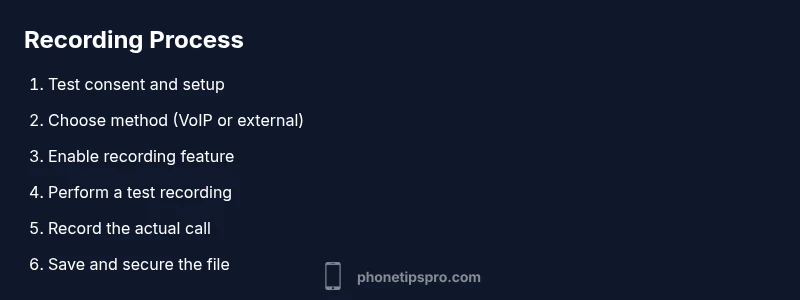
- 1
Check legality and obtain consent
Research your local laws and obtain explicit consent from all parties before recording. Start with a brief notice at the beginning of the call and document consent when possible.
Tip: Prepare a short consent script to read aloud at the start of the recording. - 2
Choose recording method
Decide whether you will use a VoIP app with built-in recording, a conference-call approach, or an external device. Your choice should depend on the call type, privacy requirements, and reliability needs.
Tip: If possible, test each method with a noncritical call first. - 3
Enable required features
Turn on the recording feature in the chosen app (or enable the external device) and verify permissions before starting the call.
Tip: Check each app’s privacy policy and settings for consent indicators. - 4
Test recording setup
Do a quick test call to confirm that audio is captured clearly and the file saves as expected.
Tip: Record a short mock call and playback to confirm quality. - 5
Record the call
Begin the actual recording, ensuring all participants are aware. Keep notes about the context and purpose.
Tip: Avoid sensitive topics unless necessary for the purpose. - 6
Stop and save the recording
End the recording and save the file with a descriptive name including date, participants, and topic.
Tip: Use a consistent naming convention for easy retrieval. - 7
Store securely and share responsibly
Move the recording to a secure location and restrict access. Share only with consent and in accordance with applicable policies.
Tip: Enable encryption and implement a retention policy.
FAQ
Can I record a standard cellular call on iPhone without apps?
No. iOS does not provide a universal built-in recorder for standard cellular calls. You’ll need third-party services, VoIP apps with recording, or external devices, and you must ensure consent.
No—iPhone doesn’t have a native cellular call recorder; you’ll need another method with consent.
What about recording FaceTime or VoIP calls?
FaceTime and many VoIP apps can be recorded via built-in features or screen recording, but you must check each app’s capabilities and consent requirements.
FaceTime calls can often be recorded if the app supports it or via screen recording with consent.
Is recording calls legal everywhere?
Legality varies by region. In many places, all-party consent is required. Always inform participants and consult local laws before recording.
Laws differ; usually all-party consent is required. Check local rules first.
Can I record calls offline without internet?
Most methods rely on network-based services or apps; offline recording of standard cellular calls isn’t typically possible with built-in tools.
Offline recording of cellular calls isn’t generally possible with iPhone’s built-in tools.
How should I store recorded calls securely?
Store in encrypted locations, back up, and limit access. Use a retention policy to delete when no longer needed.
Keep recordings encrypted and access-controlled; back up safely.
What are common mistakes when recording calls?
Forgetting consent, poor audio quality, mislabeling files, or sharing recordings without permission are common errors.
Main issues are lack of consent and poor handling of files.
Watch Video
Quick Summary
- Know local recording laws before starting.
- Choose a method that matches your call type.
- Test your setup before important conversations.
- Securely store and manage recorded files.