Can You Record a Phone Call on iPhone: A Practical Guide
Discover whether you can record calls on iPhone, the legal and privacy considerations, methods (native limitations, third-party options, and workarounds), and best practices for safe, compliant recording.


Can you record a phone call on iPhone? The short answer is that iOS does not include a native call recording feature. You must use third-party services or safe workarounds, keeping legal consent and privacy in mind. This guide explains practical, compliant options and what to expect from each method.
What you should know about recording calls on iPhone
When someone asks, can you record a phone call on iPhone, the direct answer hinges on Apple’s design choices. iOS does not offer a built-in, universal call recorder. According to Phone Tips Pro, most users rely on external methods or services because Apple restricts access to ongoing call audio for privacy and security reasons. That means you won’t find a one-click “Record” button in the Phone app. Instead, you’ll need a workaround that routes the call through a service or uses a separate device. Understanding these constraints helps you choose a method that fits your situation while staying compliant with the law. As you plan, remember that call recordings should only happen with proper consent and clear notice to all participants.
In practice, you’ll encounter a few broad approaches: a third-party recording service that creates a conference-style call, a dedicated recording app that uses a companion number, or a hardware workaround using a second device. Each option has trade-offs in terms of convenience, reliability, and privacy. This section helps you compare these paths so you can select a workflow that aligns with your needs and local rules.
Legal and ethical considerations for call recording
Before attempting any recording, you need to address consent and privacy. Laws vary by jurisdiction, and this is where many users trip up. Some places require one-party consent (the recorder only needs to be aware), while others require all parties’ consent. In professional contexts, employers often impose stricter rules and documentation. Phone Tips Pro Team emphasizes that the safest approach is to assume consent is not universal and to ask at the start of the call. A quick, friendly disclaimer can prevent misunderstandings later. Ethical reasons matter too: recording a conversation without letting the other person know can erode trust and violate personal expectations. If you’re unsure, consult local guidance or a legal professional.
Native options and recommended approaches
As a rule, iPhone users should expect no built-in call recording feature in iOS. That doesn’t mean you’re out of luck; you can still record calls with methods that involve a third-party service or a hardware workaround. The most straightforward path for many is a recording service that provides a dedicated line and then merges your incoming call with the service line. Some users opt for a two-device approach: one device dials the other, while the second device records audio. Each method has its own setup, costs, and privacy considerations. If you’re considering this regularly, plan for a workflow that minimizes friction, preserves quality, and keeps recordings secure.
How third-party services route calls on iPhone
Third-party call recording services typically operate by creating a conference-style call that includes you, the other party, and the service’s recording line. You initiate a call, dial into a service number, and merge calls so that audio from all participants is captured. This method avoids tampering with iOS’s call audio interfaces. Important privacy notes: you’re entrusting your recordings to a service, so review their data handling and retention policies. If legal consent is required in your area, ensure all participants are informed that the call will be recorded. The benefit is a centralized recording you can access later, but you’ll want to test the setup before important conversations.
Step-by-step practical workflow (high-level overview)
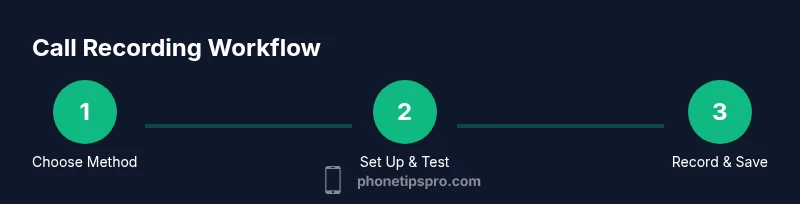
A practical workflow combines intentional consent, a reliable setup, and verification. Start by choosing a method that suits your needs—service-based recording or a hardware workaround. Test with a short call to confirm audio quality, timing, and storage. Create a standard opening script to inform participants about the recording, and make sure you can access the recording file after the call. Finally, organize recordings in a consistent folder structure with clear labels (date, event, participants) so you can locate them when needed.
Troubleshooting, security, and best practices
Recordings depend on several factors: network quality, service availability, and compatibility with your iPhone’s iOS version. If audio is faint or cut off, recheck the merging process or try a backup method. Security matters: choose services with transparent privacy policies, local data protections, and encrypted storage options. Always back up recordings to a secure location and restrict access to authorized individuals. Regularly review your setup to accommodate iOS updates or changes in local laws.
Practical tips for compliance and efficiency
To make the process smoother, create a simple checklist: confirm consent at the start, verify audio quality, save the file with a descriptive name, and log the purpose of the recording. Consider creating a short one-line consent statement you can reuse. If you record frequently, invest in a dependable workflow and a privacy-first mindset. Phone Tips Pro recommends documenting your process so you can reproduce it consistently and ethically.
Tools & Materials
- iPhone with up-to-date iOS(Ensure you can install and run required apps; test on a short call first.)
- A second device or a recording service(Service-based methods typically involve a conference call; hardware workarounds use a separate device.)
- A reliable internet connection(Stable network quality improves audio capture and reduces dropouts.)
- Consent script or guidance(Have a short, clear consent statement ready for calls you record.)
- Secure storage location (local or cloud)(Use encryption or restricted access to protect recordings.)
Steps
Estimated time: 45-90 minutes
- 1
Decide on a recording method
Choose between a third-party service that creates a merged call and a hardware workaround with a separate device. Consider factors like cost, ease of use, and privacy. This step sets the foundation for a smooth workflow.
Tip: Test both methods on a quick test call to compare audio quality and ease of use. - 2
Check consent requirements
Review local laws and determine whether you need single-consent or universal consent. Prepare a brief opening line to inform all participants at the start of the call.
Tip: If in doubt, choose the more protective consent approach to stay compliant. - 3
Set up the chosen method
Install and configure the recording app or prepare the conference-call workflow with your chosen service. Ensure you know how to initiate the merge and where the recording saves.
Tip: Do a dry run with a colleague to confirm the flow before real calls. - 4
Make the test recording
Place a short test call and verify that all participants are audible and that the file saves correctly. Note the file format and location for easy retrieval.
Tip: Leave a quick note on the file name to capture context. - 5
Record the actual call
During the real call, follow the consent script, start recording, and merge as needed. After the call ends, save and back up the file securely.
Tip: If audio quality drops, pause, end the session, and retry with a backup method. - 6
Label and archive the recording
Give the file a clear, consistent name (date, participants, topic) and store it in a secure location with access controls.
Tip: Keep a simple log of who has access to each recording. - 7
Review and comply
Periodically review your recording workflow for legal changes and privacy best practices. Update consent scripts and storage policies as needed.
Tip: Schedule a quarterly audit of your recording process.
FAQ
Can you record a phone call on iPhone without apps?
No. iPhone does not include a built-in call recording feature. You must use a third-party service or a hardware workaround to capture audio.
No native option on iPhone; you’ll need a separate method or service to record calls.
Is recording calls legal everywhere?
No. Call recording laws vary by location, with some places requiring all parties' consent and others permitting one-party consent. Always verify local requirements.
Laws differ by location; ensure all parties know and consent where required.
What is the safest method to record calls on iPhone?
The safest method is a reputable third-party service that clearly explains data handling and provides opt-in consent and secure storage.
Use a trusted service with clear privacy terms and consent.
Will recording affect call quality on iPhone?
Recording can impact quality depending on the method used, network stability, and service reliability. Always test beforehand.
Quality can vary; test your setup before important calls.
How should I name and store call recordings?
Name files with date and participants, and store them in a secure location with restricted access.
Label clearly and secure the storage.
Can I record both incoming and outgoing calls the same way?
The method is generally the same, but you should confirm the workflow for each case and ensure proper consent for all participants.
Workflow is typically similar, with consent applicable to all involved.
Watch Video
Quick Summary
- Native iPhone calls cannot be recorded with a single built-in feature.
- Choose a compliant method with clear consent and privacy safeguards.
- Test workflows before important calls to ensure reliability.
- Store and manage recordings securely to protect sensitive information.