Where to Record on iPhone: A Practical How-To Guide
Learn where to record on iPhone, including built-in screen recording, Voice Memos, and external mic options. This comprehensive guide covers steps, privacy, and tips to capture high-quality video and audio on iPhone devices.


By the end of this guide, you will know where to record on iPhone, including built-in screen recording, Voice Memos for audio, and third‑party options. You’ll learn how to enable capture features, manage mic input, and protect privacy while filming or narrating. This quick answer points you to the right recording method for your task and device.
Why understanding where to record matters
According to Phone Tips Pro, understanding where to record in iphone matters because it affects audio quality, privacy, and post-production options. This primer explains why selecting the right recording method and environment improves outcomes for tutorials, gameplay, meetings, and personal notes. By knowing where to record, you can choose the best combination of screen capture, audio input, and visual framing for your goal. In practice, your choice will influence how easily you can edit later, whether your audience hears your narration clearly, and how well your recording holds up on different devices or apps. The core idea is simple: the right recording location, hardware choices, and settings align to the task at hand, whether you're creating a how-to video, capturing a lecture, or saving a quick memo.
Built-in recording options on iPhone
For most users, the quickest path to recording on iPhone starts with built-in tools. The primary option is Screen Recording, which is accessed via the Control Center. You can enable this feature by going to Settings > Control Center > Customize Controls, then adding Screen Recording. Once enabled, swipe to open Control Center and press the Screen Recording button to start capturing your screen and on-device audio if you toggle the microphone. Screen Recording is ideal for tutorials, demonstrations, and walkthroughs where showing the on-screen steps matters. For pure audio notes, Voice Memos is a simple, distraction-free choice that records clean sound without a video track. When you need both screen and narration, Screen Recording with Microphone On provides a synchronized capture.
External audio options and when to use them
If your goal emphasizes audio quality, consider external options. A dedicated microphone or high-quality earbud mic can vastly improve clarity compared with the iPhone’s built-in mic. Use external audio when recording demonstrations in noisy environments, or when you want a closer, more consistent sound source. If you choose a wired mic, ensure compatibility with your iPhone (some adapters may be required); for wireless mics, pair them via Bluetooth and test the latency before recording. In scenarios like interviews or tutorials where voice clarity is critical, combining Screen Recording with an external mic (and possibly a separate audio track) yields the most professional result. Always test your setup in advance to verify levels, wind noise handling, and potential interference.
Privacy and permissions when recording
Privacy matters during recording. Before you start, review which apps have access to screen content, mic input, and media storage. On iPhone, Screen Recording requires microphone permission if you want narration to be captured; without it, only on-screen visuals will appear. When recording sensitive content (passwords, financial data, or personal information), consider pausing the recording or obscuring the sensitive sections. Remember that some apps prohibit screen capture due to content protection, so check app-specific terms if you plan to record within those apps. Finally, use Do Not Disturb mode to minimize interruptions from notifications during a session.
Recording scenarios: tutorials, gameplay, and meetings
Different scenarios call for different recording setups. For tutorials, prioritize high on-screen visibility and clear narration; enable Microphone during screen capture and position yourself to avoid blocking important UI elements. For gameplay, focus on fluid frame rates and screen clarity; you may not need narration, but voice-over can enhance comprehension. For meetings or lectures, consider a two-track approach: a primary screen recording for slides or shared screens, and separate audio capture (or a dedicated mic) to ensure every spoken word is clear. In all cases, plan your framing, lighting, and background to reduce distractions and improve viewer engagement.
Troubleshooting common recording issues
If your recording isn’t saving, start by checking storage availability and Photos permissions. Ensure Screen Recording is added to Control Center and that you tapped to start the recording rather than just a screen press. If the microphone isn’t picking up audio, re-check the Microphone toggle in the Screen Recording menu before you begin. For choppy video or audio, close unused apps, free up storage, and consider lowering recording resolution or frame rate in advanced settings. If notifications interrupt your session, enable Do Not Disturb to suppress alerts during capture.
Best practices for high-quality recordings
Quality improves with preparation. Before recording, test your mic levels and adjust input sensitivity to avoid clipping. Use a quiet environment, stable framing, and adequate lighting if you’re recording yourself. When capturing voiceover, speak clearly and maintain a consistent distance from the microphone. If you’re producing longer videos, consider dividing the session into segments to minimize fatigue and to facilitate easier editing later. Finally, name your files consistently and back up recordings to a secure location to avoid data loss.
How to manage recordings: saving, editing, and sharing
After finishing a recording, locate the file in Photos and review the footage. Use built-in editing tools to trim, adjust audio levels, and apply basic color corrections if needed. For sharing, you can export via Messages, Mail, AirDrop, or cloud storage, taking care to respect privacy considerations and file sizes. If the content will be published publicly, consider blurring sensitive information or redacting screen content that isn’t meant for public viewing. Organize your recordings by project, date, or topic to streamline future retrieval.
Quick-start checklist before you record
Prepare your device: charge battery, update iOS, and disable notifications. Choose the recording method: Screen Recording for visuals, Voice Memos for audio notes, or an external mic for higher quality. Verify permissions: microphone, Photos storage, and app access. Do a short test capture to verify audio levels and framing. Confirm your environment is quiet and free from unexpected interruptions. With these steps, you’ll be ready to capture high-quality content on iPhone.
Tools & Materials
- iPhone with recent iOS(Screen recording requires iOS 11+; enabling in Control Center is optional but recommended.)
- Quiet recording environment(Minimize background noise, close apps, silence notifications.)
- External microphone (optional)(Lapel or USB-C/Lightning mic can dramatically improve audio quality.)
- AirPods or headphones (optional)(Use for monitoring audio during recording if supported.)
- Storage available on iPhone(Ensure you have enough free space for the recording duration.)
Steps
Estimated time: 15-25 minutes
- 1
Open Control Center
Swipe down from the top-right corner of the screen (iPhone X and later) or up from the bottom edge (earlier models) to access Control Center. This is where you’ll find the Screen Recording control. If you don’t see it, add Screen Recording via Settings > Control Center > Customize Controls.
Tip: If you frequently record, keep Control Center accessible with a single gesture: customize the layout for quick access. - 2
Add Screen Recording to Control Center
In Settings, scroll to Control Center and tap Customize Controls. Find Screen Recording and tap the green plus button to add it. This makes it available in Control Center on every iPhone you use.
Tip: You only need to do this once per device; you can reorder controls for faster access. - 3
Start Screen Recording
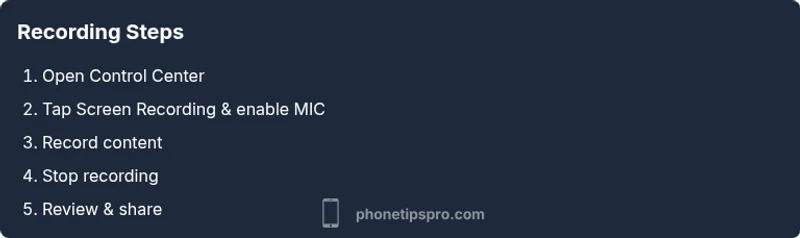
Open Control Center and press the Screen Recording button. If you want narration, press and hold (or 3D touch) the button and toggle Microphone On, then Start Recording. You’ll see a countdown before capture begins.
Tip: Always test microphone on before recording a live session. - 4
Record content
Navigate to the app or screen you want to capture and perform the actions you planned. If you’re using an external mic, ensure it stays connected and close to your mouth for consistent audio levels.
Tip: Keep your subject centered and keep the recording window free of obstructive UI elements. - 5
Stop and save
Open Control Center again and tap the Screen Recording button or tap the red status bar at the top of the screen and choose Stop. Your recording automatically saves to Photos.
Tip: Review the first 5–10 seconds to ensure the capture started correctly. - 6
Review and share
Open Photos to review the recording, trim if needed, adjust audio levels, and export or share via Messages, AirDrop, or cloud storage. Rename the file for easy retrieval.
Tip: If you plan to publish, crop out sensitive information and consider privacy masks for backgrounds.
FAQ
What is the easiest way to start recording on iPhone?
Open Control Center and tap Screen Recording. If you want narration, enable Microphone On before starting. This provides a quick path to capture both video and audio.
Open Control Center and tap Screen Recording. If you want narration, enable Microphone On before you start.
Can I record without showing my face?
Yes. Screen Recording captures the screen itself; the front camera video can be added later in editing if desired, but it is not automatic. Voice can be recorded with the mic on if needed.
Yes. Screen Recording records the screen; add a face cam later in editing if you want to show yourself.
How do I enable microphone during screen recording?
While starting Screen Recording, press and hold the button to reveal options, then toggle Microphone On. This captures your voice while the screen is recorded.
Hold the button, turn on Microphone, and start recording.
Why is my screen recording not saving?
Check available storage and Photos permissions. Ensure the recording actually starts and you stop it properly. If problems persist, restart the device and try again.
Make sure you have space, Photos can save the video, and you started the recording correctly.
Are there apps that block screen recording?
Yes, some apps implement protections that prevent recording. If this occurs, capture content from supported screens or use permission-safe methods like narrating after the fact.
Some apps block recording; use supported screens or narrate after recording.
What’s the best way to share a recording?
Export from Photos via Messages, AirDrop, or cloud storage. Consider compressing large files for easier sharing and ensure privacy settings are appropriate before sending.
Export from Photos through Messages, AirDrop, or cloud storage with privacy in mind.
Watch Video
Quick Summary
- Identify the right method for your task.
- Enable Screen Recording and microphone as needed.
- Test before recording to ensure quality.
- Protect privacy by masking sensitive content.
- Save, edit, and share recordings efficiently.