How to legally download YouTube videos on iPhone
Learn legitimate ways to save YouTube videos on your iPhone, including YouTube Premium offline downloads, content rights, storage tips, and safe workarounds for offline viewing. Practical steps, policy guidance, and best practices from Phone Tips Pro.


If you’re wondering about iphone youtube video download options, this guide highlights legal paths to save YouTube videos on your iPhone using official features and proper permissions. The most reliable method is YouTube Premium’s offline downloads, which store videos within the YouTube app for offline viewing. We also cover content you own or have rights to, and practical steps to stay compliant while enjoying offline playback. Phone Tips Pro explains why these options are safer and more sustainable.
Why people want to download YouTube videos on iPhone
Many iPhone users want to watch videos offline, whether during long commutes, flights, or in areas with spotty cellular data. An iphone youtube video download is not about bypassing creators' rights but about ensuring reliable access when connectivity is limited. Offline viewing can help you stay productive, learn on the go, and enjoy entertainment without buffering or data charges. This need becomes especially relevant for travelers, students, and professionals who rely on consistent access to video content. According to Phone Tips Pro, the most reliable route to offline access on iPhone is through official, supported features rather than risky third-party tools. When planning offline viewing, consider your video length, your iPhone’s storage, and your data plan. Aligning these factors lets you enjoy YouTube content seamlessly without violating terms or compromising device security.
Legal and policy considerations for YouTube downloads on iPhone
Before attempting any download, it’s essential to understand the policy framework. YouTube’s terms generally restrict downloading outside of official features, and creators own the rights to their uploads. Downloading videos without permission can violate copyright and platform rules. The legitimate path for iphone youtube video download is to use features provided by the service itself or to obtain explicit permission from the content owner. Always confirm you have rights or a license to save offline content. This approach protects your account, your device, and the creators who produce the content you enjoy. Phone Tips Pro emphasizes choosing compliant options to minimize risk and maximize long-term access.
Official methods: YouTube Premium offline on iPhone
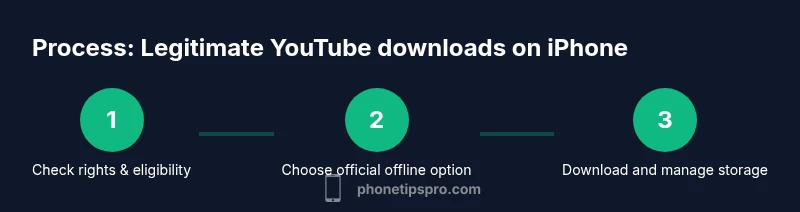
YouTube Premium offers built-in offline downloads that save videos within the YouTube app for offline viewing. This method respects creators’ rights and YouTube policies while delivering a stable experience on iPhone. To enable offline viewing, you’ll need an active Premium subscription and a video with available offline licensing. Once you tap the Download icon and select a quality, the video appears in Library > Downloads and remains accessible without an internet connection as long as your subscription stays active. This is the safest and simplest option for iphone youtube video download when you want reliable offline access.
Using YouTube's Save offline vs saving to Camera Roll
A true offline save via YouTube Premium is stored inside the YouTube app. It is not automatically moved to the iPhone’s Camera Roll or Files. Attempting to export offline videos via screen recording or third‑party tools can violate terms and risk security. If you need videos in your camera library for a project, obtain permission from the rights holder or download a version you own through legitimate licenses. This approach keeps you compliant while still giving you flexibility when you’re offline.
Alternatives: legitimate content you own or have rights to access offline
If you don’t have Premium or the video is not licensed for offline use, explore alternatives. Content you own, content released under a permissive license (e.g., Creative Commons), or videos explicitly offered for offline access can be saved legally via official channels or with permission. For creators, consider providing downloadable versions or companion files that you have the rights to share. This approach expands offline options without infringing copyrights and aligns with best practices recommended by Phone Tips Pro.
Common pitfalls and safety: avoid third‑party apps
The internet is full of third‑party download apps claiming to let you grab YouTube videos from iPhone. These tools often violate YouTube’s terms, may compromise privacy, and can introduce malware. Even if a tool promises convenience, it isn’t worth the risk to your data or your device’s security. Stick to official YouTube features and content you own or have permission to save offline. If a solution sounds too easy or too good to be true, it likely is. Your best defense is to rely on reputable, policy-compliant methods.
Privacy and data usage tips for downloading video on iPhone
Downloading videos can consume data and battery, so use Wi‑Fi whenever possible. Manage download quality to balance storage use with viewing experience. Regularly review your Library > Downloads to remove videos you no longer need. Enabling automatic updates over Wi‑Fi and keeping your iPhone refreshed with the latest iOS helps ensure downloads stay accessible and secure. By planning ahead, you protect your privacy and optimize storage while enjoying offline viewing.
The Phone Tips Pro approach: best practices for iphone youtube video download
For most users, the best practice is to rely on official offline options and respect rights holders. Start with a YouTube Premium subscription if offline viewing is a frequent need. Only download content you own or have rights to, and avoid exporting offline videos to Camera Roll. Regularly monitor storage, update apps, and review downloaded content to maintain a clean offline library. The Phone Tips Pro team recommends prioritizing safety, legality, and long-term accessibility when considering any iphone youtube video download.
Tools & Materials
- iPhone with a recent iOS version(Ensure you’re on iOS 14 or newer for best compatibility)
- YouTube app(Updated to the latest version)
- YouTube Premium subscription(Essential for official offline downloads)
- Reliable internet connection(Wi‑Fi preferred for initial downloads)
- Sufficient storage on iPhone(Ample space for downloaded videos and app data)
- Apple ID / iCloud access(Needed for app installation and updates)
Steps
Estimated time: 15-25 minutes
- 1
Open YouTube and verify eligibility
Launch the YouTube app on your iPhone and ensure you have a Premium subscription if you want official offline downloads. Confirm you’re signed in with an account that has access to offline features. This first check prevents wasted time on unsupported methods.
Tip: If you don’t have Premium, you can still watch videos online or seek owner-permitted offline content. - 2
Find the video you want to save
Use search or browse to locate the video you plan to save for offline viewing. Check the video’s licensing or ownership status if you’re aiming to save content you don’t own, to ensure you’re compliant with rights holders.
Tip: Prefer videos you own or content labeled for reuse to avoid copyright issues. - 3
Tap the Download icon and choose quality
In the video’s details, tap the Download icon and select a video quality. Higher quality uses more storage but offers a better offline viewing experience. The video will be saved inside the YouTube app’s offline library.
Tip: Choose a lower quality for shorter videos to save space if you’re offline often. - 4
Access the video in Library > Downloads
Go to Library and open Downloads to verify the video is present. Ensure the download completed successfully before going offline. You can manage or remove downloads from this panel as needed.
Tip: If a download fails, retry with a different quality setting or on a stronger Wi‑Fi network. - 5
Play offline and monitor storage
With the video downloaded, switch to airplane mode or turn off cellular data to test offline playback. Periodically check remaining storage and remove videos you no longer need to keep capacity available.
Tip: Regularly refresh subscription status to avoid license issues that could affect offline access. - 6
Delete or refresh downloads as needed
If you need to free space, delete outdated downloads from the same Library > Downloads area. For content you still need, confirm the download is up to date and accessible.
Tip: Keep a short list of must-have offline videos to avoid losing access when storage is tight.
FAQ
Is it legal to download YouTube videos on iPhone?
Downloading YouTube videos on iPhone is legal when using official features like YouTube Premium or content you own with permission. Using third‑party tools can violate terms and copyright.
Yes, but only with official methods or licensed content.
Can I download any video using third‑party apps?
Most third‑party downloader apps violate YouTube’s terms and can expose you to malware or data risk. Stick to official options and rights-based content.
Avoid third‑party download apps; use official options.
What if I don’t have YouTube Premium?
Without Premium, offline download options are limited. You can still watch online, or download content you own or have permission to save through legitimate licenses.
Without Premium, offline options are limited; use licensed content.
Will downloaded videos expire?
Downloads remain available as long as your YouTube Premium subscription is active and you periodically reconnect to the internet to refresh licenses. If the license changes or you lose access, downloads may be affected.
They stay available while your Premium is active and refreshed.
Can I move offline videos to Camera Roll?
Offline videos saved through YouTube Premium stay in the YouTube app. They can’t be moved to the Camera Roll. For sharing, you’ll need permission or use licensed exports.
No, not from the YouTube offline library.
What about audio-only downloads?
For audio, use YouTube Music with offline downloads where available, or obtain rights to the audio separately. Video downloads via official YouTube features focus on video content.
Audio-only needs the right service or license.
Watch Video
Quick Summary
- Use official offline options to save YouTube videos on iPhone.
- Only download content you own or have rights to save offline.
- YouTube Premium is the safest path for offline viewing on iPhone.
- Offline videos stay within YouTube app and are not moved to Camera Roll.
- Regularly manage storage and review downloaded content.