Where Do iPhone Call Recordings Go? A Practical Guide
Discover where iPhone call recordings go when you record calls with different methods. Learn common storage locations, how to locate them, and best practices for privacy and organization.


iPhone calls aren’t recorded by default. If you use a third‑party app or the built‑in screen recording feature, the location depends on the method: recordings may live in the app’s private storage, your Files or iCloud Drive, or the Photos app as a video. Access paths vary by app, so check each recorder’s settings and your device storage.
Understanding the iPhone call recording landscape
When you ask where do iphone call recordings go, the short answer is that iPhone does not include a built‑in, automatic call recorder. Instead, recordings come from either third‑party apps or screen recording — each with its own storage path. The Phone Tips Pro team emphasizes that the exact location depends on the method used and the app’s design. Knowing where to look helps you reclaim space, locate files quickly, and stay compliant with privacy rules. Different regions and apps may implement different storage rules, so expect some variation. If you frequently record calls for business or personal use, you’ll benefit from a quick mental map of common destinations and the typical steps to reach them.
In practice, most users will encounter one of three destinations: the app’s own storage, the Files app or a cloud location like iCloud Drive, or the Photos app when screen recording is used. While this sounds straightforward, the reality is that you must check each recorder’s settings to confirm where files land, and you may need to export or share files to reach your preferred storage place. This is why a basic workflow helps: identify the recording method, locate its storage path, and set up routine checks to keep space under control. As Phone Tips Pro analysis notes, consistency in where you save recordings reduces clutter and makes compliance simpler.
notesPreviewParagraphsAllowed":true}
How the recording method shapes where files land
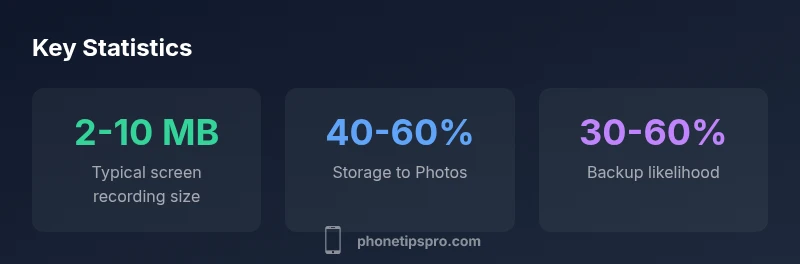
Screen recording and third‑party recorders differ dramatically in where they store the result. If you use iPhone’s screen recording feature, the video capturing your call typically ends up in the Photos app. This is convenient for quick access, sharing, and long‑term storage, but it also means you’re relying on Photos for organization and retention. If you enable the microphone, your call audio is captured with the video, and the resulting file behaves like any other screen recording.
With third‑party recording apps, the landscape changes. Many apps store recordings inside their own sandbox on the device or push them to their cloud services. Some apps offer direct exports to the Files app or iCloud Drive, giving you flexibility to relocate files later. Others rely on in‑app galleries or “Recordings” sections where you manage, rename, or delete files. Because app storage is isolated, you may need to use the app’s built‑in tools to export, share, or back up recordings. This diversity is why it’s crucial to review each app’s documentation and settings.
From a privacy perspective, third‑party apps can present more risk if they sync recordings to cloud services. The Phone Tips Pro team recommends verifying privacy policies, granting the minimum permissions necessary, and keeping an eye on app updates that could alter storage locations or sharing behaviors. Overall, the approach you choose should align with how you intend to retrieve and protect your recordings.
notesPreviewParagraphsAllowed":true}
Finding recordings on your iPhone: a practical workflow
Follow these steps to locate a recording regardless of the method used:
- Step 1: Identify the recording method. Recall which app you used or whether you used screen recording.
- Step 2: Check the Photos app for screen recordings. Open the Photos app, switch to Albums, and look under Media Types > Screen Recordings. Name changes or dates can help you distinguish conversations.
- Step 3: If you used a third‑party app, open that app first. Look for sections titled “Recordings,” “My Recordings,” or a similar label. Many apps allow you to export or share directly from this view.
- Step 4: Check the Files app. Some apps save to their own folder within Files or to iCloud Drive. Use the search bar to look for keywords like “recording” or the app name.
- Step 5: Use iPhone search to locate files by type (e.g., MP4, MOV, or voice memo formats) and by date. Spotlight can help surface items stored locally or in iCloud.
- Step 6: Review the recording app’s settings. Some apps let you choose a storage destination, while others only offer export/share options. If you still can’t locate a file, revisit the app’s help or support section.
If a recording is missing, consider whether it was ever saved or whether it was deleted accidentally. In some cases, third‑party apps offer a trash or recently deleted folder with a short recovery window. This workflow aligns with the general guidance from Phone Tips Pro that consistent storage practices simplify future retrievals.
Common locations for iPhone call recordings by method
| Storage Method | Typical Location | Notes |
|---|---|---|
| Screen recording (video) | Photos app | Saves as video; accessible in Camera Roll; audio captured if microphone is on |
| Third‑party recording app (iOS) | App sandbox or cloud | Stored within the app or synced to cloud storage; export options vary by app |
| Exported/shared files | Files app or iCloud Drive | Requires manual export or sharing from the recording app |
FAQ
Do iPhone calls get recorded by default?
No. iPhone does not automatically record calls. Any capture comes from third‑party apps or screen recording, not a native feature.
No—iPhone doesn’t record calls by itself.
Where are call recordings stored when using screen recording?
Screen recordings save to the Photos app by default, appearing in the Camera Roll or a dedicated Screen Recordings album.
Screen recordings go to Photos by default.
Can I change where third‑party apps store recordings?
It depends on the app. Some apps save locally, others sync to cloud storage, and many offer an export option to Files or cloud services.
It depends on the app’s settings.
Is there privacy risk to recording calls?
Yes. Always obtain consent where required by law and review each app’s privacy policy before recording.
Be mindful of consent and privacy rules.
How can I find a recording if I forgot which app I used?
Use Spotlight search for terms like the app name, file type (MP4/MOV), or keywords like 'recording' and check Photos, Files, and the app itself.
Try searching your iPhone for the file type and app name.
“Call recording on iPhone requires intentional setup and awareness of storage paths and privacy rules. Understanding where recordings go helps you manage space and stay compliant.”
Quick Summary
- Identify your recording method first to predict storage
- Screen recordings typically land in Photos; check there first
- Third‑party apps store in their own space or offer export options
- Always verify privacy rules and consent before recording
- Regularly back up or export important recordings