Where Do iPhone Downloads Go? A Practical Guide
Learn where do iphone downloads go and how to locate, move, and organize files on your iPhone. Practical steps for Safari, Mail, Messages, and third-party apps.


On iPhone, most downloads are saved to the Files app by default, typically in the Downloads folder within iCloud Drive or On My iPhone. You can locate, move, or copy these files from Files, and you can change the save location in Safari or by sharing to a chosen folder. This guide shows how.
Where do iphone downloads go
According to Phone Tips Pro, understanding where do iphone downloads go helps you locate files quickly, save sanity, and manage storage on your device. In most cases, your iPhone saves downloads to the Files app, placing them in a Downloads folder that lives either in iCloud Drive or On My iPhone. This behavior covers almost all downloads from Safari, attachments saved from Mail, and items shared from Messages. Some apps store downloads in their own folders within the Files app, while others keep files inside their native apps. By knowing the default path, you can establish a simple organization system that scales across devices and iOS updates. If you regularly download documents, PDFs, or media, taking a minute to map these locations will save time later.
The Files app acts as a central hub. Open it, and you’ll see a Browse panel with Locations such as iCloud Drive and On My iPhone. Within those locations, look for a Downloads folder. If you don’t see Downloads, you may be using a different folder created by a specific app, or you might have Safari configured to save elsewhere. You can also use the Files search bar to locate a file by name or type, which is a fast way to confirm where a recent download landed. This quick map is especially useful when you’re saving to multiple devices or sharing to a friend, because it gives you a single place to manage all downloaded content. Where do iphone downloads go? Typically, to the Files app as described, but the exact path can depend on the source and app.
How to locate downloads in the Files app
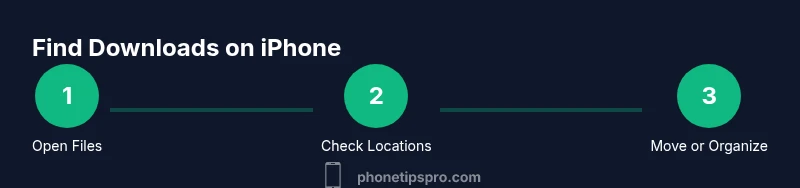
To locate downloads on iPhone, start by opening the Files app. Tap Browse at the bottom to access the Locations list, then choose iCloud Drive or On My iPhone depending on where you save files. Open the Downloads folder when it's listed under the chosen location. If you don't see downloads there, try using the search bar at the top of the screen and type a file name or extension (for example, pdf or mp4). You can also switch to the Recent tab to catch recently created items. For quick checks, you can also navigate to Other apps that save directly to their own folders inside Files; from there, you can move files into a centralized folder if you prefer. With practice, locating downloads becomes a fast, two-tap task.
Default save locations by app and how to change them
iPhone downloads locations vary by app. Safari typically saves to the Files app in a Downloads folder under either iCloud Drive or On My iPhone. Mail attachments saved from emails may also land in Files, sometimes directly into Downloads or a similar folder chosen by the app. Messages can save forwarded or downloaded media to Files if you choose the Save to Files option. Some third-party apps offer explicit options to pick a destination in their own settings, while others route files to a dedicated app’s internal storage, requiring you to import or share into Files to move them. If you want to alter the default destination for Safari, open Settings > Safari > Downloads and select iCloud Drive or On My iPhone. Note that not all apps expose a changeable default; you might need to manually pick a location during the save/sharing step. Consistency in location helps with long-term organization.
Phone Tips Pro also reminds readers that the location you choose may affect accessibility across devices. If you rely on iCloud syncing, using iCloud Drive can keep a single folder structure across iPhone, iPad, and Mac. Conversely, keeping files On My iPhone keeps them available offline, but limits cross-device access unless you manually transfer them. Use a brief storage plan to avoid clutter.
Saving from Safari, Mail, Messages, and third-party apps
Safari: When you tap a download, a progress bar appears; once finished, you can tap the item to open it or share it. Tap the share icon or long-press and choose Save to Files, then pick a destination. Mail: Tap and hold the attachment, then select Save to Files and choose a folder. Messages: Tap and hold an image or file, then choose Save to Files and select a folder. Third-party apps: Depending on the app, you might see a Save to Files option in the share sheet, or the app might automatically save to its own storage area. In practice, for most users, the Files app acts as the central repository for downloaded content, regardless of the source. Even when an app saves to its own internal folder, you can usually move the file into a Files location later by using Share or Move options in the Files app.
Tip: When you want to keep a copy for offline use, save to a folder you will remember, and then back up that folder to iCloud Drive or another cloud service.
Organizing and managing downloaded files
Create a simple folder structure in the Files app, such as Downloads/To Organize/2026 or Downloads/Receipts. Move files by long-pressing them and choosing Move, then select the destination. Rename files to keep names descriptive, and use the Details panel to view file type and size. For long-term storage, consider backing up important downloads to iCloud Drive or your preferred cloud service, and periodically purge duplicates. If you routinely download files for work, create a Routine: save to a specific folder, review weekly, and archive older items in a separate folder. Keeping a clean structure makes it easier to locate and share files in the future.
Troubleshooting common download location issues
Downloads seem missing after a device restart or update? Start by opening the Files app and checking both iCloud Drive Downloads and On My iPhone Downloads. If you don’t see a file you downloaded recently, use the search bar or the Recently Added view. Ensure that Files has permission to access iCloud Drive and that you’re signed into the same Apple ID on all devices. If Safari is not saving to the expected location, go to Settings > Safari > Downloads and reselect a location. For third-party apps, check their in-app settings for a Save to Files option or a default storage path. Finally, if storage is tight, delete or offload older downloads to reclaim space. If problems persist, sign out and back into iCloud or restart the iPhone to refresh file associations.
Tools & Materials
- iPhone with internet access(Ensure the device is on a supported iOS version)
- Files app (built-in)(Accessible from the Home screen; controls file locations)
- Safari, Mail, or Messages app(Test downloads from different sources)
- Optional cloud storage app (e.g., iCloud Drive, Dropbox)(Useful for moving or backing up downloads)
Steps
Estimated time: 5-12 minutes
- 1
Open the Files app and view locations
Launch Files, tap Browse, and review iCloud Drive and On My iPhone locations. Confirm Downloads folders exist in both locations and note where recent downloads landed.
Tip: If you don’t see Downloads, use the search bar to identify the folder. - 2
Identify the Downloads folder
Tap each location and open the Downloads folder to see files you recently saved. If a file isn’t there, check other folders created by apps.
Tip: Use Sort by date to spot the most recent items quickly. - 3
Search for a specific downloaded file
Use the Files search bar at the top to locate a file by name or type (e.g., pdf or mp4). This confirms the exact location and name.
Tip: Try multiple keywords if you remember only part of the name. - 4
Move or copy a downloaded file to a preferred folder
Long-press the file, choose Move, and select a destination folder. Moving files helps keep Downloads organized.
Tip: Create a dedicated folder structure to speed future finds. - 5
Change Safari’s default download location
Open Settings > Safari > Downloads and select either iCloud Drive or On My iPhone as the destination. This affects future Safari downloads.
Tip: If the option isn’t visible, ensure iCloud Drive is enabled. - 6
Verify accessibility of the moved file
Return to the destination folder and open the file to confirm it’s usable on- or offline. If needed, adjust locations.
Tip: Keep a small routine to review new downloads weekly.
FAQ
Where are iPhone downloads saved by default?
Typically in the Files app, Downloads folder, either iCloud Drive or On My iPhone.
Downloads are usually saved to the Files app in a Downloads folder.
Can I change the default download location on my iPhone?
Yes, in Safari settings you can choose iCloud Drive or On My iPhone as the download destination.
Yes. You can set where Safari saves downloads in Safari settings.
How do I find a specific downloaded file?
Open the Files app and use the search bar or browse Locations to locate the file.
Use Files search to locate the file by name or type.
Do third-party apps save downloads in their own folders?
Some apps store downloads in their own Files folders; you can move them to a central location later.
Some apps save to their own folders inside Files; you can move them later.
What should I do if I can't locate a downloaded file?
Check the Downloads folders in both iCloud Drive and On My iPhone, then use Files search or Recently Added.
Try searching in Files and check both storage locations.
How can I free up storage from downloads?
Delete or move unneeded downloads to cloud storage and periodically clean up duplicates.
Remove unneeded downloads or move them to cloud storage to reclaim space.
Watch Video
Quick Summary
- Open the Files app to locate downloads.
- Default destinations vary by app; Safari offers a changeable location.
- Use Files to move, rename, and organize downloaded files.
- Regular cleanup improves storage and accessibility.