Where Are iPhone Downloads From? A Practical Guide
Learn where iPhone downloads originate and how to locate, manage, and organize downloaded files across Safari, Files, and apps. This practical guide helps you reclaim storage, troubleshoot missing downloads, and keep your iPhone tidy and efficient.


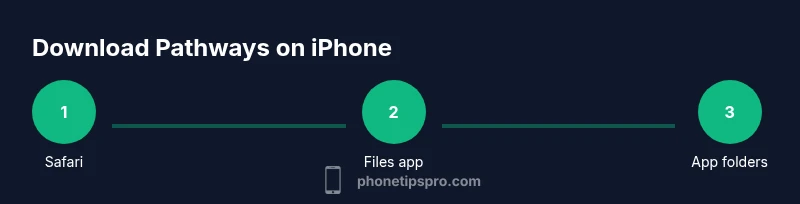
Here’s how you find where iPhone downloads come from and where they’re stored. This guide shows you how to locate downloaded files in Safari and Files, identify app-specific download folders, and manage storage without deleting important data. By the end you’ll know the exact locations iPhone uses for downloads and how to keep them organized.
Why download origins matter
Understanding where downloads originate on an iPhone is more than a curiosity. It is a practical skill that helps you manage storage, protect privacy, and avoid losing important files. When you know which apps save files where, you can move or delete safely, back up critical items, and troubleshoot why a download seems to disappear. According to Phone Tips Pro, most storage problems on iPhone arise when large Safari downloads, email attachments, and app-generated data pile up in misleading locations. The Phone Tips Pro team found that many users mistakenly look in the wrong folder and end up deleting the wrong thing. In this guide, we lay out a clear map of where downloads typically reside, how to access them, and how to keep your device organized over time. This foundational awareness sets the stage for practical steps you can apply right away.
For readers who want a quick reference, remember: Safari and Files are two primary anchors for downloaded content, but each third-party app may create its own storage pattern. By learning these patterns, you’ll be better equipped to locate, back up, or remove files without unintentionally erasing something you need.
Tools & Materials
- iPhone with latest iOS(Ensure Wi‑Fi is on and you’re signed in to your Apple ID for accurate storage readings.)
- Files app access(Use the Files app to explore On My iPhone, iCloud Drive, and Downloads folders.)
- A computer or cloud access (optional)(Moving or backing up large files is easier with a computer or cloud drive.)
- Sufficient local storage(Check available space to prevent failed downloads and copy operations.)
Steps
Estimated time: 20-30 minutes
- 1
Open Settings and review storage
Launch the Settings app, then tap General > iPhone Storage. This page shows a breakdown of used vs. available space and highlights apps that are consuming the most data, including large downloads or caches. Use this as your first diagnostic step to understand where downloads might be hiding.
Tip: Note which apps have recent activity and check their internal folders if you’re seeing odd file placements. - 2
Check Safari’s download behavior
In Safari, downloads can be saved to a default location or prompt you to choose. Confirm your preference in Settings > Safari > Downloads, and set it to On My iPhone or iCloud Drive depending on your workflow. This choice determines where Safari-hosted files will land.
Tip: If Safari is saving to iCloud Drive, you’ll need to check iCloud Drive > Downloads for the file. - 3
Locate Safari downloads in Files
Open the Files app and tap Browse. Look under On My iPhone > Downloads or iCloud Drive > Downloads. If you don’t see the file, use the search bar to locate by file name or type, then open or move the item as needed.
Tip: Use the search field to filter by file type (pdf, zip, image) for faster results. - 4
Explore app-specific download paths
Some apps save attachments or exports inside their own folders. Open the app (Mail, WhatsApp, etc.) and look for an Attachments, Downloads, or Media folder. If you can’t locate it, check the app’s settings for a saved file path.
Tip: Remember that not all apps surface their downloaded files in Files by default. - 5
Move or copy files to organized folders
In Files, long-press a file and choose Move to relocate it to a preferred folder. Create a dedicated Download Archive folder to keep things tidy and make future finds easier.
Tip: Organize by project, date, or type to simplify future searches. - 6
Clean up safely without losing data
Review duplicates and large files before deletion. If unsure, back up to iCloud Drive or a computer. Use the Delete option only from the location where you stored the original copy.
Tip: If a file is essential, ensure a backup exists before removal. - 7
Set up ongoing checks
Schedule a monthly review of Downloads in Files and Safari. This habit prevents buildup and helps you catch outdated or unwanted content before it consumes space.
Tip: Pair this with automatic offloading or storage optimization features in iOS. - 8
Review privacy and app permissions
Occasionally, downloads are blocked by app permissions or content restrictions. Check Settings > Screen Time or Content & Privacy Restrictions to ensure downloads are allowed where you expect them.
Tip: Tighten controls to prevent unwanted downloads while keeping legitimate files accessible.
FAQ
Where do iPhone downloads get saved by default?
Typically, Safari saves downloads to the Files app, often under a Downloads folder. Some apps save files within the app itself or in iCloud Drive, depending on your settings.
Most downloads land in Files, usually in Downloads, but it can vary by app.
Can I access downloaded files on a computer?
Yes. If the files are in iCloud Drive or saved locally and synced, you can access them from a computer via iCloud Drive or the Files web interface.
Yes, you can access many downloads from your computer through iCloud Drive or a Files sync.
Are downloads stored in iCloud automatically?
Not automatically for all downloads. Some apps use iCloud Drive if you enable it, but many downloads stay on the device unless you move or sync them.
It depends on iCloud Drive settings and the app you used.
What if I can’t find a downloaded file?
Search the Files app, check On My iPhone and iCloud Drive, and look inside app folders like Messages or Gmail. If needed, use the file’s name in the search bar.
Try the Files app search or check typical folders first.
How should I delete downloads safely?
Delete only after confirming you have backups or the original is stored elsewhere. Prefer removing copies from their source location rather than from a cloud drive blindly.
Be sure you won’t lose important data before deleting.
Watch Video
Quick Summary
- Identify primary download locations (Safari/Files)
- Know app-specific storage patterns to avoid misplacing files
- Organize with a dedicated Downloads folder for easy access
- Regularly review and back up important files before deletion