Where Do iPhone Downloads Go? A Practical Guide
Learn where iPhone download files land, how to locate them in the Files app, adjust Safari's download settings, and organize your downloads for quick access.


Downloads on iPhone typically land in the Files app, mostly under a Downloads folder, or within the app-specific container. Safari saves to Files by default, attachments from Mail often appear in the Downloads section, and some apps store files in their own folders. You can also choose to save downloads to iCloud Drive or On My iPhone via Settings. This quick guide shows you where to look and how to organize.
Where downloads land on iPhone: the core concept
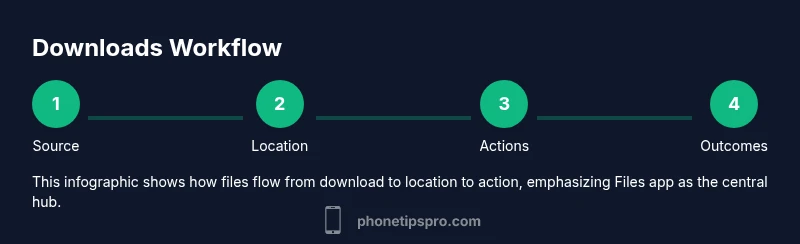
If you’re wondering where iphone download files end up after you save, the Files app is the central hub. By default, most downloads—from Safari, Mail, or third-party apps—are routed into the Files app, typically into a Downloads folder or an app-specific container. This separation helps keep your photos, documents, and media from different apps from mixing together. Understanding this structure makes it easier to locate, move, or delete files later. The concept of a central Downloads folder isn’t about a single physical location on the device; it’s about a predictable workflow where your files are aggregated in the Files app unless an app saves to a dedicated folder. Keeping your downloads in one place speeds up access and reduces clutter, especially when you accumulate files from multiple apps. As you become familiar with these paths, searching for “where iphone download files” becomes quicker and more reliable.
Default destinations by source: Safari, Mail, Messages, apps
On iPhone, downloads from Safari are stored by the Files app, often in a Downloads subfolder managed by Settings > Safari > Downloads. You can choose to save Safari downloads to On My iPhone Drives or iCloud Drive, or even specify a subfolder for organization. Mail attachments typically save to the Files app as well, under a dedicated Downloads path unless you specify otherwise in settings. If you’re receiving files via Messages, the app may store them within its own local storage, which you can access by tapping the attachment and selecting Save to Files. Apps with built-in browsers or document viewers (PDF readers, image editors, etc.) may create their own folders inside On My iPhone or iCloud Drive to keep downloads separate. Knowing these defaults helps you predict where new files will appear and plan your folder structure accordingly.
How the Files app structures downloads
The Files app presents a Browse screen with locations like On My iPhone, iCloud Drive, and third-party cloud services. The Downloads folder is a common default location for Safari and many apps, but not all downloads must go there. Use the Search tab to filter by file type (pdf, docx, jpg) or by a rough filename. The Recents view is useful for quickly reopening the last downloaded item, but it’s not a long-term storage strategy. For long-term organization, create subfolders such as “Work,” “Personal,” and “Receipts,” then move files there. The Files app also supports pinning frequently used folders for faster access and can display previews for many common document types without opening them.
Finding app-specific download folders
Some apps do not share a common Files destination. Instead, they save to their own app container, which can be accessed via Files if the app exposes a location there. For example, a PDF reader may store downloaded documents in a dedicated folder within On My iPhone, while a messaging app might save media in its own subfolder. If you can’t find a downloaded file in the generic Downloads folder, use the Files search with the file type or try opening the app and using its built-in export or share option to route the file to a desired location. Remember that certain apps only expose files to the cloud or to the app’s own library, so you may need to transfer them manually.
Managing storage: how to organize and free space
Over time, downloads can accumulate and consume storage. To prevent clutter, open Settings > General > iPhone Storage to see what’s taking up space. From here you can review large files in Downloads, move them to iCloud Drive, or delete them. If you frequently download large PDFs or media, consider setting Safari to save to iCloud Drive so files are accessible across devices, then move essential copies to a dedicated local folder. Regularly reorganizing downloads into subfolders (e.g., “Receipts 2026,” “Projects,” “Images”) makes it easier to locate items later. Keeping a routine for where you save, store, and delete downloads saves time and reduces stress when you need to retrieve a file.
Moving downloads between locations: Files, iCloud Drive, and third-party apps
Moving a downloaded file is straightforward in the Files app. Long-press the file to reveal the Move option, then choose a destination such as On My iPhone, iCloud Drive, or a third-party service connected to the Files app (like Google Drive or Dropbox). You can also drag and drop between folders if you’re using the iPad, or use the Share sheet to copy the file to another app. If you want to keep a consistent workflow, set up a dedicated folder within iCloud Drive for downloads you want available on multiple devices, and periodically copy local copies into your archive folder. This approach helps maintain a clean device without sacrificing access.
Common issues and troubleshooting: missing files, misroutes
If you can’t locate a downloaded item, start with a quick search in the Files app using keywords or file types (pdf, jpeg, docx). Check both On My iPhone and iCloud Drive, and look in app-specific folders if you downloaded from a particular app. Some files saved by Safari may end up in the iCloud Drive Downloads folder if you enabled that location. If a file was deleted accidentally, you may recover it from the Recently Deleted folder in Files. Finally, confirm that the source app actually completed the download and didn’t fail mid-transfer due to connectivity or permission issues. Routine checks save time later.
Privacy and security when downloading files on iPhone
Downloading files on iPhone is protected by iOS sandboxing and the Files app’s permissions. Avoid downloads from untrusted sources, and enable safe browsing settings in Safari to get warnings about suspicious sites. Review app permissions to ensure they can access Files if you want to save there, but limit access for apps you don’t trust. If you’re sharing sensitive documents, consider encrypting them or moving them to a secure folder in iCloud Drive with restricted access. Regularly update iOS to benefit from the latest security patches, and be cautious with downloads from messages or email attachments that come from unknown senders.
Tips for recurring download workflows (Safari, PDFs, images)
Create a short, repeatable workflow for common downloads: 1) decide the destination (Downloads folder in Files or a subfolder in iCloud Drive), 2) perform the download, 3) immediately move or copy to the chosen folder, 4) archive older items quarterly. For PDFs and images, consider using a dedicated subfolder like “Docs” or “Images” and rely on the Files app search to locate recent items. If you frequently download to cloud storage, enable ‘Save to Files’ in Safari settings to bypass the browser’s default behavior and improve reliability.
How to prepare for offline access and backups
If you rely on downloaded files when offline, keep essential documents in a local folder within On My iPhone rather than in iCloud Drive. For cross-device access, use iCloud Drive and ensure the Files app is configured to show both On My iPhone and iCloud Drive. Regular backups via iCloud or Finder on a Mac will back up the Files app data and folder structure, so you don’t lose your organization scheme. Consider creating a simple naming convention that includes project name and date, then reuse it for all future downloads to simplify searching later.
Final quick-checks and next steps
Before you finish, perform a quick audit of your download flow: check Safari’s default download location, verify that you can locate recent downloads in Files, and ensure your preferred folders exist. If you use multiple apps, map each to a preferred folder to avoid scattered files. Set calendar reminders to review and tidy your downloads monthly, and keep a running archive of important documents outside transient folders. With a consistent approach, what you download today becomes an easily accessible, well-organized library tomorrow.
Tools & Materials
- iPhone with latest iOS installed(Minimum recommended for best Files app integration)
- Stable internet connection(Needed for cloud-based downloads and syncing)
- Apple ID signed in(Required for iCloud Drive access and some app integrations)
- Files app access(Default hub for downloads; ensure it’s visible on the Home screen)
- iCloud Drive (optional)(Syncs downloads across devices and allows cloud backups)
- Third-party cloud apps (optional)(Connect Google Drive, Dropbox, or OneDrive for cross-service storage)
Steps
Estimated time: 15-25 minutes
- 1
Identify likely locations for the downloaded file
Start by recalling the source of the download (Safari, Mail, Messages, or a specific app). This helps you predict where the file lands: Safari typically to Files > Downloads, Mail attachments to Files, and app downloads to the app’s own folder.
Tip: If you’re unsure, perform a quick search in Files for the file type (e.g., pdf, docx). - 2
Open the Files app and check common folders
In Files, tap Browse and explore On My iPhone, iCloud Drive, and any connected cloud services. Look for a Downloads folder and for app-specific folders that might contain the downloaded item.
Tip: Use the search bar in Files to filter by file type or name. - 3
Use the search and filters to locate the file
If the download isn’t visible in Downloads, search by file type or keywords. You can filter by type such as pdf, jpg, or mp4 to narrow results quickly.
Tip: Try multiple keywords and file extensions if you don’t see an expected result. - 4
Check app-specific folders
Some apps store downloads in their own folders inside On My iPhone or iCloud Drive. Open that app’s folder inside Files, or check the app’s built-in library for export or share options.
Tip: If you downloaded from a messaging app, look for a folder named after that app. - 5
Adjust default download location (Safari)
Go to Settings > Safari > Downloads to choose between On My iPhone and iCloud Drive, or an alternate folder. This reduces misplacement of future downloads.
Tip: If you want to access from multiple devices, iCloud Drive is often the most convenient option. - 6
Move or copy the file to a central folder
In Files, use Move to relocate the file to a centralized folder. This makes future retrieval easier and keeps your library tidy.
Tip: Create a dedicated folder pattern (e.g., Downloads/2026/Receipts) to stay organized. - 7
Set up a recurring cleanup
Schedule periodic reviews of Downloads to delete old files and consolidate important items into a long-term archive.
Tip: Use Reminders or a monthly calendar alert to perform this task.
FAQ
Where do Safari downloads go on iPhone?
Safari downloads on iPhone are saved to the Files app, typically under Downloads, unless you’ve changed the default location in Settings.
Safari saves downloads to the Files app, usually in Downloads unless you’ve changed the location.
Can I change the default download location on iPhone?
Yes. Go to Settings > Safari > Downloads and choose On My iPhone or iCloud Drive, or specify a custom folder to organize future downloads.
Yes. Change the Safari download location in Settings under Downloads.
How do I locate app-specific downloads?
App-specific downloads may appear inside the app’s own folder in Files or require exporting to a shared location. Use Files search to find them if the app didn’t place them in a common folder.
App downloads may be in the app’s own folder or need exporting to Files.
Why can’t I find a downloaded file?
Check all possible locations in Files (On My iPhone, iCloud Drive) and try searching by file type. Also verify that the download completed and wasn’t interrupted by a connection issue.
Check all Files locations and confirm the download completed.
How do I move downloads to a different folder?
In Files, long-press the file and choose Move, then select the destination folder. You can also drag and drop on iPad or use the Share sheet to copy to another app.
Use Move in Files to relocate files to a new folder.
How can I recover a deleted download?
If you deleted a file accidentally, check the Recently Deleted folder in Files and restore it. Regular backups help prevent permanent loss.
Look in Recently Deleted in Files to recover a deleted file.
Watch Video
Quick Summary
- Know the primary place for downloads (Files app).
- Use consistent folders to reduce search time.
- Adjust Safari settings to control download destinations.
- Regularly clean up and archive important files.