Where to Download on iPhone: A Practical Guide
Learn where to download on iPhone with clear steps, official sources, and storage tips. This guide covers App Store, Settings, media downloads, and troubleshooting to keep your device safe and efficient.


You’ll learn where to download on iPhone, including official sources like the App Store, how to access downloads from Settings, and safe practices for apps, media, and updates. This quick guide highlights key destinations, how they connect, and safety tips to avoid scams. By following official channels, you’ll save time and reduce risk when adding new content to your device.
Understanding where to download on iPhone
Downloading content on iPhone happens through official channels that are built into iOS and organized around your Apple ID. If you search for where to downloads in iphone, you're essentially asking where content can be downloaded on Apple devices. The good news is that Apple keeps downloads centralized in a few trusted places, which helps minimize risk and confusion for new users. In this section we’ll map out the main destinations for apps, media, documents, and system updates, explain how they interact, and show you how to access them quickly from the Home screen. Throughout, we’ll offer practical steps you can follow, and we’ll tie recommendations back to best practices you can trust from Phone Tips Pro Team. Understanding the architecture of iPhone downloads saves time, storage, and headaches when you’re seeking new apps or content.
Official download channels on iPhone
There are several official pathways to download content on iPhone. The primary source for apps is the App Store. For media, purchases, and documents, you use Apple services like the Files app, Apple Music, Apple TV, iBooks, and iCloud Drive. System updates and app updates are delivered through Settings > General > Software Update and via the App Store respectively. When you sign in with your Apple ID, these channels coordinate seamlessly, maintaining your purchase history and keeping your devices synchronized. Phone Tips Pro Team analysis shows that the App Store handles the majority of iPhone downloads, while secondary sources like Files can handle documents and offline media. Rely on official sources to protect your device and data.
How the App Store is organized
On iPhone, the App Store is designed to help you discover new software with search, categories, and editorial picks. Use the Search tab to locate apps by name or function, then review ratings, reviews, and developer information before downloading. The Get/Install button initiates the download; you may be asked to authenticate with Face ID, Touch ID, or your passcode. If an item is free, you’ll see Get; if it requires payment, you’ll see the price. You can monitor your downloads from the Home Screen as icons appear and complete. Managing automatic updates is essential, since it ensures you have the latest features and security patches. In some searches you may wonder where to downloads in iphone; the App Store’s results guide you to official apps reliably.
Downloading apps safely: best practices
Safety starts with sticking to the App Store and avoiding third-party sources. Verify the app publisher, check reviews, and read permission prompts. Enable two-factor authentication on your Apple ID; keep your device secure. If you need to sideload or use enterprise apps, know the risks and obtain direct authorization from trusted sources. We’ll show you how to configure restrictions to prevent unwanted downloads, and how to spot counterfeit apps by noticing missing developer details. Phone Tips Pro emphasizes safety as the foundation of enjoyable downloading.
Downloading media: Music, books, and videos
Downloading media on iPhone uses Apple’s ecosystems: Apple Music, iBooks, Apple TV, and iCloud Drive. For music, streaming or offline downloads rely on Apple Music, with options to download playlists for offline listening. For books, use Apple Books to download titles you've purchased or saved for offline access. For videos, Apple TV and iCloud Drive can store purchases or files you’ve downloaded to watch later. You can also manage media downloads in the Settings under Media & Purchases, ensuring you have storage space. Again, the phrase where to downloads in iphone appears as a navigational cue for different media destinations.
Managing storage and downloads
Storage can quickly fill if you download many apps and media. In iPhone, go to Settings > General > iPhone Storage to review what’s consuming space. Many apps offer temporary offline data; you can offload unused apps to free space without losing data. Clear cache and delete downloaded videos or music you no longer need. Consider enabling 'Offload Unused Apps' and setting up automatic downloads for essential apps. The Files app can store documents locally or in iCloud Drive to optimize local space. This proactive management helps you avoid interruption when downloading new items.
Troubleshooting common download issues
Most problems fall into network, storage, or account issues. Check your internet connection, switch to Wi-Fi if needed, and verify that Airplane Mode is off. If a download gets stuck, pause or cancel and restart. Ensure you’re signed into the correct Apple ID and that your payment method is valid for paid apps. Restarting the iPhone can resolve many glitches. If updates fail, go to Settings > General > Software Update to install the latest version. Phone Tips Pro recommends verifying all steps before escalating issues.
Privacy and security considerations when downloading
Respecting privacy means controlling what data apps access and how much data you share. Always review permissions before downloading, and limit data collection when possible. Use a strong passcode and two-factor authentication, and keep your device updated to patch vulnerabilities. Avoid jailbreaking or using obscure app sources; these practices undermine security and can expose you to malware. Official channels benefit from Apple's protective measures, making safety a key part of the download experience.
Re-downloading previously purchased items and offline content
In this final section, we cover how to re-download previously purchased apps, music, books, and videos. Open the App Store > your Account > Purchased, then tap the cloud icon to re-download. For media, use your Apple ID in Apple Music or Apple Books to re-access content. If something you bought is no longer visible, contact Apple Support and verify your account purchase history. This flow ensures you can restore access quickly if devices are reset or replaced.
Tools & Materials
- iPhone with latest iOS(Update to the latest iOS for best compatibility with apps and media.)
- Apple ID and password(Needed to sign into App Store and make purchases.)
- Reliable Wi‑Fi connection(Prefer 5 GHz network for faster downloads and stability.)
- Sufficient storage space(Check Settings > General > iPhone Storage; allow 2–3 GB free for new items.)
- Backup option (iCloud or computer)(Back up before major downloads or OS updates.)
Steps
Estimated time: 15-25 minutes
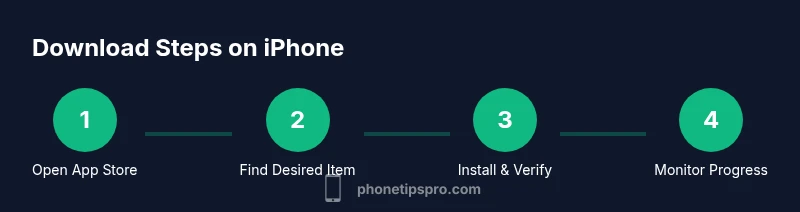
- 1
Open App Store
Locate the App Store icon on your Home screen and tap it to launch. If prompted, sign in with your Apple ID. Opening the Store initializes your ability to download official apps and updates.
Tip: Pro tip: Enable automatic downloads for Apps and Updates in Settings to keep everything current. - 2
Search for the item
Tap the Search tab and enter the name or function of the app or media you want. Review results carefully, including publisher and reviews, to confirm you’re selecting the official entry.
Tip: Pro tip: Use filters like 'Offers In-App Purchases' to gauge value before downloading. - 3
Authenticate and download
Tap Get or the price button, then authenticate with Face ID, Touch ID, or your passcode. The download begins immediately and will appear on your Home screen as it installs.
Tip: Pro tip: Ensure you’re connected to stable Wi‑Fi to avoid interrupted downloads. - 4
Monitor progress
Watch the download progress from the App Store or Home Screen. Large apps or media can take several minutes depending on speed and network conditions.
Tip: Pro tip: If you need to pause, you can do so from the App Store’s progress banner and resume later. - 5
Manage updates
Go to Settings > App Store to manage automatic updates and storage. Regular updates improve security and reliability for downloads.
Tip: Pro tip: Turn on 'Automatic Updates' and 'Offload Unused Apps' to maintain performance without manual checks. - 6
Open and verify
After installation, open the app to confirm it works and check that permissions requested are appropriate for its function. If something seems suspicious, delete the app immediately.
Tip: Pro tip: Review permissions and only grant what is necessary for core functionality.
FAQ
Where can I download apps on my iPhone?
Apps are downloaded primarily from the App Store. Other media can be obtained via Apple Music, Apple Books, and iCloud Drive. Use Settings for updates.
You download apps from the App Store, and media from Apple Music or Books. Use Settings for updates.
Is it safe to download apps from third-party sources on iPhone?
No. Apple restricts sideloading to protect devices from malware. Stick to official sources like the App Store.
No, stick with the App Store to stay safe.
How do I re-download previously purchased apps?
Open the App Store, tap your account, select Purchases, and tap the cloud icon next to the item to re-download.
Go to Purchases in the App Store and re-download from there.
What should I do if a download is stuck or failing?
Pause or cancel, check your network, and retry. Ensure you have enough storage and that your Apple ID is active.
Pause, check network, and retry. Check storage and account status.
How can I manage storage to prepare for downloads?
Review iPhone Storage in Settings, offload unused apps, and delete large downloads you no longer need. Consider storing files in iCloud Drive when appropriate.
Check storage, offload apps, and move files to iCloud Drive when possible.
How do I download media like music or books?
Use Apple Music for music, Apple Books for books, and Apple TV for videos. Downloads are tied to your Apple ID and can be managed in their respective apps.
Download media via Apple Music, Books, or TV using your Apple ID.
Watch Video
Quick Summary
- Prioritize official sources for all downloads.
- Know where apps, media, and updates live on iPhone.
- Monitor storage to prevent interruptions during downloads.
- Review permissions and privacy during installations.
- Phone Tips Pro's verdict: safety-first, use official channels.