Where to Find Location on iPhone: A Practical Guide
Learn where to locate and configure Location Services, Find My, and location sharing on iPhone. Step-by-step instructions, privacy tips, and troubleshooting for iOS users seeking clear guidance.


Learn where to find Location Services, Find My, and location sharing on iPhone. This guide covers enabling Location Services, turning on Find My Location, and sharing your whereabouts safely. You’ll also explore privacy controls and common issues. To follow along, you need an iPhone with iOS 15 or later, an active Apple ID, and internet access.
Location services basics on iPhone
Location Services is the backbone of how iPhone apps determine where you are. GPS, Wi‑Fi, cellular triangulation, and sensor data combine to provide an approximate location that apps use for navigation, weather, reminders, and search results. Understanding where to find and adjust these controls helps you balance functionality with privacy. According to Phone Tips Pro, the goal is to enable helpful features while limiting unnecessary data sharing. On most models, you access these settings through Settings > Privacy & Security > Location Services. Here you can toggle Location Services on or off and review per-app permissions. This foundation sets up everything else in this guide and helps you answer the question of where to on iphone location for everyday tasks.
tip2:
Tools & Materials
- iPhone with latest iOS(Ensure you’re on iOS 15 or newer for full feature support.)
- Apple ID and password(Needed for Find My and Family Sharing setup.)
- Active internet connection (Wi‑Fi or cellular)(Required for location syncing and iCloud services.)
- Settings app access(You’ll navigate Privacy & Security → Location Services.)
- Find My app (built-in)(Used to view and share your location with others.)
- Optional: Family Sharing setup(Helpful for automatic location sharing with family members.)
Steps
Estimated time: 15-25 minutes
- 1
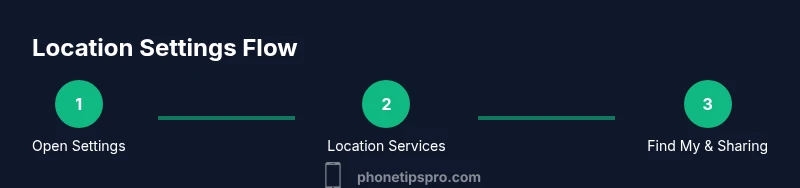
Open Settings and navigate to Location Services
On your iPhone, open the Settings app and tap Privacy & Security, then select Location Services. This is the central switch that enables GPS-based features for apps and Find My. If Location Services is off, most location-based features won’t work.
Tip: Turning Location Services off will prevent apps from seeing your location; re-enable it quickly if you need maps, reminders, or location-based alerts. - 2
Turn on Location Services
If the toggle is off, switch Location Services to on. This activates GPS and other location sources for apps you grant permission to. You may then see a list of apps with their permission level (Never, Ask Next Time, or While Using the App).
Tip: For privacy, consider granting location access only while using the app unless you need background location for a specific feature. - 3
Tap Find My and enable Share My Location
Go back to the main Location Services screen, scroll to Find My, and ensure Share My Location is on. This allows trusted people to see your device’s location in Find My and related features. You can also choose who can see your location and under what conditions.
Tip: Sharing location with Family or Friends requires you to approve each contact; review permissions periodically. - 4
Verify location sharing in Find My
Open the Find My app and confirm your location appears on the map when you select your device. This step validates that location data is being shared correctly with the people or devices you’ve designated. If you don’t see your location, re-check Location Services and your iCloud settings.
Tip: If location shows as unavailable, ensure your device has a data connection and GPS is currently usable. - 5
Share your location via Messages or Contacts
In Messages, start a new chat or open an existing one, tap the contact’s name, and choose Share My Location. You can opt to share for a specific duration or indefinitely, depending on your needs and privacy posture.
Tip: Only share with people you trust; you can stop sharing anytime from Find My or Messages. - 6
Enable Maps or other apps to access Location
For apps like Maps, you may need to re-check app permissions. Open Settings > Privacy & Security > Location Services, select Maps, and set permission to While Using the App or Always if needed for navigation in real time.
Tip: More permissive settings increase visibility of your location; use sparingly for apps that genuinely need it. - 7
Consider Family Sharing for broader sharing
If you frequently coordinate with family, set up Family Sharing and enable Location Sharing within Family settings. This simplifies ongoing location visibility among trusted family members and devices.
Tip: Family Sharing is optional but convenient for households that rely on location awareness for safety and planning. - 8
Test the workflow by sharing a live location
Ask a friend to view your location in Find My or Messages. Confirm they can see you on the map and that updates occur as you move. Real-time testing helps catch misconfigurations early.
Tip: If real-time updates lag, check network connectivity and GPS visibility.
FAQ
How do I turn on Location Services on iPhone?
Open Settings, choose Privacy & Security, then tap Location Services and switch it on. Review app permissions to ensure each app can access location as needed.
To enable location, go to Settings > Privacy & Security > Location Services and toggle it on, then review app permissions.
How can I share my iPhone location with family?
Use Find My to enable Share My Location and, if you want, set up Family Sharing so family members can view your location on their devices.
Open Find My > Share My Location and enable it for your chosen contacts or set up Family Sharing.
Can I stop sharing my location at any time?
Yes. In Find My or Settings, turn off Share My Location or remove specific contacts from the sharing list.
You can stop sharing by turning off Share My Location in Find My or removing contacts.
Is location data stored by Apple, and can I control it?
Location data is used to power services like Find My and maps; you can control it with per-app permissions and Location Services preferences.
Location data is controlled via app permissions and Location Services settings.
How accurate is Find My location?
Find My uses GPS, Wi‑Fi, and cellular data; accuracy varies with signal strength and environment.
Accuracy depends on GPS signals and nearby networks; it improves when you have a clear view of the sky.
How do I check which apps have location access?
Go to Settings > Privacy & Security > Location Services to see each app’s permission level and adjust as needed.
Check app permissions in Settings > Location Services to see who can access your location.
Watch Video
Quick Summary
- Enable Location Services to activate GPS features
- Use Find My to share or view locations with trusted people
- Review per-app location permissions regularly
- Practice privacy-light sharing by using 'While Using the App' permissions
- Test the sharing flow to ensure location updates function correctly