How to Check iPhone for Malware: A Practical Guide
Learn safe, step-by-step methods to detect, isolate, and remove malware on iPhone. This guide covers signs of infection, non-destructive checks, and practical prevention tips from Phone Tips Pro to keep your device secure.


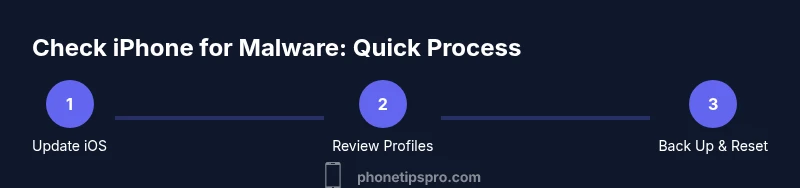
If you're wondering how to check iPhone for malware, follow a safe, step-by-step approach: update iOS to the latest version, review device management profiles and installed apps, monitor battery and data usage, and back up before performing any reset. Rely on built-in protections, avoid jailbreaking, and contact Apple Support if issues persist.
Why checking your
Signs your
What malware can do to
Prep before you start: safety and backups
Before diving into checks, prepare by creating a current backup and ensuring the device is ready for risk-free diagnostics. Backups enable you to restore to a safe state if you need to remove problematic profiles or reset the device. Ensure your
Safe diagnostic techniques you can perform without jailbreaking
You do not need third-party malware scanners to perform meaningful checks on
How to review profiles and configuration profiles
Rogue configuration profiles can control network traffic, certificates, or even jailbreak indicators. To review, open Settings > General > VPN & Device Management (or Profiles & Device Management on some
How to back up and when to reset or restore
Backups are your safety net. Create an up-to-date backup before making major changes, and consider keeping a local
Long-term prevention and best practices
After you finish the checks, adopt ongoing habits to minimize future risk. Keep
Tools & Materials
- iPhone with latest iOS(Ensure pending updates are installed before testing)
- Stable Wi-Fi network(Preferred network you control to avoid rogue hotspots)
- Mac or PC with Finder/iTunes(For backups and potential diagnostics)
- USB charging cable(Keep device connected during larger checks or restores)
- Apple ID with two-factor authentication(Already enabled, ready for secure authentication)
- Recent backup (iCloud or computer)(Important to restore to a clean state if needed)
- Access to official Apple support resources(Useful for authoritative guidance and troubleshooting)
Steps
Estimated time: 60-90 minutes
- 1
Prepare device for checks
Update iOS to the latest version and ensure the device is plugged in. This minimizes risk and ensures you test against the latest protections. Have your backup handy in case you need to revert to a clean state.
Tip: Verify the update completes before proceeding to reduce inconclusive results. - 2
Review profiles and management
Go to Settings > General > VPN & Device Management. Look for unfamiliar profiles and disable any that you don’t recognize. Remove suspicious profiles to prevent them from altering device behavior.
Tip: If you’re unsure about a profile, search its name online before removing. - 3
Check battery usage per app
Settings > Battery shows which apps consume power abnormally. If a background task or new app drains power without a clear reason, investigate further. Note any recent app installations that coincide with symptoms.
Tip: Compare current usage with the last two weeks to spot anomalies. - 4
Inspect data usage and network activity
Settings > Cellular or Mobile Data reveals apps that use data unexpectedly. High, unexplained usage can indicate background activity. Monitor network activity and consider restricting background data for suspect apps.
Tip: Turn off cellular data for apps you don’t trust temporarily to test behavior. - 5
Review Safari and website data
In Safari, clear data for sites you don’t visit often and check for heavy or rogue site redirects. Enable Fraudulent Website Warning and block pop-ups to reduce exposure to malicious pages.
Tip: Clear history and website data after testing to minimize residue that could affect results. - 6
Check installed apps for legitimacy
Delete any apps you don’t recall installing, especially if they appeared after a suspicious prompt. Reinstall essential apps from the App Store if needed. Avoid reinstalling apps tied to suspicious activity until you confirm their source.
Tip: Only restore apps from trusted sources and avoid sideloading. - 7
Backup and consider reset/restore
If issues persist, create a fresh backup and consider a settings reset or full restore using Finder/iCloud. Restore from a backup after ensuring it predates the malware symptoms. This helps remove rogue configurations while preserving data.
Tip: Always verify the backup integrity before restoring. - 8
Secure your accounts
Change your Apple ID password if suspicious activity occurred and enable two-factor authentication. Review trusted devices and look for unknown logins. This reduces credential risk during remediation.
Tip: Use a password manager for unique, strong credentials. - 9
Establish ongoing security hygiene
Enable automatic updates, monitor app behavior regularly, and maintain clean backups. Schedule a monthly check of profiles and device settings to catch issues early. Adopting routine security habits is the best defense.
Tip: Set a calendar reminder for monthly security checks.
FAQ
What counts as malware on iPhone, and how can I recognize it?
Malware on iPhone typically involves rogue profiles, suspicious apps, or abnormal network activity. Signs include unusual pop-ups, rapid battery drain, or unexpected data usage. Start with the built-in checks described in this guide and seek official support if symptoms persist.
Malware on iPhone usually shows up as rogue profiles or apps and odd network behavior. Look for unusual prompts, battery drain, or data spikes, then follow the steps in this guide or contact Apple Support.
Can iPhone infections come from legitimate-looking apps?
Yes, apps can behave badly or cause misconfigurations even if they originate from the App Store. If an app seems suspicious or behaves strangely after installation, remove it and monitor performance. Trustworthy apps from the App Store are still subject to review, but anomalies can occur.
Even legit-looking apps can cause issues. If an app acts oddly after installation, remove it and check performance again.
Should I reset my iPhone to remove potential malware?
A reset can remove rogue profiles and problematic configurations. Start with a settings reset, then consider a full erase if problems persist. Always restore from a clean backup and update iOS after resetting to ensure protections are active.
Reset settings first, then consider a full erase if issues continue. Restore from a clean backup and update iOS afterward.
Why is my battery draining faster after a check?
Sudden battery drain can signal background activity or misbehaving apps. Review battery usage by app and recent changes. If the drain persists after checks, it may indicate deeper issues or a rogue profile.
Fast battery drain usually means something is running in the background or a problematic app. Check usage, and consider further remediation if it continues.
How can I prevent malware on my iPhone in the future?
Maintain up-to-date iOS, enable two-factor authentication on your Apple ID, avoid installing apps from unknown sources, and regularly review device profiles and data usage. A routine security habit is your best defense.
Keep iOS updated, enable two-factor authentication, and avoid unknown apps. Regularly review profiles and data usage to stay secure.
Is it common for iPhones to get malware?
While less common than on some other platforms, iPhones can be affected by malware through misconfigurations or profiles. Staying informed, updating software, and following best practices reduces risk significantly.
Malware on iPhone is not ubiquitous, but it can happen. Stay updated and follow protection best practices.
Quick Summary
- Identify suspicious behavior early and document it
- Keep iOS updated and enable security features
- Review profiles and configurations regularly
- Back up before attempting resets
- Rely on official Apple resources for guidance