Check iPhone for Spyware: A Practical Guide
Learn proven steps to check your iPhone for spyware, spot signs, and securely remove unwanted software. This expert, Phone Tips Pro guide walks you through detection, removal, and prevention.


By the end of this guide, you will know how to check your iPhone for spyware, identify common warning signs, and safely remove any unwanted software. The steps require a recent iOS version, a trusted backup, and a quiet moment to review settings. Phone Tips Pro will walk you through practical checks you can do today.
Why spyware risk on iPhone matters
Smartphones hold a treasure trove of personal data; spyware can silently siphon messages, location data, and credentials. On an iPhone, the risk is nuanced: Apple's security model is strong, but no system is absolutely immune, especially if users install profiles, click suspicious links, or fall for phishing. According to Phone Tips Pro, the majority of iPhone spyware incidents involve misuse of legitimate features like configuration profiles or enterprise certificates, rather than traditional malware. This section explains why you should care, what makes iPhone spyware possible, and how the consequences unfold in everyday life. You may notice subtle changes in performance, odd battery drain, unexplained data usage, or new settings that you did not authorize. Those signals are often the first clues that something is amiss; ignoring them can allow a covert program to persist. The goal is not alarm but awareness: by understanding how spyware operates, you can spot anomalies early and take corrective action before privacy or security is compromised. You should form a simple habit of periodic checks for unfamiliar profiles, odd device management settings, and unusual background activity. Phone Tips Pro stresses proactive monitoring to protect privacy and data integrity over time.
Signs your iPhone might be spyware
Some spyware leaves telltale signs you can observe without specialized tools. Start with battery life: if the battery drains noticeably faster than normal without heavy use, it could indicate background processes. Data usage spikes can also hint at stealth activity. Look for unfamiliar apps or profiles under Settings > General > VPN & Device Management; spyware frequently uses profiles to gain persistent access. Unexpected screen brightness changes, overheating, or lag in performance can be symptoms, as can strange pop-ups or recurring prompts to accept permissions. Keep in mind that legitimate apps can cause similar effects, so use a process of elimination. Phone Tips Pro analysis shows that many spyware campaigns rely on social engineering to coax users into installing configuration profiles, or exploit zero-click vulnerabilities. While iOS provides strong sandboxing, a compromised profile or a saved credential in a synced account can create a foothold for monitoring. If you notice any combination of these signs, treat it as a potential red flag and proceed with a deeper check rather than assuming it's normal. Document when you first noticed issues to help investigate later.
How spyware commonly gets onto iPhone
Spyware reaches iPhones through several vectors, most of which rely on user action or misconfiguration. Common entry points include installing a configuration profile from an untrusted source, clicking phishing links that install a rogue profile, or jailbreaking the device—which breaks standard protections and exposes deeper system access. Social engineering remains the leading driver: attackers exploit trust to coax installation of certificates, VPN configs, or enterprise apps that are not vetted. Software updates can close vulnerabilities, but attackers fast-follow with exploits if devices are left unpatched. In some cases, spyware hides in legitimate-looking apps distributed through non-official channels or corporate-signed apps via enterprise programs. Apple’s security model helps mitigate these risks, but it cannot prevent all threats if the user bypasses warnings or neglects to update. The key takeaway is to avoid sideloading apps from unknown sources and to verify every profile or certificate before installation. Regularly review any profiles under Settings > General > VPN & Device Management, and remove anything unfamiliar.
Quick checks you can run today
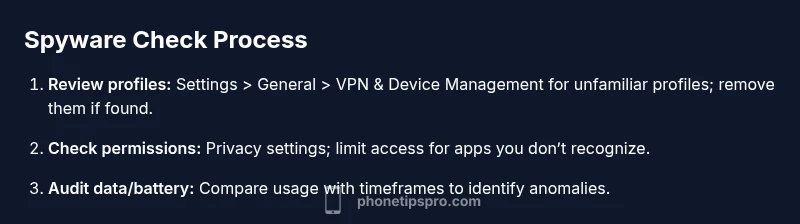
Start with a fast audit of settings, then perform more thorough checks. Quick checks include: 1) Open Settings and review every item under General > VPN & Device Management for 'profiles' you did not install. Remove unknown profiles; 2) Check Privacy & Location settings; ensure apps do not have excessive permissions; 3) Look at battery usage by app in Settings > Battery to identify background activity; 4) Inspect Data usage in Settings > Cellular; 5) Review Safari autofill and known phishing bookmarks; 6) Run a quick search in the Apps Library for anything unfamiliar. These steps can be completed in 10-20 minutes for a basic sweep. If you find anything suspicious, avoid interacting with it and move to deeper checks. Phone Tips Pro notes that these quick checks catch many cases early, especially when users keep their iOS up to date and avoid reckless installs. After this quick audit, you should decide whether to perform a full reset or professional assessment if signs persist.
Deep-dive: using built-in iPhone features to detect anomalies
iOS includes several built-in features that support security hygiene. Use Settings > Battery to identify unusual activity; Settings > Privacy to review app permissions; Settings > Passwords to examine saved credentials and alerts from the password manager; Settings > Security & Privacy to enable 'Lock Screen' and 'Require Passcode' options; and Settings > Safari > Privacy & Security to block cross-site tracking. Enable Find My iPhone and consider enabling 'Shake to Report' if available; ensure two-factor authentication is active for Apple ID. The 'App Privacy Report' (available in recent iOS versions) provides a window into which apps are accessing camera, microphone, or location data. Correlate spikes in data usage or battery drain with a specific timeframe and try to reproduce the issue by using the suspect app or action. Phone Tips Pro analysis suggests that these built-in tools, when used regularly, dramatically reduce the window of opportunity for spyware to operate undetected. If you see a mismatch between app activity and device behavior, pause, document, and move to targeted checks or resets as needed.
Do third-party security apps help on iPhone?
Third-party security apps on iPhone generally offer monitoring features rather than invasive scanning due to iOS restrictions. They can help by alerting suspicious network activity, risky profiles, or phishing attempts seen in web traffic. However, avoid apps that request extensive device access or claim to 'scan' for malware in the background; these claims are often unreliable on iOS. Rely on trusted vendors with clear privacy policies and third-party reviews. The primary defense remains iOS's design, timely updates, and cautious behavior. If a security app prompts a rapid 'scan' result claiming to find spyware, treat it with skepticism and verify with official Apple guidance or a security professional. In some cases, a legitimate security app may help you identify a rogue profile, certificate, or configuration that previously went unnoticed.
Step-by-step plan to remove spyware
Here is a practical plan to remove spyware if you suspect it's present. Step 1: Back up your data using a trusted method (iCloud or encrypted local backup). Step 2: Remove unfamiliar profiles: Settings > General > VPN & Device Management; if you see a profile you don't recognize, remove it. Step 3: Check for enterprise apps and delete them; Step 4: Sign out of iCloud, then sign back in; Step 5: Erase all content and settings to factory reset if symptoms persist; Step 6: Restore only from a clean backup or set up as new device to avoid reinfection; Step 7: Re-enable security features and update to latest iOS. In-depth explanation: Factor in your tolerance for data loss and ensure you have a backup for critical data. The steps should be performed in order to avoid reintroduction of any spyware. This procedure minimizes data loss by carefully selecting what to wipe and what to keep. Phone Tips Pro suggests starting with non-destructive steps and moving to a factory reset only if necessary.
Best practices to prevent spyware in the future
Adopt best practices, like enabling automatic updates, using strong passwords and two-factor authentication, avoiding jailbreaking, and being cautious with profiles and app installations. Always verify legitimate sources before installing profiles or certificates; check for developers with trusted names. Use Find My iPhone, enable device encryption, and ensure backups are encrypted. Regularly audit device management settings, avoid public Wi-Fi for sensitive tasks, and be mindful of phishing attempts. Keep Safari protections enabled and consider using a password manager to minimize credential reuse. Collectively, these habits reduce exposure to spyware and enhance privacy resilience. The Phone Tips Pro team recommends performing scheduled security checks monthly and after major iOS releases, since updates sometimes alter security behavior.
When to contact a professional and what to expect
If you still notice anomalies after completing steps, consult a professional. A security specialist can perform a deeper forensic analysis, including profile investigations, device data dumps, and cross-checks with Apple's support. Prepare device logs, timestamps, and a list of symptoms. Expect a diagnostic process that may involve a factory reset and reconfiguration, along with guidance on safe backups and alternative workflows. The decision to involve professionals is sensible when data privacy is at stake.
Tools & Materials
- iPhone with latest iOS(Ensure the device is updated to the latest available version.)
- Trusted computer or Mac/PC(For data export, backup, and critical checks.)
- Backup method (iCloud or encrypted local backup)(Use encrypted backups when possible to protect data.)
- Apple ID credentials with 2FA(Have 2-factor authentication enabled.)
- Strong passcode and biometrics(Use a long, unique passcode and enable biometric unlock where available.)
- Provisional support plan (optional)(Consider professional help if signs persist.)
Steps
Estimated time: 60-90 minutes
- 1
Assess notable device behavior
Observe any unusual symptoms such as rapid battery drain, data spikes, lag, or unexpected popups. Note times and apps involved to correlate with later checks.
Tip: Document symptoms with timestamps to help identify patterns. - 2
Review profiles and device management
Open Settings > General > VPN & Device Management and look for unfamiliar profiles or certificates. If found, remove them and reset related permissions.
Tip: Only remove profiles you do not recognize or trust. - 3
Check app permissions and privacy
Go to Settings > Privacy and inspect permissions for each app. Revoke any permissions that seem excessive or unnecessary.
Tip: Limit location, microphone, and camera access to what’s needed. - 4
Inspect battery and data usage
In Settings > Battery, review per-app battery usage. In Settings > Cellular, review data usage by app to spot unusual background activity.
Tip: Cross-reference spikes with the timeframes of other symptoms. - 5
Run built-in security checks
Use App Privacy Report and other built-in tools to identify apps accessing sensitive sensors. Enable two-factor authentication for Apple ID.
Tip: Regularly review App Privacy Report after updates. - 6
Decide on reset or professional help
If anomalies persist after the checks, plan a rollback: back up data, then perform a factory reset or contact a professional for deeper analysis.
Tip: A factory reset should be a last resort if symptoms continue.
FAQ
Can iPhone spyware be installed without jailbreaking?
Yes, spyware can be installed without jailbreaking, often through profiles, compromised apps, or phishing. iOS mitigations reduce risk, but user action can bypass protections.
Yes—spyware can happen without jailbreaking, usually via profiles or phishing. Be cautious with installations and profiles.
What is a configuration profile and why is it risky?
A configuration profile can change device settings or install management permissions. If from an untrusted source, it can grant surveillance access or persistent control.
A configuration profile is a settings bundle that can secretly alter your device. Only install from trusted sources.
Should I always factory reset to remove spyware?
Factory reset is a strong remedy, but not always necessary. Start with removing profiles and updating, then consider reset if symptoms persist.
A factory reset is powerful but should be a last resort after other steps fail.
Can third-party antivirus apps detect iPhone spyware?
iPhone antivirus apps have limited capabilities due to iOS restrictions, but some can flag risky profiles or phishing attempts. Rely on built-in tools and reputable vendors.
Antivirus apps on iPhone have limited reach, but some can help flag risky items.
What should I do after removing spyware from my iPhone?
Update iOS, review app permissions, enable Find My iPhone, and monitor behavior. Consider a clean setup if suspicious activity recurs.
After removing spyware, update, review permissions, and stay vigilant.
When is it time to seek professional help?
If symptoms persist after checks, or you lack a clean backup, a security professional can diagnose deeper issues and guide remediation.
If symptoms persist, a professional can help diagnose more deeply and guide you through safe remediation.
Watch Video
Quick Summary
- Check signs regularly and document suspicious activity
- Remove unfamiliar profiles and keep iOS updated
- Back up, then reset only if necessary
- Use built-in iOS tools to audit app access
- Preventive habits reduce spyware risk over time