How to Lock Screen on iPhone: A Practical Guide
Learn how to lock your iPhone screen securely with a strong passcode, biometrics, and privacy settings. This step-by-step guide from Phone Tips Pro covers Auto-Lock, notifications, and troubleshooting to keep your device protected.


To lock your iPhone’s screen, ensure you have a passcode enabled and set to require immediately after the device sleeps. Use Face ID or Touch ID for quick unlocking, and configure Auto-Lock to a short interval. In this guide, Phone Tips Pro walks you through exact steps, privacy settings, and tips to keep your lock screen secure across iOS versions.
Why Lock Screen Matters
According to Phone Tips Pro, the lock screen is the first line of defense for your iPhone’s data. A strong lock screen reduces the risk of unauthorized access when the device is lost, stolen, or left unattended. In practice, combining a robust passcode with biometric unlocking (Face ID or Touch ID) creates a layered defense that is hard for someone else to bypass. In addition, setting an appropriate Auto-Lock interval minimizes exposure if you momentarily forget to lock the screen. This section explains the core reasons people lock their screens: privacy from notifications that leak sensitive content, protection of financial and personal data, and maintaining control over who can wake and unlock the device. You’ll also learn how Apple’s design encourages secure by default: quick unlock with biometrics, but with a passcode required after sleep or restart.
Quick Overview of Lock Screen Methods
On iPhone, you can secure the lock screen using a combination of passcodes, biometrics, and display settings. The base method is a passcode, which can be numeric or alphanumeric, and is used to verify identity when the device wakes from sleep. Face ID or Touch ID provides rapid unlocking, but even with biometrics, a passcode remains necessary in certain scenarios (new device setup, after restart, or after enabling certain privacy options). Auto-Lock determines how quickly the screen locks after inactivity; shorter intervals reduce risk but can affect day-to-day usage. You can also control what happens on the lock screen—whether previews show, what apps can display content, and whether Siri or Control Center are accessible without unlocking. Together, these settings give you both security and convenience depending on your environment. In short, if you’re unsure how to lock screen on iPhone, this section outlines the core methods you’ll use.
Understanding Passcodes, Face ID, and Touch ID
A robust iPhone security profile starts with a solid passcode. Passcodes can be numeric (4-6 digits) or alphanumeric for stronger protection. For most users, a longer Custom Alphanumeric passcode provides the best defense against guessing. Biometric unlocks—Face ID on newer models and Touch ID on many older models—offer quick access while still relying on the passcode as a backup. If you rely on biometrics, ensure they’re configured and that a strong passcode is in place for scenarios where biometrics can’t be used (restart, after software updates, or after a security event). Remember to require the passcode immediately after sleep for maximum protection.
Customizing Lock Screen Notifications for Privacy
Lock screen privacy hinges on what notifications reveal when the phone is locked. In Settings, you can hide previews or restrict certain apps from displaying sensitive information on the lock screen. For privacy-conscious users, choose Show Previews: When Unlocked or Never for sensitive apps such as messages or email. You can also control whether Siri, Control Center, or Wallet access is allowed when locked. These tweaks prevent snooping and help keep personal content private even if your device is misplaced. You’ll learn exact paths to adjust these options in the step-by-step section.
Using Auto-Lock and Erase Data for Extra Security
Auto-Lock determines how quickly the screen locks after inactivity. Short intervals reduce the window of opportunity for someone to peek at content. For devices that stay unattended in public spaces, a 30-second to 1-minute Auto-Lock is often suitable. Additionally, enabling Erase Data after 10 failed passcode attempts adds a last-resort layer of protection against brute-force attacks. If you enable this, be sure you remember or securely store your Apple ID credentials. This section covers how these options affect everyday use and how to balance security with convenience.
Wake and Access Options: Raise to Wake vs Tap to Wake
iPhone models offer different ways to wake the screen. Raise to Wake turns the display on when you lift the device, while Tap to Wake requires a tap or press to illuminate the screen. Enabling Raise to Wake can be convenient, but it may increase accidental unlocks in busy environments. Turn it on or off based on your daily habits and battery considerations. This section explains where to find these toggles and how they interact with your lock settings.
Troubleshooting Common Lock Screen Issues
If your iPhone seems not to lock properly after sleep, start by confirming Auto-Lock and Passcode settings are configured correctly. Ensure you’re using a supported iOS version with biometric enrollment intact, and verify that no accessibility features are keeping the screen awake inadvertently. If biometrics fail to unlock, test with the passcode. Sometimes a quick restart of the device resolves quirks after updates. This section provides practical fixes for common lock screen snags.
Security Considerations for 2026 iOS Versions
As iOS evolves, Apple tightens lock screen controls and privacy options. Regularly review Passcode, Face ID/Touch ID, Auto-Lock, and notification previews to adapt to new security features. Keeping the device updated helps ensure you benefit from the latest protections and privacy enhancements. This section highlights what to look for after iOS updates and how to stay informed about new lock screen settings in upcoming releases.
Lock Screen and Privacy for Shared Devices
For households or shared devices, restrict what others can see on the lock screen. Disable sharing of previews for sensitive apps, enable a shorter Auto-Lock, and consider configuring a separate guest profile if your iPhone supports it. If you frequently lend your device, these controls help prevent accidental data exposure while preserving convenience for yourself.
How to Lock Screen: Quick Actions (Physical Button)
Locking your iPhone is as simple as pressing the side button once (or the power button on older models). This quick action drives the lock, respects your current security settings, and immediately engages the privacy protections you configured. Practicing this simple gesture helps ensure you lock your screen consistently, especially when stepping away from your device in public or at work.
Testing Your Lock Screen After Changes
After adjusting Passcode, Auto-Lock, and notification settings, test by locking the screen and attempting to wake it using biometrics and then your passcode. Check that previews and sensitive data do not appear on the lock screen for apps you restricted. If something looks off, re-check the precise path to the setting and experiment with a small, reversible tweak. Regular testing confirms your lock screen remains effective in daily use.
Quick-Start Checklist for Your Lock Screen
- Ensure a strong passcode is enabled and required immediately after sleep.
- Enable Face ID or Touch ID for quick, secure unlocking.
- Set Auto-Lock to a short interval suitable for your environment.
- Review lock screen notification privacy for sensitive apps.
- Enable Erase Data after 10 failed attempts for additional security.
- Test wake, lock, and unlock flows to confirm everything works as intended.
Tools & Materials
- iPhone with current iOS(Ensure updated to the latest iOS for security features.)
- Apple ID credentials(Needed for settings sync and recovery options.)
- Stable Wi-Fi or cellular connection(Required for iCloud and certain settings sync.)
- Charged battery or power source(Helpful if you’ll be testing changes for a while.)
Steps
Estimated time: 10-15 minutes
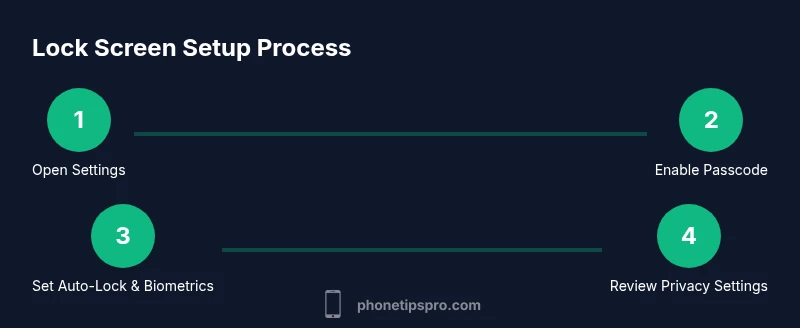
- 1
Open Settings and access Passcode options
Open the Settings app, then navigate to Face ID & Passcode or Touch ID & Passcode depending on your iPhone model. You may be prompted to enter your current passcode to view available options. This step sets the foundation for securing the lock screen.
Tip: If you don’t see the expected menu, confirm you’re using a supported iPhone model and updated iOS. - 2
Set or update your device passcode
Choose a passcode that is long and unpredictable (prefer Custom Alphanumeric). A stronger passcode makes it harder for others to guess. Update it if you suspect it’s been compromised.
Tip: Avoid simple patterns or common phrases; consider a passphrase for maximum security. - 3
Require passcode immediately after sleep
In the same Passcode settings, set 'Require Passcode' to 'Immediately' after sleep. This ensures the device locks as soon as the screen turns off, reducing exposure if left unattended.
Tip: If biometrics are slow to respond in your environment, you may adjust this later, but keep immediate otherwise for security. - 4
Configure Auto-Lock timing
Go to Display & Brightness > Auto-Lock and select a short interval (e.g., 1 minute or less). Shorter Auto-Lock reduces risk when the device is idle in public or shared spaces.
Tip: Balance convenience with security; too short a time may frustrate daily use. - 5
Enable Face ID or Touch ID for unlocking
Ensure Face ID (or Touch ID) is configured to unlock the iPhone. This keeps unlocking fast while maintaining security through biometrics as a backup to your passcode.
Tip: Keep biometric data fresh by re-enrolling if you notice failures or after significant changes in lighting or appearance. - 6
Adjust Wake options (Raise to Wake / Tap to Wake)
Decide whether Raise to Wake or Tap to Wake should be enabled in Display & Brightness. Raise to Wake is convenient but can cause accidental unlocks; disable if it causes issues.
Tip: If battery life is a priority, try disabling Raise to Wake and test results. - 7
Review lock screen notification privacy
Navigate to Notifications and review Show Previews settings. For sensitive apps, choose Never or When Unlocked to prevent data leakage on the lock screen.
Tip: Disable previews for messages that contain private content if you share your device. - 8
Enable additional security (Erase Data)
Optional: Enable Erase Data after 10 failed passcode attempts for extra protection against brute-forcing.
Tip: Be sure you remember your Apple ID password; you may need it to recover access. - 9
Test the lock/unlock flow
Lock the device and test unlocking with biometrics and then with the passcode. Verify there’s no unintended data exposure on the lock screen.
Tip: If something fails, revert to previous settings and re-test after a short delay.
FAQ
What is the quickest way to lock the iPhone screen?
Press the side button (or top button on some models) to lock the screen quickly. This produces an immediate lock and requires the passcode or biometrics to unlock again.
You can lock your iPhone quickly by pressing the side or top button. Unlock with your passcode or biometrics when you’re ready to use it again.
Do I need a passcode if I use Face ID?
Face ID works alongside a passcode. The passcode is required after restart or if biometrics fail, and you should set it to lock immediately after sleep for security.
Face ID works with a passcode as a backup; keep the passcode enabled and set to require immediately after sleep.
How do I adjust Auto-Lock timing?
Go to Settings > Display & Brightness > Auto-Lock and choose your preferred interval. Shorter times reduce risk, but may affect convenience.
Auto-Lock timing is in Display & Brightness; pick a shorter interval to improve security.
Can I stop previews from showing on the lock screen?
Yes. In Settings > Notifications, set Show Previews to Never or When Unlocked for sensitive apps to protect privacy.
You can turn off previews in Notifications to keep your lock screen private.
What should I do if my iPhone won’t lock after updates?
Restart the device, then verify Passcode and Auto-Lock settings. If the issue persists, check for a system update or contact support.
If it won’t lock after an update, reboot, re-check settings, and consider updating again if needed.
Is Raise to Wake good for security?
Raise to Wake is convenient but can cause accidental unlocks. Disable it if it leads to unintended wake-ups, especially in public spaces.
Raise to Wake is convenient but can unlock accidentally; consider turning it off if that’s a problem.
Watch Video
Quick Summary
- Lock the screen with a strong passcode and biometrics.
- Keep Auto-Lock short for better privacy.
- Review notification privacy to protect sensitive info.
- Use Erase Data after repeated failed attempts for extra security.
- Regularly test lock/unlock to ensure settings work as intended.