How to Turn Off Location on iPhone: A Practical Guide
Learn how to turn off Location Services on iPhone, manage per-app permissions, and review Find My settings. Step-by-step guidance to improve privacy while balancing usability.


By the end of this guide you will know how to turn off location services on iPhone, manage privacy at the system level, and control app permissions without sacrificing essential features. You will learn global off vs. per-app settings, how to test your changes, and the privacy implications of disabling location. This quick answer prepares you for the deeper steps below.
Why turning off location on iPhone matters
If you're exploring how to off location on iphone, you're not alone. Location data powers maps, reminders, and personalized services, but it can reveal sensitive information and drain battery. According to Phone Tips Pro, a thoughtful privacy strategy starts with understanding what Location Services do and when you really need them. In this section, we outline common reasons people disable location and how to weigh privacy versus convenience. You may save battery, reduce advertising profiling, and limit data sharing, but you’ll also lose precise directions, nearby search results, and context-aware features. By recognizing these trade-offs, you can decide the right balance for your daily use, whether you share a family device, a coworker’s phone, or your own. Phone Tips Pro's approach emphasizes deliberate, reversible changes so you stay in control of who sees what, when, and where.
How Location Services work on iPhone
Location Services on iPhone leverages GPS, Bluetooth, Wi‑Fi, and cellular data to determine your position. Apps request location access, and iOS stores permissions per app. There are two core toggles: the global Location Services switch and the Per‑App permission controls. In addition, there is a precise location option that determines whether an app can get your exact coordinates or an approximate area. Understanding these layers helps you decide where to draw the line for privacy and convenience. Phone Tips Pro notes that most users benefit from keeping Location Services active for essential apps but restricting less trusted or unnecessary apps.
Global vs. per-app controls
You can approach location privacy in two layers: a global switch and per‑app permissions. Turning Location Services off globally stops all apps from accessing your location, but some system features may still infer your approximate position for critical tasks. Alternatively, you can leave Location Services on and selectively disable access for individual apps. This per‑app control is powerful when you want navigation apps enabled but restrict social media or background analytics. The key is to test—and re‑test—how these changes affect your day‑to‑day usage, such as maps, ride-sharing, weather, and reminders. Phone Tips Pro encourages a cautious, reversible approach so you can adapt as needed without surprises.
Global off: What changes, what stays on
Disabling Location Services globally prevents most apps from obtaining your location, which can improve privacy and battery life. However, features like Maps navigation, weather forecasts based on your area, and location-based reminders might stop working or require manual input. Some system services and smart features still function using coarse location data if allowed, but the precision and usefulness of many apps diminish. If privacy is your priority, record a baseline: which apps you regularly use that require location, and how often you actually rely on live location data during a typical day. This helps you tailor global vs. per‑app settings more effectively.
Disable location for individual apps (step‑by‑step concept)
If you don’t want to switch everything off, start with the apps you trust the least. Go to Settings > Privacy & Location Services and leave Location Services on for core tools (Maps, Weather, Find My) while turning off or restricting others. For each app, select Never, While Using the App, or Ask Next Time to ensure you control when and how location data is shared. Remember that some apps may have additional privacy toggles within their own in‑app settings—don’t skip those, as they can offer a second layer of protection even when global access remains enabled.
Find My and privacy settings
Find My interacts with Location Services to locate devices, share locations with friends, and enable range-based alerts. If your goal is tighter privacy, review Find My settings: disable Location Sharing with friends, adjust who can see your location, and consider turning off location sharing for devices you no longer use. If you erase your device, you’ll also want to review iCloud privacy settings and remove any devices you no longer own from your Find My account. These steps can protect your privacy without completely removing all location‑based capabilities.
Privacy improvements and alternatives
Beyond toggling Location Services, you can adopt privacy best practices: review app permissions quarterly, enable system‑level privacy summaries, and turn on random device identifiers where possible to reduce tracking. Consider using one‑time permissions for sensitive apps, and avoid giving location data to apps you don’t trust. If you’re concerned about ads or analytics, you can limit ad tracking and disable share‑my‑analytics options where available. These strategies provide a layered approach to privacy that complements your location controls.
Troubleshooting common issues after turning off location
After turning off location, some features may still behave oddly. If a map or weather app reports an inaccurate location, recheck app permissions and system services. Restart the device if you notice an app is not respecting your settings or if location requests persist unexpectedly. In some cases, a software update can address permission inconsistencies. Keep a simple log of changes so you can reverse or adjust settings that impact essential apps.
Alternatives to turning off location completely
If you rely on location for navigation and safety, consider the middle ground: keep Location Services on but disable precise location and restrict background location access for nonessential apps. You can also use “Ask Next Time” where available to retain control on a per‑session basis. Periodically audit app permissions, especially after installing new apps or major iOS updates. This approach offers ongoing privacy protection without sacrificing core functionality.
Tools & Materials
- iPhone with latest iOS(Ensure device is updated to the latest iOS version to access current privacy controls.)
- Stable internet connection(Needed to verify settings and access support pages if you’re troubleshooting.)
- Charging cable or wireless charger(Helpful if you plan to take your time adjusting settings and testing across apps.)
Steps
Estimated time: 5-10 minutes
- 1
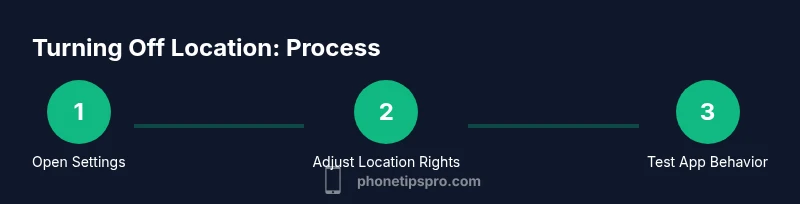
Open Settings
From the Home screen, open the Settings app. If you’re short on time, swipe down to reveal Spotlight and type 'Settings' to jump directly there.
Tip: Tip: Use Spotlight search for quick access to Settings to save time. - 2
Tap Privacy & Location Services
Within Settings, locate Privacy & Location Services. This is the central hub for global and per‑app location controls.
Tip: Tip: If you don’t see Location Services, tap Privacy first to reveal the submenu. - 3
Toggle Location Services off
Flip Location Services to the off position to disable all apps from accessing your location. Be aware some system features may rely on approximate location data.
Tip: Tip: If you rely on maps for daily routes, consider a per‑app approach before turning everything off. - 4
Review system services and per‑app permissions
Scroll to System Services to manage background access and precision controls. For each app, review its permission and set toNever, While Using, or Ask Next Time as appropriate.
Tip: Tip: Turn off Precise Location for apps that don’t need pinpoint accuracy. - 5
Disable location for individual apps
For each app you don’t trust with location data, select 'Never' or limit access to 'While Using the App' if global off is too restrictive.
Tip: Tip: Some apps retain location hints even with a 'Never' setting due to background processes; verify by reopening the app. - 6
Test changes
Open a map or weather app to confirm the location behavior matches your settings. Try a few apps to ensure consistency across the system.
Tip: Tip: If an app still requests location, recheck permissions and consider removing the app if privacy concerns persist.
FAQ
What happens if I turn off Location Services?
Turning off Location Services prevents most apps from accessing your location. You may lose navigation, location-based reminders, and weather forecasting accuracy. Some system services may still use coarse location data, but overall privacy improves.
Turning off Location Services stops most apps from using your location, which can affect navigation and location-based reminders. You’ll gain privacy, but you may lose some convenience.
Can I turn off location for some apps but keep others on?
Yes. Keep global Location Services on and restrict individual apps to Never or While Using the App. This gives you fine-grained control without sacrificing core functionality.
Yes. You can keep Location Services on for essential apps and restrict others on a per-app basis.
Will turning off Location Services affect Find My iPhone?
Disabling Location Services can limit Find My’s ability to locate devices, which weakens tracking features. If you rely on Find My, consider a per‑app approach or disable only non‑essential location sharing.
Yes, Find My’s accuracy and usefulness decline when Location Services are off, so plan accordingly.
How can I limit location data sharing for ads or analytics?
Limit ad tracking and disable location sharing for analytics where possible. This reduces data exposure while keeping critical apps functional.
Limit tracking options and disable data sharing for analytics to protect privacy.
How do I re‑enable Location Services later?
Go back to Settings > Privacy & Location Services and toggle Location Services on, then adjust per‑app permissions as needed.
To turn it back on, re‑enable Location Services and reconfigure app permissions as you prefer.
Watch Video
Quick Summary
- Turn off Location Services globally or per app as needed
- Per‑app permissions offer granular privacy control
- Test apps after changing settings to confirm behavior
- Find My and system services require careful review for privacy