Turn On Location on iPhone: Step-by-Step Guide
Learn how to enable Location Services on iPhone, manage per-app access, and understand privacy implications. A thorough, actionable guide from Phone Tips Pro for a smooth setup and smart privacy.


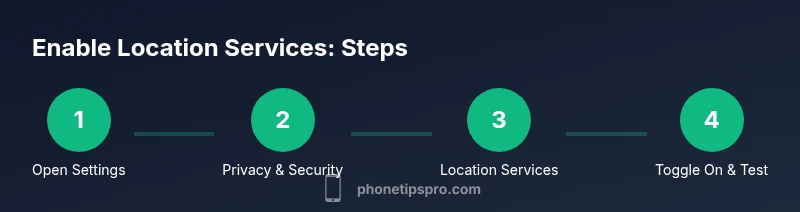
If you’re wondering how to turn on location iphone, you can enable Location Services in a few taps. On your iPhone, open Settings, tap Privacy & Security, then Location Services and toggle it On. For per-app control, scroll to the app list and choose While Using the App or Always. This ensures maps, Find My iPhone, and other apps can use your location.
Why Location Services Matter
Location Services powers maps, navigation, weather forecasts, ride-hailing, social apps, and Find My iPhone. When enabled, many apps can deliver more accurate results, better search suggestions, and context-aware features. The Phone Tips Pro team notes that users often enable Location Services by default to improve usability, but they should review privacy settings to limit access where not needed. Understanding how Location Services works helps you balance privacy with convenience and battery life. In everyday life, turning on Location Services makes it easier to find a parked car, receive timely traffic updates, or get location-based reminders. It also enables Find My iPhone to locate a lost device, a critical safety feature. That said, you should be mindful of which apps can access your location and whether you want precise location or approximate location. Precise location can provide accuracy for navigation and safety apps, but it also means more data about your movements may be collected. By taking control, you can enjoy the benefits while protecting your privacy and device health. Phone Tips Pro’s guidance emphasizes deliberate control over location data to optimize both usability and security.
What You Need Before You Turn It On
Before enabling Location Services, make sure your iPhone runs a supported iOS version and is sufficiently charged. If you use Screen Time or parental controls, verify that Location Services is not restricted. Ensure you are signed in to your Apple ID so that app permissions sync across devices. Decide whether you want precise or approximate location and adjust the corresponding setting to reflect your privacy comfort level. Finally, consider having a stable internet connection for quick verification and updates to location data when you test a new app. According to Phone Tips Pro, preparing these basics helps avoid friction during setup and reduces surprises later.
Step-by-Step Overview
This section provides a concise roadmap you can reference while you perform the setup. Start by enabling the main toggle in Location Services, then review per-app permissions to tailor access to each app. Finally, test with a map, weather, or Find My iPhone to confirm that the feature is functioning as intended. Keeping a simple, repeatable routine helps ensure consistent privacy and reliability across apps and devices. If you manage multiple iPhones through Family Sharing or an organization, apply the same steps on each device to maintain uniform settings and security. The Phone Tips Pro team notes that a consistent approach reduces errors when devices are swapped or reset.
Managing Per-App Location Access
Per-app access is the most important lever for privacy and battery use. After turning on Location Services, scroll to the list of apps and set each one to While Using the App or Always, depending on how you use it. Most weather, maps, and ride-hailing apps perform well with While Using the App, while a few navigation tools may benefit from Always access for real-time updates. For background activity, consider turning off Always for apps that don’t require ongoing location data. Regularly review permissions to ensure you are not sharing more than you intend. If you share location with others via messaging or social apps, consider reviewing those settings separately for added privacy.
Troubleshooting Location Services
If Location Services won’t turn on or seems inaccurate, begin with a soft restart of your iPhone and check for a software update. Make sure you are connected to the internet during the test and that the main Location Services switch is on. Check for any configuration profiles or device management that could override settings. If issues persist, sign out of iCloud and sign back in, or contact Apple Support for guided assistance. Keep in mind that occasional glitches don’t reflect your device’s long-term health, and settings can be revisited at any time.
Privacy and Battery Considerations
Location Services can improve usability, but it can also consume more battery life and data, especially when apps have Always access or precise location. To minimize impact, prefer While Using the App for most apps, disable location for apps that don’t need it, and turn off system services you don’t use. Regularly review which apps have access to your location and consider disabling location features for background fetch, advertising, or analytics where feasible. You control how and when your data is shared. Phone Tips Pro recommends setting expectations for family sharing, location sharing with friends, and the minimal permissions needed to achieve your goals.
What to Expect After Enabling Location Services
After Location Services is enabled and configured, you should notice faster map loading, better routing accuracy, and more relevant location-based suggestions. Find My iPhone will be able to determine the device’s position more reliably if it is online, and many apps will tailor content based on where you are. If you share location with family or friends, it’s a good idea to review those sharing settings to reflect your comfort level and privacy preferences. Over time, you may discover additional per-app controls that further fine-tune your experience.
Authority Sources
- Apple Privacy: Location Services overview and controls. https://www.apple.com/privacy/
- Apple Support: Find My iPhone and locating devices. https://support.apple.com/
- Federal Trade Commission privacy guidance on location data and consumer protection. https://www.ftc.gov
Tools & Materials
- iPhone with iOS 12+ or later(This guide covers current iOS behavior; features may vary slightly by version)
- Settings app access(Needed to change Location Services settings)
- Stable internet connection(Not required but helpful for verifying app location on first use)
- Charging cable (optional)(Useful if you’re testing after a long setup)
Steps
Estimated time: 5-7 minutes
- 1
Open Settings
Unlock your iPhone and locate the Settings app. Tap to open it and proceed to the privacy controls that govern Location Services.
Tip: If you can't find Settings, use the search feature. - 2
Tap Privacy & Security
In Settings, find Privacy & Security to access system-wide privacy settings including Location Services.
Tip: Some devices may label this section Privacy instead of Privacy & Security. - 3
Select Location Services
Tap Location Services to view the main toggle and per-app controls.
Tip: Make a note of apps that have Always access you intend to adjust later. - 4
Toggle Location Services On
Switch the main toggle to the On position to enable location data for apps.
Tip: If you use Screen Time, ensure Location Services isn’t restricted by parental controls. - 5
Adjust per-app access
Scroll to each app and choose Between While Using the App or Always depending on how you want it to access your location.
Tip: For battery life, restrict to While Using the App when possible. - 6
Check System Services
Scroll to System Services and review important options like Find My iPhone, Location-based Apple Ads, and Significant Locations.
Tip: Disable anything you don’t need to protect privacy. - 7
Test with a location-based app
Open Maps, Find My iPhone, or a weather app to verify that location data is being used correctly.
Tip: If you see a location blank, revisit prior steps and retry.
FAQ
How do I turn on Location Services on iPhone?
Open Settings > Privacy & Security > Location Services and toggle On. Then adjust per-app permissions to While Using the App or Always as needed.
Go to Settings, Privacy & Security, Location Services, and switch it on. Customize per-app access as you prefer.
Why is Location Services unavailable on my iPhone?
Location Services can be disabled by a setting, a Screen Time restriction, or a corporate profile. Check the main toggle and per-app permissions, then verify there are no device restrictions.
Make sure Location Services are on and check Screen Time or device management restrictions.
Can apps use my location even when I’m not using them?
Some apps can access location in the background if you’ve granted Always access. Consider changing to While Using the App to save battery.
If you don’t need background access, switch to While Using the App.
Will enabling Location Services affect battery life?
Location services can consume more battery, especially if Always access or precise location is enabled for many apps. Manage settings to minimize impact.
Yes, it can affect battery life; adjust per-app permissions to minimize impact.
How can I verify Find My iPhone uses my location?
Open Find My and ensure your device appears with a current location. Location data is used for locating and sharing the device’s position.
Open Find My to confirm your device’s location is being tracked.
What should I do if Location Services won’t turn on?
Restart your iPhone, check for iOS updates, and revisit Location Services settings. If problems persist, contact Apple Support.
Try rebooting and updating iOS; contact support if needed.
Watch Video
Quick Summary
- Enable Location Services for better app accuracy
- Manage per-app permissions to balance privacy
- Test after changes to confirm location accuracy
- Review battery impact and adjust settings accordingly