How to Bring iPhone Storage Down: A Practical Guide
Learn practical steps to free up iPhone storage, optimize photos and apps, and maintain space efficiently. This Phone Tips Pro guide covers offloading, iCloud strategies, and backups for reliable storage management.


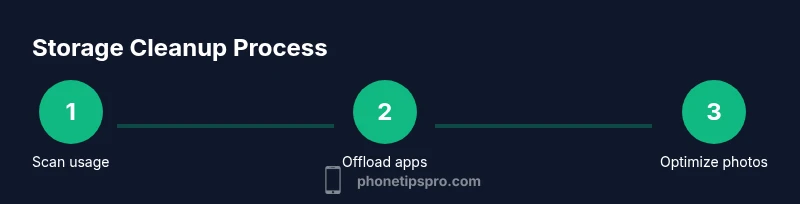
Want to reclaim iPhone storage fast? This guide shows you how to bring iPhone storage down by offloading unused apps, clearing caches, optimizing photos, and moving data to iCloud. Following the steps from Phone Tips Pro, you can free space without losing important data. You’ll need your iPhone, an internet connection, and optional a Mac or PC for backups.
Why iPhone storage matters
Storage space on your iPhone matters more than you might think. When your device runs low, updating apps and iOS can fail, messages may be truncated, and performance can feel sluggish. According to Phone Tips Pro, proactive storage management reduces friction and keeps your iPhone running smoothly. In this section we explore why space matters, how to read the storage breakdown, and how to plan a clean-up routine that fits your usage. We'll explain the three core buckets that commonly consume space: apps and games, photos and videos, and system caches and temporary files. You'll learn to prioritize items you truly need daily, and how to decide what can be moved to iCloud or deleted. The goal is not to cram more data into a small device, but to balance access to important information with comfortable headroom for updates and new apps.
Quick checks before you start
Before you dive into sweeping deletions, perform a quick audit. Open Settings > General > iPhone Storage to see a color-coded breakdown by category. Note the largest offenders: apps, photos, messages, and system data. The top bar shows used space and available space; keep in mind that iPhone storage is dynamic—new caches and downloads can push usage up again. If you see 'Review Large Attachments' or 'Review Personal Videos', start there. Gather your plan: decide which data to move, archive, or delete, and set a timeframe (e.g., 15-20 minutes per category). Having a backup strategy is essential; this is where Phone Tips Pro recommends you confirm that your important data is safely stored in iCloud or on a computer before you remove anything. With a clear map, the cleanup becomes predictable rather than scary.
Free up storage with Apps and Media
Start with the largest space consumers: apps and media. Uninstall apps you rarely use, or enable 'Offload Unused Apps' so the app stays on your phone with its data preserved. For apps that still take substantial space, review their in-app data: games with saved files, social apps with media caches, or offline maps. When you delete an app, ensure you know whether its data will be removed or kept locally; if in doubt, back up first. Next, locate large video or music files and consider transferring them to a computer or cloud storage. Streaming may reduce offline media needs, but you might want to keep a few essential offline files. Finally, reset the most memory-hungry apps by forcing them to refresh their caches through simple re-launches and, if necessary, reinstalling the app. For many readers, this step delivers the biggest early win.
Optimize Photos and Videos
Photos and videos are usually the biggest culprits. If you enable iCloud Photos and 'Optimize iPhone Storage', the device will keep smaller, device-optimized versions while your full-resolution originals stay in iCloud. You can also manually review Moments or albums with heavy video content and delete or export to a computer. Consider transferring the entire library to an external drive via a computer, or use a cloud-based service with selective sync. When it comes to Messages media, review and delete large photo and video attachments; you can purge old conversations or set messages to auto-delete after a period. Remember to check 'Recently Deleted' for anything you remove, since it still occupies space for a limited time. The aim is to maintain a healthy balance between immediate access and long-term storage needs.
Manage Messages and Attachments
Messages often quietly hoard data. Review conversations with large attachments and delete old or redundant media. In iOS, you can set Messages to 'Keep Messages: 30 days' or '1 year' to limit accumulation; this setting must be adjusted for your personal workflow. For WhatsApp and other third-party apps, delete large media within the app or move files to iCloud Drive. A backup before heavy cleaning is wise. If you depend on text history for reference, consider exporting critical conversations to a note or cloud document. The bottom line: a targeted pass on messages and attachments can free gigabytes over time and reduce future cleanup time.
iCloud and backups: syncing strategies
Cloud storage is a key ally, but it requires planning. Turn on iCloud Photos and iCloud Drive if you haven't already, and ensure you have adequate storage space. Regularly back up to iCloud or a computer so you can delete local copies without worry. If you’re tight on iCloud space, upgrade your plan temporarily during a cleanup or choose selective sync. Use Finder (Mac) or File Explorer (PC) to pull important files locally for offline access if you prefer. Keep a calendar reminder to review storage every month; small, scheduled cleanups prevent big messes later. Phone Tips Pro’s approach emphasizes a hybrid strategy: keep essential data on-device for speed, while archiving the rest in the cloud.
Special cases: apps with local caches and hidden data
Some apps cache data aggressively. Social, streaming, and map apps may store decades of cache even after you’ve deleted the app. Clearing app caches varies by app: for some, you can clear caches within the app's settings; for others, you may need to uninstall and reinstall. Safari cache and website data can accumulate; clear this periodically in Settings > Safari > Clear History and Website Data. Check third-party apps for outdated documents, offline maps, or downloaded podcasts. If you’re worried about losing data, back up before cleaning and test re-installation afterward. This careful approach stops repeat buildup and boosts responsiveness.
Long-term storage habits
Adopt a routine that makes storage management automatic. Schedule quarterly cleanups, enable offload features, and review photo storage options monthly. Periodically export large files to a computer or cloud storage and verify that backups are current. Use the 'Review Large Attachments' tool to keep conversations lean. Over time, you’ll notice fewer surprises when the next iOS update lands and more space for new apps and media. Consistency matters more than one-off sweeps; small, regular actions prevent everything from grinding to a halt.
Tools and settings you should know
Navigate to Settings > General > iPhone Storage to get a detailed breakdown and recommendations from iOS. Turn on 'Offload Unused Apps' and 'Optimize Photo Storage' to keep essential files while preserving space. Use 'Review Large Attachments' and 'Review Large App Data' to quickly identify heavy items. For a more robust strategy, back up regularly using iCloud or a computer. If something goes wrong, you can always reset settings (not content) or perform a factory reset as a last resort, after verifying that you have safe backups. The combination of on-device tools and cloud backup gives you a flexible, resilient approach to storage management.
Authority Sources
To reinforce these practices, consult trusted sources: Apple Support explains offloading and storage management; How-To Geek provides practical, step-by-step guides; MacRumors offers user-focused storage tips and updates. These sources complement Phone Tips Pro recommendations and help verify optimal cleanup strategies. For comprehensive details, visit the linked pages and apply the guidance that fits your iPhone model and iOS version.
Tools & Materials
- iPhone device (any model with recent iOS)(Ensure device is charged and updated)
- Apple ID credentials(Needed for iCloud and backups)
- Stable internet connection(Wi‑Fi recommended for large transfers)
- Mac or PC (optional)(Useful for backups/export via Finder or iTunes)
- Lightning/USB-C cable(For direct device transfer or backup)
- Backup storage(Have active iCloud storage or computer backup ready)
- Fully charged battery(Avoid mid-cleanup shutdowns)
Steps
Estimated time: 30-45 minutes
- 1
Open iPhone Storage settings
Open the Settings app, tap General, then select iPhone Storage. Review the color-coded breakdown to identify the biggest space consumers. This initial scan gives you a map of where to start and helps you prioritize actions.
Tip: Tap each category to see detailed usage and recommended actions. - 2
Review large apps and offload unused ones
From the storage screen, sort or look for apps occupying the most space. If you don’t need an app daily, enable Offload Unused Apps to remove the app while preserving its data for when you reinstall. This reduces space immediately without data loss.
Tip: Offloading is reversible; you can reinstall the app at any time to recover data. - 3
Clear caches and temporary data
Many apps accumulate caches that don’t affect visible data but consume space. For apps with cache controls, clear them in-app; for others, force-close and reopen to clear transient data. If unsure, reinstall a problematic app after backing up.
Tip: Back up important app data before clearing caches to avoid loss. - 4
Move photos to iCloud and enable Optimize
Turn on iCloud Photos and choose Optimize iPhone Storage. This keeps smaller device copies while originals stay in iCloud. Review large albums and export or delete unnecessary media to maintain a comfortable free space level.
Tip: Make sure you have adequate iCloud storage before enabling optimization. - 5
Review Messages and attachments
Check Messages for large attachments and old conversations. Set a retention policy (e.g., Keep Messages for 30 days or 1 year). Delete or export important items to cloud storage, then purge low-priority media from older chats.
Tip: Don’t forget to empty the 'Recently Deleted' folder after removing items. - 6
Enable automatic storage optimization
Turn on automatic options like Offload Unused Apps and Photos optimization in settings. This creates ongoing space efficiency without manual cleanup every time.
Tip: Schedule periodic checks so automatic features stay effective over time. - 7
Back up and verify space
Create a fresh backup to iCloud or a computer after cleanup and confirm you have free space for updates. Verification avoids post-cleanup surprises and ensures you can restore important data if needed.
Tip: Keep a recent local or cloud backup before any major cleanup step.
FAQ
What is the fastest way to free space on iPhone?
Start with offloading unused apps and clearing caches, then move large media to cloud or computer. A quick start often yields noticeable space within minutes.
Begin by offloading unused apps and clearing caches, then move media to the cloud for the fastest early win.
Will offloading delete data?
No—the app is removed but its data remains; reinstalling the app restores access to that data.
No. Offloading removes the app but keeps its data, so reinstalling brings it back.
How should I manage photos without losing them?
Enable iCloud Photos with optimization and keep originals backed up in iCloud or on a computer. This reduces on-device storage while preserving access.
Use iCloud Photos with optimization and back up originals elsewhere.
Should I delete messages automatically?
You can set Messages to auto-delete after 30 days or 1 year. This reduces space, but choose a setting that fits your needs for history.
Auto-delete helps save space; pick a retention period that fits how you use Messages.
What if I still run out of storage?
Consider upgrading iCloud storage or performing a targeted reset after backing up. If needed, consult a professional or re-evaluate what data must stay on-device.
If space remains tight, upgrade iCloud or perform a backup-first reset after safeguarding data.
Watch Video
Quick Summary
- Identify biggest space offenders first.
- Balance local space with cloud backups.
- Back up before deleting data to avoid loss.
- Review attachments and caches regularly.
- Automate storage management for ongoing efficiency.