How to Get More Storage on iPhone
Learn proven step-by-step methods to reclaim space on your iPhone, optimize Photos and Messages, and implement long-term storage strategies using built-in tools and iCloud.


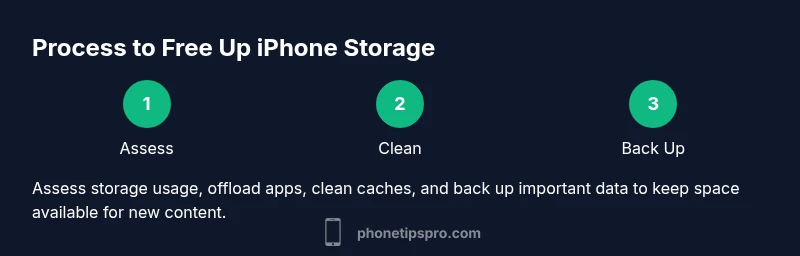
Want to reclaim storage on your iPhone? This guide shows how to free space and keep it under control using built-in tools, iCloud, and smart cleanup habits. You'll identify big storage hogs, apply quick wins, and set up a sustainable plan to prevent future fills. Follow step-by-step methods that work with iPhone storage settings, Photos, Messages, and apps.
Why storage on iPhone fills up and how to avoid surprises
According to Phone Tips Pro, most iPhone storage issues come from a few predictable sources that accumulate over time: photo and video libraries, cached app data, large message attachments, and backups or offline media. iOS itself doesn't permanently erase old content unless you force it to, so users often end up with "Other" data that seems mysterious. To understand where space goes, start by checking Settings > General > iPhone Storage. Here you'll see a color-coded breakdown showing how much space each category uses and which apps are the biggest culprits.
Once you identify the biggest offenders, you can craft a simple space-management plan. Photos and videos routinely account for the lion's share of local storage, followed by apps with large caches and conversations with heavy media. The next steps involve a mix of lightweight cleanup and long-term strategies: enable cloud-backed options for media, offload unused apps, and prune old conversations. The goal is to maintain a stable baseline storage while still keeping essential data accessible on-device.
The rest of this guide will help you apply practical, repeatable steps. You'll learn both quick wins you can apply right away and longer-term habits that prevent storage from filling up again. The approach relies on built-in features that work with iCloud and other cloud services, so you won't need third-party tools to reclaim space. By following these steps, you can reclaim meaningful headroom for new photos, apps, and updates without sacrificing important data.
Quick wins to reclaim space now
If you want immediate results, start with these fast wins. They require almost no downtime and can free up gigabytes of space without deleting data you care about.
- Offload unused apps automatically: This feature keeps app data on your device when needed, while removing the app itself to save space.
- Delete large attachments from Messages: Review conversations with media-heavy content and remove videos or images you no longer need.
- Clear Safari and app caches: Browser caches and app caches can accumulate; clearing them can free up space without data loss.
- Review downloaded media in apps: Many streaming apps store offline content; remove items you don’t plan to watch offline.
- Enable iCloud Photos with Optimize iPhone Storage: This keeps smaller previews on-device while originals live in iCloud, dramatically reducing on-device space usage.
Phone Tips Pro recommends combining these quick wins with a longer-term plan so storage stays healthy over time.
Manage Photos and Videos
Photos and videos are often the largest on-device files. If you keep a lot of media locally, consider enabling iCloud Photos with the Optimize iPhone Storage option. That setting allows high-resolution originals to live in iCloud while keeping lightweight thumbnails on your device. You can also review and delete duplicates or blurry shots, and use the Photos app’s built-in tools to identify large albums or long videos that can be trimmed.
Another tactic is to export older media to a computer or external storage periodically. If you have limited iCloud space or prefer local backups, curate a rotation system: move older media to a computer monthly and keep only recent moments on the device. Keeping your camera roll lean makes room for new memories without constant cleanup.
Optimize Messages and Mail storage
Messages with images, videos, and audio clips can consume significant space, especially in group chats. Review large conversations and delete unnecessary media, or set a keep duration so messages older than a certain timeframe auto-delete. For Mail, archive or delete old attachments when they are no longer needed, and consider keeping only recent emails on-device while moving older messages to cloud storage. Turning off automatic downloads for new attachments can also save space over time.
Clean apps data and backups
Some apps store caches, offline data, or bundled media that aren’t essential once you’ve finished using them. Check Settings > General > iPhone Storage to see which apps occupy the most space, and clear caches where possible. Offloading unused apps can help, but you should also review app data that is safe to remove. Regularly backing up to iCloud or a computer ensures you don’t lose important information when you prune data. If you back up to a computer, you can delete local backups or old iTunes/Finder backups to reclaim space.
Long-term storage strategies and automation
To prevent future storage issues, adopt a long-term strategy that leverages cloud storage and periodic cleanups. Use iCloud Drive for documents, enable iCloud Photos with optimization, and schedule monthly or quarterly storage audits. Consider a secondary cloud service for documents you rarely access but want to keep. Automating reminders for cleanup helps maintain a lean device over time, so you’ll have space available for updates and new apps without manual sprint cleanup.
Quick-start checklist before you start
- Ensure your iPhone is backed up before making large changes.
- Verify you have enough iCloud storage or another cloud plan to support photo optimization and backups.
- Enable essential settings like 'Optimize iPhone Storage' and 'Offload Unused Apps' as a baseline.
- Prepare a plan for ongoing maintenance: monthly review of large apps, attachments, and media.
- Keep a backup on a computer or external drive for added safety.
Final thoughts on sustainable storage management
Reclaiming space is not a one-and-done task; it’s a habit. By combining quick wins with long-term storage strategies—especially cloud-based optimization—you can maintain a healthy balance between on-device performance and accessible data. With Phone Tips Pro’s guidance, you’ll deploy a repeatable system that keeps your iPhone responsive and ready for new memories, apps, and features without constant cleanup.
Tools & Materials
- iPhone (latest iOS version)(Ensure device is charged or connected to power during cleanup)
- Apple ID with iCloud enabled(Needed for iCloud Photos optimization and backups)
- Mac or Windows PC with Finder/iTunes(For off-device backups and media transfer)
- Lightning or USB-C cable(For connecting iPhone to computer)
- External storage or cloud plan (optional)(Helpful for off-device backups or large media libraries)
- Stable Wi-Fi connection(Required for iCloud Photos optimization and cloud sync)
Steps
Estimated time: 35-60 minutes
- 1
Open storage settings
Open Settings, then General, and select iPhone Storage. Review the color-coded categories and identify the largest space consumers. Note which apps and content types occupy the most space to prioritize cleanup.
Tip: Screenshot the storage breakdown for reference during cleanup. - 2
Enable Photos optimization
Go to Settings > Photos and switch on 'Optimize iPhone Storage.' This keeps full-resolution copies in iCloud while devices show smaller previews, freeing substantial local space.
Tip: If you turn this on after a large photo import, perform a brief sync to ensure originals are stored in iCloud. - 3
Offload unused apps
Enable 'Offload Unused Apps' in iPhone Storage settings. This removes apps that you don’t use frequently but keeps their data so you can reinstall later without data loss.
Tip: Check the list of offloaded apps occasionally to confirm you don’t need an app urgently and re-download when needed. - 4
Trim Messages and attachments
Review conversations with media and delete large attachments or set a keep duration for messages. Consider keeping only recent messages on-device and moving older data to the cloud or backups.
Tip: Use the 'Review Large Attachments' feature in Messages to quickly locate items to delete. - 5
Clear Safari data and caches
In Settings, clear History and Website Data to reclaim space consumed by cached site data. This is a safe, non-destructive way to recover storage.
Tip: Perform this after a browser-heavy session or when you notice slow browsing performance. - 6
Manage app caches and downloads
Check apps with large caches or offline content and remove what isn’t needed. Export important data to a backup and then clear the cache where possible.
Tip: Many apps offer in-app options to purge cached data without affecting account data. - 7
Move media to cloud or computer
For older photos and videos, transfer them to a computer or alternate cloud storage. Remove local copies after confirming successful backups.
Tip: Create a monthly routine to move older media to another storage location. - 8
Optimize backups and cloud plan
Review your iCloud Backup settings and consider upgrading storage if you frequently run out of cloud space. Ensure essential data is included in backups.
Tip: Only back up essential apps and data to avoid unnecessary cloud usage. - 9
Set up automated cleanup
Create a recurring reminder to audit storage monthly. Automating this habit keeps your device lean and ready for new content.
Tip: Pair reminders with a specific date, like the start of each month, to keep the routine consistent.
FAQ
What is taking up most of my iPhone storage?
Common culprits include Photos, Messages attachments, Apps with caches, and system data. Check the storage breakdown in Settings to see which category is largest.
Photos and messages attachments are usually the biggest space hogs; check the storage breakdown in Settings to identify them.
Should I delete apps or offload them?
Offloading preserves app data and accounts for future reinstall, while deleting removes the app and its data unless backed up.
Offloading keeps your data when you reinstall, deleting removes data unless you’ve backed it up.
Will enabling iCloud Photos reduce local storage?
Yes, enabling 'Optimize iPhone Storage' stores originals in iCloud and keeps smaller previews on-device, freeing space.
Yes, optimized storage stores originals in iCloud and keeps smaller versions on your iPhone.
How do I manage Messages storage?
Set how long to keep messages (30 days or 1 year) and delete large message attachments to reclaim space.
Set messages to keep for a shorter period and remove large attachments to free space.
Is it safe to use third-party cleanup apps?
Avoid apps that request full device access. Prefer built-in tools and trusted cloud-based backups for safety.
Be cautious with cleaners; rely on built-in tools and trusted cloud backups.
How long should I wait for iCloud sync and backups?
Backup and photo optimization depend on network speed and cloud availability; allow time for initial sync after enabling features.
Backup times vary with network speed; give it some time after enabling sync.
Watch Video
Quick Summary
- Identify top space hogs and target them first
- Enable cloud-based optimization to keep local storage lean
- Regularly review Messages and Safari data
- Back up to computer or cloud to avoid data loss