How to Get Rid of Applications on iPhone Storage
Learn practical, step-by-step methods to reclaim iPhone storage by removing unused applications, offloading apps, and managing data with iCloud and cloud storage solutions.


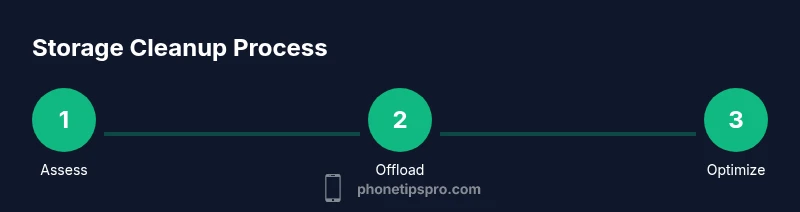
To reclaim space, you’ll offload or delete unused apps, clear app data, and optimize storage settings. Start by checking iPhone storage, then offload apps you don’t use, remove large apps and their data, and enable iCloud Drive for photos and files. This step-by-step approach saves space without sacrificing essential apps.
Why Freeing Up iPhone Storage Matters
If you're wondering how to get rid of applications on iphone storage, the goal is to reclaim space while preserving core features. According to Phone Tips Pro, many users underestimate how quickly apps accumulate cached data and large media, causing a dramatic drop in available space. Phone Tips Pro Analysis, 2026 shows that reclaiming storage often improves app launch times, camera responsiveness, and overall device performance. Regular cleanup reduces background syncing bottlenecks and helps ensure iOS updates install smoothly. By understanding what uses space—apps, media, messages, and caches—you can tailor a plan that fits your usage, whether you’re on an older iPhone or a recent model. In the long run, a structured cleanup saves money by delaying a hardware upgrade and keeps daily workflows uninterrupted.
Quick assessment: how much space is used and what's taking it?
Begin by going to Settings > General > iPhone Storage. Here you’ll see a color-coded bar showing how space is allocated to Apps, Media, and Other. Review the largest categories and note any apps or files that surprise you with excessive data. Apple’s own guidance emphasizes focusing on the biggest space hogs first to maximize impact. If your device is running iOS 15 or later, you can also see a recommended cleanup based on your usage. Write down the top offenders so you can target them in the next steps. A quick audit now can save hours later when you’re trying to install an OS update or download new content.
Direct app removal: offload vs deleting
Offloading an app removes the app itself but preserves its documents and data, so reinstalling brings the app back with its prior state. Deleting an app removes both the app and its local data, freeing space immediately but requiring re-setup if you reinstall. In Settings > General > iPhone Storage, tap an app to see the option to Offload App or Delete App. Offloading is ideal for apps you rarely use but don’t want to lose data, while deletion is appropriate for apps with duplicate or nonessential data. If you’re unsure, start with offloading and reassess. This approach aligns with best practices from Phone Tips Pro for preserving data while reclaiming space.
Clearing app data and caches
Many apps cache data locally to speed up loading, but caches can accumulate and consume significant space over time. On iPhone, there isn’t a universal “clear cache” switch for all apps, so you’ll often reduce cache by offloading or deleting apps, or by clearing website data in Safari. For apps that store documents, you can selectively delete large files or downloads within the app (many apps expose a Downloads or Cache section). If an app’s data feels unusually large, consider removing and then re-installing the app to reclaim space while keeping your account data intact when possible. This strategy minimizes lost information while cleaning stubborn caches.
Offloading vs uninstalling vs app library management
Choosing between offloading, uninstalling, or reorganizing via the App Library depends on your usage pattern. Offloading is best for apps you might use again soon; uninstalling suits apps you’ve fully moved away from. App Library can help you hide unused apps from the home screen without deleting them, which keeps the storage footprint low without losing access. Review each candidate app’s data size, usage frequency, and whether you rely on it for work or daily tasks. The goal is a lean, fast device with enough headroom for updates and media.
Photos, Messages, and large media: storage hogs
Photos and videos are often the largest culprits. Enabling iCloud Photos with Optimize iPhone Storage lets the device keep smaller local previews while the originals stay in iCloud, saving substantial space. For Messages, delete long conversation threads or large attachments, and consider setting Messages to keep for 30 days or 1 year instead of forever. Regularly clearing or archiving media can dramatically reduce storage pressure. Phone Tips Pro recommends a scheduled quarterly cleanup of media libraries to maintain free space and ensure smooth device performance.
Cloud storage and streaming options
Relying on cloud storage reduces the pressure on your device. Move large files and media to iCloud Drive, Google Drive, Dropbox, or OneDrive. Review where your documents live and set up automatic backups for important files. For photos, consider enabling iCloud Photos or Google Photos Backup & Sync, and choose the “Optimize” options to keep fewer files on-device. Streaming services also help—download only when needed and remove offline downloads after viewing. A well-integrated cloud workflow minimizes local storage usage while preserving accessibility.
Review large apps and games: a targeted prune
Games and apps with offline assets often consume megabytes or gigabytes even when not in use. Open iPhone Storage to identify the biggest offenders and consider clearing saved games or data within the app if the option exists, or delete the app entirely if you no longer play. If you plan to revisit, re-download later. Keeping a few essential titles and clearing the rest can free substantial headroom for new apps and updates, especially on devices with limited storage capacity.
Step-by-step maintenance: create a monthly cleanup habit
Develop a simple routine to maintain storage space. Schedule a monthly review of your storage usage, focusing on the top offenders and any new large files. Set reminders to offload or delete unused apps, review Photos optimization settings, and purge old conversations or large email attachments. A consistent routine prevents storage overflows, helps you install iOS updates on time, and keeps your device snappy. Long-term benefits include fewer app crashes, faster backups, and more room for new features.
Safety, backups, and maintenance
Before major cleanup tasks, ensure your data is backed up. Use iCloud or a computer backup to prevent data loss when deleting or offloading apps. For sensitive information (photos, documents, or work files), confirm backups are complete before removal. If you’re near capacity, perform the most impactful actions first—offload or delete the heaviest apps and enable cloud storage for media. With careful planning and regular upkeep, your iPhone stays fast, responsive, and ready for updates.
Tools & Materials
- iPhone with a recent iOS version(Keep device updated for best storage controls)
- Stable internet connection(Needed for cloud backups and iCloud optimization)
- Cloud storage accounts (iCloud, Google Drive, etc.)(Used to offload media and documents)
- Optional: Computer with Finder/ iTunes(Useful for full device backups and offline access)
Steps
Estimated time: Estimated total time: 25-45 minutes
- 1
Check current storage usage
Open Settings > General > iPhone Storage and review the space distribution. Note the largest apps, media, and conversations consuming storage. This initial audit sets the priorities for cleanup.
Tip: Take a screenshot of the storage overview to reference later. - 2
Offload unused apps
In the iPhone Storage screen, enable Offload Unused Apps or tap individual apps to Offload App. Offloading preserves documents and data but frees space.
Tip: If you’ll need an app soon, consider offloading rather than deleting. - 3
Delete apps you rarely use
Remove apps that you rarely access or whose data is redundant. After deleting, you can reinstall later if needed; this frees the most space immediately.
Tip: Note down essential apps to reinstall later. - 4
Clear caches and large data
Delete apps with large cached data or use in-app options to clear downloads. For Safari, clear history and website data to reclaim cache.
Tip: Consider restarting the device after purging large caches. - 5
Optimize photos and videos with cloud storage
Enable iCloud Photos with Optimize iPhone Storage or use another cloud service to store originals online and keep smaller previews on-device.
Tip: Regularly review high-resolution media to avoid repeated uploads. - 6
Manage Messages and attachments
Delete old message threads or large attachments. Set messages to auto-delete after a period to prevent buildup.
Tip: Back up important conversations before deletion. - 7
Move files to cloud storage
Upload large documents and media to iCloud Drive or alternatives. Remove local copies after confirming successful uploads.
Tip: Organize cloud folders to simplify future retrieval. - 8
Review after cleanup and monitor
Check available space again and ensure you have a comfortable buffer for updates and new apps.
Tip: Set a monthly reminder to repeat this process.
FAQ
How do I see what’s taking up space on my iPhone?
Go to Settings > General > iPhone Storage to view a breakdown of storage by app and category. The top offenders are the best targets for cleanup, and you can drill into each app to offload or delete. A monthly review helps keep space within healthy limits.
Open Settings > General > iPhone Storage to see which apps use the most space. Target the biggest offenders first for cleanup.
What is offloading an app, and when should I use it?
Offloading removes the app but keeps its documents and data. Reinstalling brings the app back with its data intact. Use offloading for apps you don’t use often but may need later.
Offloading saves space while keeping app data intact; reinstall to restore later.
Will deleting apps delete my data?
Deleting an app removes the app and its local data. If the app stores data in the cloud, that data remains accessible after reinstallation; otherwise you may lose local downloads. Back up important data before deletion.
Local data is removed with the app; cloud-stored data stays if supported.
Can I delete apps without losing documents and data?
Yes, if the app stores data in the cloud or you back up first. Consider offloading first, then delete only if you’re sure the data is recoverable or stored elsewhere.
Data residency depends on the app; back up before deletion.
Should I factory reset to reclaim space?
A factory reset is generally a last resort and not needed for routine cleanup. Back up first and try targeted offloads and cloud storage before considering a reset.
Only consider factory reset if you’ve exhausted other options and need a fresh start.
How can I reclaim space from Messages and Photos?
Delete large attachments, enable iCloud Photos with optimization, and set messages to auto-delete after a period. This reduces clutter without deleting existing conversations entirely.
Clear attachments and use cloud storage for media to save space.
Watch Video
Quick Summary
- Identify the biggest space culprits first
- Offload before deleting to preserve data
- Leverage cloud storage for media and documents
- Schedule monthly cleanup to maintain headroom