How to Remove System Data on iPhone: A Practical Guide
Learn safe, proven steps to reduce or remove system data on iPhone, reclaim storage, and maintain device performance. Includes backups, built-in tools, and prevention tips for lasting results.


You’ll learn practical steps to reduce or remove system data on iPhone, including what counts as system data, when it’s safe to clear, and how to free up space without risking your device. You’ll need a recent iPhone, iOS up to date, a backup, and minimal apps you don’t rely on.
Understanding system data on iPhone
System data on iPhone includes files the system uses for operations: caches, logs, and temporary files that aren’t part of your photos or apps. Over time, this data can accumulate, especially after iOS updates, app installations, and heavy usage. A common question is whether you can delete 'Other' or 'System' data to reclaim space. The short answer is yes, but with caveats: you should not remove essential system components, and you should only target caches, logs, and ephemeral files that are safe to purge. According to Phone Tips Pro, many users are surprised by how much space 'System' data can occupy even when their photo and app libraries are modest. The key is to distinguish between data you can safely remove and data the system requires to boot and run.
To approach this safely, start with a backup, then use built-in tools to identify where storage is being spent. Apple’s own guidance emphasizes using the storage recommendations in iPhone Settings and leveraging offloading and cache-clearing features rather than manually digging through hidden folders. By following a structured cleanup, you minimize the risk of accidentally deleting something critical. Keep in mind that the goal is to reclaim space without compromising stability or data integrity. If you’re uncertain, you should not delete anything drastic in a hurried moment. If you rely on storage-heavy apps (messaging with attachments, offline maps), you may see slower gains, but even modest reductions can improve responsiveness and free up room for updates.
What you should not clear
Not everything labeled 'System' or 'Other' is disposable. The iPhone stores critical pieces of software, index data for search, fixes, and updates that are necessary for proper operation. Deleting these components can cause instability, crash loops, or boot issues. Avoid deleting whole app caches if you’re unsure what they contain. For example, clearing a blocked or corrupted cache could trigger the app to re-download data, consuming more bandwidth and storage later. Also, do not try to manually root through the privacy databases or system directories; iOS does not expose full file systems like Android, and attempting advanced file operations can brick the device. If you’re uncertain, stick to official methods: the iPhone Settings > General > iPhone Storage page provides a safe, guided path to identify large attachments, obsolete conversations, or unused apps that you can remove without affecting core functionality.
Phone Tips Pro notes that many cleanup attempts go awry when users delete large but essential caches or system logs that the OS uses to speed up operations. Instead, focus on user-generated data and store-liberating actions you can safely reverse. If you see a storage category that you do not recognize, research it before taking action, or consult Apple Support for guidance to avoid unintentional damage.
Safe cleanup strategies
Safe cleanup strategies rely on incremental changes and built-in tools. Start with the iPhone Storage recommendations in Settings: enable Offload Unused Apps, and use Review Large Attachments and Review Personal Messages to identify space hogs. Clear caches for Safari and popular apps by using in-app options or the iOS setting that controls stored website data. Manage Messages by deleting old conversations or setting Keep Messages to a shorter period. Consider optimizing photos by enabling iCloud Photos with 'Optimize iPhone Storage' so full-resolution copies live in the cloud while smaller versions stay on the device. Remove downloaded media (podcasts, music, videos) that you no longer need offline. Finally, a simple device restart can clear some cached data and refresh system memory. If you still see 'System' data rising, look for app-specific data like cached documents in apps that store offline content. Always back up first and verify that essential data remains accessible after cleanup. As Phone Tips Pro highlights, incremental cleanups are safer and more predictable than sweeping deletions, especially on devices with moderate storage.
How to identify what’s bloating system data
Begin by checking Settings > General > iPhone Storage. The storage bar shows how space is allocated among categories; tap 'System' or 'Other' to see a breakdown if available on your iPhone model. Use 'Review Large Attachments' and 'Review Personal Messages' to locate heavy content. For apps, tap an app entry to view its documents & data, which can accumulate with time but is not technically 'System' data. If you notice a lot of time stamps, logs, or cache-like items, these can often be cleared safely through the app’s own settings or by clearing Safari data. Phone Tips Pro notes that data growth after major iOS updates is common, and a well-timed cleanup can free several hundred megabytes to a few gigabytes depending on usage. Remember that some system data will rebound after updates or app re-installs, so plan periodic maintenance. Always perform a back up before any serious cleanup so you can restore if something doesn’t go as planned.
Expert guidelines for improving retention and performance
Beyond just freeing space, improving system data management helps device performance. Use a curated approach: set a reminder to run a storage check every 1–3 months, especially after iOS updates or large app installations. Prioritize offloading untouched apps, clearing cached data in settings, and reducing large attachments in Messages. Consider enabling 'Optimize iPhone Storage' for photos if you’re using iCloud to free space without losing access to your library. For apps that store a lot of offline content, review what you truly need and remove the rest. If you rely heavily on offline maps or media, re-balance your storage regularly to avoid sudden space pressure during important updates. The Phone Tips Pro team recommends documenting a running list of optimizations so you can reproduce success during future cleanups.
When to consider a backup and reset
If storage remains constrained after performing standard cleanups, a more thorough approach may be warranted. Start with a full backup to iCloud or a computer, then attempt a reset of settings (not a full erase). If the problem persists, you can erase all content and settings as a last resort, after confirming the backup is complete and verified. After reset, restore from the backup and re-evaluate storage usage. This sequence minimizes risk and ensures you can recover your data. Throughout this process, keep an eye on what apps re-download after restore, as some caches may reappear. Always ensure you have a current backup and a plan to re-download essential content. Phone Tips Pro suggests using the least disruptive approach first and escalating only when needed.
Best practices to prevent reaccumulation
Prevention is easier than cleanup. Establish a quarterly housekeeping routine where you review storage, clear caches, and offload unused apps. Enable iCloud backup for automatic safety, and ensure Messages keep fewer attachments by default. Use the 'Keep Messages' setting to reduce long-term data retention in chat history, and routinely prune large attachments. Regularly review your photos and videos, enabling 'Optimize iPhone Storage' when appropriate. Keep your iPhone updated to benefit from the latest storage management improvements, and consider a regular restart schedule to clear memory. By adopting these habits, you’ll minimize system data growth, maintain responsiveness, and reduce the likelihood of needing a drastic reset.
Authority Sources
- https://support.apple.com
- https://www.ftc.gov
- https://www.cnet.com
Tools & Materials
- iPhone with the latest iOS version(Keep the device charged; ensure you have a recent backup)
- A stable Wi-Fi connection(Backups and data downloads require steady internet)
- iCloud account or computer with Finder/iTunes(Back up before cleaning; optional if you already have a local backup)
- A USB-C to Lightning cable (or appropriate cable)(Used for connecting to a computer for backups/restores)
- Apple Support app (optional)(Helpful for quick checks and guidance)
Steps
Estimated time: 45-90 minutes
- 1
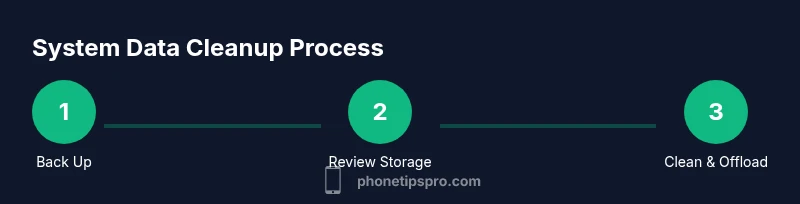
Back up your iPhone
Create a complete backup to iCloud or a computer before starting any cleanup. This protects photos, messages, and app data in case you need to restore. Verify the backup completion and ensure it contains the items you rely on most.
Tip: Test the backup by restoring a small item (like a note) to confirm accessibility. - 2
Review storage usage
Open Settings > General > iPhone Storage to see what is consuming space. Note apps with large documents & data, large attachments, and unused apps. Prioritize candidates that you can safely remove or offload.
Tip: Tap each app to view its documents & data; remove only what you’re confident isn’t required. - 3
Clear caches and website data
Clear Safari cache and website data, and use in-app options to purge cached content. Clearing caches helps reclaim space without deleting personal files. Avoid deleting essential data stored by apps.
Tip: After clearing, reopen apps to confirm they re-create only necessary caches. - 4
Offload unused apps
Enable Offload Unused Apps and manually offload apps you rarely use. This removes the app but preserves its documents and data for when you reinstall. It’s a safe, reversible method to free space.
Tip: Review the offloaded apps monthly to decide if you want to reinstall or delete completely. - 5
Manage Messages and attachments
Delete old conversations or set Keep Messages to 1 year to limit data accumulation. Remove large attachments from chats and review media-heavy threads. This step often yields noticeable space gains.
Tip: Consider exporting important conversations before removing attachments. - 6
Reset settings or erase all content (last resort)
If space remains tight after safe cleanup, you can reset settings or erase all content and settings. Always restore from the backup afterward and re-check storage. Use this only when needed.
Tip: Back up again before a factory reset and plan to reconfigure essential settings carefully.
FAQ
What counts as system data on iPhone?
System data refers to caches, logs, and temporary files the OS uses to run efficiently. It does not include your photos or documents. You can safely purge certain caches and large attachments through built-in tools without affecting personal data.
System data means caches and temporary files the OS uses. You can safely purge caches and large attachments using built-in options, not your personal files.
Is it safe to clear system data?
Yes, but only via official storage-management paths and not by deleting random system folders. Focus on caches, attachments, and non-critical data. Always back up before performing significant cleanup.
Yes, but use official tools and back up first to stay safe.
Will clearing system data delete photos or apps?
Clearing system data should not delete personal photos or apps. It targets caches and temporary files; however, some app data could be affected if you delete the wrong item. Stick to built-in options and consult Apple Support if unsure.
No, personal photos and apps aren’t supposed to be deleted; avoid deleting anything you’re not sure about.
How long does cleanup take?
Cleanup time varies with how much data you have. A typical safe cleanup can take from 15 minutes up to an hour, especially if backing up and verifying data. More extensive cleanups may take longer.
Times vary, but plan for a short to moderate session.
Should I factory reset for storage issues?
Factory reset is a last-resort option. Ensure a complete backup is made, then restore from backup after erasing. This step removes all data and settings, so proceed only if necessary and you can reconfigure essential apps and services.
Only use a factory reset if other options fail and you have a good backup.
How can I prevent system data from growing again?
Adopt a regular maintenance routine, keep iOS updated, offload unused apps, and prune large attachments. Enabling iCloud backup and storage optimization helps prevent rapid data buildup over time.
Keep your device maintained regularly to stop data from piling up.
Watch Video
Quick Summary
- Back up your iPhone before starting cleanup.
- Identify true system data versus user data.
- Offload apps and clear caches safely to reclaim space.
- Factory reset is a last resort after backups and safer steps.
- Regular maintenance prevents future growth of system data.