Can iPhone go on vibrate? A practical guide to iPhone vibrate settings
Learn how to enable and customize vibrate on iPhone, adjust Do Not Disturb, Focus modes, and troubleshooting tips for reliable alerts.


Can iphone go on vibrate? Yes. This guide explains how to enable Vibrate mode, customize vibration patterns, and manage Silent, Do Not Disturb, and Focus settings so calls, alerts, and notifications vibrate the way you prefer. According to Phone Tips Pro, understanding Vibrate On Ring, Vibrate On Silent, and Focus can help you stay notified in busy environments.
Why Vibrate Matters on iPhone
In noisy environments or quiet offices, vibrating alerts can be the difference between catching a call and missing it. The iPhone provides multiple layers of vibration behavior: Vibrate on Ring for incoming calls when sound is on, Vibrate on Silent for alerts when the physical mute switch is engaged, and tailored vibration patterns that give each app or alert type a distinct feel. By understanding these options, you can tailor notifications to your lifestyle and reduce missed events. Phone Tips Pro highlights how personalized vibration can improve awareness without increasing screen light or sound volume, which is especially useful during meetings or late-night work sessions. This guide shows practical steps you can take today to configure Vibrate exactly where you need it.
How iPhone Vibrate Settings Work
The Vibrate settings live under Settings > Sounds & Haptics. Here you’ll find two main toggles: Vibrate on Ring and Vibrate on Silent. When Vibrate on Ring is enabled, a vibration pattern will accompany incoming calls even if the phone ring volume is low. When Vibrate on Silent is enabled, notifications still vibrate when the ringer is silenced via the hardware switch. You can customize the vibration pattern by tapping on 'Ringtone' or 'Text Tone' and selecting 'Vibration' at the top of the screen. Each pattern can be tested with the built-in preview before you assign it to a specific alert type. Additionally, Focus modes and Do Not Disturb can alter or suppress vibrations, so you’ll want to review those settings if you rely on haptic feedback for urgent notifications.
Quick Enable: Turn On Vibrate in Settings
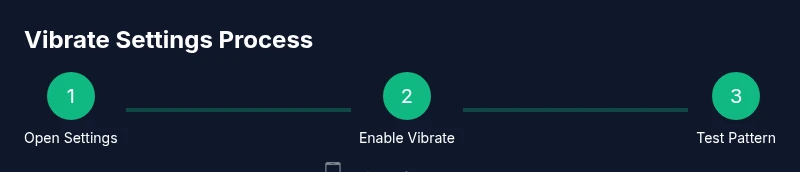
To get started, open Settings, tap Sounds & Haptics, then switch on Vibrate on Ring and Vibrate on Silent. If you primarily use the phone in a quiet environment, you may want Vibrate on Ring enabled so you still feel calls. This block also covers how to validate your changes by making a test call or text and listening for the vibration. A quick test helps you confirm that the pattern you chose is detectable in everyday scenarios. If you don’t hear a vibration, verify the hardware switch isn’t silencing all alerts and that the device isn’t in Do Not Disturb mode.
Customize Vibration Patterns
Vibration customization is a powerful way to distinguish between call types and app alerts. In Settings > Sounds & Haptics, choose either 'Ringtone' or 'Text Tone' and tap 'Vibration' to view a library of patterns or create a custom pattern. A longer vibration can signal urgent alerts, while a short pattern may suffice for texts. The process is the same across iPhone models, but newer iOS versions add more nuanced patterns and the ability to save multiple patterns. After creating a pattern, assign it to the notification type you care about and test it in a real-world scenario to ensure it’s noticeable in your environment.
Using Silent vs Vibrate vs Do Not Disturb
Silent mode mutes all sounds while still allowing vibrations if Vibrate on Silent is enabled. Vibrate on Silent is particularly useful for late-night notifications when you don’t want audible alerts. Do Not Disturb and Focus modes can silence alerts entirely or allow certain notifications to vibrate through. You can customize Focus to permit calls from favorites or specific apps, which preserves critical vibrations while filtering noise. If you depend on vibrate for instant awareness, review Focus exceptions and ensure your most important contacts are allowed to break through.
Focus Modes and Notifications
Focus modes give you granular control over what vibrates and when. Within a Focus profile, you can allow notifications from select people or apps, and you can set whether those alerts vibrate. This prevents constant buzzing while you’re focused, yet keeps essential alerts active. If you’re in a meeting or deep work session, a well-configured Focus profile can ensure you don’t miss critical messages when vibrate is enabled for those trusted sources. Phone Tips Pro recommends testing each Focus scenario to confirm behavior aligns with your expectations.
Troubleshooting Common Issues
If vibrations aren’t happening as expected, try these checks: ensure your iPhone isn’t physically muted, verify Vibrate on Ring and Vibrate on Silent are both enabled, and review any Focus/Do Not Disturb settings that might suppress haptics. Also consider rebooting the device or updating iOS, as software updates can fix vibration-related glitches. If you still have problems, test with different vibration patterns and confirm the hardware motor isn’t damaged by visiting a technician or visiting an Apple Store for diagnostics.
Accessibility and Advanced Tips
For users with heightened sensitivity needs, iOS offers accessibility options that affect haptic feedback. You may adjust system haptics via Settings > Accessibility > Touch > System Haptics. Consider pairing vibration cues with visual or auditory cues for a multi-sensory notification system. If you rely on vibration for accessibility, experiment with stronger patterns and longer durations, and document which alerts are most reliable across contexts.
Authority Sources
For deeper reading and official guidance, consult the following sources: a dedicated Apple Support guide on iPhone haptics, and trusted tech publications that explain notification management and accessibility features. The links below provide official and widely cited explanations of vibration and haptics across iPhone models. These sources are recommended for verification and extended reading.
Tools & Materials
- iPhone with recent iOS(Any model supports Vibrate settings; ensure iOS is up to date)
- Settings app access(No external tools needed)
- Testing environment(Quiet room or typical environment for realistic testing)
- Optional: tester device or friend to call/text(Helps verify vibrations in real scenarios)
Steps
Estimated time: 20-40 minutes
- 1
Open Settings and Navigate to Sounds & Haptics
Unlock your iPhone and launch the Settings app. Scroll to and tap Sounds & Haptics to access all vibration and ringer options. This step establishes the baseline for Vibrate on Ring and on Silent.
Tip: If you don’t see Vibrate on Ring/Silent, check if the hardware mute switch is engaged and whether iOS is up to date. - 2
Enable Vibrate on Ring and Vibrate on Silent
Toggle both Vibrate on Ring and Vibrate on Silent to the on position. This ensures vibrations occur for incoming calls and other alerts regardless of sound state. Test by asking someone to call you and sending a text while ring volume is varied.
Tip: Use a loud room test to confirm your updates are noticeable; if not, try a longer vibration pattern for better detectability. - 3
Test and customize vibration patterns
Tap on 'Ringtone' or 'Text Tone' and select 'Vibration' at the top. Choose a preset pattern or create a new one. Save the pattern and assign it to the alert type you want, then perform a test to confirm the feel matches your expectations.
Tip: Create distinct patterns for calls, texts, and app alerts to avoid confusion in busy situations. - 4
Configure Focus/Do Not Disturb to suit your environment
Open Settings > Focus and review Do Not Disturb and any active Focus profiles. Ensure critical people, apps, or notifications are allowed to vibrate, and adjust the silent behavior accordingly. This avoids missed notifications during focus periods.
Tip: Keep a separate Focus profile for work and personal life to maintain appropriate vibrate behavior across contexts. - 5
Perform a comprehensive test
Simulate different scenarios: incoming calls, texts, app alerts, and timed reminders. Verify vibrate patterns across Ring and Silent modes, and confirm Focus exceptions still vibrate as intended.
Tip: Document the outcomes for future reference, especially if you use multiple Focus modes daily. - 6
Check accessibility and advanced haptics
If you rely on haptic feedback, review Settings > Accessibility > Touch > System Haptics and adjust options to reinforce vibrate cues. Consider enabling stronger patterns or longer durations for critical alerts.
Tip: Accessibility adjustments can complement standard vibration for better consistency across apps.
FAQ
Can an iPhone vibrate for all notifications even when Do Not Disturb is on?
Do Not Disturb can suppress most vibrations, but you can tailor Focus settings to allow vibrations from specific apps or contacts. If you need consistent haptics, configure Focus exceptions carefully.
DND can mute vibrations, but you can enable Focus exemptions so certain apps or people still vibrate.
How do I test my iPhone’s vibration after changing settings?
Create or select a vibration pattern, assign it to a ringtone or text tone, then call or text the device to confirm the pattern. If there’s no vibration, revisit the Vibrate on Ring and Vibrate on Silent toggles and test again.
Test by triggering a call or a text to hear the vibration pattern you configured.
What’s the difference between Vibrate on Ring and Vibrate on Silent?
Vibrate on Ring activates vibration when calls come in with the ringer on. Vibrate on Silent activates vibration when the device is muted. Both can be used simultaneously to ensure alerts are felt in different contexts.
Ring mode vibrates for calls; Silent mode vibrates for alerts when muted.
Can I customize vibration without changing other sound settings?
Yes. You can customize vibration patterns independently under Ringtone/Text Tone in Sounds & Haptics. This lets you tailor feedback without altering the main alert tones.
You can customize vibration patterns without changing the main sounds.
What should I do if my iPhone doesn’t vibrate at all?
First, check the hardware switch, confirm Vibrate on Ring and Vibrate on Silent are on, and test with a new pattern. If it still doesn’t vibrate, consider a software update or hardware diagnostic.
Check hardware switch and vibrate settings, then test; if it still fails, try updates or diagnostics.
Are there accessibility options to enhance haptic feedback?
Yes, iOS offers System Haptics and other accessibility features that can intensify haptic feedback. Adjust these in Accessibility settings to suit your needs and improve overall reliability.
Use System Haptics and related accessibility options to strengthen haptic cues.
Watch Video
Quick Summary
- Enable Vibrate on Ring and Silent in Settings
- Create and assign distinct vibration patterns
- Leverage Focus to control when vibrations occur
- Test across real-world scenarios for reliability
- Use accessibility options to reinforce haptic cues