Why Your iPhone Can't Make Calls: Urgent Troubleshooting Guide
A comprehensive, urgent troubleshooting guide to diagnose and fix why your iPhone can't make calls, with step-by-step fixes, practical tips, and when to contact carriers or Apple support.


If your iPhone can't make calls, the most likely causes are carrier settings, SIM/eSIM provisioning, or a network issue. Start with quick fixes: toggle Airplane Mode, restart, check carrier status, and verify VoLTE is enabled. If the problem persists, follow the full troubleshooting flow below.
Why calls fail on iPhone: common patterns
When you find yourself unable to place a call, it’s usually a pattern you can recognize: a software setting, a SIM/eSIM provisioning hiccup, or a network factor outside your device. According to Phone Tips Pro, the most frequent culprits are misconfigured carrier settings, disabled calling features, or a temporary network outage. This section helps you spot the most common signals so you can triage quickly. For example, do you see 'No Service' in the status bar, or does dialing crash mid-press? Such hints point you toward the right next step—without diving into complex repairs. Throughout this guide, we focus on practical checks you can perform in under ten minutes, so you can decide whether you can fix it yourself or need to contact support.
Check your iPhone settings and features
Many call issues stem from toggled settings or feature blockers. Start by ensuring Airplane Mode is off and Do Not Disturb is not suppressing calls. Make sure your device is enrolled in VoLTE or HD Voice if your carrier supports it. Disable any call blocking rules or third-party apps that may intercept calls. Check Settings > Phone to confirm that Call Forwarding is not misconfigured. Verify that Wi‑Fi Calling is enabled if you rely on strong Wi‑Fi signals in your area. If you’ve recently updated iOS, some settings may reset and require reconfiguration. By systematically verifying these controls, you can distinguish a settings problem from a hardware fault. Remember to check for any carrier-provided apps that may override default dialing behavior. This quick audit can reveal why you’re unable to make calls and what to change next.
Inspect your SIM/eSIM and carrier status
If a SIM card is not seated properly or is damaged, you may see No Service or inability to place calls. Remove and reseat the SIM with the device powered off, or test with a known-good SIM from another line if available. For eSIM users, ensure the eSIM profile is active and correctly provisioned by your carrier. Carrier settings updates can also affect calling; go to Settings > General > About to see if a carrier update is available and install it. If you recently switched carriers or activated a new line, confirm that the plan includes calling services and that there’s no block on outbound calls. These checks help determine whether the issue is with the SIM/eSIM or with the carrier provisioning rather than the iPhone hardware.
Network, updates, and device provisioning
Sometimes the fault lies with the network or an incomplete device provisioning after a software update. Confirm there’s no known carrier outage in your area by visiting your carrier’s status page or social channels. Ensure your iPhone is running the latest iOS version and that your carrier settings are current. If you’re on a dual-SIM setup, verify that the primary line is correctly configured for voice calls. Review any VPN or security apps that might interfere with outbound calls. Finally, ensure your device isn’t enrolled in any beta releases that could temporarily disrupt calling. By aligning network, OS, and provisioning, you reduce the likelihood of recurrent call failures and stay connected more reliably.
Quick checks you can do now to isolate the issue
- Toggle Airplane Mode on, wait 5–10 seconds, then off to refresh radio connection.
- Restart your iPhone to reset transient system states.
- Check for a carrier status update and install it if available.
- Attempt a call from a different SIM or an eSIM profile to isolate device vs carrier issues.
diagnosticFlowBlocked":true},
Steps
Estimated time: 30-60 minutes
- 1
Verify basic status and quick fixes
Check if Airplane Mode is off, Do Not Disturb isn’t muting calls, and VoLTE is enabled if your carrier supports it. A quick restart can also refresh the iPhone’s radio interfaces.
Tip: A quick restart can resolve many transient issues without data loss. - 2
Update carrier settings
Go to Settings > General > About and install any available carrier update. Carrier updates can fix provisioning problems and restore calling capabilities.
Tip: Carrier updates sometimes require an active data connection or Wi‑Fi to download. - 3
Test the SIM/eSIM
Eject and reseat the SIM card (power off first) or switch to a different SIM if available. For eSIM, verify that the profile is active and correctly configured by the carrier.
Tip: If you use multiple lines, disable the non-primary line to test voice calls on the main line. - 4
Reset network settings
This resets Wi‑Fi, VPN, and cellular settings. After the reset, reconfigure your Wi‑Fi passwords and any VPNs you use.
Tip: Note: You will need to rejoin Wi‑Fi networks and reconfigure VPNs after this step. - 5
Check for iOS updates
Install any pending iOS update. Firmware and OS improvements can resolve underlying networking issues that affect calling.
Tip: Keep automatic updates enabled to reduce recurrence of issues. - 6
Escalate if unresolved
If calls still don’t go through, contact your carrier to verify account provisioning and SIM activation, or visit an Apple Store/authorized service provider for hardware checks.
Tip: Document any error messages and screenshots to share with support.
Diagnosis: iPhone won't make or place calls
Possible Causes
- highCarrier service outage
- highAirplane mode enabled or Do Not Disturb blocking calls
- highSIM card mis-seated, damaged, or inactive
- mediumSoftware glitch after update or misconfigured network settings
- lowESIM provisioning issue or carrier misconfiguration
- mediumNetwork settings corrupted or VPN interfering
Fixes
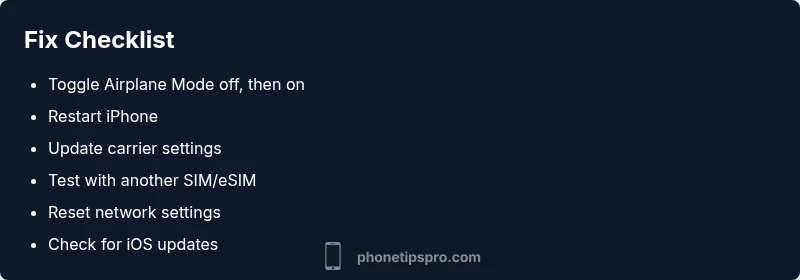
- easyToggle Airplane Mode off, then on to refresh cellular radios
- easyRestart iPhone to clear transient issues
- easyUpdate carrier settings if prompted in Settings > General > About
- easyRe-seat or replace the SIM card; test with another known-good SIM if possible
- easyReset network settings (Settings > General > Transfer or Reset iPhone > Reset, then Reset Network Settings)
- easyIf using eSIM, re-provision the eSIM with your carrier and verify active profile
FAQ
Why can't I make calls after updating iPhone iOS?
Software updates can reset or alter network settings, which may temporarily disrupt calling. After updating, recheck carrier settings, confirm VoLTE is enabled, and verify the SIM/eSIM provisioning.
Sometimes an iOS update affects calling settings. Recheck carrier provisioning and VoLTE, then test calls again.
What should I do if I see No Service on the status bar?
Check for a carrier outage, toggle Airplane Mode, re-seat the SIM, and update carrier settings if available. If the issue persists, contact your carrier.
No Service can mean a carrier issue or a misconfigured SIM; run through quick checks and contact support if needed.
Can Wi‑Fi Calling help when cellular signals are weak?
Yes. If your carrier supports it, enable Wi‑Fi Calling in Settings > Phone > Wi‑Fi Calling and ensure you have a stable Wi-Fi connection. This can let you place calls when the mobile network is poor.
Wi‑Fi Calling can help when signals are weak; turn it on in settings and try a test call.
Is my SIM card damaged, and how can I check?
Inspect the SIM for visible damage, try reseating it, or test with a known-good SIM. If issues persist, replace the SIM through your carrier.
Physical SIM problems show up as poor connectivity; reseat or replace as needed.
What about eSIM provisioning issues?
For eSIM, ensure the profile is active and linked to your plan. If problems continue, delete and re-add the eSIM profile or contact your carrier for re-provisioning.
If using eSIM and it isn’t provisioning, re-provision with your carrier.
When should I visit an Apple Store?
If you’ve exhausted software and carrier checks and calls still don’t work, there might be a hardware issue with the modem or antenna. Schedule a visit to an Apple Store or authorized service provider.
Go to Apple if calls still fail after all fixes; there could be a hardware fault.
Watch Video
Quick Summary
- Start with quick checks, then step through network, SIM, and provisioning issues.
- Test with another SIM or eSIM to isolate device vs carrier problems.
- Reset network settings as a safe, reversible fix if issues persist.
- Contact your carrier or Apple Support if problems continue.