How to hard reset iPhone: A complete guide
Learn how to perform a hard reset on your iPhone, when to use force restart vs factory reset, and how to back up data before erasing. This expert guide from Phone Tips Pro walks you through practical steps, safety notes, and recovery tips.


According to Phone Tips Pro, a hard reset on an iPhone means forcing a reboot (or erasing all content for a factory reset). A forced restart reboots without data loss, while a factory reset wipes everything. Before you proceed, back up your data and confirm you know your Apple ID credentials. This guide covers both methods.
How a hard reset differs: forced restart vs factory reset
When someone asks how hard reset iPhone, they usually mean one of two operations: a forced restart (also called a hard reboot) or a factory reset. They produce very different outcomes. A forced restart reboots the device by interrupting power momentarily, and it does not erase personal data, apps, or settings. This is ideal for a frozen screen, apps that won’t respond, or temporary glitches.
By contrast, a factory reset erases all content and settings, returning the iPhone to its out-of-the-box state. It is used when selling the phone, troubleshooting stubborn software issues, or starting fresh after a major crash. Before performing a factory reset, you should back up data, sign out of iCloud if possible, and be prepared to re-enter your Apple ID on setup. If Find My iPhone is enabled, you may be required to enter your Apple ID later to unlock Activation Lock, so note your credentials ahead of time.
When to use a hard reset
A hard reset—specifically a forced restart—is a safe first step for many minor issues. Use it when the screen is unresponsive, apps crash in a loop, or you notice sluggish behavior that doesn’t involve data loss. If the device is behaving erratically after a software update, a restart can clear temporary caches and reset processes without touching your personal data. Do not use a factory reset unless you have exhausted other remedies and you intend to wipe the device.
Back up and prerequisites
Before performing any reset, back up your data. iCloud backups are convenient for quick restoration, while a computer backup via Finder (macOS Catalina and later) or iTunes (Windows or older macOS) provides a local copy. Ensure you know your Apple ID credentials in case Activation Lock prompts after reset. If Find My iPhone is enabled, you may be asked to enter your password to disable it before a factory reset. Charge your device to at least 50% or keep it plugged in during the process to avoid interruptions.
Step-by-step: Force restart (no data loss)
A force restart is model-dependent. For iPhone 8 and newer, quickly press and release Volume Up, then Volume Down, and press and hold the Side button until the Apple logo appears. For iPhone 7, press and hold the Volume Down and Side button until the Apple logo shows. For iPhone 6s and earlier, press and hold the Home button together with the Sleep/Wake button until the Apple logo appears. This action reboots the device without erasing any content. Pro tip: release the buttons as soon as the Apple logo appears to avoid triggering a reset.
Step-by-step: Factory reset (erases all data)
A factory reset wipes everything, so proceed only after you’ve backed up. Step-by-step: 1) Open Settings. 2) Tap General. 3) Select Transfer or Reset iPhone. 4) Choose Erase All Content and Settings. 5) Enter your passcode if prompted, then confirm. 6) If asked, sign out of Apple ID to bypass Activation Lock on first setup. 7) After reset, restore from your backup or set up as new. This will remove all apps, data, and settings.
Activation Lock and sign-in considerations
Activation Lock can complicate a factory reset if Find My iPhone is enabled. After erasing, you may be prompted to enter the Apple ID and password used on the device. If you forgot your credentials, visit iforgot.apple.com to recover them before attempting a reset. If you plan to sell or give away the device, turning off Find My iPhone and signing out of iCloud beforehand simplifies the post-reset setup for the new user.
Troubleshooting post-reset issues
If the device doesn’t boot after a reset or remains stuck on the Apple logo, try forcing another restart. If that fails, connect to a computer and use Finder/iTunes to restore the device to stock iOS. Ensure you have a recent backup before restoring. If Activation Lock appears, verify your Apple ID credentials. Persistent problems after restore may require contacting Apple Support or visiting an Apple Store for diagnostics.
Quick reference checklist and safety notes
- Back up before any reset (iCloud or computer backup).
- Ensure your Apple ID credentials are ready for Activation Lock.
- Use a force restart first for unresponsive devices; reserve factory reset for data-wipe scenarios.
- Keep the iPhone charged during reset to prevent interruptions.
- After reset, decide whether to restore from backup or set up as new.
Tools & Materials
- iPhone with sufficient battery(Charge to at least 50% or keep plugged in during reset)
- Charging cable and power adapter(Use a reliable charger to avoid power loss during reset)
- Apple ID and password(Needed to disable Find My iPhone and avoid Activation Lock issues)
- Backup method chosen (iCloud or computer)(Back up photos, messages, apps, and settings)
- Note pad or password manager(To store credentials or important steps)
Steps
Estimated time: 15-60 minutes
- 1
Decide which reset you need
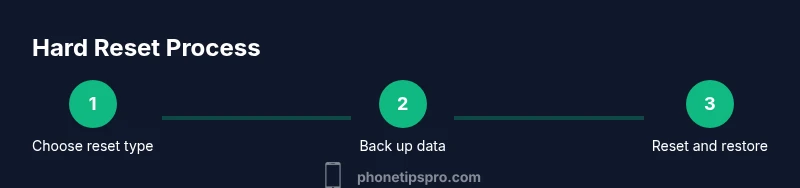
Evaluate whether you need a quick reboot (force restart) or a full data wipe (factory reset). Force restart fixes freezes without data loss; factory reset erases everything and requires a backup.
Tip: Choosing the right reset saves time and preserves important data. - 2
Back up your data
Back up to iCloud or your computer to prevent data loss. Verify the backup completed successfully before proceeding to reset.
Tip: A verified backup makes restoration straightforward after reset. - 3
Sign out of iCloud and disable Find My iPhone
If you plan a factory reset, sign out of iCloud and turn off Find My iPhone to avoid Activation Lock problems on setup.
Tip: This step simplifies post-reset activation for a new owner or for you. - 4
Perform a force restart (if chosen)
For iPhone 8 and newer, press Volume Up, Volume Down, then hold the Side button until the Apple logo. For iPhone 7, hold Volume Down and the Side button until the logo appears. For older models, use the Home + Sleep/Wake method.
Tip: Release buttons as soon as the Apple logo appears to avoid triggering a factory reset. - 5
Perform a factory reset via Settings
Go to Settings > General > Transfer or Reset iPhone > Erase All Content and Settings. Enter passcode and confirm; sign out of Apple ID when prompted.
Tip: If Activation Lock appears after reset, have your Apple ID ready to sign back in. - 6
Restore or set up as new
After reset, choose to restore from your backup or set up as a new device. Reinstall apps and reconfigure settings as needed.
Tip: Restoring from a clean backup can help you avoid legacy data issues.
FAQ
What is the difference between a hard reset and a factory reset on iPhone?
A hard reset (force restart) reboots the iPhone without data loss. A factory reset erases all content and settings, returning the device to its original state. Use a force restart first for minor freezes, and reserve a factory reset for serious issues or data wipe needs.
A hard reset restarts the iPhone without deleting data, while a factory reset erases everything. Use the force restart first for glitches.
Will performing a hard reset erase my data?
No. A force restart does not erase data. A factory reset, however, will erase all content unless you have a backup to restore from.
A force restart won’t delete data, but a factory reset will.
Do I need to back up before a hard reset?
Yes. Even if you’re just rebooting, backing up protects your information in case you decide to reset or run into issues.
Backing up before resetting is always a safe move.
How long does a factory reset take?
Time varies by device and data, but you should plan on a few minutes to complete the erase and initial setup.
Most resets take a few minutes, depending on data size.
What if Activation Lock appears after reset?
Enter the Apple ID and password associated with the device. If you forgot them, visit iforgot.apple.com to recover credentials before proceeding.
If Activation Lock shows up, sign in with your Apple ID to unlock the device.
Can I reset without a charger connected?
You can reset on battery power, but a connected charger minimizes the risk of interruption if the device runs low.
It’s best to keep the device charged during a reset.
Watch Video
Quick Summary
- Back up before resetting to avoid data loss
- Know the difference between force restart and factory reset
- Disable Find My iPhone to avoid Activation Lock hassles
- Factory reset erases all data; restoration depends on a prior backup
- Choose restore-from-backup or set up as new after reset