How to Factory Reset Your iPhone: A Complete Guide
Learn how to bring iPhone to factory settings safely. Back up, disable Find My iPhone when needed, erase all content and settings, and set up your device from scratch with expert guidance.


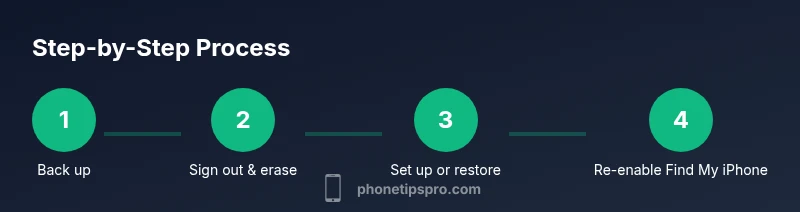
By following these steps, you can safely bring your iPhone to factory settings. Back up first to protect data, then erase all content and settings. If Find My iPhone is on, you may need your Apple ID password to reactivate later. This process resets the device to its original state and removes personal data.
What factory reset does and when to use it
Factory resetting an iPhone returns the device to its original, out-of-the-box state by wiping all content, apps, settings, and locally stored data. It's a powerful option for troubleshooting recurring software problems, cleaning up after a long period of use, or preparing the device for resale or gifting. It does not automatically remove data stored in iCloud, so you should back up first. According to Phone Tips Pro, backing up ensures you can restore contacts, photos, apps, and settings after the reset if you want to keep them. The decision to reset should be weighed against simpler remedies, such as signing out of accounts, removing problematic apps, or resetting individual settings. If you proceed, you’ll be asked to confirm your decision and may need to enter your device passcode. For devices with Activation Lock enabled, the iPhone will require your Apple ID credentials after the reset to reactivate, which is why properly turning off Find My iPhone or signing out before erasing can prevent issues. A factory reset does not fix a hardware problem; if the screen is unresponsive or the device won’t power on, consult support channels rather than attempting aggressive actions.
Backing up your iPhone before erasing
Backups are essential. A complete copy of your data protects memories, messages, photos, apps, and settings so you can restore them after the reset. Choose iCloud backup if you want a wireless, hands-off approach; ensure you have enough iCloud storage and an active internet connection. For a local backup, connect your iPhone to a Mac or PC and use Finder (macOS Catalina and later) or iTunes (Windows or older macOS) to create an encrypted backup to preserve passwords and health data. Phone Tips Pro recommends turning on iCloud Photos or syncing photos to a computer if you have large libraries. Don’t start the reset until you’ve confirmed that the backup completed successfully and that you can access the backup later.
The standard factory reset path: Erase All Content and Settings
The built-in reset option is the simplest path to a clean slate. On your iPhone, go to Settings, then General, then Transfer or Reset iPhone, and choose Erase All Content and Settings. You may be prompted to enter your passcode and confirm your decision. If you have a disabled lock or a missing backup, you’ll see warnings that remind you what will be erased. After the process begins, the device restarts and returns to the Setup screen. If you plan to sell or give away the phone, this is the moment to disconnect accounts and avoid handing over credentials. Remember: any data not stored in iCloud or included in a backup will be lost permanently.
Activation Lock and Find My iPhone: what to know
Activation Lock is a security feature tied to your Apple ID. Even after erasing all content, the phone will require the original Apple ID and password to reactivate if Find My iPhone was enabled. If you want to hand the device over, ensure you sign out of iCloud and turn off Find My iPhone before erasing, or be prepared to provide the credentials afterwards. If you forget your password, you can reset it via Apple’s account page, but proceed with caution to avoid lockouts. In enterprise or shared environments, document the account details and ensure the new owner can complete activation with valid credentials.
Resetting via a computer or DFU mode
If the standard on-device reset doesn’t work, you can use a Mac or Windows PC to erase the iPhone with Finder or iTunes. Connect the device with the appropriate cable, select the device in Finder or iTunes, and choose Restore iPhone. This will reinstall iOS and erase all content. For devices that won’t respond to standard erase, you can attempt DFU mode (a deeper restore). The DFU steps vary by model, but generally involve turning off the device, connecting to a computer, and using specific button presses to enter DFU. Be aware that DFU erases all data and will install a fresh copy of iOS. If you’re working with a borrowed device, obtain permission before proceeding to avoid complications.
After the reset: setup options
Once the device restarts to the Setup screen, you’ll choose to set up as new or restore from a backup. If you want to preserve your previous data, select Restore from iCloud or Finder/iTunes backup and follow the on-screen prompts. If you’re selling the device, proceed with a clean setup and do not restore previously stored data. After setup, re-enter your Apple ID and password to re-enable services. Finally, review privacy and security settings, enable Find My iPhone again, and ensure you have a new passcode and biometric settings configured.
Common pitfalls and troubleshooting tips
Avoid common mistakes by verifying that you have a recent backup before erasing, and ensure you’re signed out of iCloud if you plan to transfer ownership. If the reset fails or the device won’t boot, try a different cable, another USB port, or a computer. Ensure the iPhone is charged during the process. If Activation Lock appears after reset, you’ll need the associated Apple ID credentials. If you can’t recall the password, contact Apple Support for account recovery options. Finally, do not attempt to bypass Activation Lock or use third‑party tools; they may compromise your data and device warranty.
Authority sources
- Apple Support: https://support.apple.com
- Federal Trade Commission: https://www.consumer.ftc.gov
- National Institute of Standards and Technology: https://www.nist.gov
Tools & Materials
- iPhone with sufficient battery(Keep device above 50% during reset)
- Charging/sync cable (Lightning or USB‑C)(Required to connect to a computer if needed)
- Backup copy (iCloud or computer)(Make sure the backup includes photos, messages, and settings)
- Apple ID credentials(Needed to sign out and reactivate after reset)
- Computer with Finder/iTunes (optional)(Use if you can’t reset directly on the device)
Steps
Estimated time: 15-40 minutes
- 1
Back up your iPhone
Open Settings and choose a backup method (iCloud or Finder/iTunes) to capture your data before erasing. Ensure the backup completed successfully and is accessible for a full restore if desired.
Tip: Verify the backup by checking the last backup date or trying a quick restore test. - 2
Sign out of iCloud and disable Find My iPhone
If you plan to transfer ownership, sign out of iCloud and turn off Find My iPhone to avoid Activation Lock prompts after reset.
Tip: Signing out early reduces activation friction for the next user. - 3
Erase all content and settings
Go to Settings > General > Transfer or Reset iPhone > Erase All Content and Settings. Confirm when prompted and enter your passcode if required.
Tip: Double-check you’ve selected the correct device if you use iCloud Family Sharing. - 4
Wait for the device to erase
Allow the device to wipe all data and reboot. This may take several minutes depending on model and backup size.
Tip: Do not interrupt power or disconnect the device during the reset. - 5
Set up or restore from backup
During setup, choose to restore from iCloud or Finder/iTunes backup or set up as new. Make sure you know your Apple ID credentials for reactivation.
Tip: If restoring, pick the most recent backup to minimize data loss. - 6
Re-enable services and secure settings
Sign back into iCloud, re-enable Find My iPhone, and set a new passcode. Review privacy settings after setup.
Tip: Consider enabling two-factor authentication for added security.
FAQ
What exactly happens when you erase all content and settings on an iPhone?
Erasing removes personal data and resets settings to factory defaults. Activation Lock may require your Apple ID credentials after the reset to reactivate the device.
Erasing removes your data and resets settings; after the reset, you’ll need your Apple ID to reactivate.
Do I need to back up before resetting my iPhone?
Yes. A backup protects photos, contacts, messages, and settings so you can restore them after the reset.
Yes—back up before resetting to avoid losing data.
Can I reset iPhone without a passcode?
If you don’t know the passcode, you’ll likely need to restore via a computer (Finder/iTunes) or DFU mode to erase and reinstall iOS.
If you forgot the passcode, you usually need a computer restore to proceed.
Is it safe to reset before selling the iPhone?
Yes, but ensure you sign out and erase all data, then remove the device from your Apple ID so the buyer can activate it.
Yes—reset and sign out to make activation smoother for the new owner.
What if Find My iPhone is enabled after reset?
Activation Lock can require the original Apple ID to reactivate. Sign out and disable Find My iPhone before erasing if you’re transferring ownership.
Activation Lock might prompt for your Apple ID after reset; sign out before erasing if you’re transferring ownership.
How long does a factory reset take?
It usually takes a few minutes, depending on device model and data size.
Usually a few minutes, depending on your device and data.
Watch Video
Quick Summary
- Back up before resetting
- Erase all content and settings from Settings
- Sign out of iCloud and disable Find My iPhone if you plan to transfer ownership
- Use a computer if the device won’t reset on-device
- Restore from backup or set up as new after reset