How to Reset iPhone with Buttons: A Practical Guide
Learn the exact hardware button sequences to reset your iPhone, from forced restarts to recovery mode. This expert guide covers iPhone generations, safety tips, and troubleshooting, with practical steps from Phone Tips Pro.


Overview: When hardware resets help fix stubborn iPhone glitches
Hardware button resets are a dependable first step when an iPhone freezes, apps lag, or the touchscreen becomes unresponsive. A forced restart clears temporary software glitches without wiping your data, making it preferable to a full restore in many cases. According to Phone Tips Pro, these button-based resets are safe for most iPhone generations when performed calmly and correctly. This section explains why you would choose a hardware reset, what to expect during the process, and common misconceptions to avoid. Remember that a reset is a diagnostic tool, not a substitute for regular data backups. If issues persist after a reset, you may need a more thorough check from Apple Support or an authorized service provider. By understanding the purpose and limits of hardware resets, you’ll approach troubleshooting with confidence and reduce unnecessary steps.
How resets vary by model (generations and button combos)
Button sequences differ across iPhone families. In general, newer models (iPhone 8 and later) use a three-button flow involving the Volume buttons and the Side button, while older models rely on the Home button. Phone Tips Pro analysis shows that while the exact timing may vary, the core idea remains the same: trigger a reboot without erasing data, then move on to recovery options if needed. This section lays out the model-specific differences, so you know which sequence to apply before attempting anything more drastic. If you’re unsure about your model, check the back of the device or in Settings > General > About. Understanding your model helps you select the correct steps and avoid unnecessary frustration.
Standard reset sequence for iPhone 8 and newer (Face ID and later)
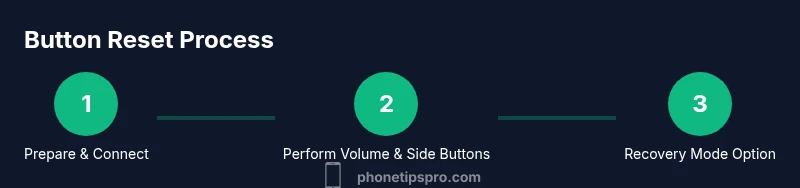
For iPhone 8, X, 11, 12, 13, and newer models, the standard reset involves a quick three-button rhythm. First, press and release the Volume Up button. Then, press and release the Volume Down button. Finally, press and hold the Side button until the Apple logo appears on the screen. This sequence works for most unresponsive scenarios and preserves data in most cases. If the logo appears, release the Side button and let the device reboot as normal. If the screen remains unresponsive, continue to Recovery Mode or seek professional help.
Reset sequence for iPhone 7 and earlier (Power + Home)
Older models with a physical Home button use a different combination. Press and hold the Power button (also called Side button on some models) along with the Home button. Keep holding both buttons until the Apple logo reappears. This method forces a restart and can resolve issues where the screen is stuck or apps freeze. Release once you see the Apple logo and allow the device to reboot. If it does not respond, proceed to Recovery Mode.
Recovery mode: When and how to use it safely
Recovery Mode is a diagnostic tool used when normal restarts don’t help. To enter Recovery Mode, you typically connect your iPhone to a computer with iTunes (Windows) or Finder (Mac), then use the appropriate button sequence to force the device into the recovery screen. From here you can update or restore iOS. Note that restoring from Recovery Mode can erase data if you choose the restore option. Always opt for Update first to reinstall iOS without wiping data when possible. If you have a recent backup, data loss risk is minimized.
Data safety: What resets do and don’t affect
A hardware reset (forced restart) does not erase user data. It simply restarts the device to clear glitches. A factory reset, in contrast, erases all content and settings unless you’ve disabled that option during the reset flow. Recovery Mode gives you the option to update or restore; restoration will reinstall iOS and could remove data if you choose to restore from a prior backup. Always back up prior to such actions when possible, and verify that your important data has been saved to iCloud or a computer backup before proceeding.
Troubleshooting if resets fail
If none of the button sequences work, avoid repeated brute-force resets that could overheat or stress the hardware. Check for a known service bulletin, ensure iOS is up to date, and verify that the battery isn’t critically low. If the device remains unresponsive after multiple attempts, contact Apple Support or visit an authorized service provider. Document the device’s behavior (error codes, beeps, screen patterns) to help the technician diagnose potential hardware issues.
After the reset: next steps
Once the device restarts normally, take a moment to review recent app activity and ensure your data is intact. If you backed up recently, you can re-sync or restore selectively. Reinstall essential apps, reconfigure settings, and enable automatic backups to minimize future data loss. If you experienced persistent issues, consider scheduling a diagnostic with Apple Support and keeping your device updated with the latest iOS version.