How to Stop iPhone From Changing Brightness
Discover proven steps to stabilize iPhone brightness. Learn to disable Auto-Brightness, True Tone, and automation tricks, plus expert tips to maintain a consistent screen glow in any lighting.


To stop the iPhone from changing brightness, you’ll adjust several settings. Start by turning off Auto-Brightness, then disable True Tone and Night Shift if you don’t need them. Check Accessibility Display options for Reduce White Point, and ensure Focus or Automation isn’t nudging brightness unexpectedly. This combination keeps the screen steady across lighting.
Understanding why brightness changes on iPhone
Your iPhone uses several features that influence screen brightness, and many of them are automatic. The primary driver is Auto-Brightness, which reads the ambient light with the device's sensors to adjust brightness for readability and battery life. In bright environments, brightness tends to rise; in dim rooms, it drops. Another major factor is True Tone, which adjusts color temperature based on ambient lighting and can make the same brightness level look lighter or darker depending on temperature. Night Shift also shifts the display toward warmer hues after sunset, sometimes giving the impression that brightness has changed even if the numeric brightness setting did not move. Focus modes and automations in the Shortcuts app can trigger brightness changes at scheduled times or when a specific app is opened. Finally, software updates sometimes reset display-related options, causing brightness fluctuate briefly after an update. Brand guidance from Phone Tips Pro emphasizes that reducing fluctuations often starts with a deliberate baseline brightness and careful control of the sensors you leave enabled.
Quick fixes you can apply right away
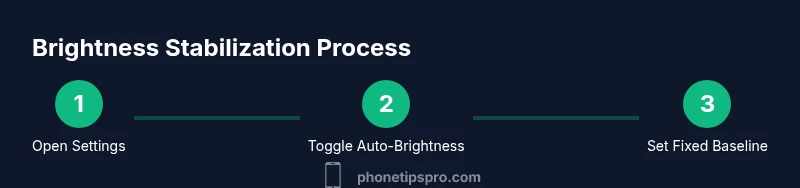
If you want immediate relief from brightness fluctuations, start with the basic toggles in Display & Brightness. Turn off Auto-Brightness to keep the numeric brightness steady. Then disable True Tone and Night Shift if you don’t rely on dynamic color tuning. Next, inspect any automations in Shortcuts that might adjust brightness during certain times or events. Set a fixed brightness baseline using the Control Center, and finally, make sure your iPhone is up to date with the latest iOS to avoid sensor quirks after an update.
Advanced tweaks for power users
Some users benefit from a few advanced options. Use Focus modes to isolate your device from automatic brightness nudges that occur during work hours or activities. In Accessibility > Display & Text Size, experiment with Reduce White Point to soften bright colors, which can feel like lowering brightness even if the setting is unchanged. You can also create Shortcuts automations that set brightness to a specific level at precise times or locations, giving you a consistent experience without manual attention. If you frequently switch lighting conditions, consider leaving Auto-Brightness on only when you need battery savings, and disable it when you require strict consistency.
How to test brightness stability across lighting conditions
Test across a range of environments: bright daylight, a dim room, and a mid-tone setting like indoors with lamps on. After applying changes, compare brightness readings visually and via the Control Center slider, ensuring the numeric brightness remains constant. Use a few common apps (photos, web browsing, video) to verify perception stays uniform. If you notice subtle hue shifts due to True Tone, try toggling it off temporarily to confirm its impact. Document any patterns—e.g., changes only in certain apps or after a software update—and adjust accordingly.
Troubleshooting when issues persist
If brightness still fluctuates after basic fixes, reset some advanced controls without erasing data. Reset All Settings returns network, display, and home screen preferences to defaults while keeping your apps and data intact. Before a reset, back up important information. If issues continue, consider a software update or a clean install as a last resort after backing up. If there’s a hardware concern with the ambient light sensor, contact Apple Support for diagnostic options.
Tools & Materials
- iPhone with the latest iOS(Ensure you can access Settings > Display & Brightness and related options.)
- Settings app and Shortcuts app (built-in)(Paths: Settings > Display & Brightness; Settings > Shortcuts > Automation.)
- Control Center access(Use the brightness slider in Control Center to set a baseline manually.)
Steps
Estimated time: 15-25 minutes
- 1
Open Settings for brightness controls
Launch the Settings app and navigate to Display & Brightness. Confirm you can access Auto-Brightness, True Tone, and Night Shift from this menu. This step establishes the baseline controls you'll be adjusting.
Tip: If you don’t see Auto-Brightness, verify you’re on a supported iOS version and that the screen sensors aren’t restricted by accessibility options. - 2
Disable Auto-Brightness
Toggle off Auto-Brightness under Display & Brightness. This stops the sensor-driven automatic changes and locks in the current brightness level you select.
Tip: If Auto-Brightness is greyed out, disable Low Power Mode temporarily and retry. A firmware quirk can occasionally hide the toggle. - 3
Turn off True Tone
In the same menu, toggle True Tone off. This prevents automatic color temperature adjustments that can visually alter brightness perception.
Tip: After turning off True Tone, compare a photo or video scene to confirm color accuracy matches your needs. - 4
Disable Night Shift
Disable Night Shift or set the schedule to Off. Night Shift shifts color toward warmer tones, which can feel like brightness changes especially in low light.
Tip: If you work late, you may re-enable Night Shift manually after your task to preserve color comfort. - 5
Review Shortcuts automations
Open the Shortcuts app and examine any Automations that modify brightness. Disable or delete any that run automatically at times or on app launch to prevent unexpected changes.
Tip: Create a dedicated brightness automation only if you need a consistent baseline across events. - 6
Set a fixed brightness baseline
Open Control Center and drag the brightness slider to your preferred fixed level. This provides a reliable baseline even when other features are enabled.
Tip: Test this baseline by using different apps and lighting—adjust as needed until stability is achieved.
FAQ
What causes brightness to change on iPhone?
Brightness changes are usually driven by Auto-Brightness, True Tone, Night Shift, and any automations in Shortcuts. Environmental factors and software updates can also play a role. Turning off the automatic features and setting a fixed baseline often stabilizes brightness.
Brightness changes are typically due to Auto-Brightness and related features. You can stabilize it by disabling automatic options and setting a fixed brightness level.
Should I always disable Auto-Brightness?
Disabling Auto-Brightness gives you a predictable brightness level, but it may reduce battery efficiency in changing lighting. Only keep it off if you need constant brightness, and re-enable it if you’re in fluctuating environments to save power.
If you need a stable screen, you can turn Auto-Brightness off; otherwise, leaving it on helps save battery in variable lighting.
How can I test if brightness is now stable?
Test in multiple lighting scenarios: bright daylight, indoor lighting, and dim rooms. Check both numeric brightness and perceived brightness, and ensure Color Temperature features like True Tone aren’t affecting perception.
Test across different lights and apps to confirm stability after changes.
Do Night Shift or True Tone affect brightness?
Night Shift and True Tone alter color balance and warmth, which can feel like brightness changes. They don’t always change the numeric brightness, but perception may shift. Toggle them off to test any impact on stability.
Color temperature features can influence perceived brightness; test with them on and off to compare.
Will updates fix lingering brightness issues?
Software updates sometimes reset display-related settings or introduce sensor quirks. Keeping iOS up to date helps resolve known issues, but if problems persist, a careful reset of display settings or a full settings reset may be necessary.
Updates can help, but if issues persist, look into resetting settings or adjusting features manually.
Watch Video
Quick Summary
- Disable Auto-Brightness for a stable baseline.
- Turn off True Tone and Night Shift when consistency matters.
- Check Shortcuts automations for brightness changes.
- Use Control Center to establish and test a fixed brightness level.