How to Factory Reset Your iPhone: A Complete Guide
Learn how to safely factory reset your iPhone, back up data, sign out of iCloud, and restore from a backup. This guide covers prerequisites, activation lock considerations, and post-reset setup with practical tips.


This guide shows you how to factory reset your iPhone safely, including prerequisites, how to back up, sign out of accounts, erase all content and settings, and how to set up the device after reset. It covers iPhone models, activation lock considerations, and recovery tips from Phone Tips Pro.
Why Backing Up Before a Reset Matters
Understanding how to iphone factory reset starts with data protection. According to Phone Tips Pro, backing up your iPhone before a reset is essential to preserve photos, messages, app data, and settings. If you skip this step, you risk permanently losing irreplaceable memories and important files. There are two main backup paths: iCloud and local computer backup. Choose the method you trust most and confirm the backup completes successfully before you proceed. A successful backup gives you confidence that you can restore your information later.
Beyond photos and messages, you may need app data, game progress, health data, and Wallet passes. Apple’s ecosystem makes backups relatively straightforward, but differences exist between iCloud (wireless, automatic) and computer backups (faster recovery for large libraries). This section explains when to choose each option and how to verify that the backup is complete and usable for a restore after the reset.
Prerequisites: What to Prepare Before You Reset
Before you begin, ensure your iPhone is ready for a factory reset and that you won’t lose needed information. Make sure the device has at least 50% battery or is plugged into a charger, and have access to a stable Wi‑Fi connection. Gather your Apple ID credentials (the email and password you use with iCloud), because you will need them to sign out and later reactivate the device. If you plan to reset due to activation lock concerns, review your Find My iPhone settings so you know what will be required during setup after the reset. Finally, decide whether you will back up to iCloud or a computer, and ensure there is enough storage or disk space to complete the backup.
Backup Methods: iCloud vs Computer
Choosing between iCloud and a local computer backup depends on your situation. iCloud backups are convenient and automatic when you’re connected to Wi‑Fi, but they require sufficient storage and an Apple ID. Computer backups can be faster for large libraries and provide a physical backup that doesn’t rely on internet bandwidth. In either case, ensure the backup contains your most essential data: photos, messages, notes, app data, and settings. After backing up, you’ll have a reliable restore point if you need to return to a previous state after the reset. This section also covers how to verify a successful backup and what to do if a backup is incomplete or missing critical data.
The Safe Reset Flow: What Happens During a Reset
A factory reset erases all content and settings, returning the device to its original factory state. The reset removes your personal data, apps, and preferences, but Activation Lock and Find My iPhone can complicate reactivation after the process. Understanding the flow helps you anticipate each screen you’ll see: the setup screen, language selection, and the Apple ID sign-in prompt. If Find My iPhone was enabled, you may be asked to enter your Apple ID again during setup to verify ownership. Plan for a wait time as the device resets; in most cases, the process takes several minutes up to about half an hour depending on the model and data size.
Post-Reset Setup: Activation Lock, Restore, and Re-signing In
After the reset, the iPhone starts from the setup screen. You can choose to restore from a backup (iCloud or computer) or set up as a new device. If Activation Lock is enabled, you’ll need your Apple ID credentials to proceed. If you restored from backup, verify that your most important data—photos, contacts, and app data—returned as expected. Finally, re-enable Find My iPhone and iCloud Keychain to protect your device and keep your data in sync across devices.
Troubleshooting and Safety Tips
If the device won’t complete the reset, try a soft restart or ensure you’re connected to power. Check your Apple ID credentials and ensure you’re entering the correct password. If you encounter an Activation Lock prompt you can’t bypass, contact Apple Support for help with proof of ownership. Remember, a factory reset is a powerful tool; treat it with caution and avoid performing it on devices you don’t own or on which you’re not authorized.
Quick Checklist Before You Finish
- Ensure you have a recent backup.
- Confirm you signed out of iCloud and Apple ID.
- Have your activation password ready for reactivation.
- Confirm you can connect to Wi‑Fi during setup.
- Decide if you want to restore from a backup or set up as a new device.
Tools & Materials
- iPhone with battery charged(Keep at least 50% battery or connect to power during the process)
- Charging cable and power adapter(Have ready to avoid power interruptions)
- Apple ID credentials (email and password)(Needed to sign out and to reactivate after reset)
- Backup destination (iCloud or computer)(Ensure enough storage or disk space before backing up)
- Stable Wi‑Fi connection(Needed for iCloud backup and setup)
- If you plan to back up to computer, a Mac/PC with latest iTunes/Finder(Optional for local backup)
Steps
Estimated time: 30-60 minutes
- 1
Charge and back up
Connect your iPhone to power and verify it maintains a healthy charge throughout the process. Initiate a backup using your preferred method (iCloud or computer) and confirm the backup completes successfully before proceeding. Backups protect photos, messages, app data, and device settings from loss during the reset.
Tip: If you use iCloud, ensure you have enough storage space and a stable Wi‑Fi connection before starting. - 2
Sign out of Apple ID / iCloud
Open Settings, tap your name, scroll down and choose Sign Out. Enter your Apple ID password when prompted to disable Find My iPhone and deactivate Activation Lock on this device. This step helps ensure a clean reset and smooth reactivation later.
Tip: Keep your Apple ID password handy; you’ll need it to sign back in after the reset. - 3
Disable Find My iPhone (if required)
If your device prompts you to turn off Find My iPhone, confirm the action. This is required to free the Activation Lock during the reset process. If you can’t sign out because you forgot your password, use account recovery from Apple’s support pages.
Tip: Disabling Find My iPhone ensures a straightforward reset without ownership checks during setup. - 4
Erase all content and settings
Go to Settings > General > Transfer or Reset iPhone > Erase All Content and Settings. If asked, enter your passcode and confirm your choice. The device will erase everything and restart to the initial setup screen.
Tip: If you’re resetting a device used by someone else, confirm you have permission to erase all data. - 5
Confirm erasure and wait
After confirming, allow the device to complete the erasure. This can take several minutes, depending on data size and model. Do not disconnect power or interrupt the process.
Tip: If the device slows, switch to a known-good charger and give it time to finish. - 6
Set up post-reset options
When the setup screen appears, choose whether to restore from a backup or set up as a new device. If you restore, follow the on-screen prompts to sign in with your Apple ID and select the backup source.
Tip: If you restore from iCloud, pick the latest backup for the most up-to-date data. - 7
Re-enable services and re-sign in
Sign back in to iCloud and re-enable Find My iPhone, iCloud Keychain, and other services. If Activation Lock appears, enter your Apple ID credentials to continue. Finally, verify that your data appears as expected in the restored device.
Tip: Test essential features like Photos, Messages, and App data to ensure everything restored correctly.
FAQ
Will factory resetting erase all data on my iPhone?
Yes. A factory reset wipes all content and settings from the device. If you have a recent backup, you can restore data after the reset.
Yes, a factory reset wipes everything, but you can restore data from a backup afterward.
Should I back up before resetting my iPhone?
Absolutely. Backups protect photos, contacts, messages, and app data. Choose iCloud or computer backup and verify the backup is complete before you proceed.
Yes. Back up first to avoid data loss, then reset.
What about Activation Lock after reset?
If Find My iPhone was on, Activation Lock may require your Apple ID to reactivate. Have your credentials ready during setup after the reset.
Activation Lock might ask for your Apple ID after the reset.
What if I forgot my Apple ID password?
Use Apple's account recovery tools before resetting. Without access to the Apple ID, you may not be able to activate the device after the reset.
If you forgot your Apple ID password, recover it before resetting.
Can I reset without a Wi-Fi connection?
You can erase content without Wi‑Fi, but backup options and reactivation benefits are better with a stable connection. iCloud backups require internet access.
Yes, but backups and setup are smoother with Wi-Fi.
If the device won’t reset, what should I do?
Try a forced restart, ensure the device is charging, and retry the reset. If issues persist, contact Apple Support for guidance.
If reset fails, restart and try again; if needed, contact Apple Support.
Watch Video
Quick Summary
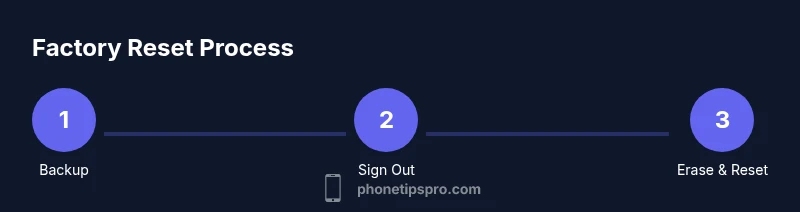
- Back up data before resetting
- Sign out of Apple ID to avoid Activation Lock prompts
- Erase content and settings only after backups are secured
- Restore from backup or set up as new after reset
- Re-enable security features post-reset