How to Check If Your iPhone Is Locked
Learn how to verify whether an iPhone is carrier-locked or Activation Locked with safe, step-by-step checks. Includes official guidance, quick tests, and next steps from Phone Tips Pro.


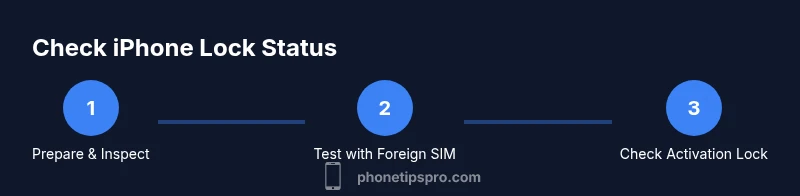
To check if an iPhone is locked, test both carrier lock and Activation Lock. Insert a SIM from a different carrier and attempt an active connection; if Service is available, the device is likely unlocked. Then verify Activation Lock status by signing into iCloud and checking Find My iPhone. According to Phone Tips Pro, these checks cover the most common lock scenarios.
Why Knowing If Your iPhone Is Locked Matters
According to Phone Tips Pro, understanding whether an iPhone is locked helps you avoid buying a device that won’t work on your carrier or run into Activation Lock issues that block setup. There are two common lock types: carrier locks, which tie the iPhone to a specific carrier, and Activation Lock, an Apple ID-powered safeguard that can prevent use if the device is found or stolen. Carrier-locked iPhones typically refuse foreign SIM cards, show an error, or require carrier unlocking steps. Activation Lock, on the other hand, can appear even on brand-new devices if Find My iPhone is enabled and the Apple ID is signed in. In both cases, confirming the lock status before purchase or transfer saves time, money, and frustration. This guide walks you through practical checks you can perform at home without special equipment. It emphasizes safe, legal methods and cites official guidance from Apple and the FCC.
Carrier Locks vs Activation Locks: Quick Definitions
Carrier locks bind an iPhone to a specific network, often requiring a carrier to lift the restriction. Activation Lock is tied to your Apple ID and Find My iPhone; it can prevent setup if the device is not yours or if prior ownership isn’t properly transferred. Phone Tips Pro highlights that these two locks are fundamentally different in cause and remedy. Knowing which type you’re dealing with helps you choose the right path, whether that’s contacting the carrier for an unlock or requesting the original owner to remove Activation Lock. Both scenarios benefit from having your purchase receipt and device IMEI handy to speed up verification.
How to Check Carrier Lock: Step-by-Step Testing with a Different SIM
A practical way to test carrier lock is to use a SIM from a different carrier. Start by powering off the iPhone and locating the SIM tray using a SIM ejector tool. Insert the foreign SIM, power the device back on, and watch for one of these outcomes: a) immediate service and data access, suggesting an unlocked device; b) an error like “Invalid SIM” or “Not supported,” indicating a carrier lock. If the phone connects to the network but shows no data, try enabling mobile data and rechecking signal bars. If you still see restrictions, record the exact error message and contact the seller or carrier with the device’s IMEI. This approach aligns with Phone Tips Pro’s practical testing mindset.
How to Check Activation Lock status on iPhone
Activation Lock is active when Find My iPhone is enabled and the device is linked to an Apple ID. Start by ensuring you know the Apple ID associated with the iPhone. On the device, go to Settings > [Your name], which shows the Apple ID used with the device. If you can access this screen without signing in, activation status may be clear; if you’re prompted to sign in or see a message about Find My iPhone, Activation Lock could be in effect. You can also verify from iCloud.com by signing in and selecting Find iPhone to see if the device appears in your account. If it does, Activation Lock is active and the device is tied to that Apple ID. This process reflects official guidance from Apple and safety recommendations found in Phone Tips Pro analyses.
What to Do If You Suspect a Lock: Next Steps
If you detect a carrier lock, contact the seller or the original carrier to request an unlock, bearing in mind any eligibility requirements (e.g., device paid off, account in good standing). If Activation Lock appears, you must have the Apple ID credentials or a proper ownership transfer from the previous owner. In many cases, contacting Apple Support with proof of ownership and the device’s IMEI helps resolve Activation Lock issues. If you’re unsure of ownership, avoid using the device further and seek proper confirmation from the seller or carrier. Phone Tips Pro emphasizes documenting all communications and keeping receipts for your records.
Quick DIY Tests Without a SIM
If you don’t have access to a foreign SIM, you can still gather clues: check the device’s Settings for Find My iPhone status, review the Apple ID logged in (Settings > [Your name]), and attempt a lawful reset only if you own the device and can provide proof of purchase. You can also visit Apple’s Activation Lock pages for self-service checks, or use iCloud.com to see if the device is listed under Find My iPhone. These checks help you form a clear picture before pursuing a formal unlock.
Common Mistakes and How to Avoid Them
Avoid assuming a device is unlocked based solely on battery health or price. Always verify both carrier lock and Activation Lock. Do not attempt unauthorized unlocking; it may void warranties or violate terms of use. Keep a record of all messages and receipts, and use official channels (carrier or Apple) to request unlocks or ownership transfers. Phone Tips Pro cautions that skipping these steps can lead to mistaken ownership or service issues.
When to Contact Support: Carriers vs Apple
If testing confirms a carrier lock, contact the carrier for unlock policies and timelines. If Activation Lock is the issue, you’ll need the Apple ID owner or proper ownership transfer documents to unlock. In some cases, Apple Support can guide you through verification steps, but you’ll need proof of purchase and identity. For both scenarios, Document everything and follow official procedures to avoid service interruptions. The Phone Tips Pro team recommends starting with the carrier first for carrier locks and Apple Support for Activation Lock questions.
Tools & Materials
- Foreign SIM card(SIM from a different carrier; ensure it’s active and supports LTE/5G where applicable.)
- SIM ejector tool or paperclip(To access the SIM tray safely.)
- Original purchase receipt or device IMEI/MEID(Proof of ownership and device identifier.)
- Apple ID credentials (email and password)(Needed to check Activation Lock via Settings or iCloud.)
- Stable internet connection (Wi‑Fi or cellular)(Required for iCloud/Find My checks and activation tests.)
- Computer or iPad (optional)(Used for iTunes/Finder checks or Apple ID management.)
Steps
Estimated time: 25-40 minutes
- 1
Gather essentials
Collect a foreign SIM, SIM ejector, original receipt or device IMEI, and Apple ID credentials. A stable Internet connection is essential for cloud checks and activation status.
Tip: Having all items in one place reduces back-and-forth while testing. - 2
Power off and insert foreign SIM
Turn off the iPhone, insert the foreign SIM into the SIM tray, and power the device back on to begin the test.
Tip: Handle the SIM tray gently to avoid damage. - 3
Test carrier responsiveness
Observe whether the phone requests a carrier unlock, shows a different network, or reports an error like 'Invalid SIM' or 'Not supported'. If service is available, the device is likely unlocked.
Tip: If data works, your device is very likely unlocked. - 4
Check Activation Lock status in Settings
Open Settings > [Your name]. If you see your Apple ID and options to manage Find My iPhone, Activation Lock may be active. If asked to sign in, note the device is linked to an Apple ID.
Tip: Activation Lock is tied to the Apple ID, not the carrier. - 5
Verify with iCloud/Find My
Sign in to iCloud.com and select Find My iPhone. If the device appears in your account, Activation Lock is connected to that Apple ID; if not, you may be clear.
Tip: Always use official Apple channels for Activation Lock checks. - 6
Document results and next steps
Record the test results, including error messages and the device’s IMEI. If locked, contact the seller, carrier, or Apple for unlock or ownership transfer.
Tip: Keep receipts and test notes for future reference. - 7
Confirm ownership when possible
If you’re purchasing or receiving the phone, ensure the previous owner removes Find My iPhone and signs out of iCloud. This prevents Activation Lock complications after transfer.
Tip: Never finalize a transfer without removing Find My iPhone.
FAQ
What is the difference between a carrier lock and Activation Lock?
A carrier lock ties an iPhone to a specific network, often requiring a carrier unlock. Activation Lock is an Apple ID-based security feature that prevents use if Find My iPhone is enabled and the device isn’t properly transferred. Both require different remedies.
Carrier locks are network-based restrictions; Activation Lock is tied to your Apple ID via Find My iPhone.
How can I unlock my iPhone if it is carrier-locked?
Contact the current carrier to request an unlock, which may require device payment completion and account status checks. They’ll provide timelines and steps to complete the unlock legally.
Contact the carrier to request an official unlock with the device details.
Will an iPhone still work with another SIM if Activation Lock is on?
If Activation Lock is active, simply inserting a different SIM won’t unlock the device. You must sign in with the Apple ID that was linked to Find My iPhone or complete an ownership transfer.
Activation Lock blocks setup until the Apple ID is resolved.
How do I check Activation Lock if I don’t have the iPhone available?
Visit iCloud.com and sign in to Find My iPhone; if the device appears, Activation Lock is linked to that Apple ID. If not listed, Activation Lock may not be active.
You can verify activation status from Apple’s cloud services.
What should I do if a previous owner hasn’t removed Find My iPhone?
Request the previous owner to sign out of iCloud and erase the device. If that’s not possible, contact Apple Support with proof of ownership to discuss options.
Ask the previous owner to remove Find My iPhone before transfer.
Watch Video
Quick Summary
- Check both carrier and Activation Lock status.
- Use a foreign SIM to test for carrier unlocks.
- Verify Activation Lock via Settings and iCloud Find My iPhone.
- Keep proof of ownership and purchase records.
- Only use official channels to unlock or transfer ownership.