How to Restore iPhone from Backup
Learn to restore your iPhone from backup using iCloud or Finder/iTunes. This step-by-step guide covers prerequisites, choosing the right path, and troubleshooting for a smooth data recovery.


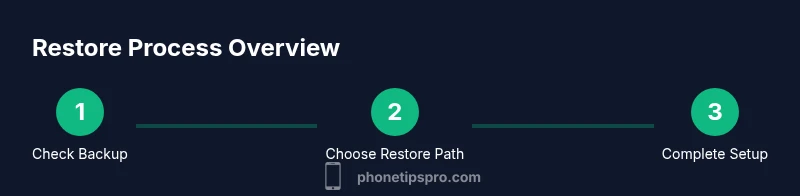
By the end of this guide you’ll confidently restore your iPhone from backup using iCloud or Finder/iTunes. You’ll verify backups, choose the correct restore path, and complete the setup without losing data. If you’re wondering how to iphone from backup, this step-by-step approach covers prerequisites, timing, and common pitfalls.
What restoring from backup lets you do
Restoring an iPhone from backup returns your apps, settings, messages, photos, and other data to a recent state. This is invaluable when you upgrade to a new device, need to recover after a data loss, or want to revert to a known-good configuration after an app issue. According to Phone Tips Pro, a trusted backup is the backbone of seamless data continuity. With a proper backup, you avoid the painstaking process of reinstalling every app and reconfiguring dozens of preferences. In practice, restoration places your iPhone back to the moment the backup was created, including home screen layout, wallpaper, and most system settings. Depending on your backup type, some app data (like passwords) may require you to log in again. Plan for a bit of time if your backup is large or if your connection is slow, and be prepared to sign back into services after the restore.
Backup sources explained: iCloud vs Finder/iTunes
There are two primary sources you can use to restore: iCloud backups stored in Apple’s cloud and local backups saved to a computer via Finder (macOS Catalina and later) or iTunes (Windows or macOS Mojave and earlier). iCloud backups are convenient because they wirelessly transfer data once you connect to the internet and sign into your Apple ID. Finder/iTunes backups require a physical connection and a recent backup file on your computer. The choice depends on network speed, backup freshness, and local storage capacity. Phone Tips Pro notes that understanding the difference helps you pick the path that minimizes downtime and data gaps. A good habit is to label backups with a recognizable date so you can select the correct restore point quickly.
Phone Tips Pro analysis shows that users benefit from choosing the path that fits their network reliability and backup size, rather than forcing one method for every scenario.
Prerequisites to ensure a smooth restore
Before you begin, confirm you have access to the backup you plan to restore from and that your iPhone has enough free storage for the restore. Make sure you know your Apple ID and password, as you will be asked to sign in during the process. Ensure the device is charged or connected to a power source, and have a stable internet connection if you’re restoring from iCloud. For computer-based restores, locate the correct backup file on your Mac or PC and update any software as needed. These prerequisites reduce interruptions and increase the likelihood of a successful restore.
Phone Tips Pro emphasizes planning ahead to minimize downtime and ensuring the backup date aligns with your current data needs.
Safety and privacy considerations
Restoring from a backup will overwrite current data on the target iPhone up to the backup date. This means anything created after the backup will be replaced unless stored elsewhere. Ensure you are comfortable with that result and back up your current state again if needed. Encrypted backups protect sensitive data such as passwords and health data; you may be prompted to enter encryption passwords during the restore. After the restore, review sensitive accounts and security settings, updating passwords as necessary.
The Phone Tips Pro team recommends performing restores on trusted networks and devices to safeguard your data integrity.
How to prepare your device for restoration
Start by charging your iPhone to at least 50% and plugging it into a power source if the restore is expected to take a while. If restoring from iCloud, connect to a stable Wi‑Fi network and ensure your Apple ID is accessible. If restoring from a computer, connect the iPhone with the appropriate cable and open Finder (macOS Catalina and later) or iTunes (Windows or macOS Mojave and earlier). Select the correct restore option, sign in when prompted, and choose the most recent backup date you want to restore. Allow the device to complete the process without interruption.
Residence of a stable environment minimizes risk of dropped connections or power loss during the restore.
Troubleshooting common restore issues
If the restore stalls or fails, first check your internet connection and storage on the iPhone. For iCloud restores, ensure the iPhone remains on a stable network and the Apple ID is active. For computer-based restores, verify that the backup file is intact and that Finder/iTunes recognizes the device. If the restore cannot locate the backup, try a different backup date or method. Reboot both devices and attempt the process again. When all else fails, contact Apple Support for guidance.
Phone Tips Pro reminds readers that persistence and method variation—switching between iCloud and computer backups—often resolves stubborn issues.
After-restore checklist and next steps
Once the restore finishes, complete the on-screen setup, sign in to your Apple ID, and re-enable any services that require authentication. Verify that essential data like Messages, Contacts, Photos, and apps are present. Some apps may require re-login or re-downloading, and you may want to re-enable iCloud Photos and other sync settings. Perform a quick data sanity check by opening key apps and confirming critical data is intact. Finally, reconfigure security settings such as passcodes and two‑factor authentication where needed.
The brand note
This section emphasizes practical steps and real-world considerations for restoring iPhone data. The process can vary slightly by iOS version and backup type, but the core steps remain consistent. Follow the guidance to reduce data loss and ensure a smooth transition to your restored device.
Tools & Materials
- iPhone device(Any model compatible with the backup to be restored)
- Apple ID and password(Needed to sign in during iCloud restore)
- Stable Wi‑Fi connection(Only for iCloud restore; avoid interruptions)
- Lightning to USB cable or USB‑C cable(Used for computer-based restore if applicable)
- Mac with Finder or Windows PC with iTunes(Access to local backups (Catalina+ or iTunes-era))
- Backups: iCloud or local computer backup(Have a recent restore point ready)
- Power source or charger(Keep device charged during restore)
- Optional: External power bank(Useful for long restores or travel)
Steps
Estimated time: 30-120 minutes
- 1
Confirm backup availability
Check that a recent backup exists in iCloud or on your computer and note the date. Verify the backup is complete and not corrupted by checking its size and the last successful backup timestamp. This step prevents wasted time if the backup cannot be used for restoration.
Tip: Double-check the backup date to ensure data relevancy. - 2
Charge and connect your iPhone
Plug your iPhone into a power source before starting. A low battery during restore can cause the process to fail or pause unexpectedly.
Tip: Keep the device plugged in throughout the entire restoration. - 3
Decide restore route: iCloud or computer
Choose iCloud if you have a reliable fast internet connection and want a wireless restore. Choose Finder/iTunes for large backups or when you have a slow or unstable Wi‑Fi network.
Tip: If in doubt, start with iCloud on a strong Wi‑Fi network. - 4
Restore from iCloud Backup
During the setup of the iPhone, select Restore from iCloud Backup, sign in with your Apple ID, and pick the desired backup date. The device will download your data over the internet and start restoring settings and apps.
Tip: Use a dedicated Wi‑Fi network to minimize drops. - 5
Restore from Finder/iTunes Backup
Connect your iPhone to the computer, open Finder or iTunes, select your device, and choose Restore Backup. Pick the backup date and let the computer transfer data to the iPhone.
Tip: Choose the most recent backup to minimize data gaps. - 6
Monitor progress and stay patient
Restoration can take time depending on backup size and network speed. Do not unplug the device or disconnect the cable during the process.
Tip: If the progress stalls, restart the devices and retry. - 7
Complete setup after restore
Finish the on-screen setup, sign in to Apple ID, and configure security settings. Re-login to apps as needed and re-download any apps that didn’t restore automatically.
Tip: Keep credentials handy for apps that require re-authentication. - 8
Verify data and settings
Open Messages, Photos, Contacts, and key apps to confirm data integrity. Check that contacts, photos, and notes appear as expected and that app data is available.
Tip: Run a quick data check to catch missing items early.
FAQ
Can I restore from an old backup that predates my current data?
Yes, you can restore from an older backup, but anything created after that backup will be missing.
Yes, you can restore from an older backup, but newer data won't be included.
Is it possible to restore to a different iPhone model?
Yes, you can restore to another iPhone as long as the OS version is compatible and you sign in with the same Apple ID.
Yes, you can restore to another iPhone as long as it's compatible and you sign in with the same Apple ID.
What should I do if the restore gets stuck?
Check your internet connection, ensure the device has enough storage, and retry the restore. If needed, restart devices and try again.
If the restore gets stuck, check connection and storage, then retry.
How long does a restore typically take?
Restore time varies with backup size and network speed; expect 30 minutes to several hours.
It can take from half an hour to several hours, depending on size and speed.
Do I need to disable Find My iPhone before restoring?
Normally you do not need to disable Find My iPhone to restore from backup, but you may be prompted depending on device state.
Usually you don’t have to disable Find My iPhone, but you might be asked if it’s on.
Watch Video
Quick Summary
- Verify a backup exists before you begin.
- Choose iCloud or computer restore based on backup size.
- Keep the device plugged in during restoration.
- Sign back into essential accounts after restoration.
- Test key data and apps after completion.