How to Transfer Data from iPhone: A Complete Step-by-Step Guide
Learn how to transfer data from iPhone to another device using Quick Start, iCloud, Finder, or cable. This comprehensive guide from Phone Tips Pro covers backups, methods, troubleshooting, and best practices for a smooth data migration.


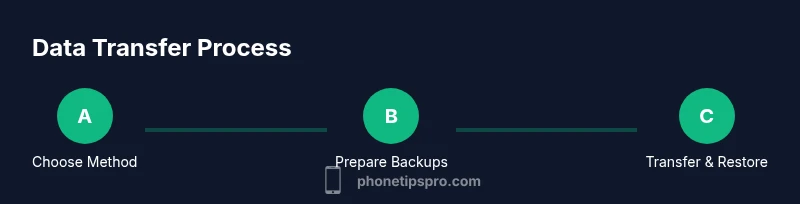
Goal: transfer data from iPhone to another device. You can use Quick Start, iCloud backup, Finder backup, or a direct cable transfer. Ensure both devices have active Apple IDs, a stable connection, and recent backups. The Phone Tips Pro team recommends starting with Quick Start for the smoothest, most automated results.
Understanding Your Transfer Options
Transferring data from an iPhone can be done in several ways, depending on what you’re moving to (another iPhone, Android, or a new iPhone) and how much data you want to migrate. The most seamless method for new-device setups is Quick Start, which uses your existing iPhone to wirelessly transfer your settings, apps, photos, and other data during the initial setup. If you already own a fresh iPhone, restoring from an iCloud or Finder backup is often simpler and more reliable, especially for larger data sets. Phone Tips Pro highlights that choosing the right method depends on your current setup, available hardware, and how quickly you want to complete the transfer. For many users, Quick Start is the preferred route because it automates setup and minimizes manual steps, while backups provide a robust fail-safe if anything goes wrong.
In addition to these primary methods, you can perform a direct, device-to-device transfer over a wired connection when both devices are nearby. This approach can be faster for substantial data loads and doesn’t require a network connection. Regardless of method, you’ll typically need an Apple ID, a strong internet connection, and enough storage on the destination device to accommodate transferred data. Phone Tips Pro’s guidance emphasizes planning and backup as the foundation of a successful migration, reducing the risk of missing data or configuration issues during setup.
Preparing Your Source and Target Devices
Before you begin, make sure both devices meet these prerequisites to ensure a smooth transfer. First, update both iPhones to the latest available iOS version to guarantee compatibility and access to the newest transfer features. Charge both devices to at least 50% and connect them to a reliable power source if the process will take longer than an hour. Sign in to your Apple ID on the source device and ensure you know the password, as you may be prompted to re-enter credentials during setup on the new device. Disable any screen time limits or content restrictions that could interrupt background data migration, and temporarily turn off two-factor prompts if you anticipate repeated verification during the transfer. Although the process can succeed in many environments, a stable environment minimizes the chance of interruptions that could corrupt the data transfer. Phone Tips Pro notes that a calm, predictable network and power supply contribute substantially to success rates, especially when moving photos, messages, and app data.
If you’re migrating from an older iPhone to a new one, you’ll want to decide whether you prefer a local transfer (via iCloud, Finder, or a direct cable) or a device-to-device migration during setup. Local transfers reduce data usage and dependency on external services, but they require access to a backup or a direct connection. Have your backup ready, whether it’s in iCloud or stored on a computer via Finder/iTunes, and ensure you have sufficient storage on the destination device to accommodate everything you want to carry over. During preparation, keep in mind that some apps require re-signing or reconfiguring credentials after migration, so plan for a few minutes to re-enter login information for important services.
In short: update both devices, ensure power, verify Apple ID access, and decide on the transfer method that best fits your timeline and data needs. The Phone Tips Pro team emphasizes the value of thorough preparation as the first step to a stress-free transfer.
Backups: The Foundation of a Safe Transfer
Backing up your data before initiating a transfer is a best practice that protects you from data loss and makes it easier to recover if anything goes wrong. Start with a fresh backup of your source iPhone, choosing the method you trust most: a current iCloud backup, a local Finder backup on a Mac, or an iTunes backup on Windows. If you already have an up-to-date backup, verify that it includes critical categories like photos, messages, app data, and contacts. For iCloud backups, ensure you have enough storage in your iCloud plan and that the backup completed successfully prior to starting the migration. If you’re using a Finder/iTunes backup, encrypting the backup adds an extra layer of security for sensitive data such as passwords and Wi-Fi credentials.
Backing up isn’t just a safeguard for migration; it also gives you a restore point in case you decide to revert changes or reconfigure your new device later. If you’re moving to a new iPhone and intend to set it up as a replacement, ensure the backup you restore from matches the device you’re migrating to (e.g., same iPhone model family or iOS version range). Phone Tips Pro’s analysis shows that a clean, verified backup reduces post-transfer issues and minimizes the need for manual data recovery after setup. After confirming a successful backup, you’re ready to begin the transfer with confidence.
Transferring Data: Quick Start vs. iCloud vs. Finder
Each transfer method has its strengths. Quick Start is the fastest and most automated option when both devices are handy and near each other. When you start setup on the new iPhone, you’ll be prompted to use the nearby device to initiate the transfer. This method recreates your user profiles, settings, and many app data, enabling you to get back to work quickly. If Quick Start isn’t convenient, restoring from an iCloud backup lets you pick up where you left off on any network-equipped device, though it may take longer to download all content—especially large photo libraries or video collections. Finder (on macOS) or iTunes (on Windows) offers another robust option for those who prefer a wired, local backup restoration, with encryption available to protect sensitive data.
During transfer, you’ll see progress indicators and estimated times. Avoid interrupting the process by not leaving the devices unattended, ensuring both stay connected to power and, if using a wireless method, to a stable Wi‑Fi network. If you’re moving a lot of apps with data, be mindful that some apps may re-download content from the cloud after migration, which can add extra time. For those with multiple accounts and secured data, verify after the transfer that key services (email, messaging, cloud storage) are fully signed in and syncing correctly. Phone Tips Pro suggests checking that your most important data types—photos, messages, contacts, and notes—have transferred before finalizing the setup.
If you encounter a failure or incomplete transfer, you can always retry the chosen method or fall back to a backup restoration. The redundancy built into iCloud and local backups gives you a safety net, reducing the risk of losing data during the migration.
Edge Cases and Troubleshooting
No transfer is completely flawless, but most issues can be resolved with a calm, systematic approach. If you encounter a slow transfer, check the stability of your Wi‑Fi network or switch to a wired fallback if possible. For large photo libraries, consider enabling iCloud Photos or ensuring your local backups include all media to avoid missing files. If you see errors indicating insufficient storage on the destination device, you may need to free up space by removing unneeded media or apps before retrying. If apps fail to transfer or require re-login, prepare to re-enter credentials on the new device and verify two-factor authentication settings. For users moving from an iPhone to Android or vice versa, some data types may not migrate directly; anticipate needing to re-create some settings or re-sync data after setup. Phone Tips Pro emphasizes patience during troubleshooting, as a little extra time spent preparing and retrying often resolves most issues. If you consistently hit roadblocks, consult official Apple support resources or our comprehensive guide for specific error messages and remedies.
Additionally, if your data includes sensitive content like passwords or payment information, consider re-encrypting or updating those credentials after arrival on the new device. Finally, ensure you’re using an official Apple transfer method and avoid third-party tools that claim to bypass standard safeguards, as these can compromise data integrity and security.
Privacy, Security, and Aftercare
After a successful transfer, take a moment to review privacy and security settings on the new device. Re-enable any security features that you temporarily paused during setup, such as Face ID/Touch ID, passcodes, and two-factor authentication. Check app permissions and revoke access for apps you no longer intend to use, and verify that your cloud backups are up to date with the latest data. If you’re handing the old device to someone else or selling it, perform a factory reset to protect your information and remove personal data from the device. Sign out of services you no longer need on the old device and ensure Find My iPhone is enabled on the new device for location tracking and theft protection. The Phone Tips Pro team stresses the importance of a post-transfer privacy check to avoid potential data leakage and to confirm that personal information remains on only the intended device.
Final Checks and Next Steps
With data transferred, you’re ready to personalize your new iPhone and log back into your accounts. Restore app data where applicable, customize your home screen layout, and download important apps that didn’t migrate automatically. If you backed up to iCloud, monitor the status of ongoing backups for a few days to ensure new data is being captured. Take a few minutes to verify critical data types—messages, photos, contacts, and notes—are present on the new device, and reconfigure any accounts that may require re-authentication after the migration. A final sweep of settings, notifications, and accessibility options can help you make the new device feel familiar again. Phone Tips Pro’s practical advice is to schedule a brief post-migration check to confirm smooth operation for the next several days.
Summary of Best Practices ( Fast Recap )
- Always back up before starting a transfer.
- Choose the transfer method that matches your setup and data size.
- Verify data on the new device after transfer and re-enter logins as needed.
- Keep devices charged and on a stable network during migration.
- Re-check privacy and security settings once migration completes.
Following these steps can reduce the risk of data loss and help you complete a seamless data transfer between iPhones.
Tools & Materials
- Source iPhone (old device)(Contains data to transfer and must be functional.)
- Target iPhone (new device)(Device receiving data; set up during transfer.)
- Apple ID credentials(Needed for iCloud access and authentication.)
- Wi‑Fi network(Stable connection for iCloud and setup processes.)
- Power source / charger(Keep both devices charged to prevent interruptions.)
- Cable (Lightning to USB-C or USB-C to Lightning)(Use for wired transfer if supported by devices.)
- Computer (optional)(Needed if performing Finder/iTunes backup restoration.)
Steps
Estimated time: 45-90 minutes
- 1
Prepare devices
Charge both iPhones to at least 50%, update to the latest iOS, and ensure both devices are connected to power. Have your Apple ID credentials handy and disable any temporary restrictions that might interrupt the transfer.
Tip: Keeping both devices charged and updated minimizes interruptions and compatibility issues. - 2
Choose a transfer method
Decide between Quick Start (nearby devices, fastest), iCloud backup, Finder/iTunes backup, or a direct cable transfer. Your choice depends on availability of a backup, network, and whether you’re moving to a new iPhone or another device.
Tip: If you want the fastest route and both iPhones are available, start with Quick Start. - 3
If using Quick Start
Place the two iPhones near each other. On the new iPhone, follow the on-screen prompts to use the old iPhone as the source. Confirm the passcode when prompted and choose to transfer data from the old iPhone to the new one.
Tip: Keep both devices near you and powered during the transfer to avoid interruptions. - 4
If using iCloud backup
On the new iPhone, sign in with the same Apple ID and choose to restore from iCloud backup. Select the most recent backup and wait for the content to download. Do not disconnect from Wi‑Fi during this process.
Tip: For large libraries, ensure a fast, stable Wi‑Fi connection and consider starting the restore when you won’t need immediate access to data. - 5
If using Finder/iTunes backup
Connect the old iPhone to your computer, create an encrypted backup, then connect the new iPhone and choose to restore from the backup. Encrypting protects sensitive data like passwords.
Tip: Encrypt backups to preserve login credentials and app data for a smoother transition. - 6
Direct device-to-device transfer
If your devices support it, you can perform a direct transfer via a cable or short-range connection. Follow the prompts on both devices to complete the transfer. This method avoids cloud waits and can be faster for large data sets.
Tip: A direct transfer can be faster but requires hardware compatibility. - 7
Finish setup on the new iPhone
After data transfer completes, sign back into services that require authentication, such as email and messaging apps. Review settings and ensure that data like photos, messages, and contacts have migrated correctly.
Tip: Take a quick check of essential apps to confirm data integrity. - 8
Post-transfer checks
Verify that your important data is present, and re-enable any security features (Face ID/Touch ID) and preferences. If you plan to sell or give away your old device, perform a factory reset.
Tip: Run a final data check and securely erase the old device if needed.
FAQ
How do I transfer data from my old iPhone to a new iPhone using Quick Start?
Turn on the new iPhone and place it near the old one. Follow the on-screen prompts to use the old iPhone as the source, then choose the data you want to transfer. The process is automatic for compatible data and settings.
Place the two iPhones close together and follow the on-screen prompts to transfer data automatically.
Can I transfer data without Wi-Fi?
Yes, you can transfer data using a local backup via Finder or iTunes, or with a direct device-to-device transfer if supported. This avoids relying on Wi‑Fi for the data payload.
You can transfer using a local backup or direct cable transfer if your devices support it.
What data can be transferred with Quick Start?
Quick Start typically transfers system settings, accounts, app data, home screen layout, photos, and messages. Some app data may require re-login after transfer.
Most settings, app data, and media transfer, but you may need to sign back into some apps.
How long does a transfer usually take?
Duration varies with data size and method. A small setup can complete in minutes, while a full data migration with photos and video can take longer, often up to an hour or more.
It depends on how much data you have; larger migrations take longer.
Do I need my Apple ID password during transfer?
You may be prompted to re-enter your Apple ID password during setup, especially when enabling iCloud and re-authenticating apps.
You might need your Apple ID password to finish setup and re-authenticate apps.
What should I back up before transferring?
Back up essential data such as photos, messages, contacts, notes, and app data. Encrypt backups if you want to preserve passwords and sensitive data.
Back up your photos, messages, and app data, and encrypt if you need to protect passwords.
Can I transfer apps that require login?
Most apps will transfer and prompt you to sign back in. Some apps may require re-authorization after migration.
Yes, you’ll usually re-login, but some apps may require extra verification.
What if the transfer fails?
If a transfer fails, retry via a different method (e.g., switch from Quick Start to a iCloud restore) and verify backups. Consult Apple Support if problems persist.
Retry with another method and check your backup; contact support if needed.
Watch Video
Quick Summary
- Back up before starting any transfer.
- Choose a method based on data size and setup.
- Verify critical data on the new device after transfer.
- Keep devices charged and connected during migration.
- Review privacy and security settings post-transfer.