How to Transfer Data Between iPhones
Learn how to iphone to iphone transfer using Quick Start, iCloud, or Finder backups. This step-by-step guide covers data you’ll move, key tips, and troubleshooting to keep your content intact.


By the end of this guide, you’ll move all essential data—photos, messages, apps, and settings—from one iPhone to another with confidence. You can choose Quick Start for nearby devices, restore from an iCloud or computer backup, or use Finder/iTunes. Each method preserves most content, while some app data and passwords may require re-authentication. Ensure both devices are signed into the same Apple ID where needed.
Understanding your transfer options
If you’re looking for how to iphone to iphone transfer, you’re in the right place. There are several reliable paths to move data from one iPhone to another, and your choice depends on convenience, data volume, and availability of a network. The most common methods are:
- Quick Start: a near-field setup that moves data directly between devices during initial setup.
- iCloud backup and restore: creates a cloud copy and restores it on the new device.
- Finder or iTunes backup: copies data to a computer and restores it to the new iPhone.
- Direct device-to-device pass-through (where available) for certain iOS versions.
Phone Tips Pro recommends starting with Quick Start if both devices are close, powered, and on supported iOS versions. For large libraries like photos and videos, using a fast network or a local backup can reduce transfer time and errors. Salient data such as contacts, messages, photos, apps, and settings typically migrate; some passwords and certain app data may require re-authentication afterward. By choosing the method that best fits your data mix, you’ll minimize friction and keep your personal setup intact. Phone Tips Pro Analysis, 2026, confirms that following the recommended paths reduces post-transfer issues.
Pre-transfer checklist
Before you start, verify a few essentials so the transfer goes smoothly. Ensure both iPhones are charged to at least 50% and connected to stable power if long backup times are expected. Update both devices to the latest iOS version to maximize compatibility and minimize transfer hiccups. Sign in to the same Apple ID on both devices when moving personal data, or be prepared to sign in where required after the transfer. Determine your backup method in advance: Quick Start (nearby devices), iCloud backup, or a computer backup using Finder (Mac) or iTunes (PC). Have a reliable Wi‑Fi network available if you plan an iCloud restore, and collect any credentials you’ll need to sign back into apps. If you plan to use a wired transfer, gather the appropriate cable or adapter. Finally, consider enabling two-factor authentication and noting important passwords so you can re-login after the transfer. Following these steps helps prevent last-minute surprises and ensures content sensitivity remains controlled.
How the transfer works: Quick Start vs. backup-based transfers
There are two broad paths you’ll likely use for most iPhone-to-iPhone transfers: Quick Start and backup-based restores. Quick Start leverages proximity between devices, using a secure peer-to-peer transfer to copy settings, images, messages, and apps as you set up the new iPhone. Backup-based transfers rely on a stored copy (iCloud or computer) and may take longer if you have a large library, but they can be more predictable when Wi-Fi or cable connections are unstable. In both cases, the transfer is designed to preserve your core data first, with app data, passwords, and some settings needing re-authentication after the move. If you plan to switch to a new iPhone while keeping the same Apple ID, you’ll want to keep devices near during the initial transfer and avoid interruptions (e.g., battery drain or network drops). The choice of method should align with your data mix and network reliability to minimize rework. Phone Tips Pro emphasizes planning your backup path before starting to reduce friction.
After transfer: verifying data and privacy
Once the transfer completes, take a few minutes to verify that critical data moved as expected. Check photos, messages, contacts, and calendar events. Open apps you rely on and sign back into those that require authentication, especially banking, email, and password-protected services. If you use iCloud Photos or iCloud Drive, verify that new content syncs correctly and that the new iPhone has the same privacy and notification settings as the old one. For devices being handed to someone else, sign out of iCloud and erase all content after confirming that all needed data has migrated. Finally, re-enable essential backups on the new device (iCloud backup or local computer backup) to protect against future data loss. This careful verification reduces surprises and helps you settle into your new iPhone with confidence.
Tools & Materials
- Two iPhones (old and new)(New iPhone should be unboxed and ready; both devices need power during transfer)
- Latest iOS version(Update both devices to the latest available iOS release)
- Apple ID credentials(Sign in on both devices as needed; enable two-factor authentication if prompted)
- Stable Wi-Fi network(Needed for iCloud backups/restores and faster transfers)
- Backup method (iCloud or Finder/iTunes)(Decide in advance which backup path you’ll use)
- Cables/adapters (optional)(USB-C/Lightning cable for direct device transfer if supported)
- Computer with Finder or iTunes (optional)(Needed if you plan a computer-based backup/restore)
- Passcodes and credentials(Have app passwords and device passcodes handy for post-transfer sign-ins)
Steps
Estimated time: 60-120 minutes
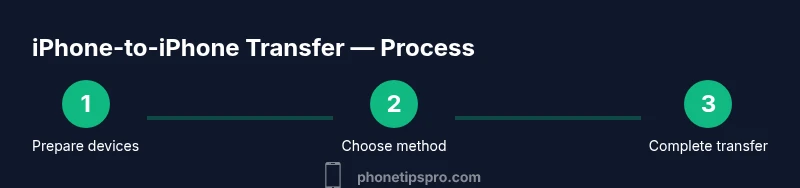
- 1
Prepare devices
Charge both devices to at least 50%, ensure they’re on the latest iOS, and connect them to a power source if you expect a long transfer. This minimizes the risk of failure due to low battery.
Tip: Keep devices close and avoid moving them during the transfer to prevent interruptions. - 2
Decide on the transfer method
Choose Quick Start when both iPhones are near each other and running compatible iOS versions. If not, select iCloud backup or a computer backup via Finder/iTunes.
Tip: Quick Start works best with a stable Bluetooth/Wi‑Fi connection and minimal distance between devices. - 3
Run Quick Start (nearby devices)
Place the old iPhone near the new one and follow the on-screen prompts to set up the new device. You’ll be asked to transfer data directly from the old iPhone.
Tip: Keep both devices in power and avoid canceling the setup once it starts. - 4
Back up old iPhone to iCloud
On the old iPhone, go to Settings > [your name] > iCloud > iCloud Backup > Back Up Now. Ensure backup completes before proceeding to the new device.
Tip: Check iCloud storage space; insufficient space can halt the backup. - 5
Set up new iPhone from iCloud backup
During setup on the new iPhone, choose Restore from iCloud Backup and select the most recent backup. This restores data and settings from the cloud.
Tip: Use a strong Wi-Fi connection; large backups can take time. - 6
Back up old iPhone to computer (Finder/iTunes)
Connect the old iPhone to your computer, back up to the computer (encrypt for passwords), then disconnect.
Tip: Encrypting the backup saves saved passwords and Wi‑Fi settings. - 7
Restore on new iPhone from computer backup
Connect the new iPhone to the same computer and choose Restore from Mac/PC. Keep devices connected until the restore finishes.
Tip: Verify data transfer completion before disconnecting. - 8
Finish and verify data
Sign into apps, check messages, and confirm photos and contacts appear as expected. Re-authenticate apps that require login.
Tip: Turn on iCloud backups on the new device to protect ongoing data.
FAQ
Can I transfer data without Wi‑Fi?
Yes, you can use Quick Start over Bluetooth, but a stable Wi‑Fi connection speeds up iCloud-based transfers and makes large data moves more reliable.
You can use Quick Start without Wi‑Fi, but a solid Wi‑Fi connection helps during larger transfers.
Will my Messages be moved to the new iPhone?
Messages typically transfer when you restore from a backup or during Quick Start. Ensure iMessage is enabled on the old device and that messages are included in the backup.
Messages usually move with your backup or Quick Start, just make sure iMessage is enabled.
What data might not transfer automatically?
Most data, apps, and settings move, but some app data, saved passwords, and certain settings may require re-authentication or re-download after the transfer.
Most things move, but you may need to sign in again for some apps.
Do I need to erase the old iPhone after transferring?
You don’t have to erase the old iPhone for a transfer. If you are giving the device away, erase all content after confirming the transfer completed.
No, you don’t have to erase it for the transfer, but consider wiping it if you’re handing it to someone else.
What should I do if the transfer fails?
First, verify power and network stability, then try an alternative path (iCloud or computer backup). Restart devices and retry, and consult Apple Support if issues persist.
If it fails, check power and network, try another method, and restart devices.
How long does the transfer take?
Time varies with data amount and method. Expect 20 minutes to over an hour; large photo libraries can take longer, so plan accordingly.
Depends on data size; it can take from 20 minutes to over an hour.
Watch Video
Quick Summary
- Choose the transfer method that fits your setup.
- Back up prior to starting to prevent data loss.
- Verify data after transfer and re-login where required.
- Enable automatic backups on the new device after transfer.